
12 Settings to be Made by Those Who Say 'My Computer is Slow'
Our computers, which are indispensable, may sometimes not perform as well as before. This is a problem caused by the user or the system...

Our computers, which are indispensable, may sometimes not perform as well as before. This is a problem caused by the user or the system...
Our computers, which are indispensable, may sometimes not perform as well as before. This may be a user or system problem. For those who worry about their computer slowing down There are a few simple methods they can apply. Thanks to these methods my computer has slowed down You can easily get rid of the problem.
My computer has slowed down or users who say it is not the same as before, before applying the methods we will explain. My computer has slowed down, which may cause the problem They should take the changes into consideration and follow a path accordingly. We explained different methods by which users who say their computer is slow can easily speed up their computers.
If you say your computer is slow, here's what you need to do:
- Do not put your computer into sleep mode, turn it off
- Consult Task Manager
- Close programs running in the background
- Reduce startup programs
- Stop antivirus programs
- Check your internet browser
- Stop automatic syncing
- Free up storage space
- Check for updates
- Scan for viruses
- Check your hardware
- Delete everything and start over
Turn off your computer:
If you say your computer is slow, the first method you should try is the simplest one, namely turn it off and on again. The restart option may not always work, so you should shut down the computer completely.
After turning off the computer, do not use it for a while, if possible for a few hours. During this period due to computer overheating If there is a slowdown, the computer will cool down. At the same time, the computer will run faster as it will clear the memory when restarting.
Consult Task Manager:

Task Manager, which you can easily access by right-clicking on the Taskbar, is available on your computer. programs running will show you. You can get more accurate results by waiting a few seconds after turning it on.
Programs you see running in Task Manager The more the number, The higher your chances of saying "my computer has slowed down". From here, you can prevent your computer from running slowly by closing open programs that you do not need.
Close programs running in the background:
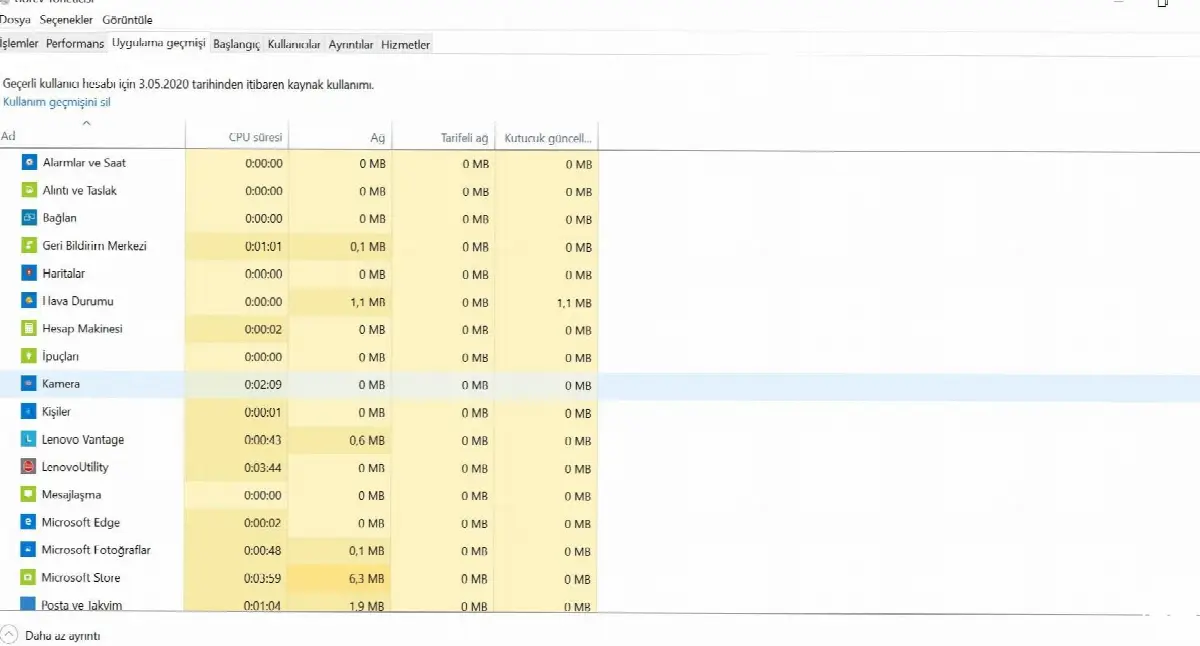
There will be programs running in the background even if you don't notice or actively use them. Which are these programs? via Task Manager you can reach. Programs running in the background not only slow down your computer, they also drain your battery life.
Once you open communication programs such as Slack, Skype, Bluetooth devices, VPN programs, and antivirus programs, continuing to work in the background They can cause the computer to slow down.
Reduce startup programs:
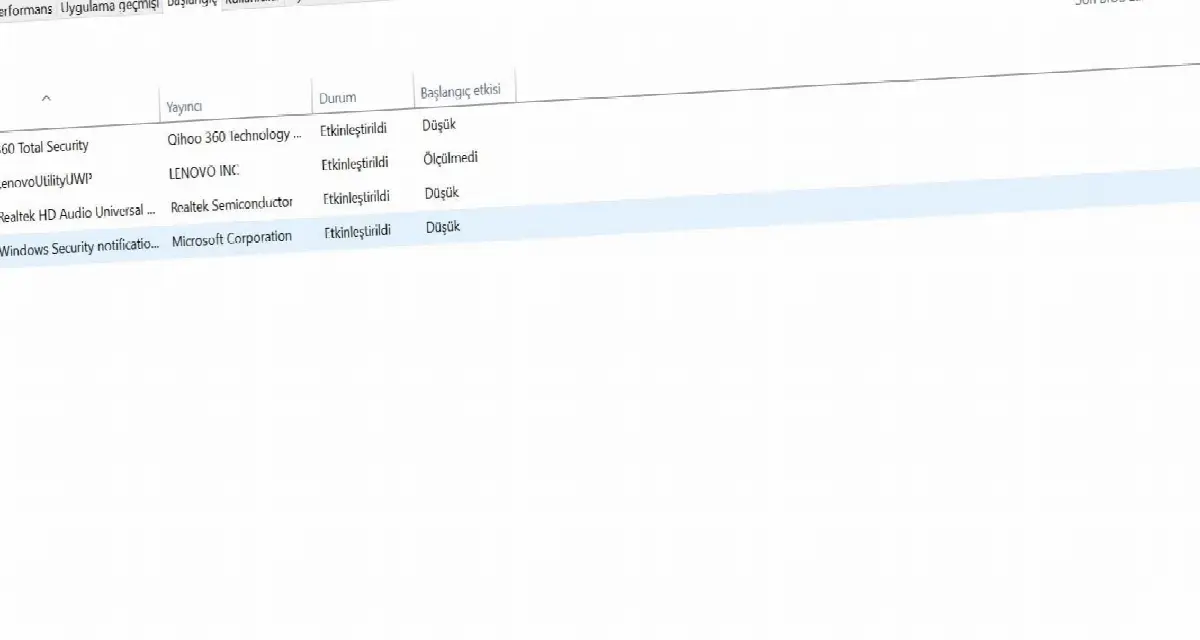
In addition to programs running in the background, your computer may also have many startup programs. Startup programs open with your computer and They start to work actively. This active working state will of course cause you to say that your computer has slowed down.
You can access startup programs through the Task Manager, just like background programs. The fewer startup programs there are, the better your computer will be. the higher its performance will be. This process will also solve the problem of my computer starting slowly.
Stop antivirus programs:
Antivirus programs are constantly working in the background to protect your computer from Trojan software or viruses. However, this may cause you to think that your computer has slowed down. To avoid this situation even if not completely You should stop your antivirus program from time to time.
You can stop your antivirus program when you are not downloading any files or programs or when you are browsing a reliable website. likewise when you are not actively using Or stopping the antivirus program while watching a video will help you prevent your computer from slowing down.
Check your internet browser:
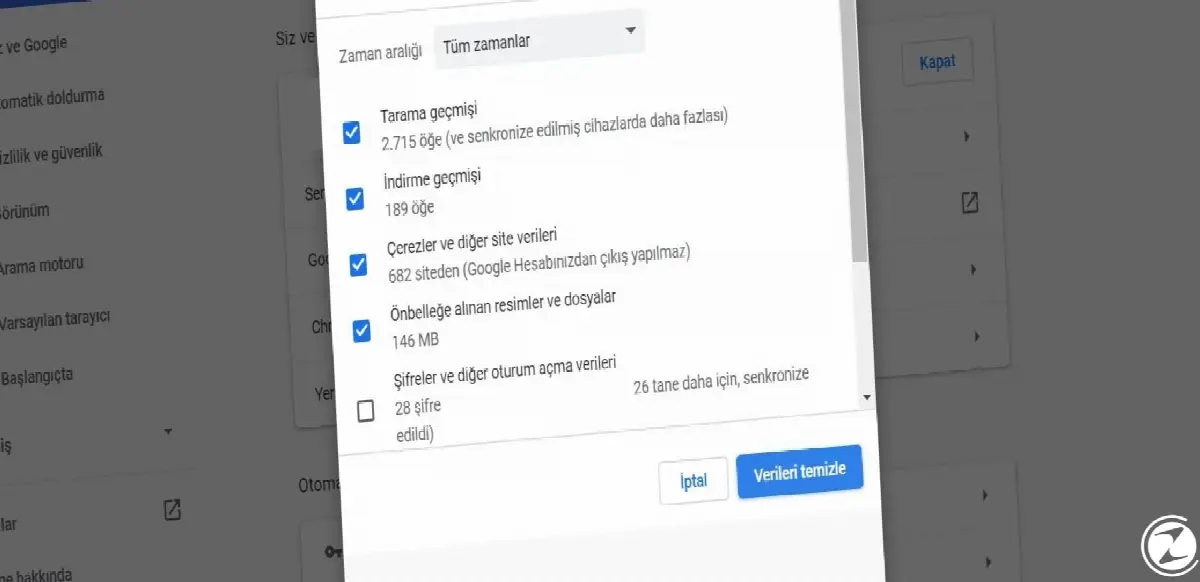
While using your internet browser, you may unknowingly encounter many new window and new tab you can open it. This will definitely cause you to say, "My computer is running slow." You can see this situation by opening your internet browser in Task Manager.
One of the quickest answers to the question "My computer has slowed down, how can I speed it up?" is while using your internet browser. minimal tabs and windows will be to use. At the same time, clearing your browser history regularly will speed up your computer and enable you to get faster results when connecting to the internet.
Stop automatic synchronization:
Such as Microsoft One, Google Drive, Yandex Disk to cloud storage services You may have left automatic synchronization turned on to make your work easier while using your programs. Automatic synchronization is one of the most prominent reasons why my computer has slowed down.
To avoid such a slowdown problem, turn off automatic synchronization. At regular intervals, manual backup You can continue the process. Turning off automatic syncs will speed up your computer noticeably.
Free up storage space:
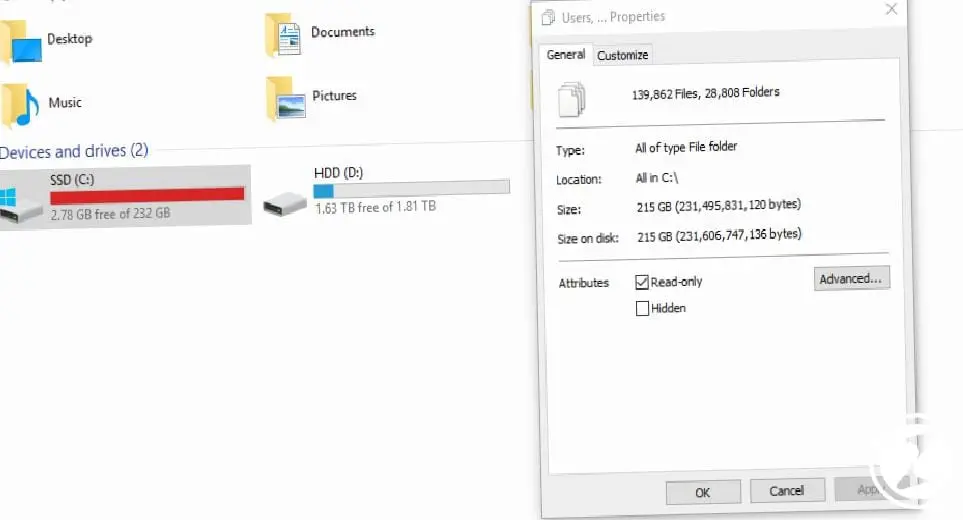
The storage space of the computer's hard drive or SSD card is limited. occupancy rate As we approach this limit The computer may slow down. At this point, you can apply expensive solutions such as buying a new hard drive or a new SSD card.
Instead of buying new storage cards, you can use cloud storage services. After transferring your existing files to cloud systems you can delete it from your computer and you can free up storage space. This is one of the most effective computer acceleration methods.
Check for updates:

Check if there is a new update for your Windows operating system or the hardware you use. If if there is a new update and if it is suitable for your system, be sure to perform the update.
Updates for operating systems and hardware such as Windows 7, Windows 8, Windows 10, macOS, Linux will solve existing problems or will offer new improvements. You can look here for Windows 10 acceleration methods.
Scan for viruses:
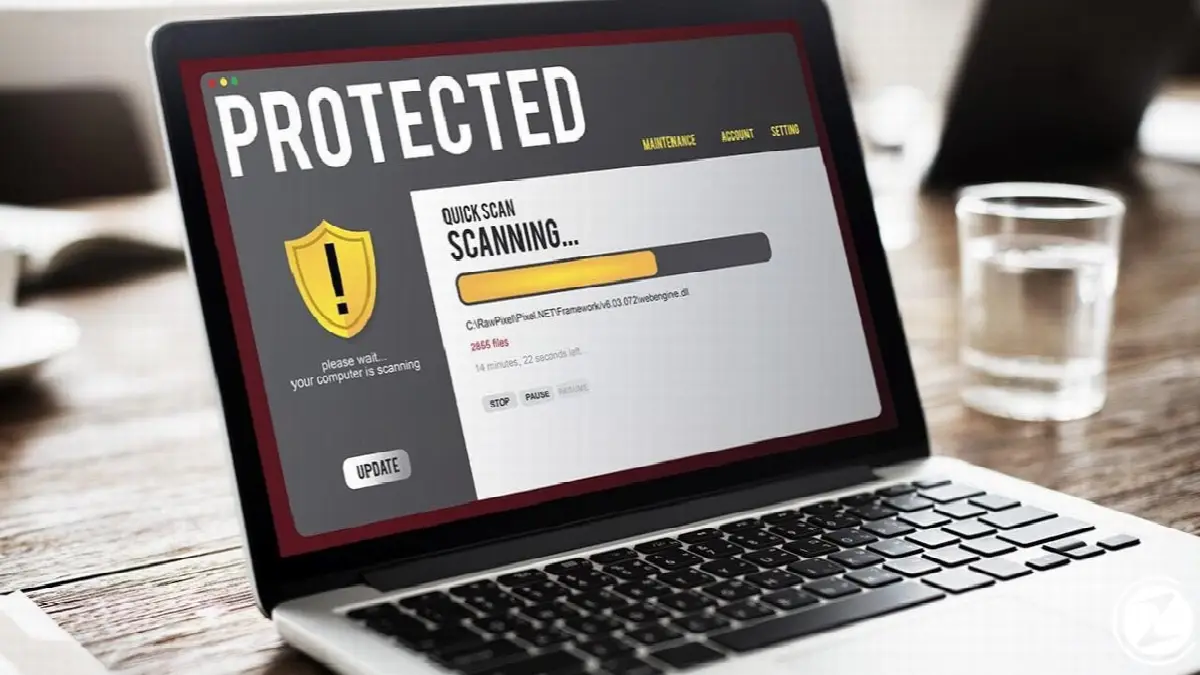
A virus or Trojan horse software may have entered your computer without you realizing it. Deeply and insidiously Running malware can slow down your computer. A detailed, complete virus scan will eliminate this type of malware on your computer and speed up your computer.
In addition to a detailed virus scan, you can also use system optimization programs. System optimization programs It will scan your computer, offer speed-up methods, and reveal cookies and unnecessary files that slow down the system.
Check your hardware:
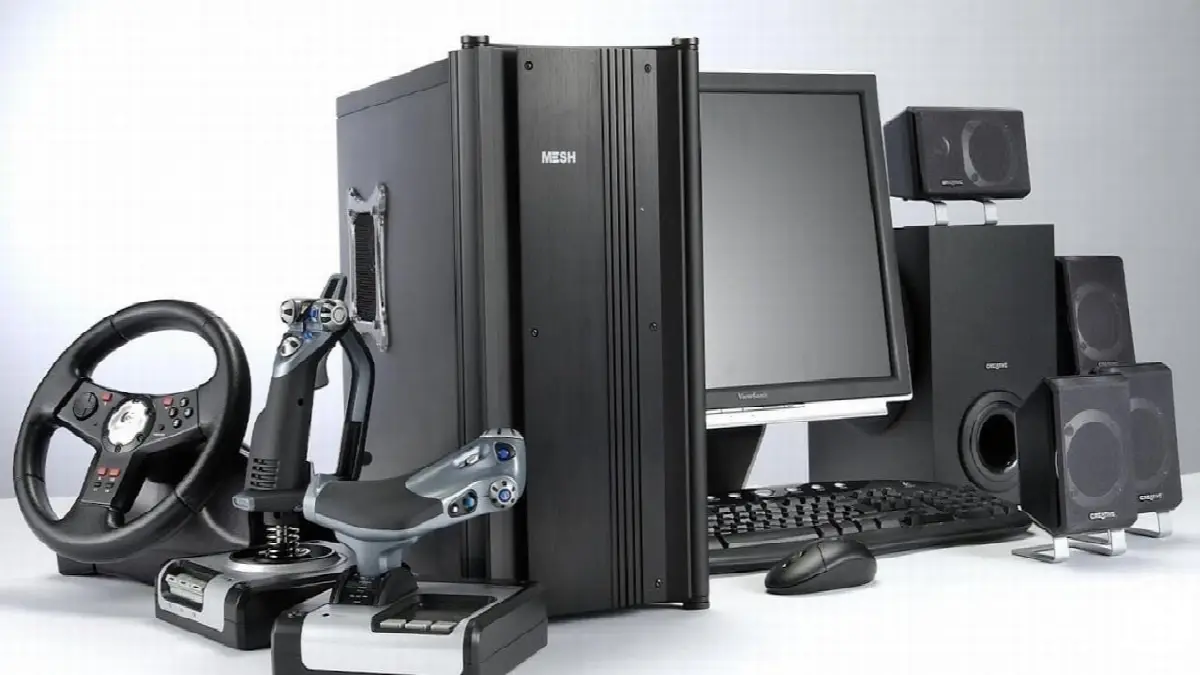
One of the biggest factors causing the "My computer has slowed down" problem is computer hardware. Especially recently added hardware It may conflict with existing hardware on the computer, slowing down the computer and causing performance degradation.
If you installed new hardware before your computer slowed down, Try uninstalling it from the computer. By running the existing hardware in order, you can see which hardware is causing the slowdown problem. Also make sure the hardware drivers are up to date.
Delete everything and start over:

If your computer is not speeding up no matter what you do, you can make a radical decision and By deleting Windows You can reinstall your computer. When you delete and reinstall everything on the computer, including Windows, you will also have a chance to see the software that is causing the slowdown problem.
We have explained some basic methods that users who say their computer is slow can easily apply. All the methods we explained Even though you practice If your computer still does not speed up, you should consider expensive methods such as buying a new SSD card, buying RAM or even buying a new computer.
Every business is unique. Let’s explore how we can tailor these ideas to your own digital project.


