
How to Install Windows 10 Updates?
When it comes to getting Windows 10 updates, the most debated question in the PC world is whether these updates should be received or not.

When it comes to getting Windows 10 updates, the most debated question in the PC world is whether these updates should be received or not.
Work Windows 10 updates When it comes to purchasing, one of the most discussed topics in the PC world is whether these updates should be purchased or not. Although in some cases Windows updates may cause a few problems on our computers, these updates are generally useful.
Keeping your Windows 10 operating system up to date is becoming an important issue, especially with the security patches and solutions to bugs of previous versions. Alright How to update Windows 10? and something you don't like How to rollback Windows 10 update? Let's look at the answers to these questions step by step.
How to update Windows 10?
- Step #1: From the start menu or search bar "Settings" Open the application.
- Step #2: In the Settings app “Update and Security” Open the menu.
- Step #3: From the left bar “Windows Update” Enter the section.
- Step #4: “Check for updates” Press the button.
- Step #5: If there is an update that has not been installed, you can install it in this step and you are done.
Step #1: From the start menu or search bar "Settings" Open the application.

In some versions of Windows 10, the “Settings” application can be found directly in the Start menu. If this is not the case on your computer, you can open the application by typing Settings in the search bar.
Step #2: In the Settings app “Update and Security” Open the menu.

We enter the "Update and Security" menu, where we can both make updates, adjust the update frequency, and remove updates.
Step #3: From the left bar “Windows Update” Enter the section.

We come to the Windows Update section to check for Windows 10 updates and to check if there is an update that we missed.
Step #4: “Check for updates” Press the button.
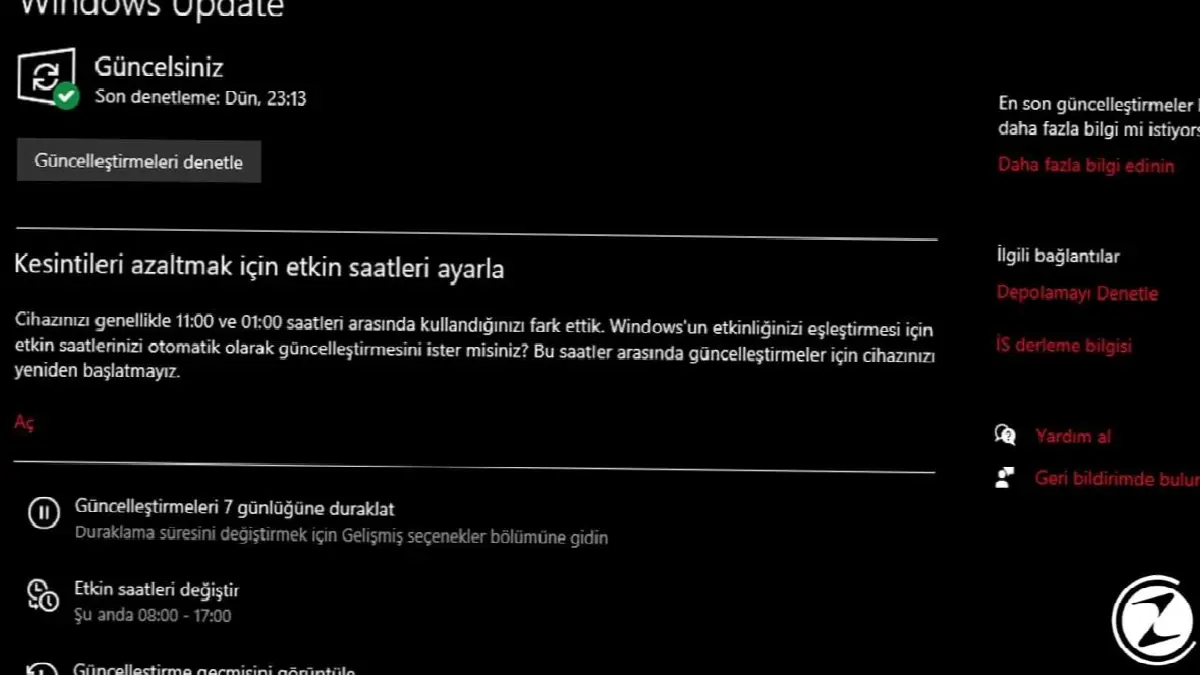
Thanks to this process, Windows will bring all the updates that have not been installed, and if updates have already been made, you will see a message saying "You are up to date".
Step #5: If there is an update that is not installed, you can install it in this step and you are done.
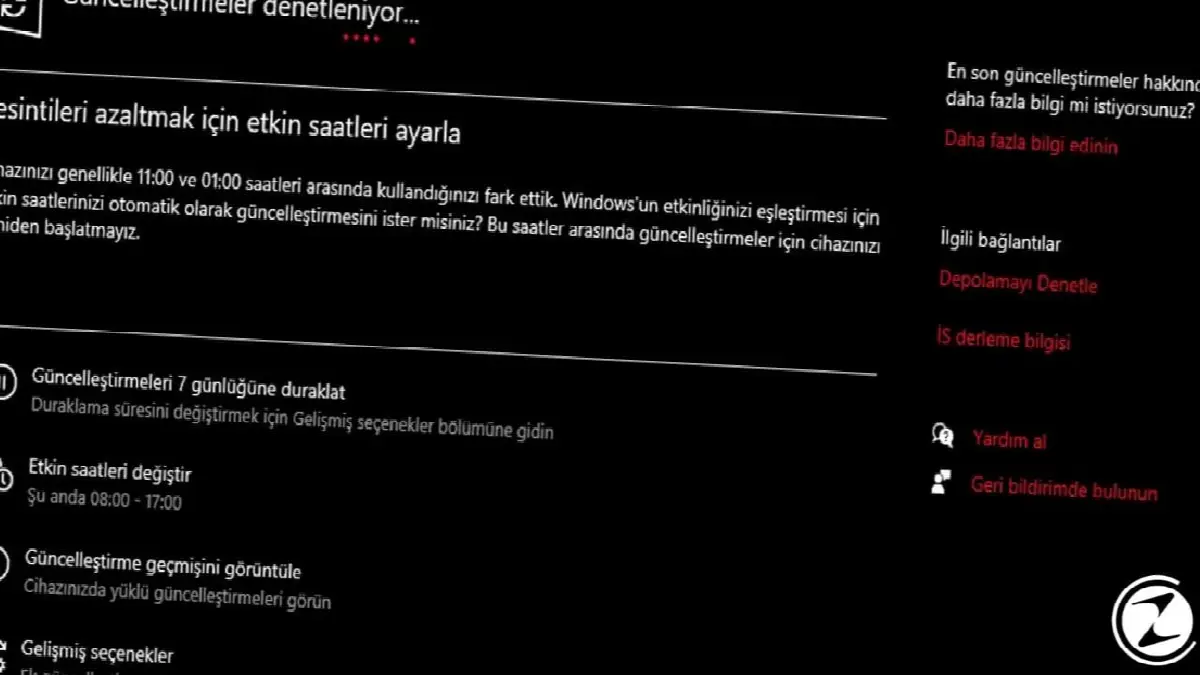
After checking for updates, if there is an update or updates that have not been installed, you can simply install the updates by clicking the "install now" button that will appear next to these updates.
What Microsoft offers for updates Windows Update AssistantIt is preferred by users who do not want to wait for automatic updates and want to make more customizable updates.
How to roll back Windows 10 updates?
- Step #1: Open the “Settings” app.

- Step #2: Open the “Update and Security” menu.

- Step #3: “View update history” Click .
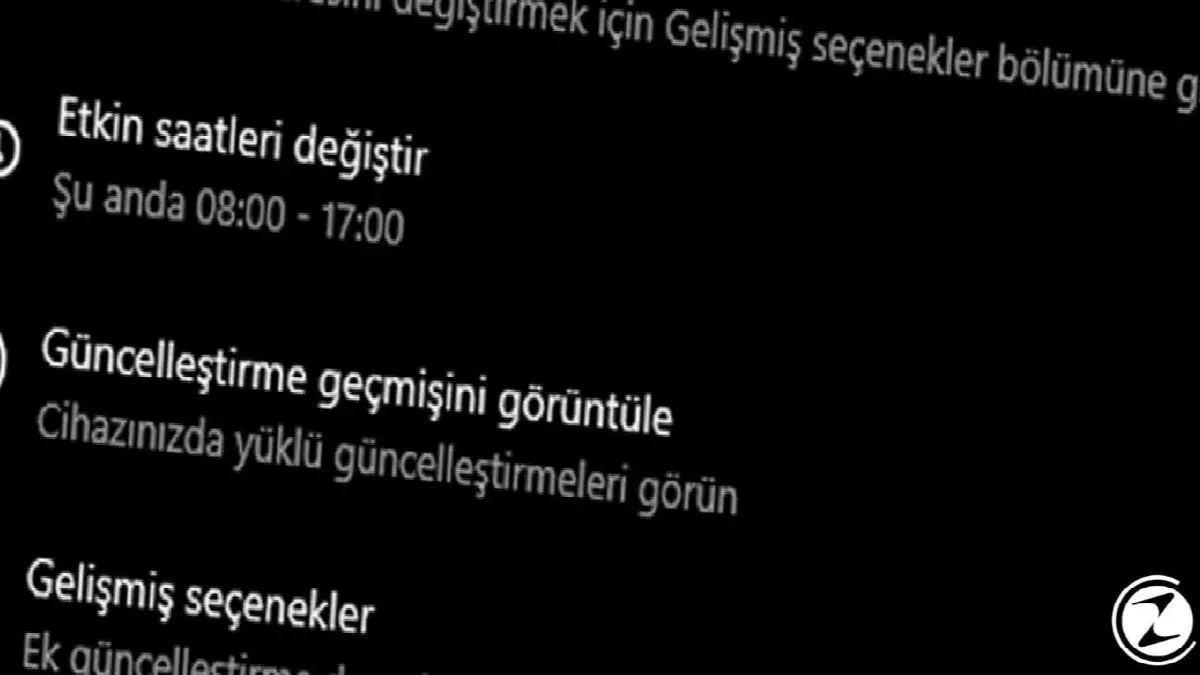
- Step #4: “Uninstall updates” Click .

- Step #5: Select the update you want from the menu that opens and press the “Uninstall” button. The process is complete.
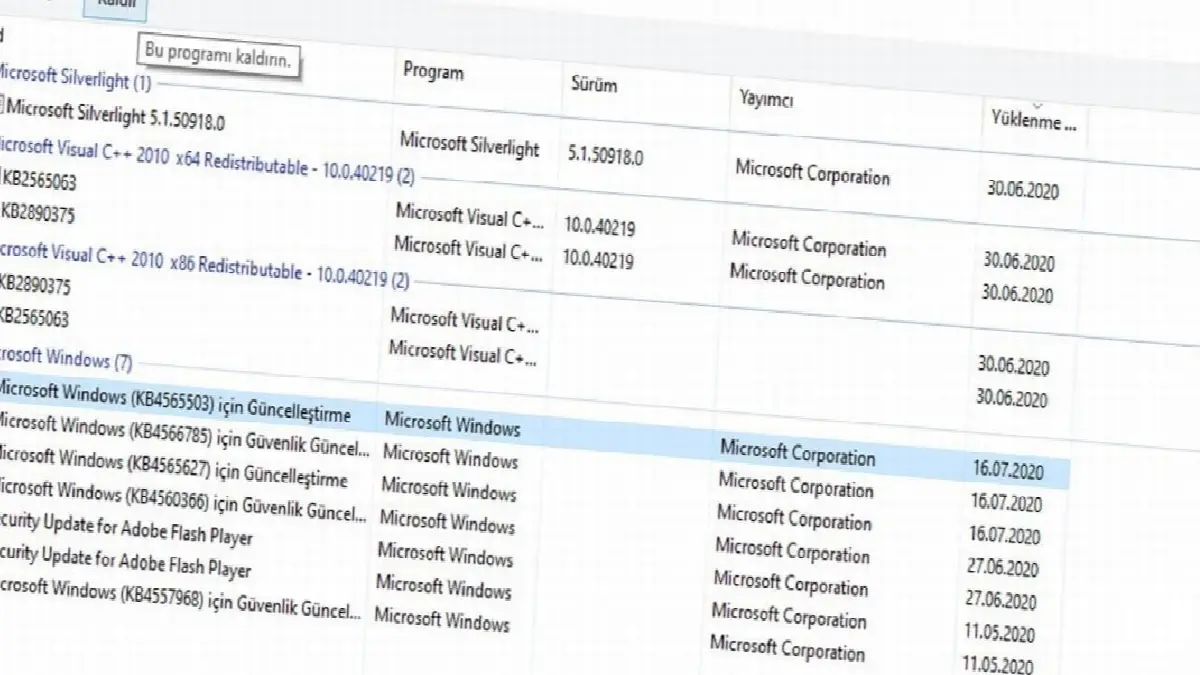
Although Windows offers users various innovations, conveniences and security measures with updates, sometimes these updates may not work well with some hardware and software. Rather than waiting for a fix with the next update, sometimes uninstalling the last update can be a more effective and better solution.
Why is it important to install Windows updates?

Although Windows updates cause minor problems as we mentioned before, they are generally very beneficial for the user experience. corrections And security patches Contains. We can explain the benefits of installing Windows updates regularly in three steps.
First, you need to install these updates to protect your system from malicious software. As you know, no code in the software world is completely perfect. Since the Windows operating system is a large software network, some security vulnerabilities may occur from time to time. Coming regularly Windows updates It also allows closing these security vulnerabilities and providing a safer user experience.

Secondly, you can rely on Windows updates to fix errors that occurred in previous Windows versions and may cause our system to not work properly. from the most reliable sources. These updates, which are generally released twice a year, can fix many hardware and software errors at once.
Third and lastly, the software and software that Windows provides to users. optimization of system innovations In order to use high Windows 10 updates We need to do it regularly. As we explained in the previous title, these updates are not permanent. You can easily remove updates that you do not like or that cause disruptions in your system with a few simple steps.
Every business is unique. Let’s explore how we can tailor these ideas to your own digital project.


