
How to Mirror Phone Screen to Computer?
There may be many reasons why you want to mirror the screen of your Android phone or tablet to your computer. Doing this will allow you to view the content on the phone…

There may be many reasons why you want to mirror the screen of your Android phone or tablet to your computer. Doing this will allow you to view the content on the phone…
Android phone or mirroring your tablet's screen to the computer There may be many reasons why you want it. Doing this allows you to view the content on the phone on a larger screen and to have keyboard and mouse support in mobile applications. These features are especially useful when browsing your phone, editing photos, and Android It is very useful for you while playing games.
There are many available in Google Play Store, which is the application store of the Android operating system. mirroring phone screen to computer There are many apps available, but most of them have a handicap: They are paid. We are also on Google Play Store mirroring phone screen to computer We found the free application with which you can perform the process in the best way and explained in detail how you can use it.
Steps to mirror phone screen to computer:
- Step #1: Scrcpy Download the .zip file containing the program and extract it to your desktop.
- Step #2: From your Android device Developer Optionswhat go and USB Debugging enable mode.
- Step #3: Connect your Android device to your Windows computer via cable. connect.
- Step #4: From the screen on your phone USB Debugging Select the mode and you're done.
Step #1: Download the .zip file containing the Scrcpy program and extract it to your desktop.

Scrcpy The software is valued far below what it deserves, probably due to the difficulty of its name. You can download the software directly from the link in the steps above. Windows 64-bit version, but if you want to download one of the versions of the application for other operating systems, you can access the software's website by clicking here. After downloading the zip file, transfer it to your desktop remove.
Step #2: Go to Developer Options on your Android device and enable USB Debugging mode.
To use this software, your tablet or smartphone Android 5.0 It must be on a version or higher. Because developer options were added to Android devices after version 5.0 and can only be enabled on these devices.

To enable developer options on your device Settings Go to ''About this device' or 'About' Enter the section. Here 'Build number' Tap quickly repeatedly until you see a text warning you that you have turned on developer options.

Now To settings go back and probably find something further down the list. Developer Options touch Inside here you will see another option with the same name, tap here and click USB Debugging Scroll down until you see the option and enable it. (Of course, without warning, we recommend that you do not play with anything else in the developer options section.)


Step #3: Connect your Android device to your Windows computer via cable and open the Scrcpy application from the PC.

After turning on developer options mirroring phone screen to computer You are very close to completing the process, all you have to do is connect your device to your computer via cable. After connecting, enter the folder you extracted from the .zip file to your desktop and scrcpy.exe Run the file.
Step #4: Select USB Debugging mode from the screen that appears on your phone.
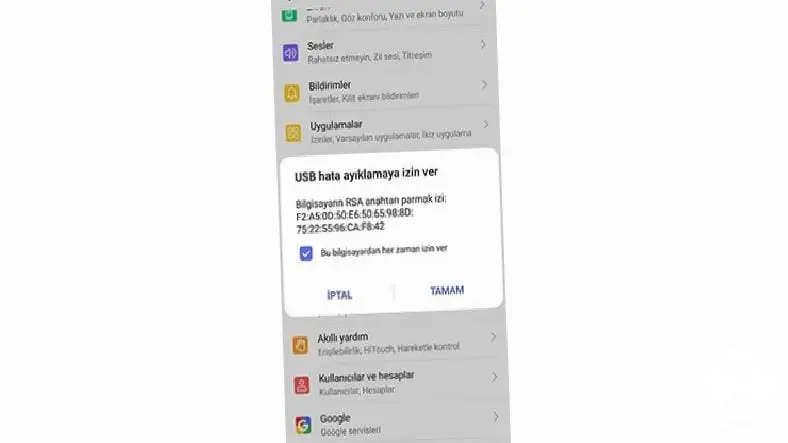
From developer options USB Debugging When you turn on the mode and connect it to your computer for the first time, your phone may show you a selection screen, from here USB Debugging Select the mode and press OK. You have successfully completed mirroring the phone screen to the computer. Ctrl+F With the combination, you can view the phone screen in full screen on your computer.

Thanks to this application, on your phone your keyboard and mouse You can reply to your messages, edit files, view your photos and play games using it. Additionally, you can easily transfer a file from your computer to your phone by dragging and dropping it. With this method, you can save the files you transferred to your phone to your phone. downloads You can find it in the folder.
One webtekno We have come to the end of the guide. Please do not forget to follow our site to be informed about this and many other useful contents and guides covering games, science and general technology problems and to express your thoughts / suggestions in the comments section below :)
Every business is unique. Let’s explore how we can tailor these ideas to your own digital project.


