
Where to Check Graphics Card Features?
If we are going to install a graphics program or a system-demanding game on our computer, we need to learn the graphics card features in detail.

If we are going to install a graphics program or a system-demanding game on our computer, we need to learn the graphics card features in detail.
If we are going to install a graphics program or a system-demanding game on our computer, we must check the graphics card features. in detail We need to learn. When you don't know what the graphics card of the computer you are using is, but you need this information, what you need to do actually consists of a few simple steps.
Checking graphics card specifications We have explained in detail all the steps you need to take in order to perform the process, how you can find out the performance of the graphics card and how to determine the graphics card performance. How you can improve your performance. we showed.
Where to check graphics card features?
- Step #1: Press the start menu.

- Step #2: Type ‘dxdiag’ and press Enter.

- Step #3: Click on the tab in the second row.

- Step #4: here all video card You can see the information.
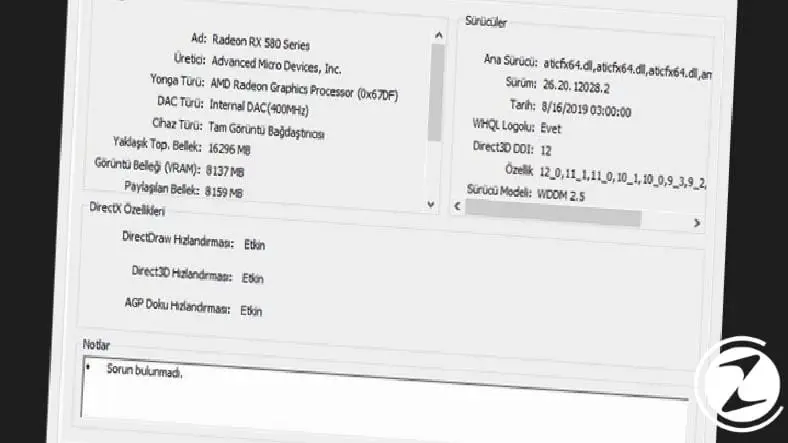
Go to your computer's start menu'dxdiag' When you type and press Enter, DirectX Diagnose Tool, that is, DirectX Diagnostic Tool You are opening it. Here you can see a general description of your computer's hardware, but this tool is mainly used to view your graphics card specifications. In the Display tab, select your graphics card. memory, brand, manufacturer, screen refresh rate And resolution you can see.
Where to see graphics card performance?
- Step #1: To the taskbar right click and click on Task Manager.

- Step #2: Click the Performance tab.
- Step #3: Click the GPU 0 tab at the bottom row.

- Step #4: You can see the graphics card performance information here.
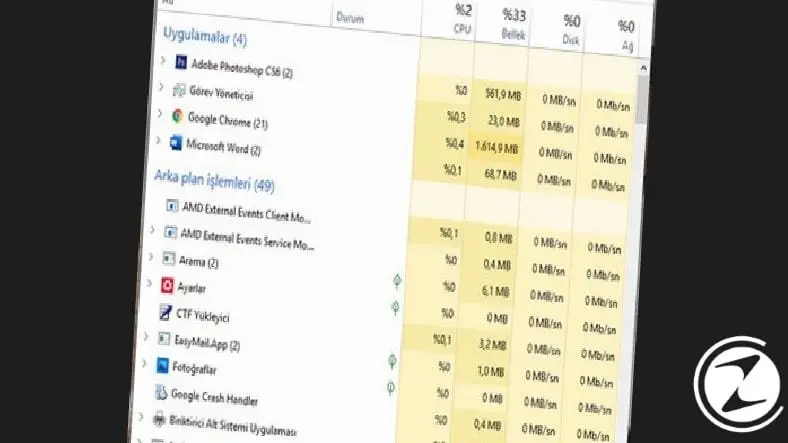
If you want to see the performance values of your video card in any situation without a program, rather than the graphics card features, you can use the software built-in in Windows 10. Task Manager You can use the plugin. Task Manager Performance in the tab GPU In the section, you can see how much your video card is currently being used as a percentage. This one by examining the program before and after running it You can see how much that program uses your video card.
out of this GPU Memory And Dedicated GPU memory You will see two parts like. GPU Memoryshows the memory your graphics card has as hardware. Dedicated GPU memory is the available memory size of your graphics card. If you want to use dedicated GPU memory at full efficiency, overclocking you need to do this. You can access our content where we explain details about overclocking here.
How to increase graphics card performance?
Use MSI Afterburner:

It has been used for years for people to overclock their graphics cards without requiring technical knowledge. MSI Afterburner By using the program, you can easily run programs that require high performance on your computer and quickly increase game performance. You can access our guide explaining how you can use the MSI Afterburner program here.
Keep video card drivers updated:

video card Hardware such as these, especially those that have been released recently, receive constant software updates from the manufacturer. For this reason drivers for your video card Keeping it updated will help you fix problems such as slowdowns or errors that you may experience with the version you have.
Of course, do not forget to uninstall the drivers installed on your computer before updating your drivers. To learn how to uninstall the video card driver, you can access our content on this subject here. You can find NVIDIA's graphics card drivers here and AMD's video card drivers here.
How to test graphics card performance?
- Step #1: From here you can use the Userbenchmark tool. download.
- Step #2: App run.
- Step #3: Graphics Check the option. (You can also select other hardware information if you wish.)
- Step #4: Run Click the button.
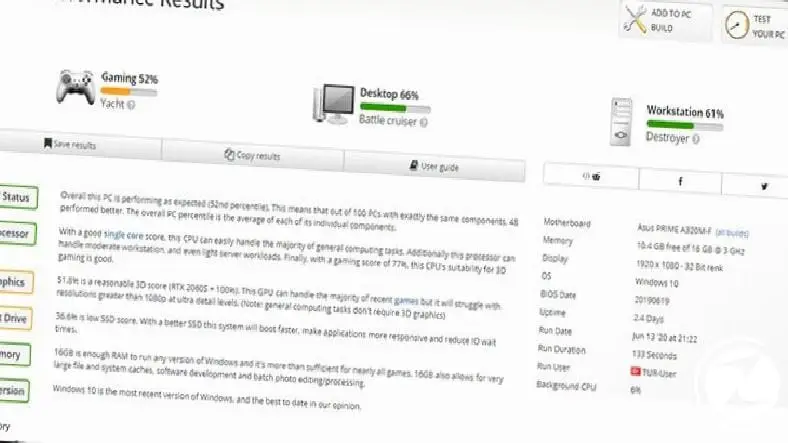
of your computer graphics card performance If you want to measure it, there is a very simple method. 3rd party software we recommend for you Userbenchmark You can send your computer's hardware information to that site's database and compare it with the status of other users on the site who have the same hardware as you. Of course, what we are interested in is video card Since it is, you will need to focus there.
The first thing you will see on the site is a general evaluation section. Here we explain why your hardware is good or bad, one by one, but the reviews are all in English. If you toobeautiful but in englishIf you say ' Google Translate You can read your evaluation in an understandable way using .

Apart from this, if under the graphics card section,Performing below expectationsIf you see ' text, it means that your graphics card is performing below expectations. The site provides this information by comparing it with performance tests of other users using this hardware. If you encounter such a situation, you can apply the performance increasing tactics we mentioned.
Thus a webtekno We have come to the end of the guide. Please do not forget to follow our site to be informed about this and many other useful contents and guides covering games, science and general technology problems and to express your thoughts / suggestions in the comments section below :)
Every business is unique. Let’s explore how we can tailor these ideas to your own digital project.


