
10 Errors That Cause Windows 10 to Give a Blue Screen
The blue screen error, which occurs when motherboards still use the BIOS screen in older versions of Windows, also occurs in Windows 10. Different…

The blue screen error, which occurs when motherboards still use the BIOS screen in older versions of Windows, also occurs in Windows 10. Different…
The blue screen error, which occurs when motherboards still use the BIOS screen in older versions of Windows, also occurs in Windows 10. There are several different ways to solve this error, which occurs for different reasons. Although the renewed BIOS screen is UEFI and Windows 10Although blue screens are prevented to some extent with the software updates of , some software and hardware glitches can cause the blue screen error.
Blue screen error in Windows 10 We compile some software and hardware errors that cause us to see to the solutions We take a closer look.
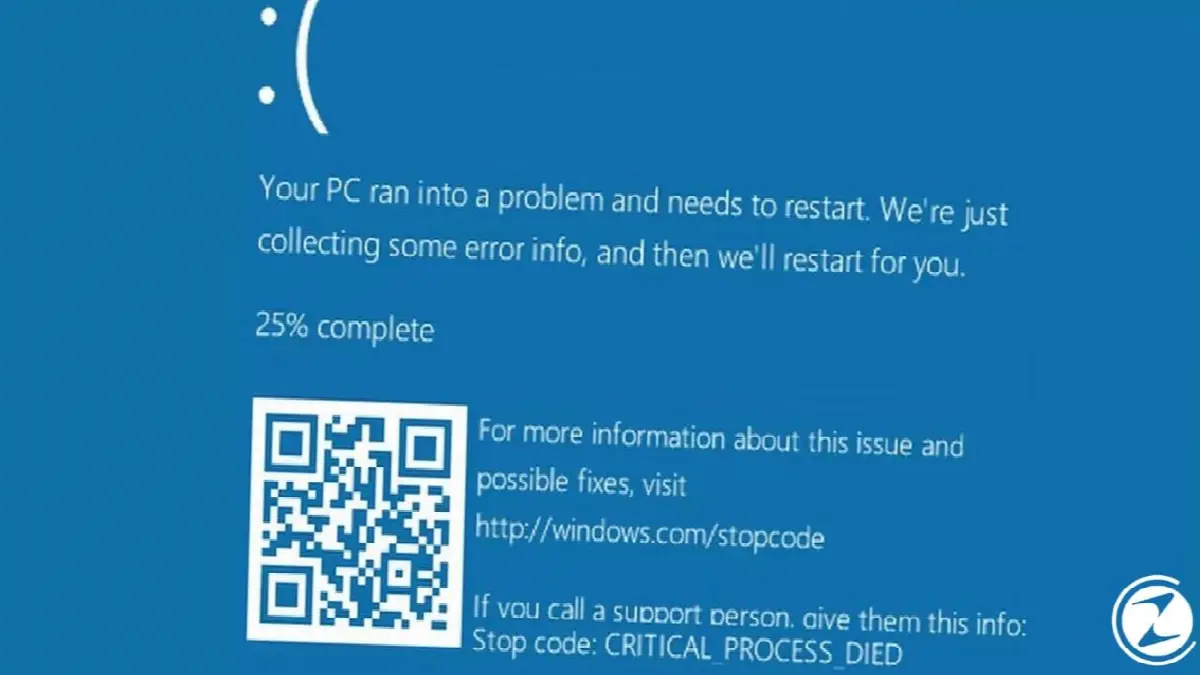
Causes of blue screen error in Windows 10:
- Software reasons
- Newly installed programs and drivers
- Outdated programs and drivers
- Corrupted system files
- Viruses and malware
- Incompatible BIOS version
- Hardware reasons
- Insufficient air circulation
- Insufficient storage space
- Redundant hardware connected to the computer
- Loose motherboard cables and hardware
- A corrupted hardware unit
Newly installed programs and drivers
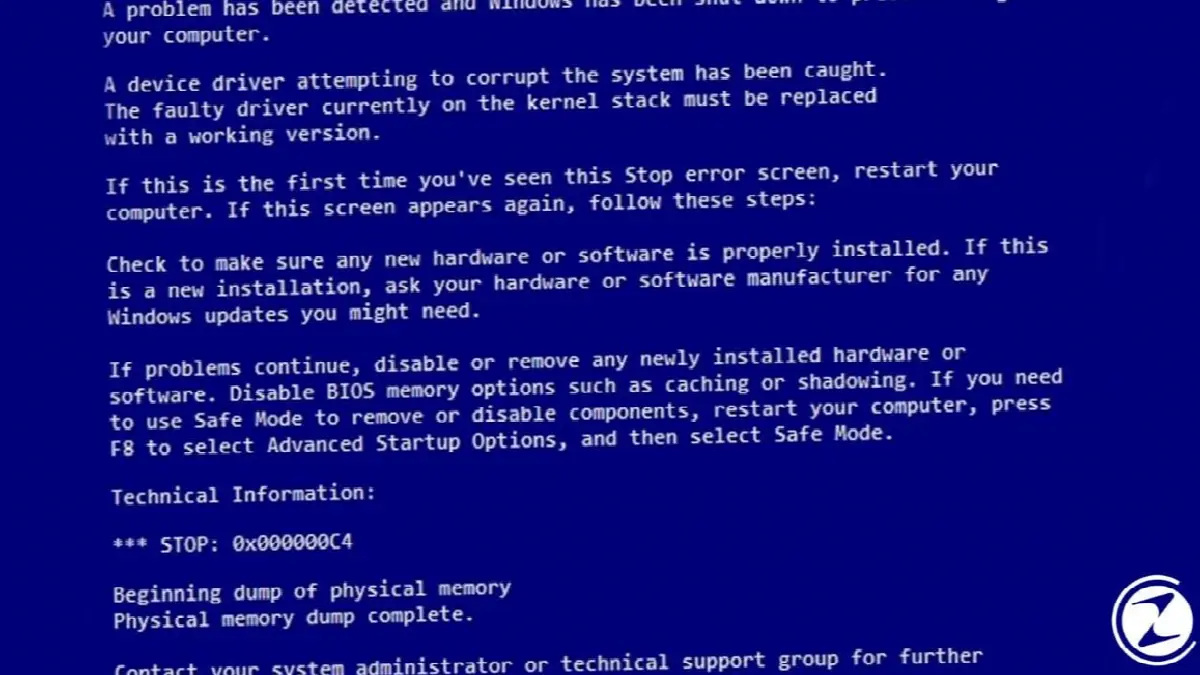
Some programs and drivers that do not work properly with your current version of Windows can cause a blue screen error. Therefore, if you are getting a blue screen error after installing a new program or updating a driver, the first thing you should do is to uninstall the program you installed. remove safely It will happen. Instead, if you receive a blue screen error after updating a driver on your computer, you need to restore the previous version of the driver. You can follow the steps below to safely remove a program you installed.
How to uninstall programs in Windows 10?
- Step #1: Enter the “Control Panel” menu from the Start menu.
- Step #2: Go to the Programs section in Control Panel.
- Step #3: Click “Uninstall a Program” in the Programs and Features section.
- Step #4: Select the program you want from the list of programs that appears and click uninstall.
Outdated programs and drivers
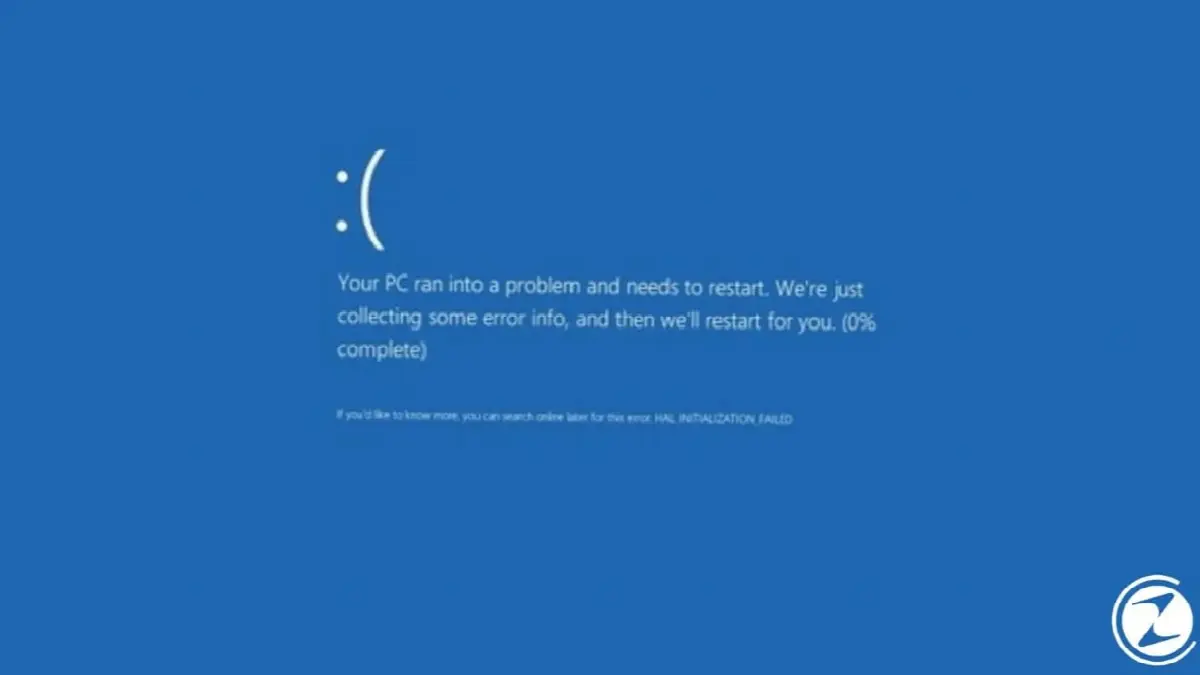
Contrary to what we stated in the previous article, outdated programs and drivers in your Windows version can sometimes cause you to receive a blue screen error. The programs and drivers on your computer that you will install new versionscan help you stop the blue screen error.
Corrupted system files

Sometimes even Windows can release system updates that contain minor bugs. If a windows update If you get a blue screen error after doing this, first run Windows Settings in the application “Update and security” If there is a new update containing problem fixes in the menu, we recommend that you install this update. If there is no such option, try the latest Windows update you installed. you can remove or directly “System Restore” you can.
How to uninstall Windows updates?
- Step #1: Open the “Settings” application from the Start menu.
- Step #2: Enter the “Update and Security” menu.
- Step #3: Click View update history.
- Step #4: Click “Uninstall updates”.
- Step #5: In the list that opens, you can select the last installed update and uninstall it.
How to do System Restore in Windows 10?
- Step #1: Access the Control Panel from the Start menu.
- Step #2: Type Recovery in the search bar and search.
- Step #3: Click “Create a restore point” under the system list.
- Step #4: Click the “System restore…” button.
- Step #5: Complete your process by selecting the restore point you want.
Viruses and malware

on your computer viruses And malwareThey may corrupt your system files or driver files, causing you to receive a blue screen error. To avoid this situation, you should keep your antivirus programs up to date, if a antivirus If you do not have the program, you need to obtain it and perform a comprehensive scan on your computer.
Incompatible BIOS version

BIOS and UEFI screens, through which we can manage many features of our computer, can work unlimitedly for many years. Although it is not recommended to update BIOS and UEFI frequently, a BIOS version that is outdated compared to your Windows version may cause you to receive a blue screen error. To solve this situation, go to the official website of your motherboard brand and check the latest version of your motherboard model. BIOS updates You can download and install it.
Insufficient air circulation
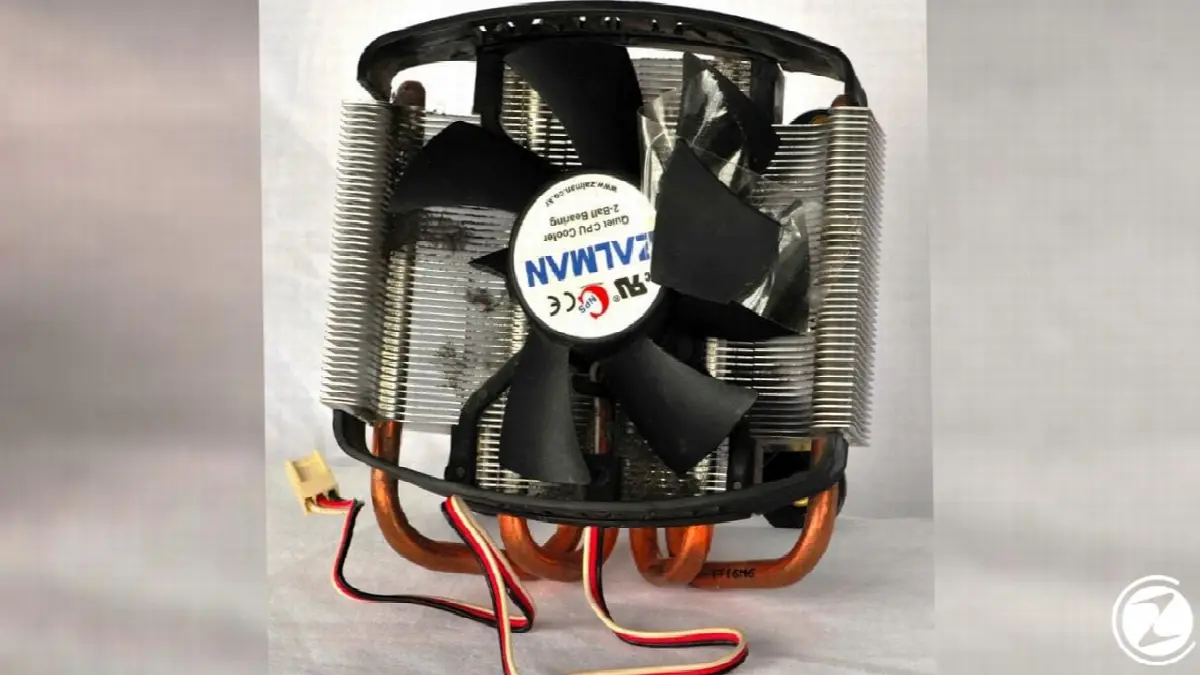
Your laptop or desktop computer may have a broken fan or fans that you don't notice. That's why your processor may overheat and may cause you to receive a blue screen error. If you cannot find a software problem related to the blue screen error you receive, you can check the temperature of your processor and running fans from the UEFI BIOS screen. If you do not know how to access the UEFI BIOS screen, you can check our related content here.
Insufficient storage space
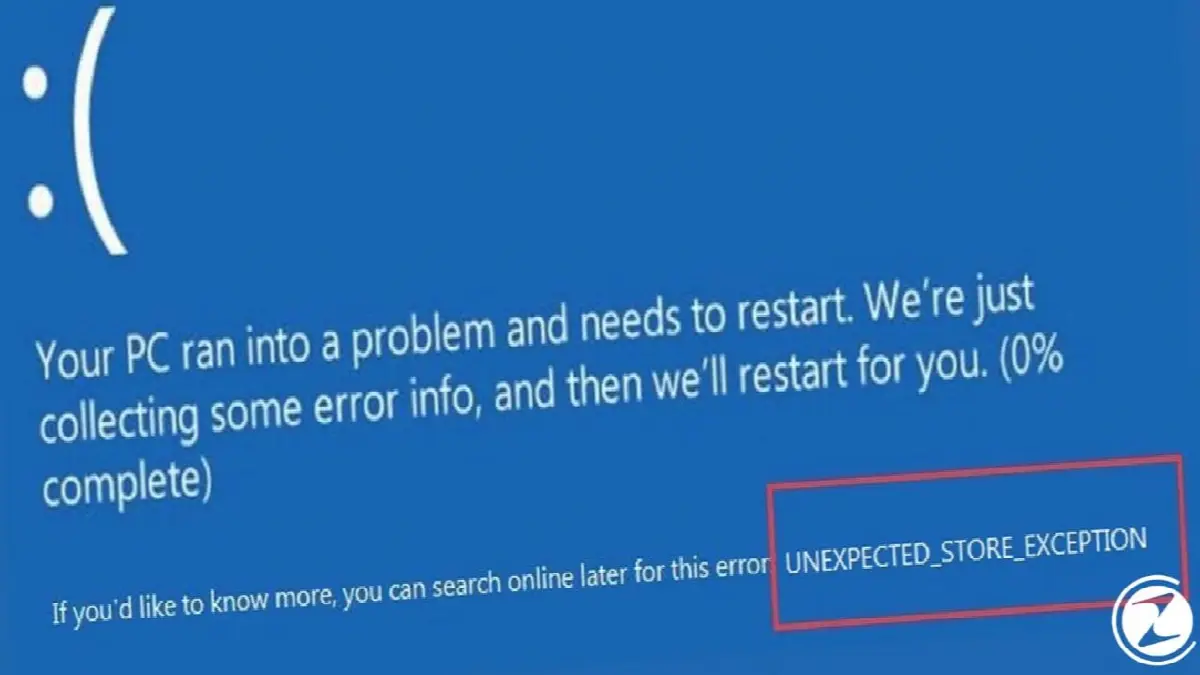
When installing a new operating system or updating your existing operating system, lack of sufficient storage space You may receive a blue screen error due to To avoid these errors, we recommend that you always check your storage space before new updates and installations.
Redundant hardware connected to the computer

Apart from the keyboard and mouse, your computer; such as USB memory, SD card, external disk, secondary monitor, printer, HDMI cables and smartphone an extra equipment If you receive a blue screen error after connecting, these hardware may have interacted with your computer's operating system in a problematic way. To get rid of the blue screen, you can remove these hardware step by step and monitor the status of your computer.
Loose motherboard cables and hardware
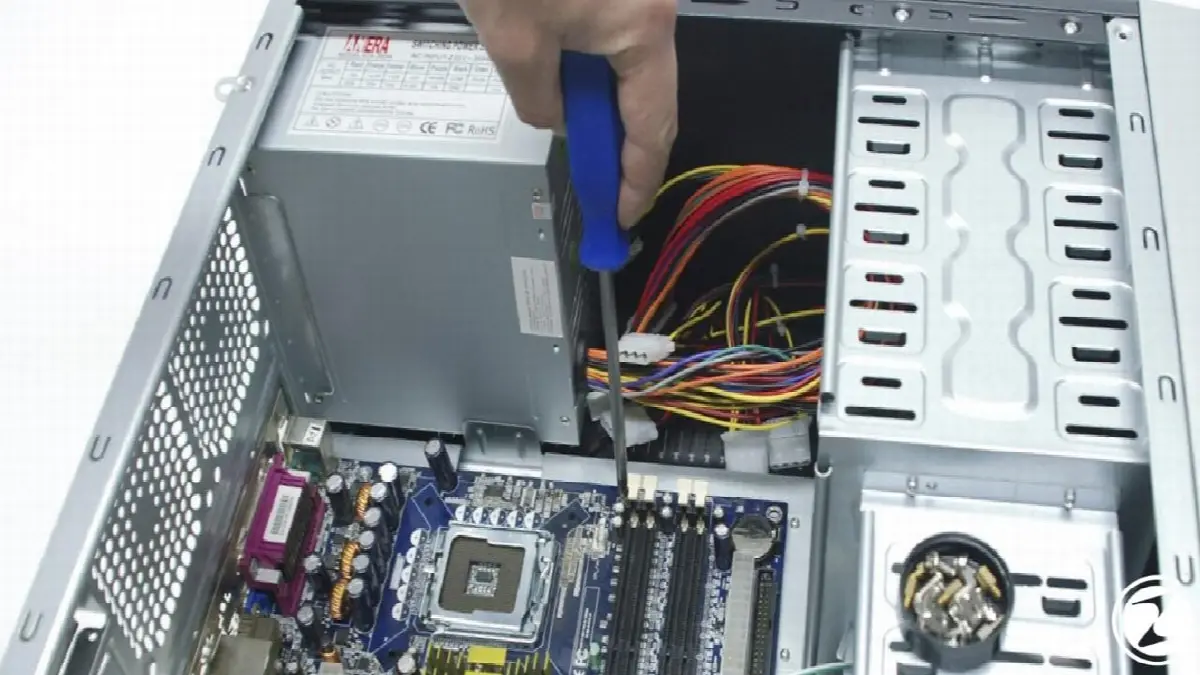
After assembling your computer or making changes in the case, cables that are not properly connected to the motherboard, cables that are not seated in the socket RAM And HDD/SSD entries may cause you to receive a blue screen error. To solve this problem, you need to check all hardware and cables on the motherboard and reinstall them or contact an authorized service for installation.
A corrupted hardware unit
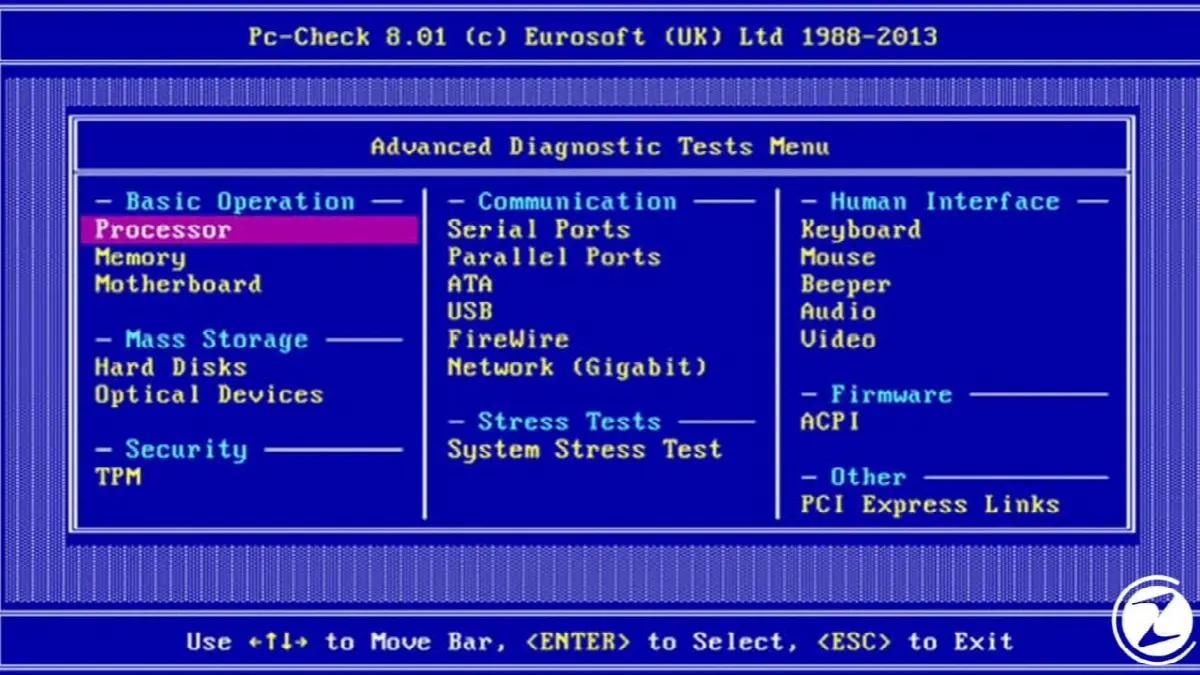
Sometimes, a hardware that is at the end of its life may warn the user by sending a blue screen error. To solve this problem hardware failure tests You need to do it. Most laptop models have the necessary tools for these tests inside the computer or on the brand's official website. After performing hardware malfunction tests, the faulty RAM, motherboard or other change units or you need to contact an authorized service. Before all these procedures backup your data and documents Don't neglect it either.
on Windows 10 blue screen We have come to the end of our list of some common errors and their solutions that may cause you to receive the error. Currently on Windows operating system Over 500 blue screen error codes and at any time we may encounter an error that we have not heard of before. If you encounter an error that you cannot find in this list, you can ask for help from Microsoft's official support team.
Every business is unique. Let’s explore how we can tailor these ideas to your own digital project.


