
15 Unknown Features of VLC Media Player
VLC Media Player, also known as VideoLAN, was a video player program. Its simple interface, no additional service required, lots of video and audio...

VLC Media Player, also known as VideoLAN, was a video player program. Its simple interface, no additional service required, lots of video and audio...
VLC Media Player or VideoLAN, was a video player program. Features such as its simple interface, no additional service required, and ability to play many video and audio file types make it both useful and original. VLC Media Player is a program that can run on many operating systems such as Linux, Windows, Mac OS X, Android and iOS.
However, the majority of general users are unaware of the benefits that VLC offers. VLC Media Player allows you to easily handle many operations, from video conversion to video trimming, from setting subtitles to taking screenshots, that seem simple but that you think some programs bother you with.
Less known features of VLC Media Player:
- Convert media files
- Play and download online videos
- Record video/audio
- Desktop screen recorder
- webcam recorder
- Remote control
- DVD copy
- Video and audio effects
- internet radio
- video wallpaper
- Add watermark to video
- Add a bookmark
- Add subtitles
- Adjust playback speed
- Extensions and add-ons
Convert media files:
- Step #1: Click on Media and then click on Convert/Save,
- Step #2: Add a file by clicking the Add button.
- Step #3: Set up the components you want to convert.
- Step #4: Click Convert Save.

You can use VLC to convert your media files to a wide variety of formats. The app lets you choose exactly how you want to convert your files. the file you want to convert After adjusting the components, if you follow the last step with the Convert and save button, you will have completed the desired operation.
Playing and downloading online videos:
- Step #1: Click Environment, and then click Open Network Stream.
- Step #2: Click on the Network tab.
- Step #3: Enter the URL of your video.
- Step #4: If you want to convert the video from the option next to the Play button, click Convert, or to play it, just click Play.
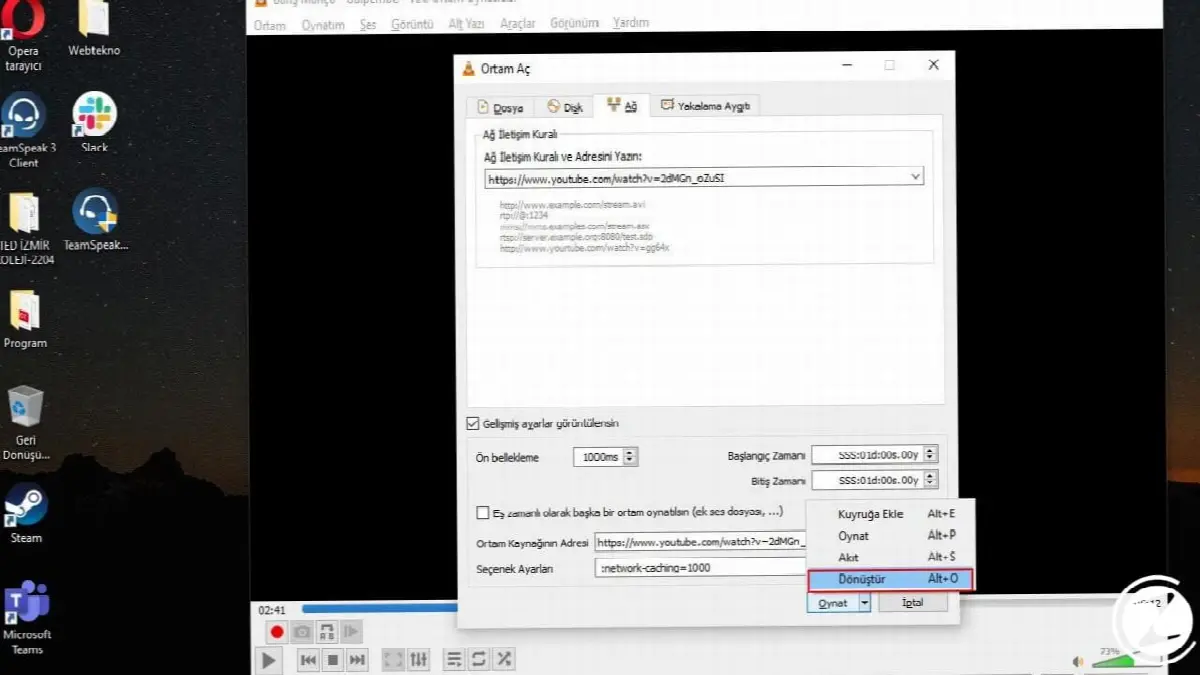
Using this feature, you can play or download videos you see on the internet. VLC Media PlayerIt also stands out with its features that are valid in online environments and responds to users' requests.
Record video/audio:
- Step #1: Click on View and activate it by clicking on the Advanced Controls option.
- Step #2: Additional buttons will appear on your screen. You can record audio or video from the red button.

VLC, has offered this as an option to its users. You use the menu bar to initially enable this feature, and then additional buttons will appear in the app. While playing a media filen, click the Record button to start recording. To stop, press the same button again.
Desktop screen recorder:
- Step #1: Click on Media and then click Convert/Save.
- Step #2: Click Capture Device.
- Step #3: Set the Capture mode option to Desktop.
- Step #4: Select the desired frame rate for capture with the desired frame rate option on capture.
- Step #5: From Convert save, click Play. On the next screen, select the destination where your file will be saved.
- Step #6: You can start and stop recording from the red button.

Using this feature screen video of your desktop You can save it as . In this way, you can explain anything you want to say on your computer, record the games you play with video and share them with others.
Webcam recorder:
- Step #1: Click on Media and then click Convert/Save.
- Step #2: Click Capture Device.
- Step #3: Set the capture mode option to DirectShow.
- Step #4: Select your camera and microphone from the device selection section.
- Step #5: Press Play from the cursor next to the Convert and Save tab.

After this process, while your camera is working you can videotape yourself. We have told you about another beautifully designed VLC feature, especially for those who shoot videos about narration and produce content on YouTube.
Remote control:
- Step #1: Click on Tools and then click on Settings.
- Step #2: In the lower left corner, check Detailed under “Adjustment level to display”.
- Step #3: Click Basic Interfaces under the Interface tab.
- Step #4: Select Lua renderer and Web and set Interface module to Lua renderer.
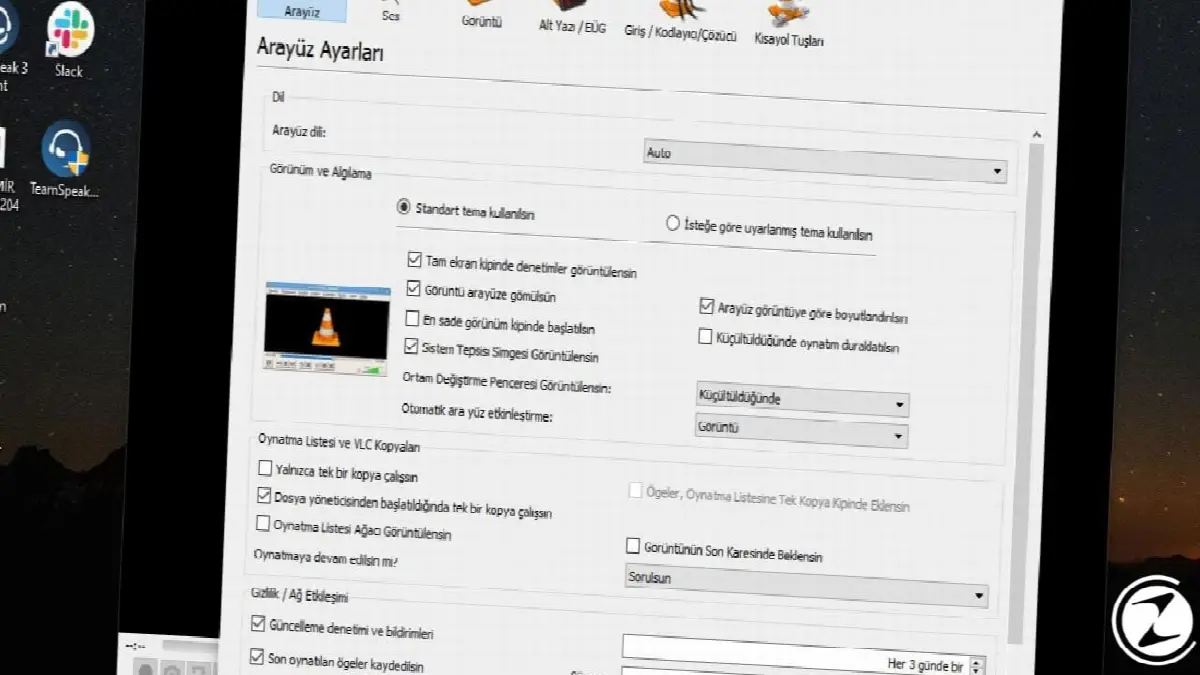
To test this; Go to localhost:8080 in your browser with VLC installed. After entering the password, a prompt for VLC remote control interface will be shown. To use this on another device, you need to find the IP address of your devices browser.
on a media center PC as you can control it using a laptop or mobile phone run VLCIt provides a great deal of user convenience and you can easily access your work.
DVD copying:
- Step #1: Click Media and then click Convert Save.
- Step #2: Click the Disk tab.
- Step #3: Select the DVD and check the “Do not display disc menus” option.
- Step #4: Next to Convert and save, click Play.

You can copy your DVDs to your computer using this feature. VLCWith this feature, it paves the way for you to create a DVD archive and creates an alternative way that you can use when there is no access to the physical disk.
Video and sound effects:
- Step #1: Click Tools. Then click Effects and Filters.
- Step #2: You can make settings from the Picture Effects and Sound Effects tabs.
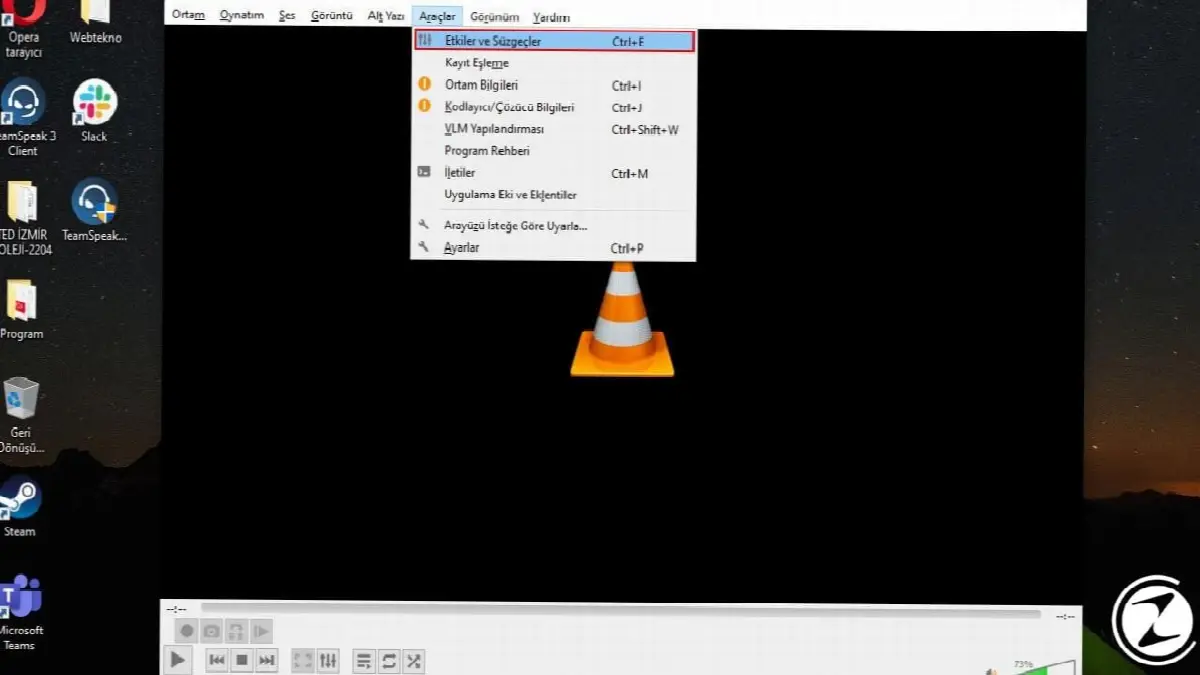
With this feature, VLC allows users to add effects to audio and video files. Audio Effects and Image Effects You can make the settings you want from the tabs.
Internet radio:
- Step #1: Click View and click Playlist.
- Step #2: You can choose a station for yourself from one of the options under the Internet tab.
- Step #3: If these channels do not interest you, click on Media and you can add channels from the Open network stream tab.
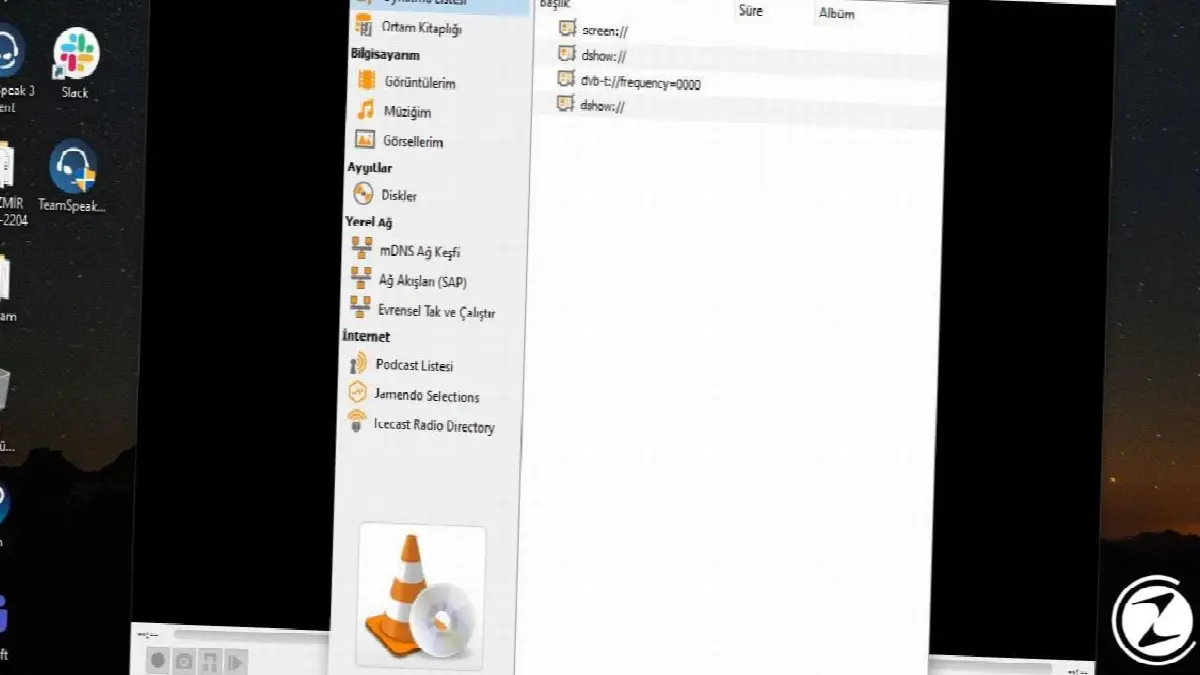
Thus, VLC offers users another important feature. In addition to all these features, by offering the option of listening to podcasts produced for internet broadcasting or live radio, VLC Media PlayerIt proves once again.
Video wallpaper:
- Step #1: Make sure your mode on the Capture device is DirectShow.
- Step #2: Run your video.
- Step #3: Right-click the video screen and click Set as wallpaper on the Display tab.

With this feature, you can set a section of the video you are playing as your desktop wallpaper. Although the functionality of this feature is debated, we can say that it is a small convenience provided to users. video wallpaper With this feature, you can easily display the photos you have adopted on your desktop background.
Adding watermark to video:
- Step #1: Click Tools, and then click Effects & Filters.
- Step #2: Click Image Effects. Enable Image adjustment text.
- Step #3: From here you can adjust the effects for your image. If you want to add text, you can use the Add Text box on the Overlay tab.

Thanks to the feature of adding watermark to the video, you can add your own watermark to the video and you do not need a special video editor to do this. To save video with watermark VLC's recording feature Remember that you must use .
Add a bookmark:
- Step #1: Click Playback and from the Custom bookmarks tab, click Management.
- Step #2: Add what you want to bookmark with the Add button.
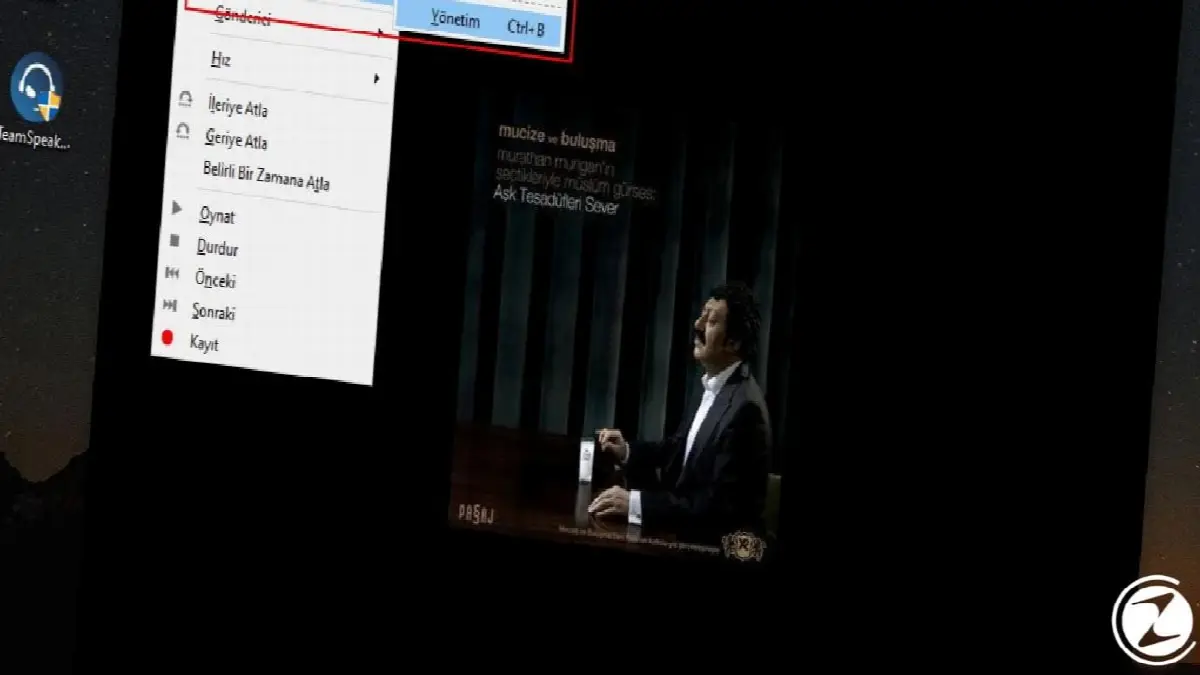
You can use special bookmarks wherever you want, in any part of the video. VLC Media Player, Possibility for users to add custom bookmarks he knows. It shows how functional and simple a program VLC is.
Adding subtitles:
- Step #1: Click on the subtitle tab.
- Step #2: Click Add subtitle file and add a file.

Make sure that the subtitle file you want to add is in the same place as the video. This feature In the videos you want to add subtitles to It will make your job easier and you will be able to add your texts in the language you want to the videos via VLC.
Adjust playback speed:
- Step #1: Open your video.
- Step #2: You can adjust the playback speed under the speaker sign at the bottom right.

Photo taking featureallows users to take photos (images, videos) during their operations. If your camera is on, it takes your own photo. VLC seems to provide convenience to users by using this feature.
Extensions and plugins:
- Step #1: Click Tools.
- Step #2: Click on Patch and Add-ons.
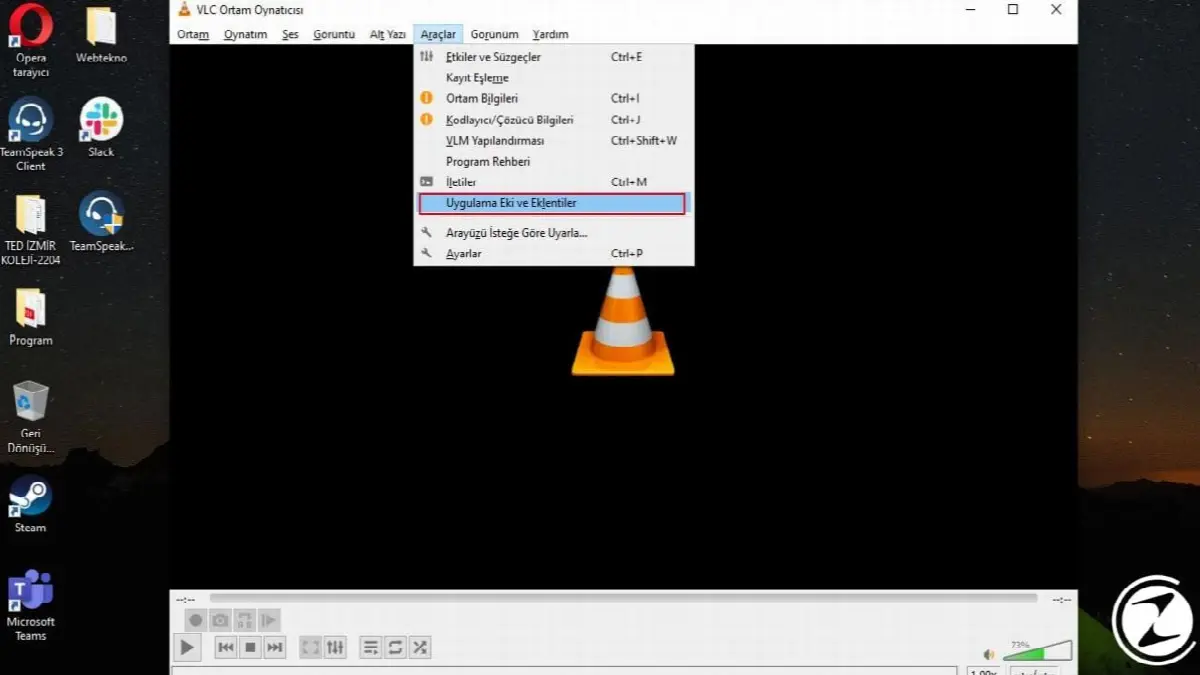
Just like Firefox, you can extend the functionality and appearance of your VLC player. Various extensions and skins are available on the VideoLAN site. Take a look and whatever suits you use it.
Some extensions allow you to automatically get subtitles, information about actors, and lyrics, among other things. coatings, change the look of your media player allows and there are many options to suit your taste.
Every business is unique. Let’s explore how we can tailor these ideas to your own digital project.


