
How to Adjust Windows 10 Acceleration Settings?
We evaluate the performance of our computers in various ways and develop methods for this. Sometimes directly with hardware tools…

We evaluate the performance of our computers in various ways and develop methods for this. Sometimes directly with hardware tools…
We evaluate the performance of our computers in various ways and develop methods for this. Sometimes you can access the computer directly with hardware tools. while increasing performance, and sometimes we do this with small touches on our computer.
In this article, we will give you tips about the small touches we just mentioned. Following these tips you are using Windows 10 can speed up your computer and you will be able to increase battery life.
How to speed up Windows 10?:
- Change power settings
- Disable unnecessary programs at startup
- Clean hard disk
- Disable visual effects
- Remove transparency
- Turn on automatic maintenance of Windows
- upgrade RAM
- Defragment the hard disk
- Turn off search indexing
- Uninstall unused programs
- Do not use sleep mode
Change power settings:
- Step #1: Go to Control Panel from the Start menu,
- Step #2: Enter the power options menu
- Step #3: Check the High Performance option.

If you use “Power Saving” mode on your Windows 10 computers; You should know that this slows down your system. While the computer is in this mode energy saving It reduces your performance in order to do so.
Therefore, changing your settings from Power Saving mode to “High Performance” or “Balanced” will be beneficial for your computer.
Disable unnecessary programs at startup
- Step #1: Open Task Manager by right-clicking the Start button.

- Step #2: Come to the start section, point to the programs you deem unnecessary and click on the bottom right. “Disable” Select the option.

If your computer cannot recover for a long time when it is first turned on, one of the first things to do should be to disable unnecessary programs. After applying this process When our computer first turns on It will process faster and we will not tire our machine with unnecessary programs.
Improve performance by cleaning the hard disk:
- Step #1: From the search bar “Disk Cleanup” Find the tool and run it with “Open”.

- Step #2: After selecting the relevant fields “Clean up system files” Press the command and after the process is completed, leave the screen by pressing the OK button.
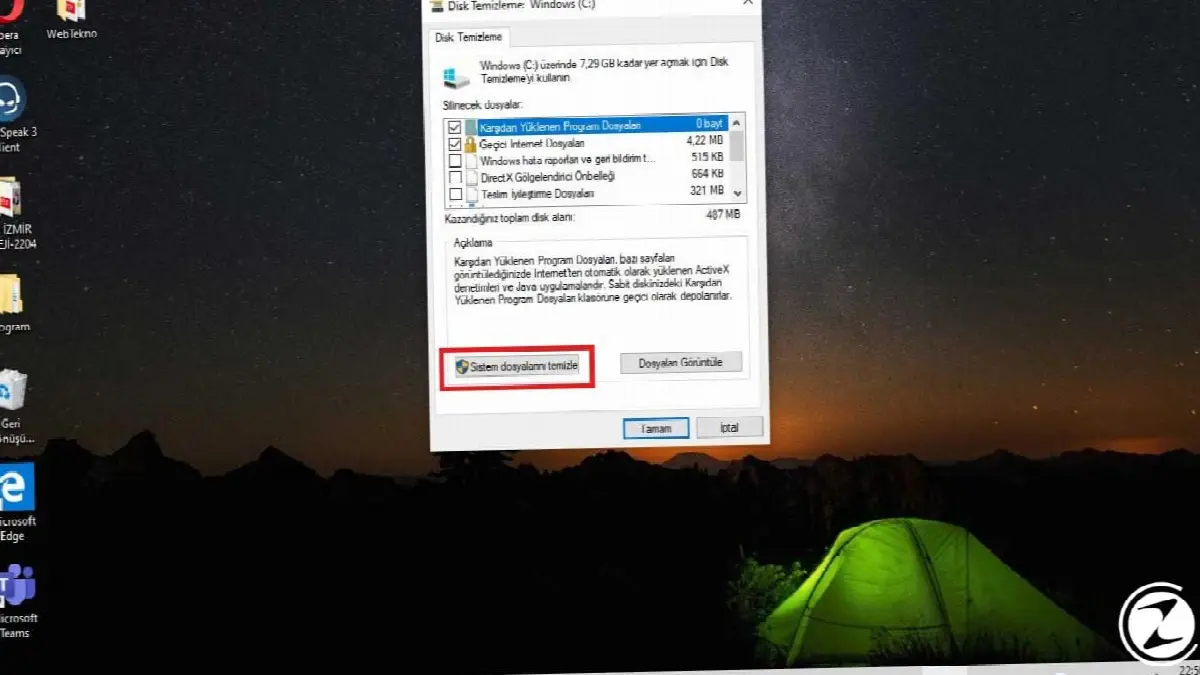
Cleaning your hard disk will both increase the performance of your computer and free up space on your disk. System, from unnecessary files and will be saved from temporary processes in this way.
Disable visual effects:
- Step #1: From Control Panel "System" We enter the section.
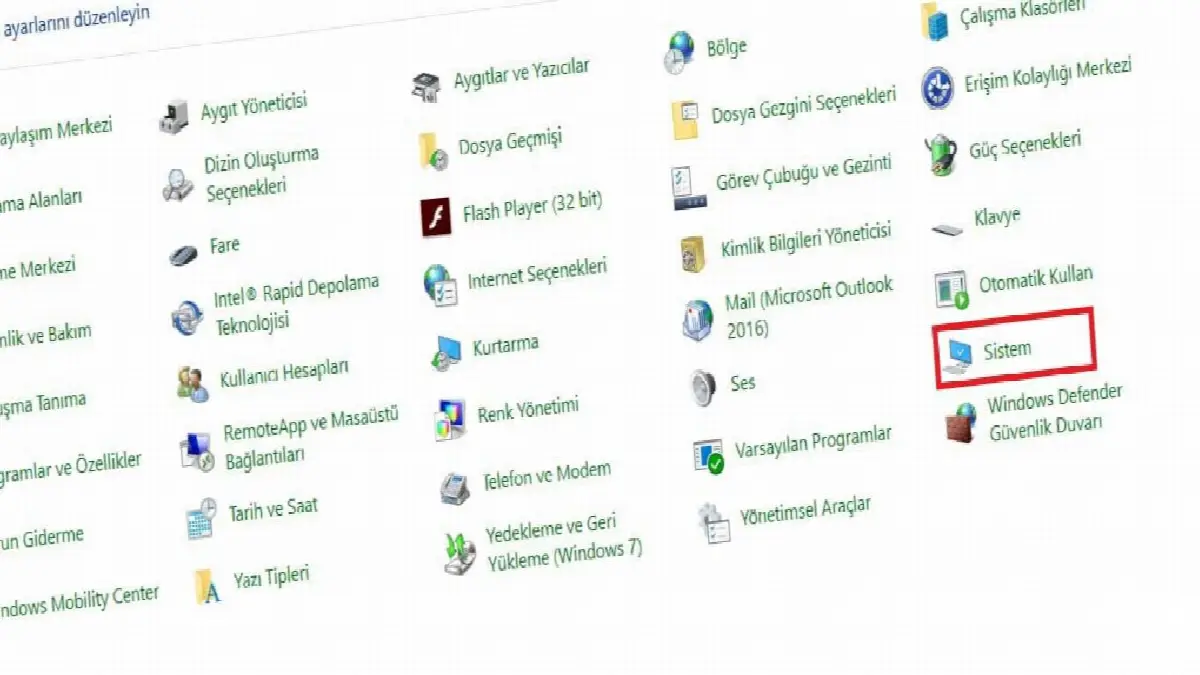
- Step #2: from left side “Advanced System Settings” Click on .
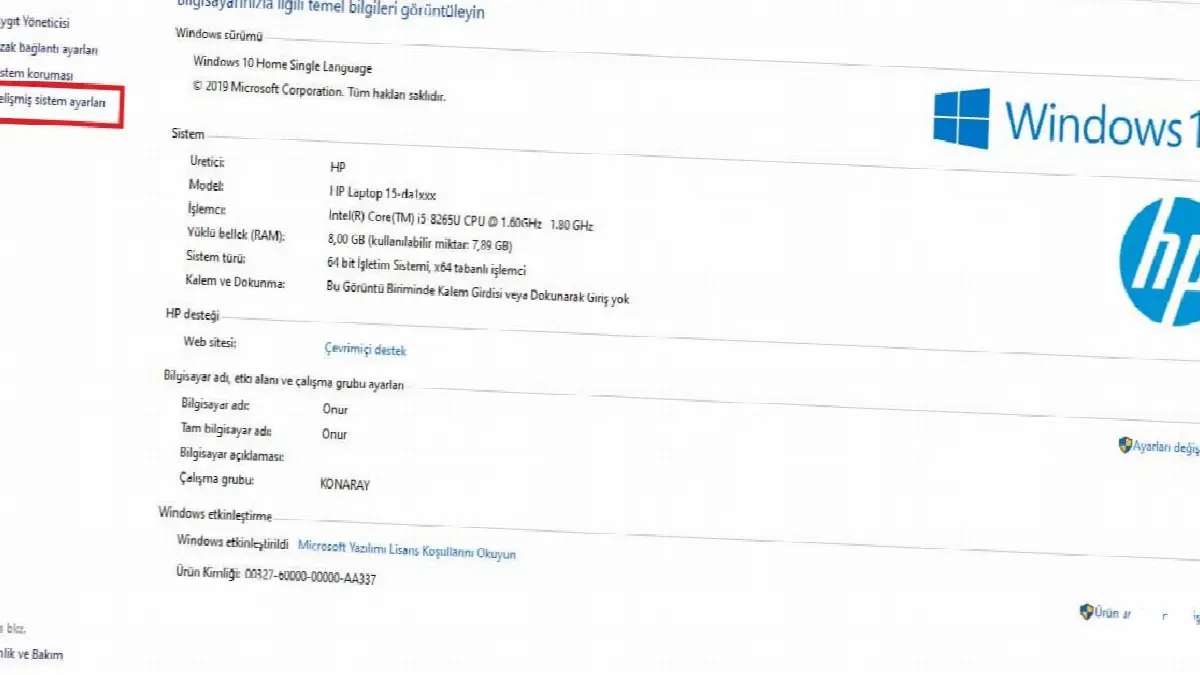
- Step #3: Under the Performance tab "Settings" Click on .

- Step #4: “Tune for best performance” Click .

- Step #5: Leave the screen by pressing the OK button.
Disabling the visual effects that Windows offers us is also one of the ways to increase performance.
Remove the transparency property:
- Step #1: With the desktop open, right-click and “Personalize” Go to .

- Step #2: From the settings page that opens, click on the left side. “Colors” Go to .
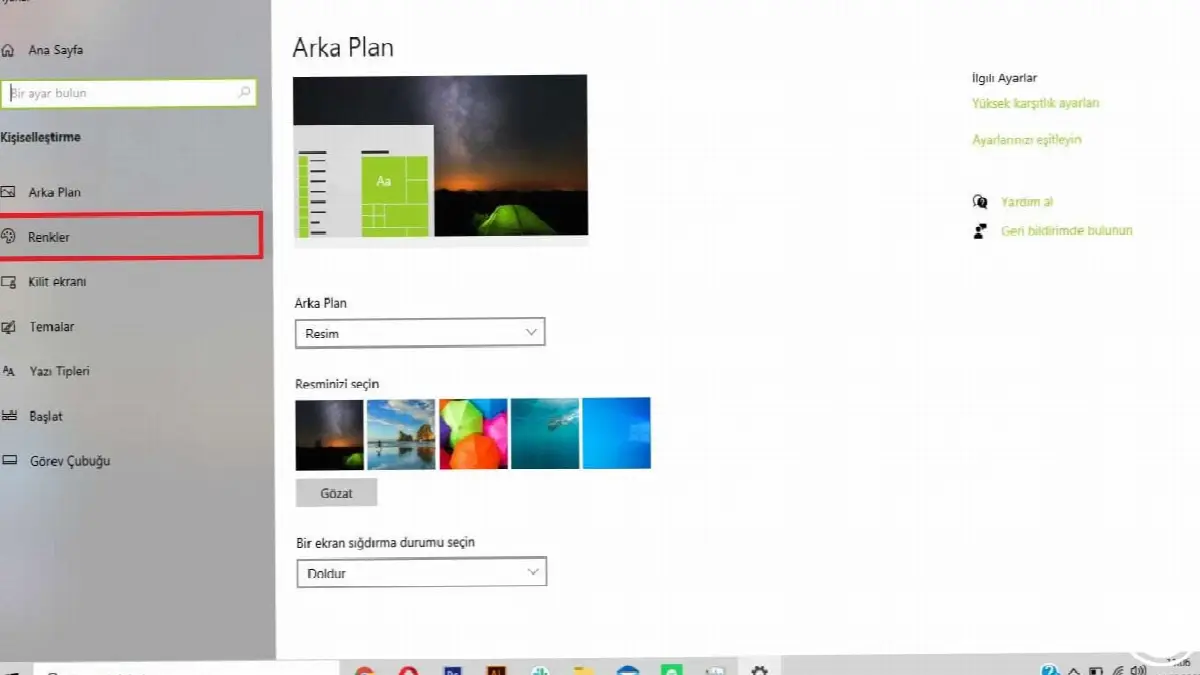
- Step #3: “Transparency effects” Disable the section.
In addition to turning off visual effects, turning off transparency features will provide extra benefit to your computer. our computer leading to extra performance We can speed up our computer by turning off these effects as follows.
Turn on automatic maintenance of Windows:
- Step #1: From Control Panel “Safety and Maintenance” Go to .
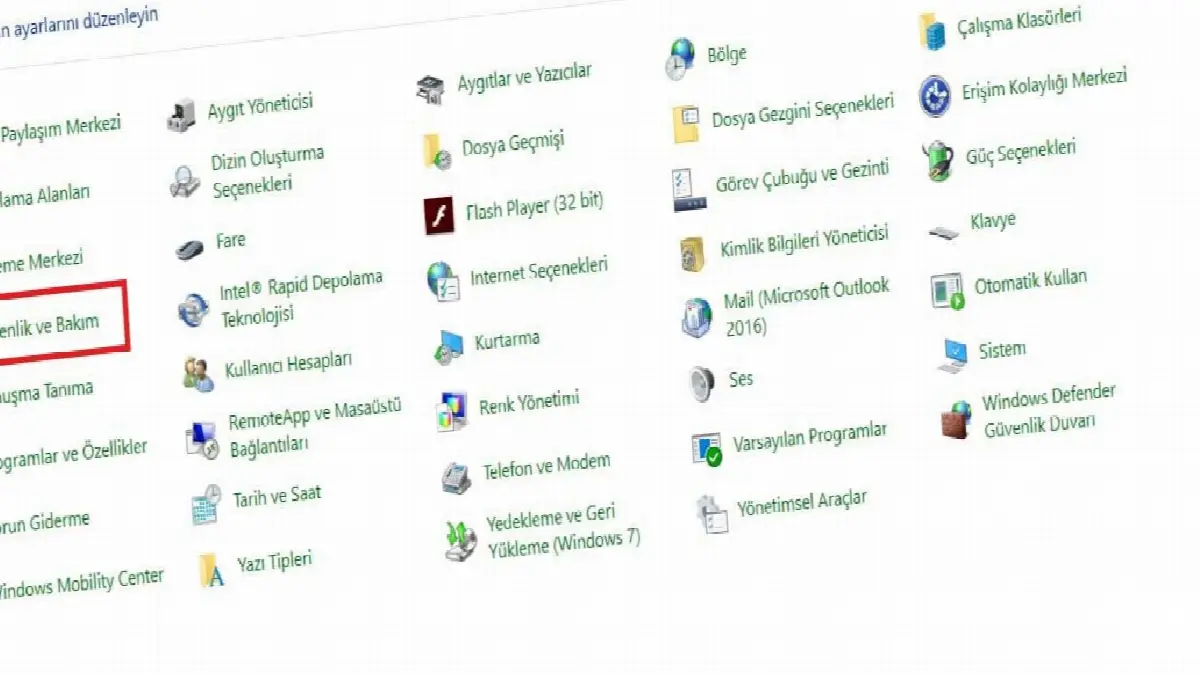
- Step #2: From the maintenance section “Auto Maintenance” You can start the settings.

Our computers constantly update themselves in the background. They do this with automatic or manual settings. However, these updates are something we need to avoid so that our computer does not slow down.
Upgrade your RAM:
You can greatly speed up your computer by increasing your virtual memory (RAM). Windows 10 computers require at least 4 GB of RAM to run. However, the larger the size of the operations you perform, the more RAM you will need. you need. You can install new RAM chips into your computer yourself with a little research, or you can also get help from services.
Defragment your hard disk:
- Step #1: Type “defrag” in the Windows search bar and click on the screen that appears.
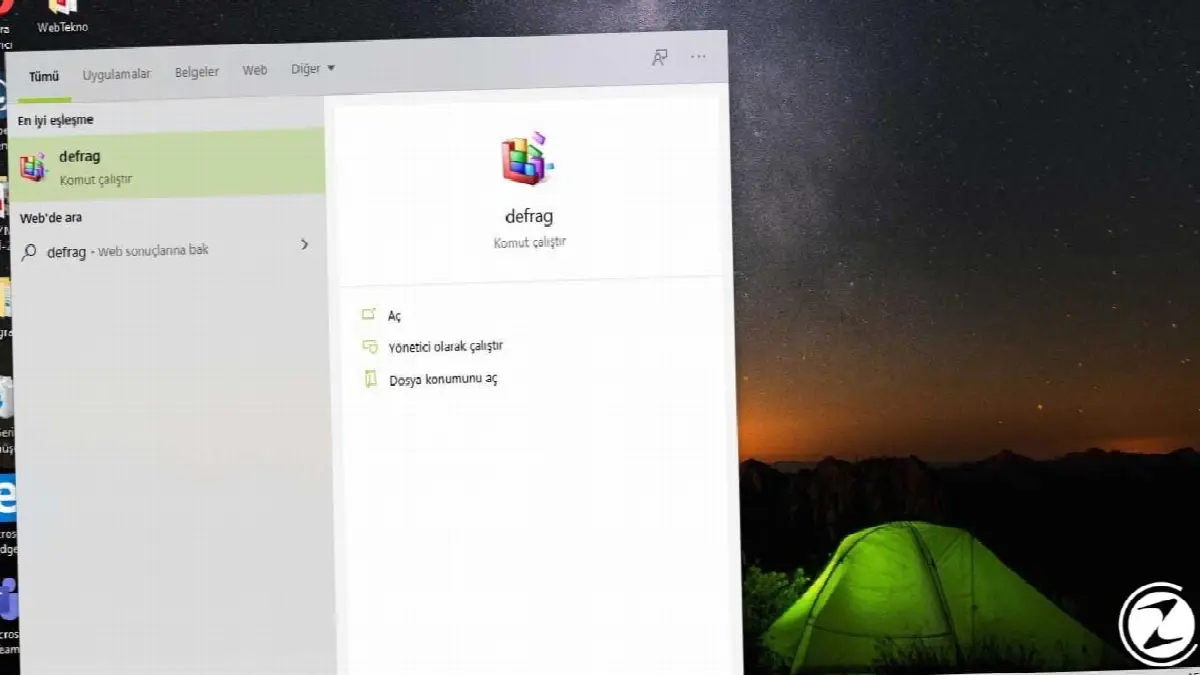
- Step #2: Select the disk drives you want to defragment from the screen that appears.
- Step #3: “Optimize”Click .
The more you use the hard drive, the more it becomes fragmented and slows down your computer. Windows 10 includes software you can use to defragment your hard drive to the built-in synthesizer has. You can speed up the operations on your computer by defragmenting your hard disk.
Turning off indexing:
- Step #1: into the Windows search bar “Services.msc” write it and run it.
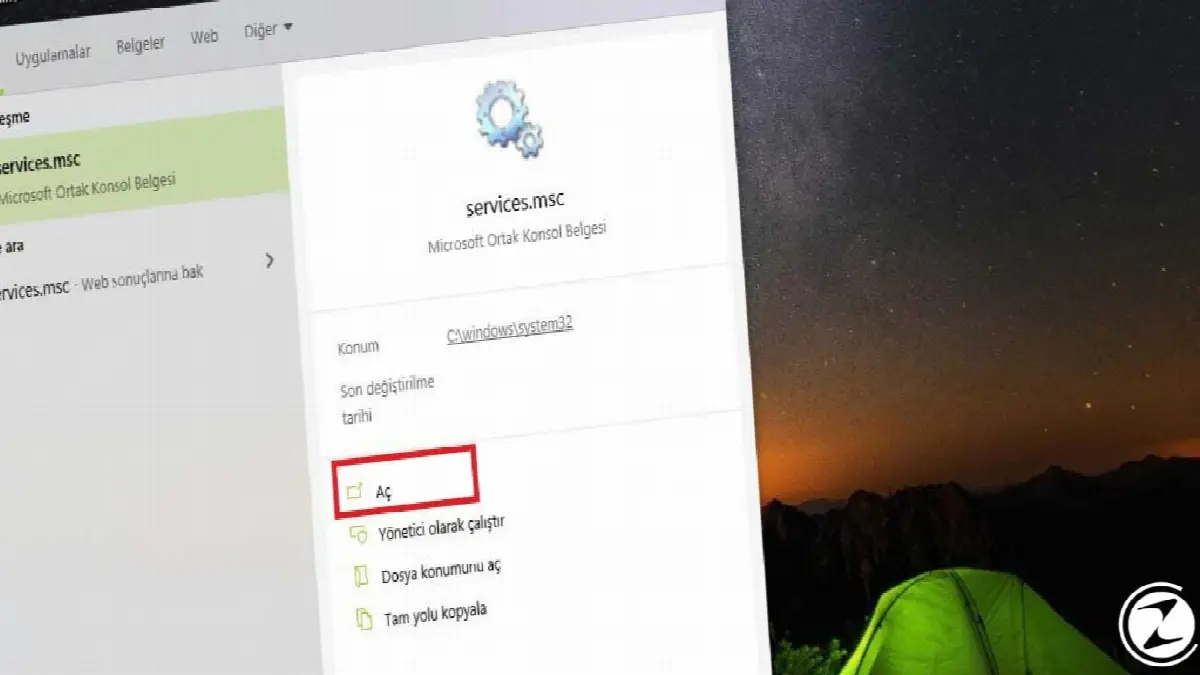
- Step #2: From the incoming screen “Windows Search” Double-click on the section and click the “Stop” button in the small window that opens.

Windows for fast search feature on our computers indexing mechanism is used. However, if our computer has a very narrow space, this mechanism takes up a large amount of space. One way to prevent this is to turn off this process.
Uninstall unused programs:
The fact that programs we do not use take up space on our computers is a reason for all of us to slow down. We can put an end to this situation by removing unnecessary programs from our computers that we are finished with or that have been installed through other programs. This process Control Panel → Programs → Uninstall a program You can do it by following the steps.
Do not put the computer into sleep mode, turn it off every time:
Most of us put the computer to sleep or leave it running after we finish work. However, this causes our computer to use unnecessary power. When we are not using the computer, shutting it down with all programs closed gives our computer an extra performance boost. It will relieve you of your burden.
Every business is unique. Let’s explore how we can tailor these ideas to your own digital project.


