
How to Capture Screen Video in Windows and MacOS?
It is possible to record screens on Windows and macOS operating systems without using an external program. In this article, Windows 10 and macOS for you…

It is possible to record screens on Windows and macOS operating systems without using an external program. In this article, Windows 10 and macOS for you…
It is possible to record screens on Windows and macOS operating systems without using an external program. In this article, we will tell you how to use your Windows 10 and macOS devices. capture screen video We have compiled what you can do.
Capture screen video The process is also possible with third-party applications. In this article, in which we have compiled all the details on the subject for you, we tried to include as many free third-party applications as possible.

How to capture macOS screen video?
- Step #1: Press Shift + Command + 5 simultaneously.
- Step #2: Click on the "Record Entire Screen" option in the window that appears.

- Step #3: To stop screen recording, click the recording icon on the screen or press Command + Control + Esc.
- The screen recording you take will be automatically saved to the desktop.
How to record screen video with QuickTime Player on old version macOS?
- Step #1: Go to Launchpad and start QuickTime Player.

- Step #2: Click File in the upper left corner of the menu bar
- Step #3: Click on the New Screen Recording option listed in the menu that opens.
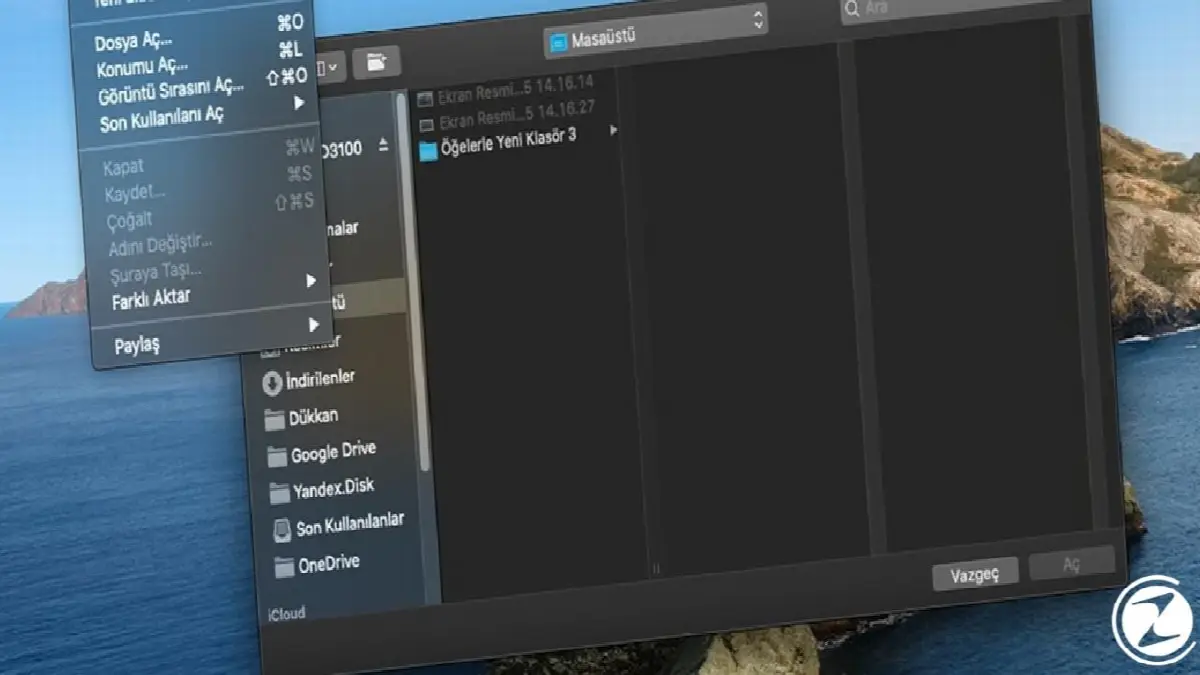
- Step #4: In the window that opens, click on the Open System Preferences button
- Step #5: In System Preferences, click the checkbox next to QuickTime Player.
- You may need to restart QuickTime.
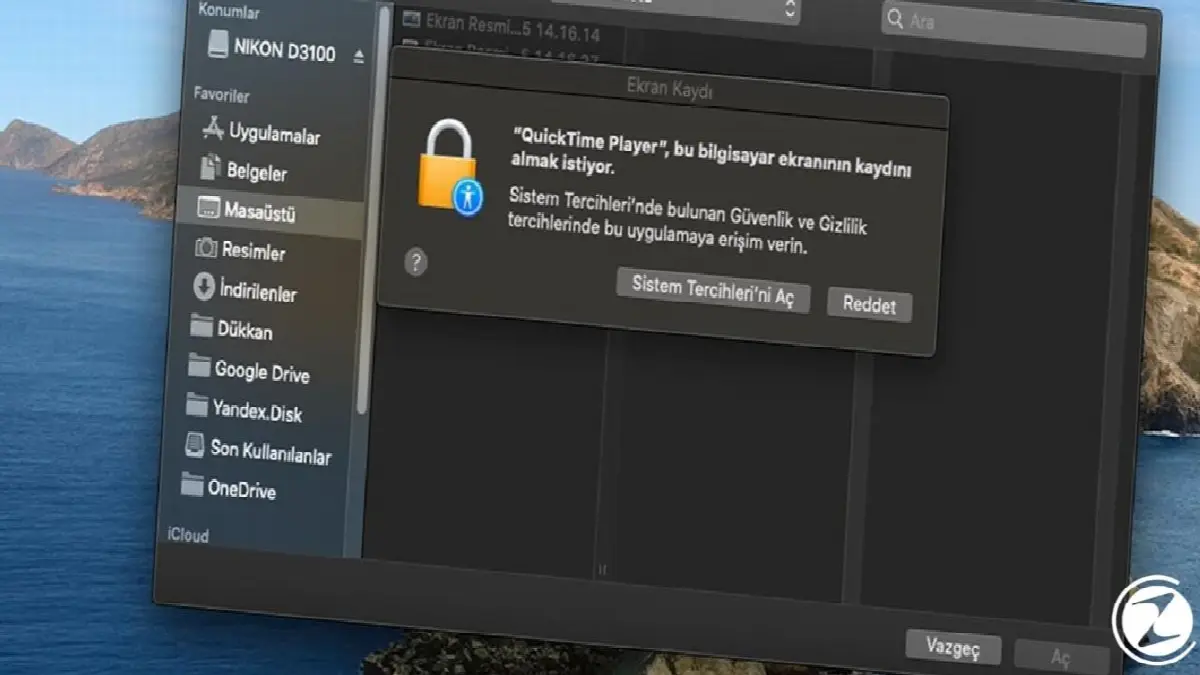
- You may need to restart QuickTime.
- Step #5: Click Options to add or remove mouse clicks, use the microphone, and specify the destination of the video.
- Step #6: You can start screen recording with the toolbar.

If you are using an old version of macOS and your device is not receiving updates, the built-in method shortcut we first mentioned will not work. As an alternative way, without the need for third party applications QuickTimePlayer You can record your screen with .
How to capture Windows screen video?
Now we can move on to the steps:
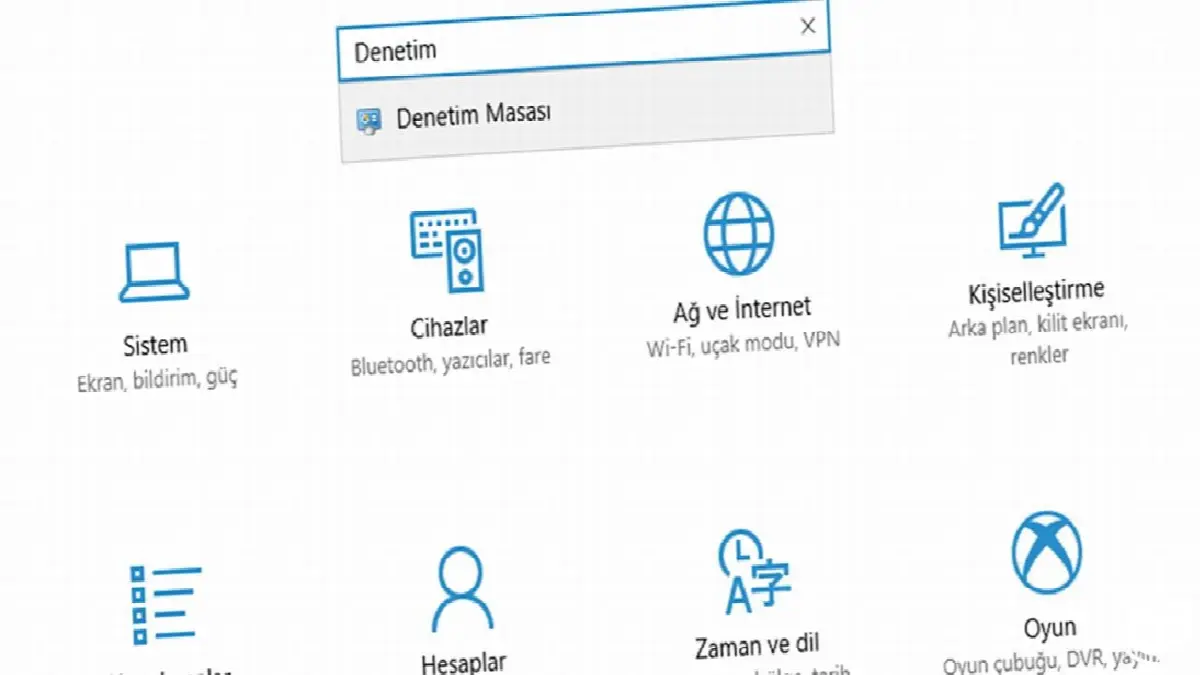
- Step #1: Click on the Settings icon from the Start menu.

- Step #2: Click on the Game icon in the settings window that opens.
- Step #3:“Save gameplay clips and screenshots and publish using Game bar” Activate the option.
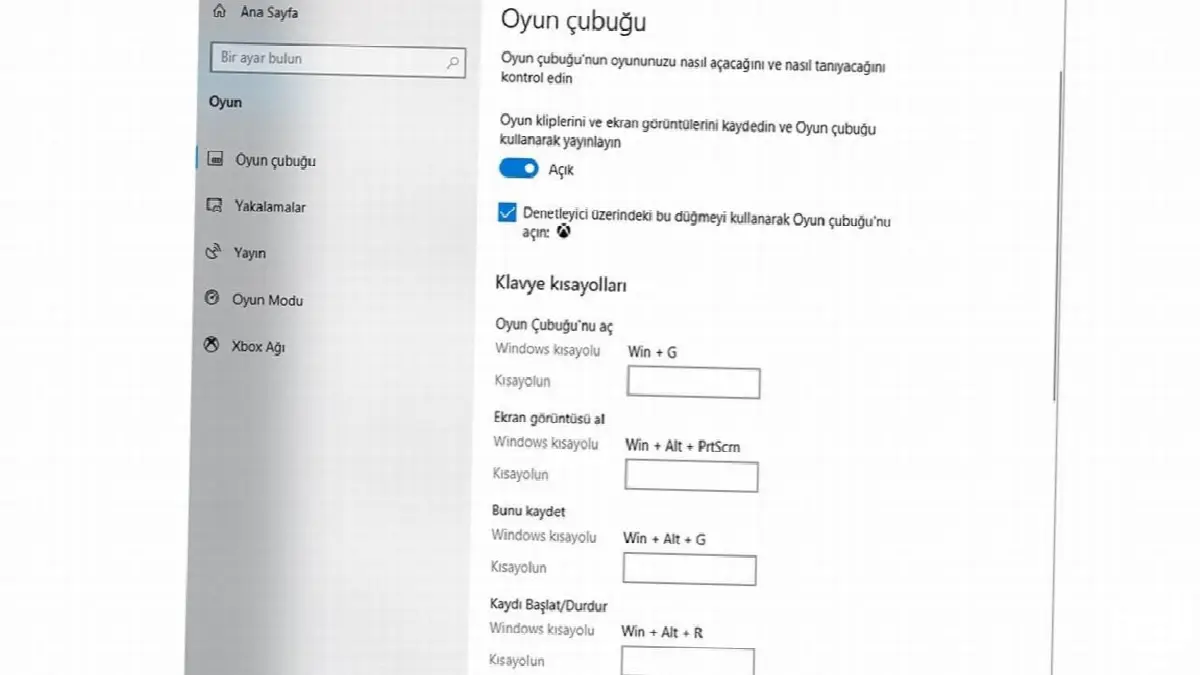
- Step #4: Now Windows+G press the keys,
- Step #5: Via the pop-up bar You can record and stop the screen.
- To stop recording Windows+Alt+R You can use the shortcut.

- To stop recording Windows+Alt+R You can use the shortcut.
Screen recorder app recommendations for Windows:
- PowerPoint
- OBS
- iSpring Free Cam
- camtasia
- apowersoft
- Ezvid
How to record a screen with Powerpoint?

- Step #1: After opening PowerPoint, click the Insert tab and then click the Screen Recording button in the Media panel at the far right.
- “Select area” you can only save a region you specify.
- Step #2: Click on the record button or Windows+Shift+R Use keys.
- Step #3: Click the pause button to stop recording,
- Step #4: To save the screen recording you took, right-click on the video displayed in PowerPoint.
- Step #5: From the menu that opens, select media Save As You can select the option.

OBS:
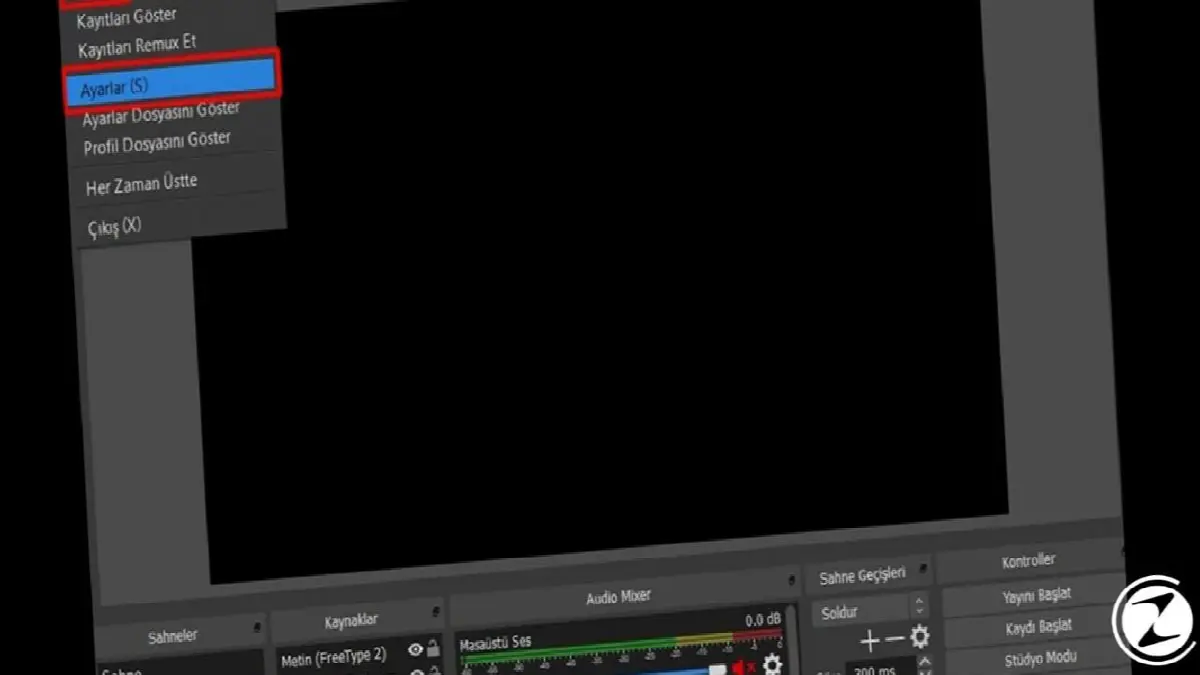
OBS program more Twitch We know from the broadcasters, but the program capture screen video It also provides what you need to do the operation. In addition to screen recording, it has many features such as webcam recording, audio recording, putting additional banners on the screen, creating special scenes and capturing different windows. Open source, offering unlimited full recording without watermark OBS The program is completely free.
iSpring Free Cam:
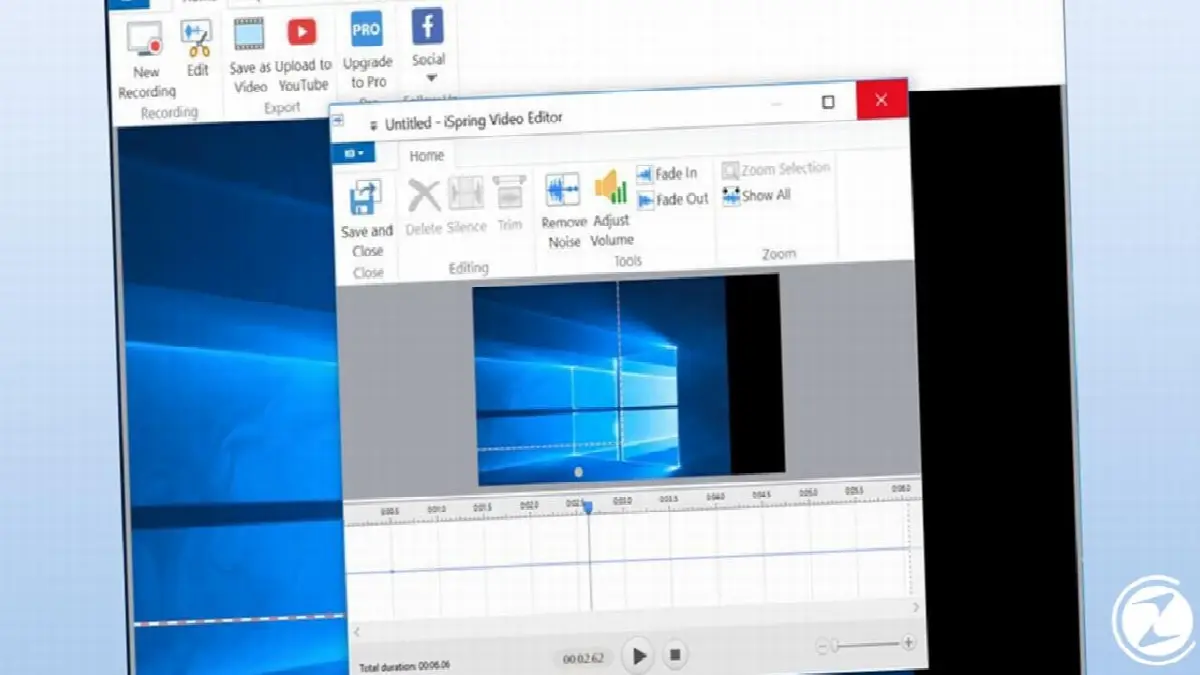
iSpring Free Cam is another freeware offering for Windows capture screen video It is the application that creates the opportunity. As an extra, you can also edit the video you recorded within the program.
Camtasia:
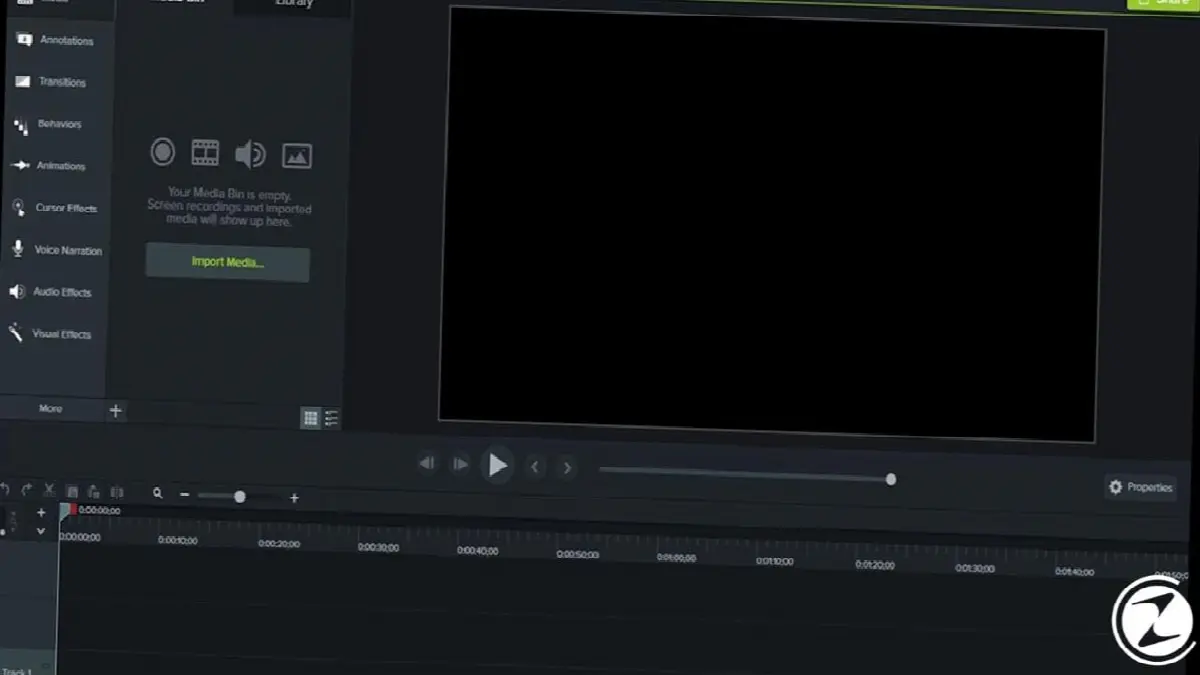
In addition to its ability to capture screen videos, Camtasia offers efficiency to its users with many different features. Free video recorder and editing program camtasia It is even possible to edit and transfer the images you took from an external camera to the computer in HD.
Apowersoft:

Apowersoft application differs from other applications on our list because it is a completely web-based screen video capture application. You can benefit from the program free of charge by downloading an installation file that does not take up much space to your computer for the first time. After downloading the installation file with Apowersoft, go to your website and click"Start recording" Just say.
Ezvid:

Ezvid is another very practical free screen recorder program where you can start recording webcam and screen simultaneously with a single button. Ezvid You can view your recorded videos without logging out of the application. YouTube You can publish it on platforms such as. The only shortcoming of the application is that it takes up too much space. We have compiled more detailed information about the applications in the list we shared for Windows where you can record screens. ''11 Best Screen Recorder Programs for Windows'' You can access our article titled here.
We have come to the end of our article in which we explain how to capture screen videos from your Windows and MacOS computers. What do you think about the screen recording feature? macOS Is it more successful or Windows Is it? Along with the answer to the question, if you are using one of the applications mentioned in the list, you can share your experiences with us in the comments section.
Every business is unique. Let’s explore how we can tailor these ideas to your own digital project.


