
How to Change Screen Resolution in Windows 10?
As technology develops, we can encounter higher screen resolution values every day. Previously, the screen resolution was 1920 x 1080…

As technology develops, we can encounter higher screen resolution values every day. Previously, the screen resolution was 1920 x 1080…
As technology develops, it increases day by day. screen resolution We can encounter values. While previously 1920 x 1080 screen resolution was more popular, now we can see televisions and monitors that support up to 8K resolution. As the screen resolution increases, the details on the screen become more visible and the quality generally increases at the same rate.
Alright screen resolution why? What benefits does high resolution have? We will give you the answers to these questions. In addition, we will explain in detail how you can change the screen resolution setting in the Windows 10 operating system.
- Step #1: Right-click on the desktop and click Display Settings,
- Step #2: Open the "Screen resolution" list at the bottom of the window that opens,
- Step #3: Click on the resolution you want and then click “Keep changes” in the window that opens and complete the process.
Go to the desktop, right-click on the screen and click Display Settings:
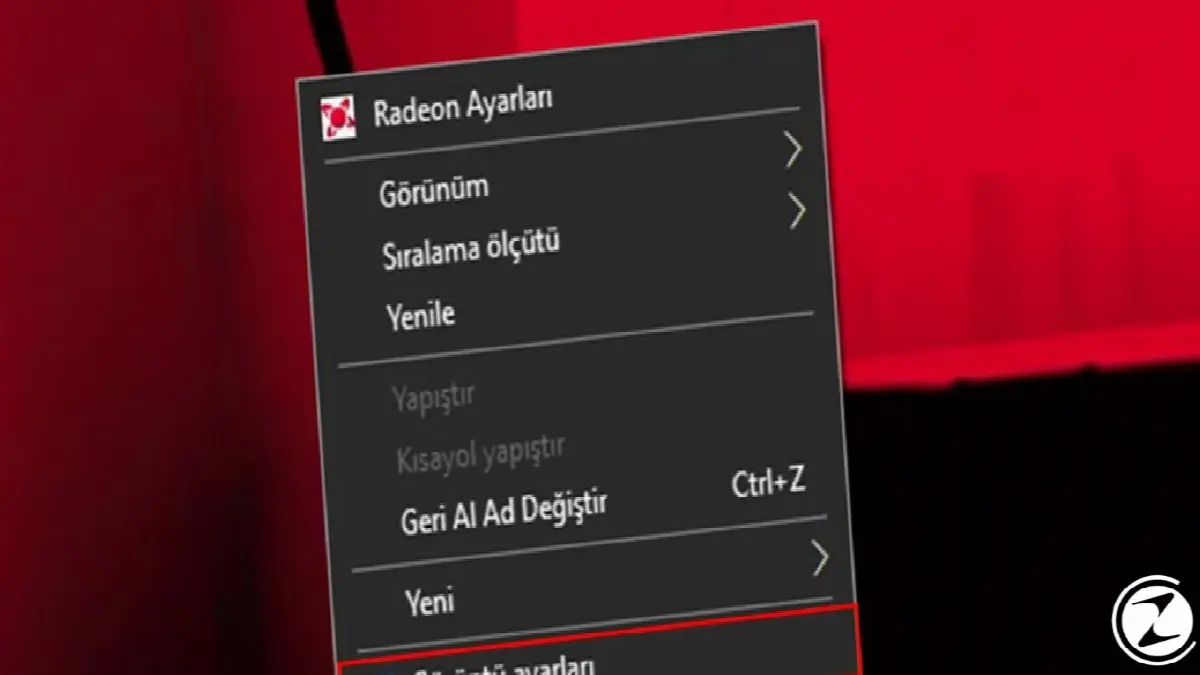
Windows 10 has a display settings section where you can adjust settings such as screen resolution and refresh rate. To enter this section, right click on the desktop and then image settings You can select the section. Another way to go to the display settings section is to click the Start button and then type display settings in the search field. You can then press enter to enter the display settings section.
Open the “Screen resolution” list at the bottom of the window that opens:

When you click on the display settings option, a window opens. At the bottom of this window “Screen resolution” You can see the article and the list under this article. If you click on this list, you will see what your screen can show. maximum and minimum screen resolution values will come out.
Click on the resolution you want and then click “Keep changes” in the window that opens and complete the process:

When you open the screen resolution list, you usually most ideal The screen resolution is set to default. This is the 1920 x 1080 resolution for most displays, but this is the default, although some displays support higher resolutions. You can choose the screen resolution according to your wishes from this list. can increase and you can drop it.
How to change Windows 10 refresh rate?
- Step #1: Click on Advanced display settings at the bottom of the display settings section.
- Step #2: Click on “Display adapter properties for Display 1” at the bottom of the window that opens.
- Step #3: Click List All Modes and select the mode with the resolution and refresh rate you want.
Click on Advanced display settings at the bottom of the display settings section.

At the bottom of the display settings section in Windows 10 advanced display settings There is also a section. You can see this option when you scroll down to the screen resolution section.
Click on “Display adapter properties for Display 1” at the bottom of the window that opens.

In the advanced display settings tab, there is a section where your monitor, video card, screen resolution and refresh rate are specified. Below this section, there is another window you can open. After clicking here You can change your refresh setting.
Click List All Modes and select the mode with the resolution and refresh rate you want

located at the bottom of the window that opens. “List All Mods” If you click , you can see the maximum and minimum screen resolution and refresh rates that your display and graphics card can create. After selecting the mode you want here, click OK and perform the necessary actions. Complete your refresh rate setting.
What is the difference between screen resolutions?

The images on the screen of computer monitors, smartphones or televisions are thousands or even millions of times. from pixel occurs. Television screens and other displays create the image by changing the colors in these tiny squares, of which there are millions. In other words, the things we watch actually emerge from the constant changing of the colors in these frames.
Screen resolution, screen both horizontally and vertically Indicates how many pixels it can display. Most displays ship with a resolution of 1920 x 1080 by default. These values are on the screen 1920 pixels horizontally and 1080 pixels vertically It means it can show.
Is there any benefit to using high resolution displays?

We mentioned that screen resolution represents the pixels on the screen. So, is there any difference in using different screen resolutions on two screens of the same size? Of course there is. The first of these is the screen displaying more pixels. quality increase It will happen. Due to the number of pixels increasing with screen resolution sharper You can get an image.
Another difference as the screen resolution increases is that the icons, texts and other things on the screen will become smaller. Since the pixels on the screen will increase, the things on the screen will become much smaller. More of it will fit on the screen. If you are playing games or watching videos, the size of the image will not change but the image quality will improve.
How to change screen resolution in Windows 10?
We have come to the end of our guide, where we answer the questions of what is screen resolution, what are the benefits of high screen resolution, and explain how you can change the screen resolution in the Windows 10 operating system. There will be more guides like this one, so you don't miss it. stay tuned.
Every business is unique. Let’s explore how we can tailor these ideas to your own digital project.


