
How to Clean a Laptop with Liquid Spilled on it?
Invisible accidents can happen to us anytime, anywhere. Especially devices such as laptops, which are with us everywhere at all times, are prone to such accidents.

Invisible accidents can happen to us anytime, anywhere. Especially devices such as laptops, which are with us everywhere at all times, are prone to such accidents.
Invisible accidents can happen to us anytime, anywhere. Especially devices such as laptops, which are always with us everywhere, can be easily affected by such accidents. How to clean laptop The answer to the question may vary depending on the accident that occurred. Since the most common accident that users experience is spilling liquid on the laptop, how to clean laptop The answer to the question is one of the most curious topics.
Alright, How to clean a laptop that spilled liquid on it? In such a situation, the first thing you need to do is to be completely cool-headed because you may cause more damage to the device while trying to rush. Liquid spilled on it for you how to clean laptop We answered the question. Before cleaning, remember to act quickly and make sure that the liquid you spill on the laptop is not at high temperature and does not contain sugar or acid.
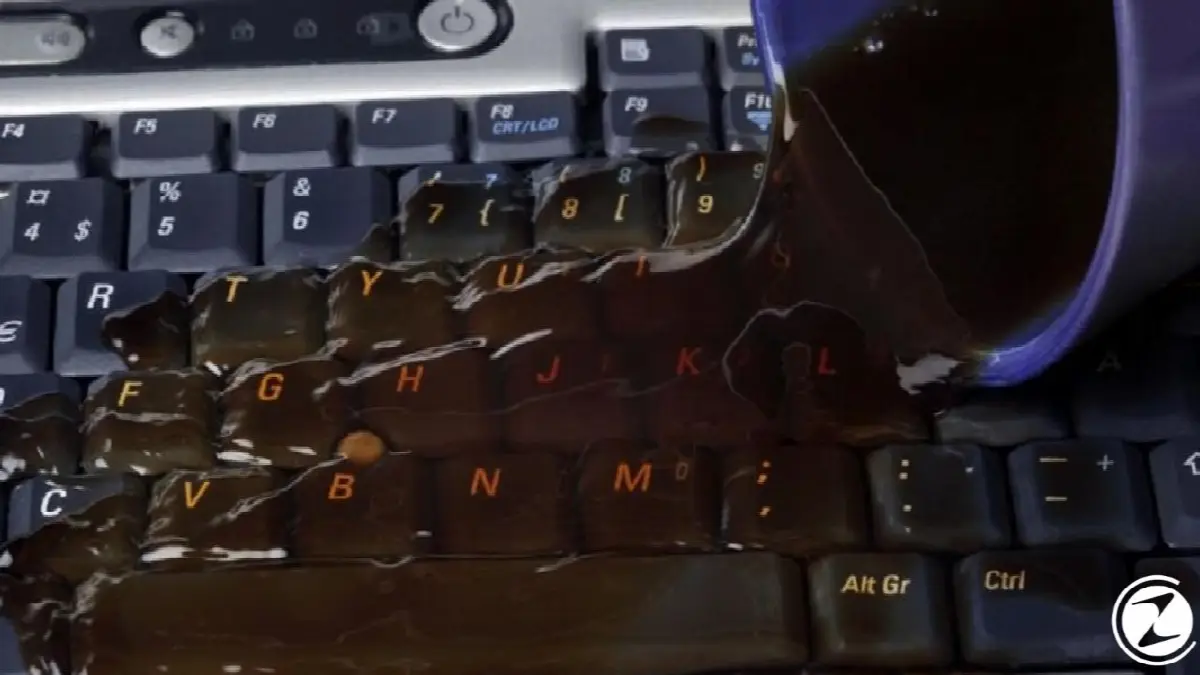
How to clean a laptop with liquid spilled on it?
- Step #1: Turn off the computer and disconnect the power.
- Step #2: Remove it from the area where the liquid is present.
- Step #3: Turn it upside down and remove the battery.
- Step #4: Unplug all external hardware.
- Step #5: Lay a clean towel on a dry surface.
- Step #6: Place the computer face down on the towel with the lid open.
- Step #7: Wipe off any visible liquid with a dry cloth.
- Step #8: Make sure your hands are moisture-free and dry.
- After this stage IMPORTANT NOTE: If your computer is new, take it to technical service or a specialist.
- If you do not prefer to take your computer to technical service, you should be careful about the next steps.
- Step #9: Disassemble internal components
- ATTENTION: Laptops are compact devices, so parts are very prone to damage.
- Step #10: Gently clean the internal components with a dry cloth.
- Step #11: Clean the inside of the computer.
- Step #12: Leave the laptop parts to dry for 24 hours on a dry towel without assembling them.
- Step #13: Assemble the parts and turn on the laptop.
- Step #14: Check if there are any problems.
Step #1: Turn off the laptop and disconnect the power:
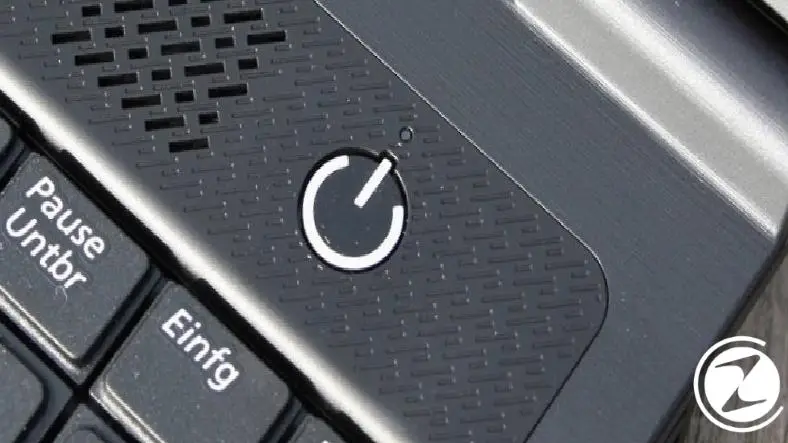
When any liquid is spilled on the laptop, the first thing you should do is clean the with power button is to turn off the device and, if it is connected to the power source, disconnect it, that is, unplug it. In this way, you will cut off all electrical current and prevent possible damage to internal components and bad consequences that could lead to fire.
Step #2: Remove the liquid from the area:
Considering that the liquid spilled onto the laptop as a result of a glass or bottle tipping over, a small lake may have occurred. You should immediately remove the device from that floor to prevent further exposure to liquid.
Step #3: Turn it over and remove its battery:
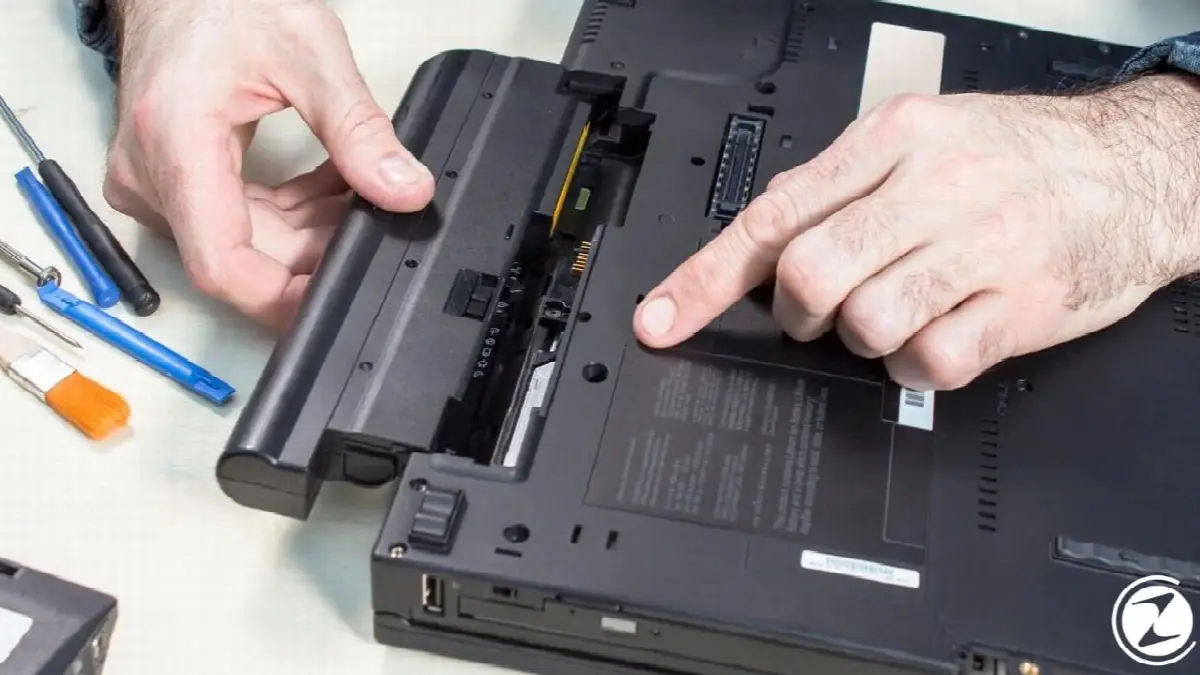
Turn the laptop, which you have removed from the area where the liquid is concentrated, upside down so that the screen is at the bottom and allow the liquid to drain. In the meantime, if he can get out Remove the laptop's battery. If it is one of the models whose battery cannot be removed easily, you can intervene in the battery while removing the internal components.
Step #4: Remove all external hardware:
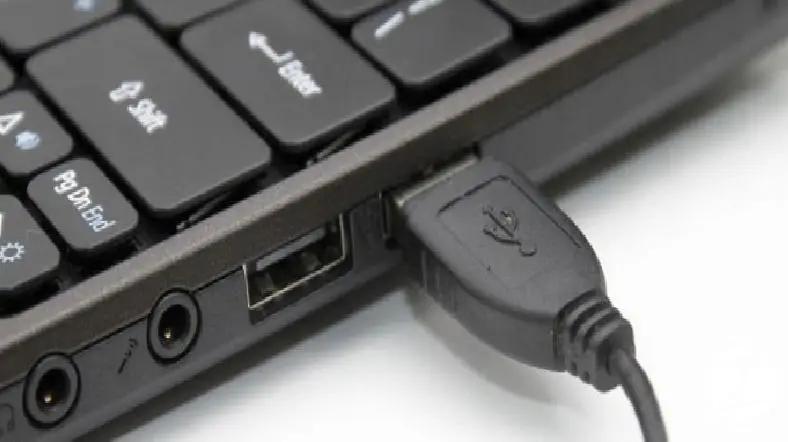
If you have different devices such as USB memory, memory card, mouse connection, charger etc. on the laptop. If there is external hardware Remove them from the laptop. If these external equipment are also affected by liquid, clean them gently with a dry cloth and let them dry on a dry towel.
Step #5: Lay a clean towel on a dry surface:
To perform other steps regarding the laptop that has spilled liquid on it, place it on a flat and dry surface. a clean and dry towel cool. If the towel you spread gets wet after following the other steps, do not forget to replace it with a new clean and dry towel.
Step #6: Place the laptop face down on the towel with the lid open:
Open the laptop lid as much as you can and place it face down on the clean and dry towel you have spread. Some laptops can be opened 180 degrees or more. You don't need to open it that much. The laptop should lie like a tent on the towel and the liquids inside should flow onto the towel.
Step #7: Wipe off any visible liquid with a dry cloth:
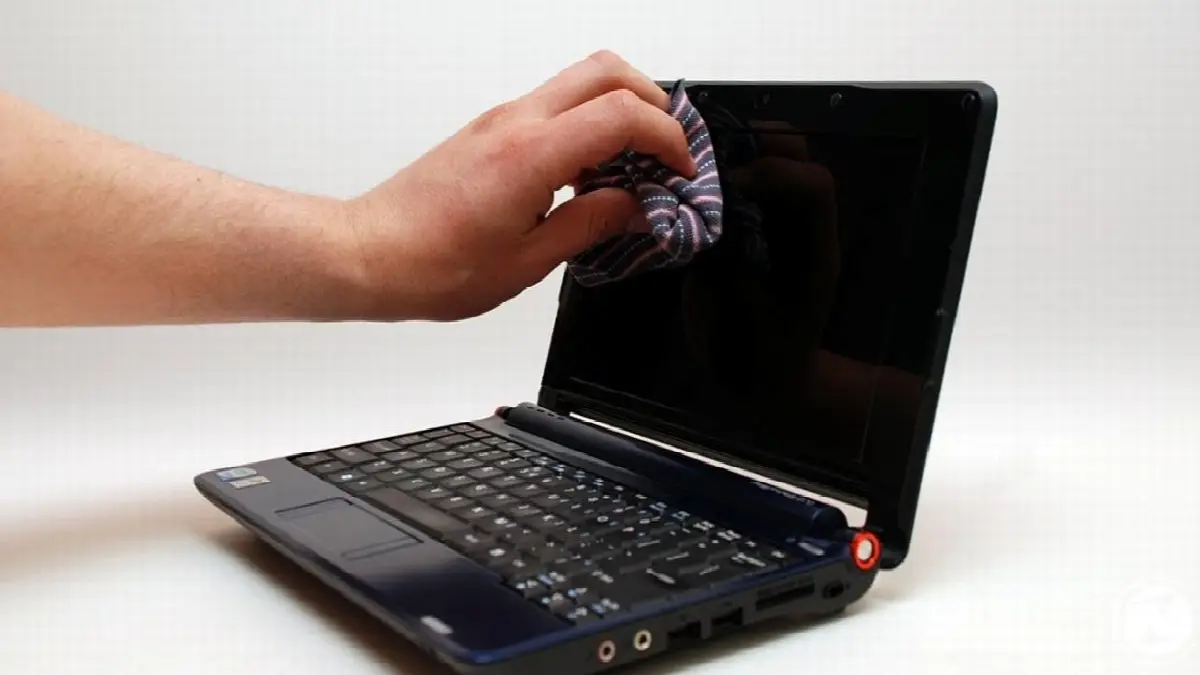
Liquid areas visible on the laptop placed on a clean and dry towel with the lid open with the help of a dry cloth clear it. At this point, you should use a microfiber, highly absorbent cloth. Never apply pressure while drying. Make sure the cloth absorbs the water with slow and gentle movements.
Step #8: Make sure your hands are moisture-free and dry.
The above steps were steps that should be applied quickly and outside of the laptop. The next steps will be cleaning the internal components of the laptop. Therefore, if you are affected by spilled liquid, dry yourself. Especially if your hands are dry is extremely important when contacting internal components.
Step #9: Remove internal components:
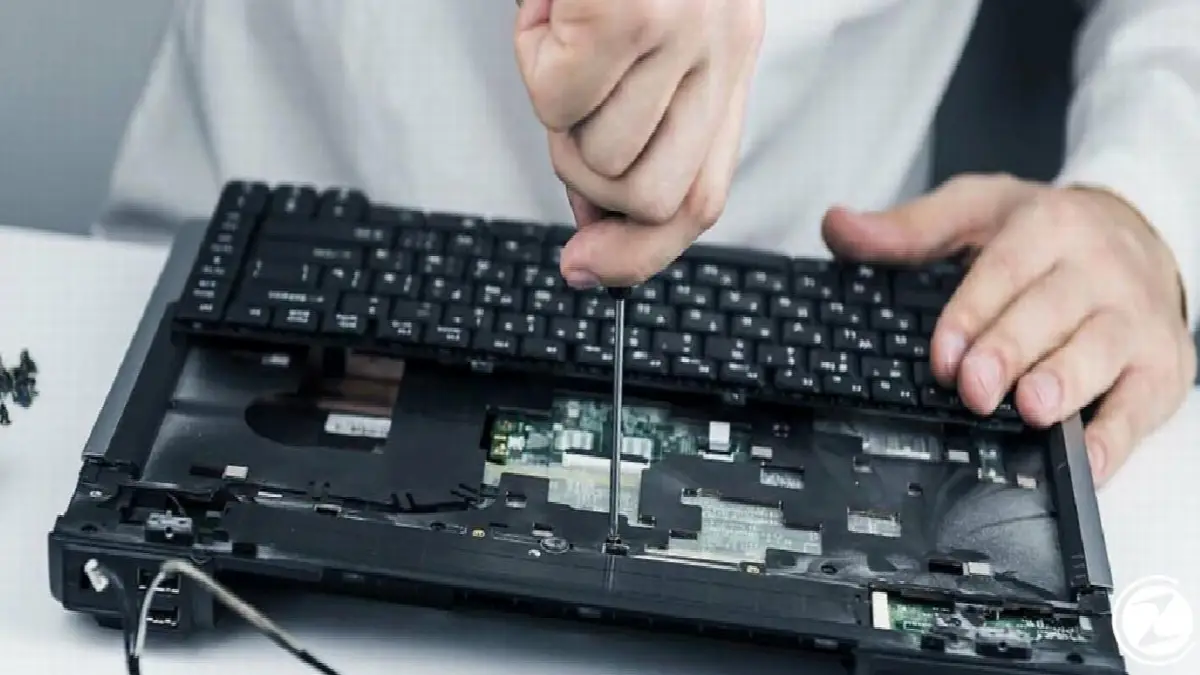
First, open the back cover of the laptop lying face down; Then remove the removable internal components such as RAM and hard disk. to internal components if you are not a judge You can watch detailed explanation videos. You can take a photo of the components before disassembling them to make it easier for you to reassemble.
Step #10: Gently clean the internal components with a dry cloth:
You can place the internal components you have removed on a dry towel. Gently remove any liquid from all components with a microfiber, highly absorbent cloth. Never apply pressure. Then, use a slightly damp cloth to gently remove any stains on the components, if any.
Step #11: Clean the laptop interior:
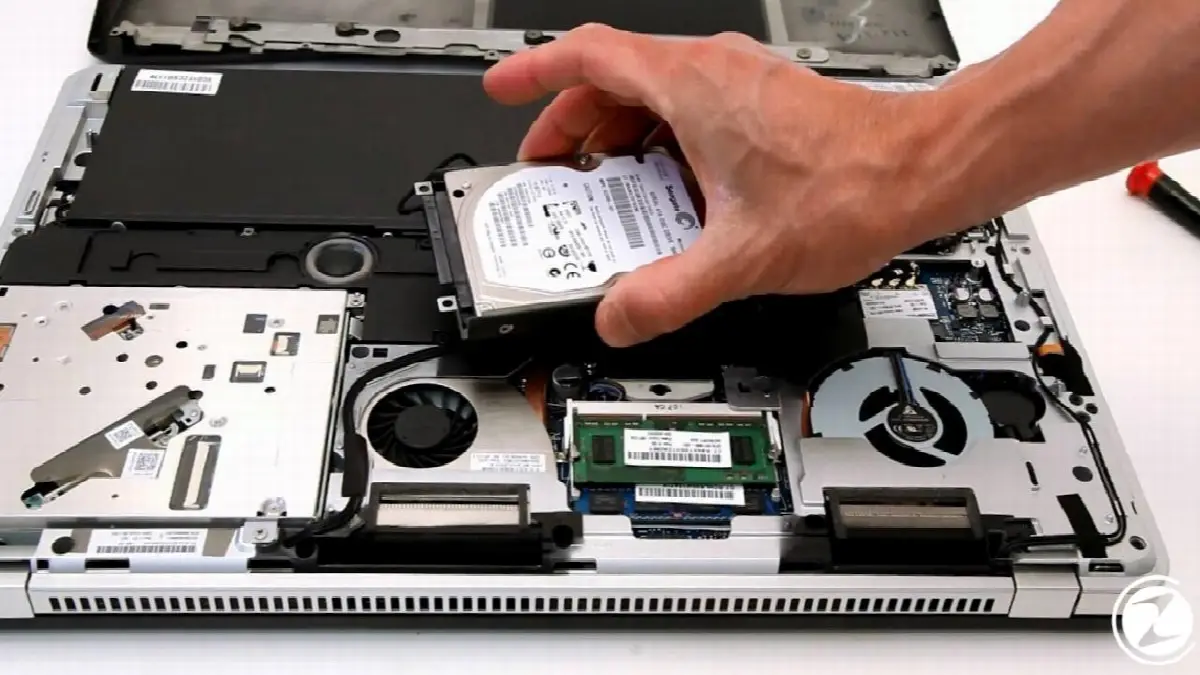
After removing the components, you should also clean the bottom part of the laptop, that is, its case. Likewise, clean the inner part slowly and gently with a microfiber, highly absorbent cloth. in a gentle way clear it. Make sure all the liquid is absorbed by the cloth without applying pressure.
Step #12: Before assembling the laptop parts, let them dry on a dry towel for 24 hours:
After cleaning the visible liquids on the laptop, inside it and its internal components, before assembling the laptop and all internal components. at least one day i.e. let it dry for 24 hours. If the towel you put on the laptop and its components gets wet, change it. Never use a hair dryer or similar heating device. Let them dry on their own in a dry and room temperature environment without intervention.
Step #13: Assemble the parts and turn on the laptop:
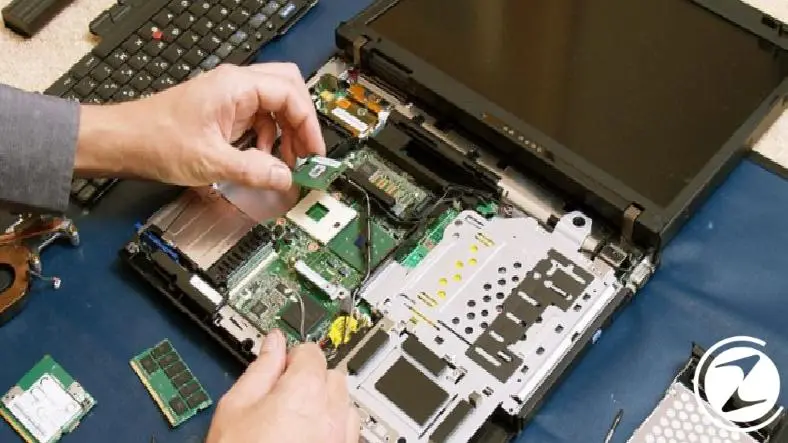
Check the laptop and its internal components that you left to dry for at least 24 hours. If it is completely dry, reconnect all components to the laptop. If you are having trouble with this You can look at the photos you took before or watch the detailed explanation videos. It is extremely important to make sure that all components are completely dry before assembling.
Step #14: Check for any problems:
Operate the laptop whose components you reconnected as usual. If the device does not turn on, If it makes strange noises during boot up, If there is anything strange in the image or if it emits an odor while operating, be sure to take your laptop to the technical service of the manufacturer as soon as possible. Some parts may have been damaged while exposed to liquid.
for you How to clean laptop with liquid spilled inside We answered your question and explained the steps you need to follow step by step. You need to act quickly when applying the steps we have explained. The longer a laptop is exposed to liquid, the more irreversible damage it can suffer.
Every business is unique. Let’s explore how we can tailor these ideas to your own digital project.


