
How to Clean Desktop PC? All Tips
Like all items, computers will become dirty over time due to external factors such as dust. The computer that got dusty became old after a while…

Like all items, computers will become dirty over time due to external factors such as dust. The computer that got dusty became old after a while…

Like all items, computers will become dirty over time due to external factors such as dust. After a while, the dusty computer will no longer be able to show its previous performance, it will overheat and its lifespan will decrease due to the load on the hardware. Therefore, at regular intervals PC cleaning You must do this. But PC cleaning The process is much more detailed than removing dust with a dust cloth.
Alright, How to clean PC? For a deep cleaning, you should remove dust from the computer's case, monitor, keyboard and mouse using different materials. For the PC cleaning process, you will also need to disassemble some parts of the computer. for you PC cleaning We answered the question of how the process is done, explained the details you need to pay attention to and the steps you need to take, step by step.
What you need to do during PC cleaning:
Case cleaning:
- Step #1: Prepare a clean area.
- Step #2: Gather the materials you will use for cleaning.
- Step #3: Turn off the computer and remove all peripherals.
- Step #4: Lay the case on its side.
- Step #5: Remove the side panel of the chassis.
- Step #6: Pick up large pieces of dust with a vacuum cleaner.
- Step #7: Disperse small parts with compressed air.
- Step #8: Clean the fans.
- Step #9: Remove the chassis components.
- Step #10: Dust the grates.
Step #1: Prepare a clean area:

Especially if you haven't cleaned your computer case for a long time. It's going to be a hell of a mess You can rest assured. Therefore, create a special, clean area to prevent other items from getting dirty and clean both the case and other computer parts in this area.
Step #2: Gather the materials you will use for cleaning:

A screwdriver to disassemble the case parts, a vacuum cleaner to vacuum up dust, To disperse small dust You need a compressor, a fine-bristled and soft toothbrush, and isopropyl alcohol for deep cleaning. Make sure the compressor and vacuum cleaner have nozzles to get into small spaces.
Step #3: Turn off the computer and remove all peripherals:
Now that the cleaning materials and area are ready, turn off the computer completely. Behind connected to the safe Remove any peripherals. It is extremely important that none of them are connected to the case for you to work more comfortably and safely.
Step #4: Lay the case on its side:

After removing all peripherals connected to the case, replace the case with the one you prepared before. special cleaning area Bring it and lay it on its side. Make sure that the side panel you are removing is on top and that the back of the case is positioned directly in front of you.
Step #5: Remove the side panel of the chassis:

The safe you put on its side when you examine it carefully You can see the screws holding the side panel. Carefully remove these screws. Then remove the side panel without the screws and set it aside. Keep the screws you removed in a visible place to avoid losing them.
Step #6: Pick up large pieces of dust with a vacuum cleaner:
If you are faced with a safe that has not been cleaned for a long time, lumps of dust, heaps of dust like snow It may come out. Collect such large items carefully with a vacuum cleaner. Be careful not to hit any internal components during the process. You can increase the power of the vacuum cleaner and perform this operation without getting too close to the safe.
Step #7: Disperse small parts with compressed air (Be careful):
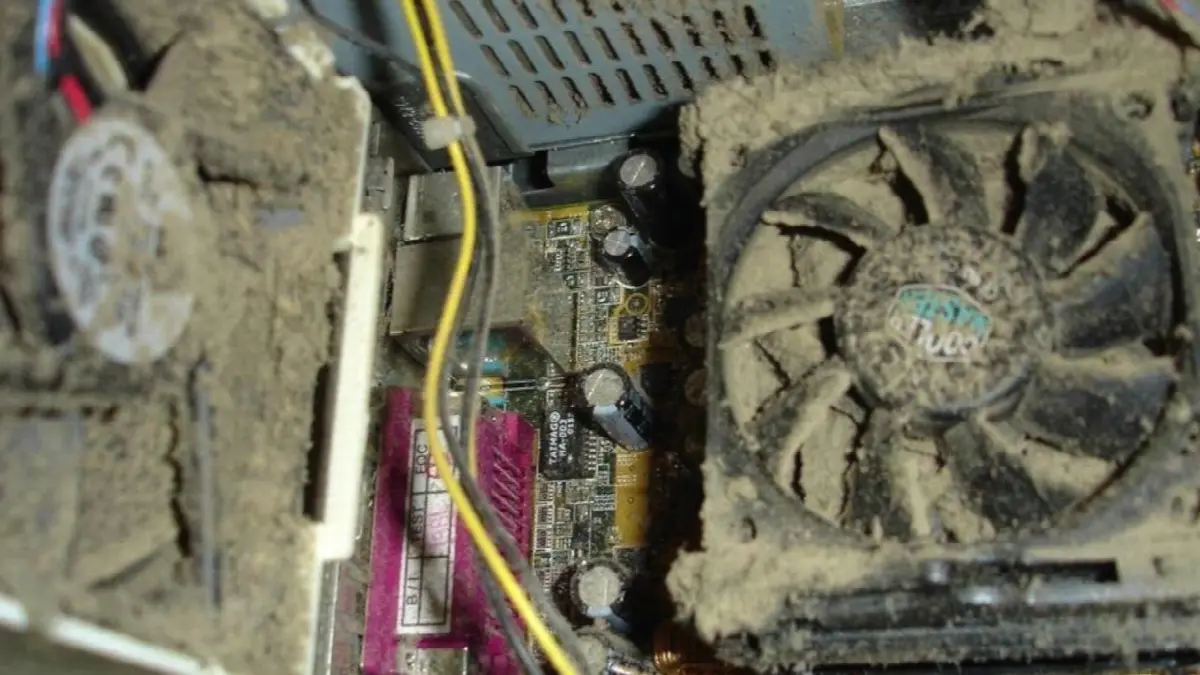
Attach a thin nozzle to the compressed air compressor and remove dust and dust that cannot be vacuumed. dust in tight spaces Distribute. At this point, the compressor is the tool that gives the most successful results. Never direct compressed air at the fans, as this may cause damage to the fans.
Step #8: Clean the fans:
Carefully collect the dust on the fan with a vacuum cleaner. Behind dip your toothbrush in isopropyl alcohol and clean the small pieces of dust remaining on the fans in this way. Remember that the toothbrush must be new. If you clean the fan by removing its connection to the case, be careful to install the fan in the correct direction afterwards.
Step #9: Remove the chassis components:

Many of the parts inside the case, such as the graphics card, optical drive and hard drive, are After removing the screws and cable connections It will come off easily. After removing all these components, carefully collect the dust on them with a vacuum cleaner, just like you did with the fan, and clean the remaining small pieces of dust with an alcohol toothbrush.
Step #10: Dust the grates:
On the grilles that stand in front of the fans and allow the computer case to breathe Do not let even a single particle of dust remain. Pick up large dust with a vacuum cleaner, blow up small items with a compressor, and remove stubborn dust that just won't come out with an alcohol toothbrush. After the cleaning process, carefully replace the parts you removed.
Keyboard cleaning:
- Step #1: Unplug the keyboard cable.
- Step #2: Collect dust on the keyboard with a vacuum cleaner.
- Step #3: Shake the keyboard upside down.
- Step #4: Remove all keys from the keyboard.
- Step #5: Disassemble the keyboard.
- Step #6: Wash the parts.
- Step #7: Reassemble the parts.
Step #1: Unplug the keyboard cable:

Before cleaning the keyboard, check the distance between the keyboard and the computer. you need to disconnect It is necessary. Having a connection may not be a problem for every cleaning, but there should be no current in the keyboard when doing a deep cleaning.
Step #2: Collect dust on the keyboard with a vacuum cleaner:
As with other components, when cleaning the keyboard Firstly You should remove the dust with a vacuum cleaner. By attaching a thin nozzle to the vacuum cleaner, you can touch all the fine points on the keyboard and collect all the dust.
Step #3: Shake the keyboard upside down:
There may be some foreign objects stuck in between that even a vacuum cleaner cannot pick up. Before removing the keyboard keys and doing a deep clean turn it upside down and shake it well, It will reveal the parts stuck between the keyboard.
Step #4: Remove all keys from the keyboard:
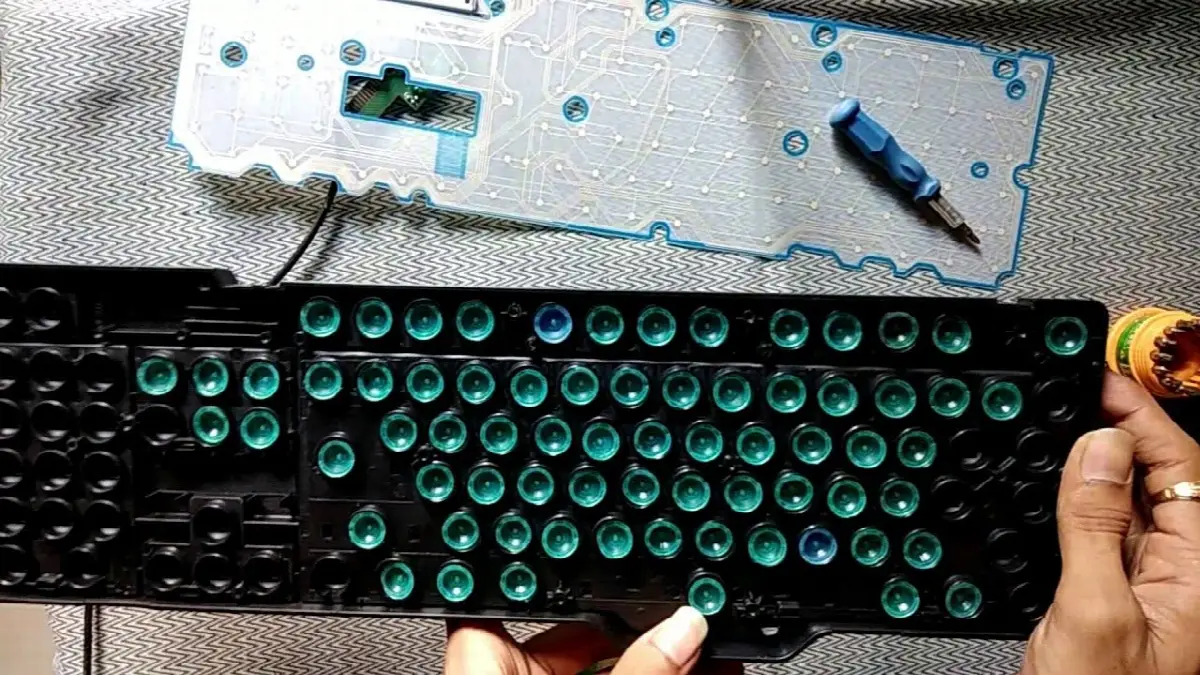
If you want a detailed cleaning, you should definitely remove the keys on the keyboard. One wrench, knife or flat screwdriver bit Carefully remove the keys on the keyboard using . Take a photo of the keyboard before disassembly to help when reassembling it later.
Step #5: Disassemble the keyboard:

On the back of many, but not all keyboards, you will see screws connecting two separate parts. This removing the screws You can disassemble your keyboard and have the chance to clean its internal parts. As with any other process, start by collecting dust with a vacuum cleaner.
Step #6: Wash the parts:
You can wash all parts of the keyboard with water, except for components such as cables, cards and circuit systems. After all, these parts are made of plastic. However, do not expose it to very high temperatures in the dishwasher. Because After all, it's plastic may experience deformations.
Step #7: Reassemble the parts:

After disassembling your keyboard, make sure that each part you wash is completely dry. Even the slightest moisture It may cause problems with your keyboard. After making the general connections, you can place the keys by pressing them where they are. If your keyboard has a different system, you can contact the manufacturer and learn alternative methods for cleaning.
Mouse cleaning:
- Step #1: Unplug the mouse cable or Bluetooth connection.
- Step #2: Clean it up.
- Step #3: Clean your lens.
- Step #4: Clean the bottom.
- Step #5: Clean the mousepad.
Step #1: Unplug the mouse cable or Bluetooth connection.
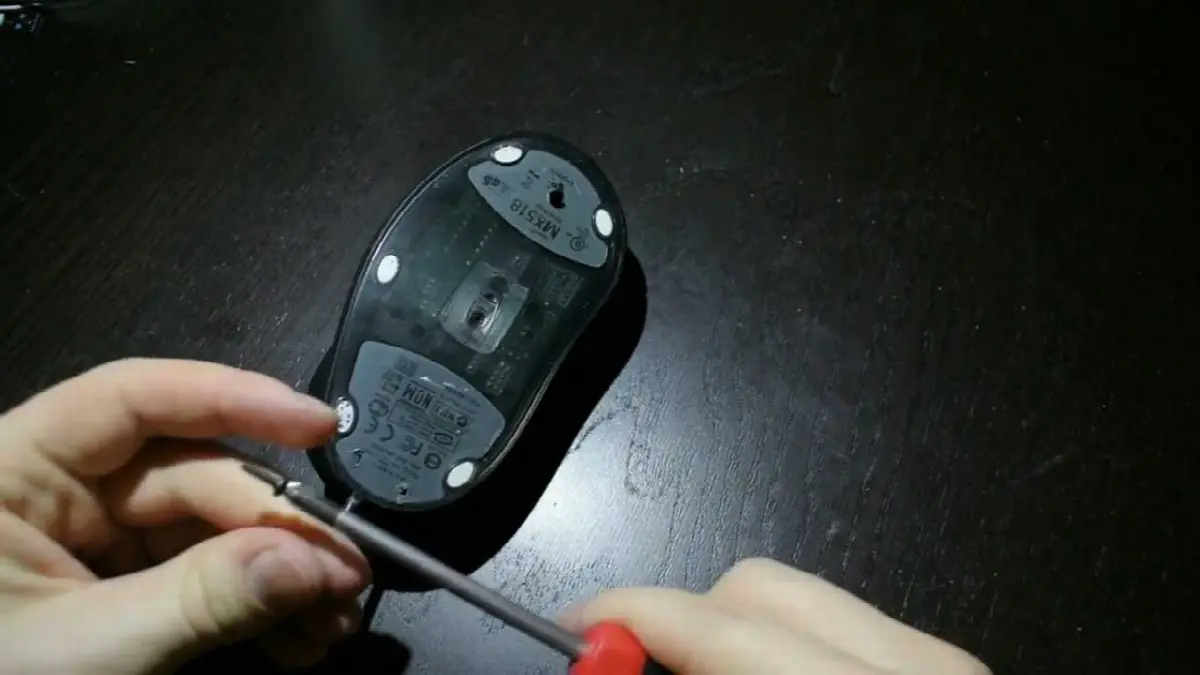
Just like when cleaning other computer components, you should disconnect your mouse from the computer. During cleaning Having a current in the mouse may cause different problems.
Step #2: Clean up:
First, remove the dust with a dry cloth. Then use a cloth or cloth moistened with alcohol. with alcohol toothbrush wipe it off. You can clean the spaces between the buttons by using a needle or toothpick. Do not put too much pressure on the buttons during cleaning.
Step #3: Clean your lens:

The lens located under the mouse is very important for efficient use. Therefore first particles on lens Collect with a vacuum cleaner or disperse with an air compressor. Then, add a drop of alcohol to a cotton swab and clean the lens completely.
Step #4: Clean the bottom:
There are plastic pieces in the four corners under the mouse to slide easily on the mousepad. This parts covered with dust It affects your mouse usage. Therefore, you need to clean those plastic parts with an alcohol wipe.
Step #5: Clean the mousepad:

A good mouse is used with a good mousepad. For this reason, the mousepad is always It needs to be clean. Wipe the mousepad completely with a cloth moistened with alcohol. Be sure to remove any small pieces that stick on.
Monitor cleaning:
- Step #1: Turn off the monitor completely.
- Step #2: Remove dust with a dry cloth.
- Step #3: Wipe again with a special mixture.
Step #1: Turn off the monitor completely:
Be sure to turn off the monitor completely before cleaning. with safe or electricity Make sure it doesn't have any connections. When any current in the monitor interacts with a wet cloth, major damage may occur.
Step #2: Dust with a dry cloth:

Never use things like toilet paper, paper towels, or tissues. A soft, new cloth or a special microfiber cloth use it. When wiping with a dry cloth, do not apply pressure, just gently remove the dust.
Step #3: Wipe again with a special mixture:
Some special mixtures are sold for computer cleaning. You can clean or clean your monitor with one of these. consisting of half white vinegar and water You can create a mixture. Dampen a cloth with this mixture and wipe all parts of the monitor. If there are parts sticking to the monitor, you can apply pressure, but not too much.
for you How to clean PC We answered the question, explained step by step the details you need to pay attention to and the steps you need to take. Whatever computer part you are cleaning, remember to be extremely careful and avoid using harsh chemicals.
Every business is unique. Let’s explore how we can tailor these ideas to your own digital project.


