
How to Do Steam Family Sharing? (Game Sharing)
Valve's game service Steam has taken its place on almost every user's computer today. It includes a large game library…

Valve's game service Steam has taken its place on almost every user's computer today. It includes a large game library…
Valve's game service Steam Nowadays, it has taken its place on almost every user's computer. a wide game library The service it includes offers many features to its users. One of these features is family sharing. So what is this? Steam family sharing We can hear you ask.
Family sharing is the sharing of games or applications from a user's Steam library that allow sharing, added by you. family members and guests makes it available for free use. Even the guests Steam achievements win and gain game progress steamcloudIt also allows you to save to . But as we mentioned, you cannot open some games and applications to your family sharing if the developer does not allow them. Without further ado, how to do Steam family sharing? Let's take a look together.

How to do Steam family sharing?
- Step #1: Activate Steam Guard on your account.
- Step #2: Open the Steam application.
- Step #3: Click the Steam button in the upper left corner.
- Step #4: In the window that opens, select Settings.
- Step #5: Select Family within the Settings menu.
- Step #6: Choose what your account can access in Family View.
- Step #7: Select the games or applications you want to share.
- Step #8: Enter the recovery email address.
- Step #9: Create a PIN for family access.
- Step #10: Enter the code received in your recovery email.
- Step #11: You can activate the family view from the top right.
First of all, there is something we want to point out. in Steam library Only one user is allowed to use the game or applications at a time. For example, if you have opened a multiplayer game for family sharing, you or the members only one He will be able to play at that moment. Games or applications are mostly 5 to 10 devices You can share between.
Step #1: Activate Steam Guard on your account.

Steam Guard is a security feature that ensures the security of your Steam account and protects your account. someone else than you It is a two-stage protection that prevents access. steamguard, Steam > Settings > Account > Steam Guard You can activate it by following the manage account security steps.
Step #2: Click the Steam button in the upper left corner.

in the upper left in the Steam application. Steam button Click it and select Settings in the window that opens.
Step #3: Select Family within the Settings menu.
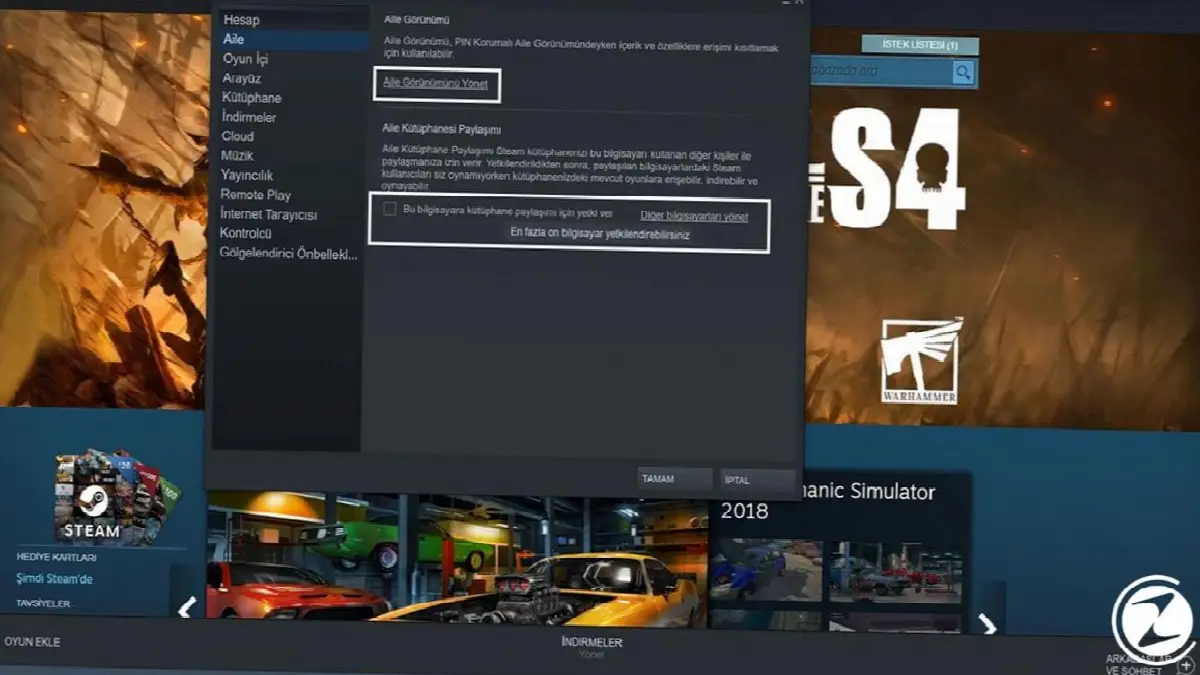
When you click on the settings menu, select the options on the left in the window that opens. FamilySelect .
Step #4: Choose what your account can access in Family View.

In the window you open, click the Manage Family View button. Family View Go to menu. Choose what your account can access in Family View. Make your selections from the Library content and Online content and features sections.
Step #5: Select the games or applications you want to share.

Create content that users can access by selecting games and applications to add to family sharing.
Step #6: Enter the recovery email address and create a PIN.

Your recovery email family view PINEnter your PIN so it can be used as a reminder in case you lose or forget your PIN. In the menu that follows, create a PIN for family access.
Step #10: Enter the code received in your recovery email.
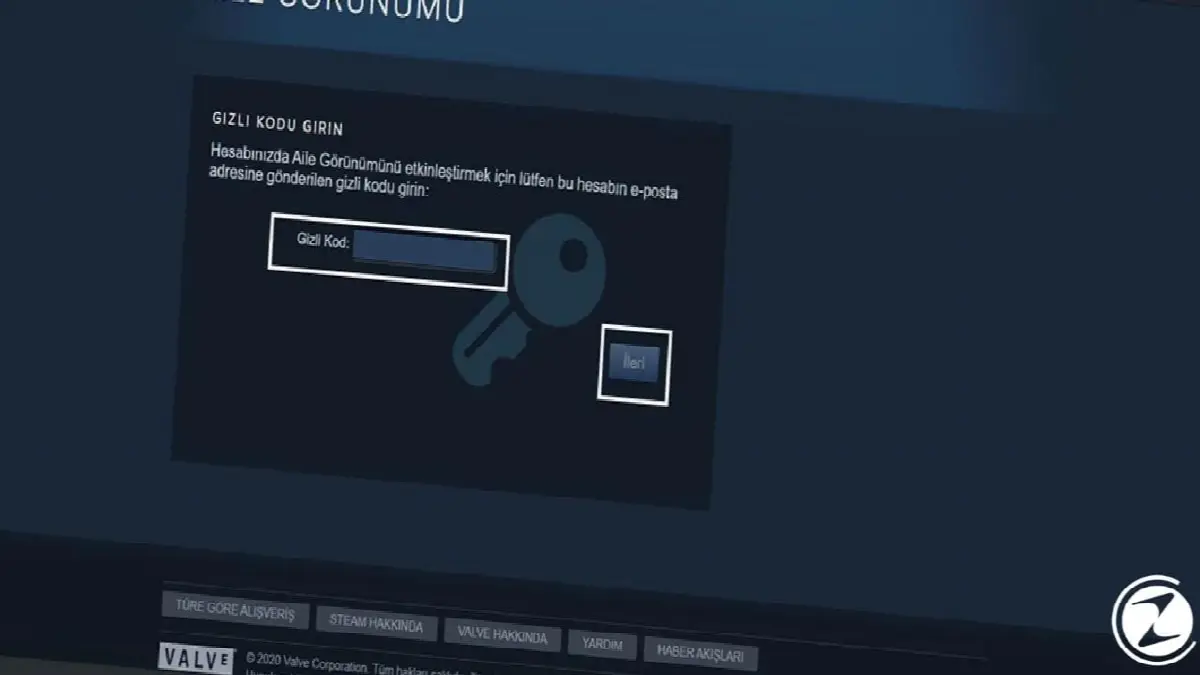
The recovery you entered to your email Activate family sharing by entering the 6-digit security code sent by e-mail.
Step #11: You can activate the family view from the top right.

family view You can turn it on and off by entering the PIN code you created with the button on the top right.
How do I join family sharing?

- Step #1:On your computer, log in to the account with which you want to share games and applications.
- Step #2: After logging in, log out and log back into your own account.
- Step #3: Once again, go to your Family settings and check the box that says “Allow Library Sharing on This PC.”
- Step #4: Steam recognizes that the other account is being used on your computer and gives you access to its game library, making it ready for family sharing.
How to activate Steam Guard?
- Step #1: Click the Steam button in the upper left corner.
- Step #2: In the window that opens, select Settings.
- Step #3: Select Account within the Settings menu.
- Step #4: Activate Steam Guard on your account.
Choose the one that suits you from the Steam Guard options. steamguard If it is completely disabled, activate the security measure by choosing one of the e-mail or mobile security options. By following these steps, you activate Steam Guard.
How to turn off Steam family sharing?

When you stop using Steam family sharing, from the top left Steam menu > Settings > Family > Family sharing You can easily disable it by following the disable steps.
Steam family sharing We were with you with our guide explaining how to use it. In our guide, we examine family sharing, one of Steam's popular features. How to activate family sharing? How to turn it off? We answered your questions. You also need to use family sharing. steamguard We also gave information about. Until we meet in another news webteknoStay tuned. Best regards.
Every business is unique. Let’s explore how we can tailor these ideas to your own digital project.


