
How to Fix Command Prompt is Disabled Error?
The Command Prompt screen is one of the biggest helpers of operating system users such as Windows 10 and Windows 7. A simple written…

The Command Prompt screen is one of the biggest helpers of operating system users such as Windows 10 and Windows 7. A simple written…
The Command Prompt screen is one of the biggest helpers of operating system users such as Windows 10 and Windows 7. The screen where you can find solutions to many problems on your computer with a simple command. Command Prompt has been disabled by your administrator error There are some methods you can apply when given the option.
Command Prompt has been disabled by your administrator error may seem alarming, but the solution is quite simple. Command Prompt has been disabled by your administrator You can eliminate this error by making a few settings changes after seeing the error. for you Command Prompt has been disabled by your administrator error We answered the question and explained step by step the methods you can apply for the solution.

What is the Command Prompt has been disabled by your administrator error?
When you want to open the Command Prompt screen on your computer with a Windows operating system, you encounter the error that Command Prompt has been disabled by your administrator and you cannot open the screen. of this situation different reasons it could be.
The most common reason is a malware It has infiltrated your computer. Since you can get rid of such a software with the Command Prompt page, the software wants to secure itself and presents the user with the error that Command Prompt has been disabled by your administrator. There are some methods you can apply to solve the error.
How to fix Command Prompt has been disabled by your administrator error?
- Step #1: Registry Editor open it.
- Step #2: HKEY_CURRENT_USER Software Policies Microsoft Windows System Open the folder.
- Step #3: DisableCMD Open the file.
- Step #4: Enter the data value as 0 and Ok Click the button.
- Step #5: The Command Prompt has been disabled by your administrator error will be resolved.
- Step #6: If you cannot find the System folder, create a new key and DWORD create value.
Step #1: Open Registry Editor.

Press the Windows + R key combination to open the Registry Editor on your computer. Run screen open it. Here regedit write and Ok Click the button. Confirm the User Account Control screen that may appear.
Step #2: Open the HKEY_CURRENT_USER Software Policies Microsoft Windows System folder.

Registry Editor after opening System You need to access the folder. If you want for this moving forward step by step You can access the folder or copy the line above and Registry Editor's You can paste it into the address line.
Step #3: Open the DisableCMD file.

DisableCMD The file is where you will resolve the Command Prompt has been disabled by your administrator error. here data value may vary, We will resolve this situation in the next step.
Step #4: Enter the data value as 0 and click the OK button.

When you open the DisableCMD file, you will see a not very complicated screen. You can see different values here. What you need to do is set the value ratio to 0 is to enter. Ok Save the change with the button.
Step #5: The Command Prompt has been disabled by your administrator error will be resolved.
After the changes made, the Command Prompt has been disabled by your administrator error will be resolved. However, if it is not resolved despite all these, take a look at alternative methods. If in other steps If you can't find the files follow the next step.
Step #6: If you cannot find the System folder, create a new key and DWORD value.

Some users say that they cannot find the System folder. this folder and file you can create it yourself. For this Windows right click on the folder, New from the menu Key Click and System Name it as .
Behind System right click on the folder, New from the menu, depending on your computer 32 or 64 bit One DWORD create and name DisableCMD Save as . After creating it, you can solve the Command Prompt has been disabled by your administrator error by following the steps above.
Solution to Command Prompt has been disabled by your administrator error with GPEDIT:
- Step #1: With Windows + R combination run open the screen.
- Step #2: To the run screen gpedit.msc type and click OK.
- Step #3: From the screen that opens User Configuration / Administrative Templates / System Open the folder.
- Step #4: Block access to Command Prompt Turn on the option.
- Step #5: Disabled Click .
- Step #6: Apply Exit the screen with the button.
- Step #7: The Command Prompt has been disabled by your administrator error will be resolved.
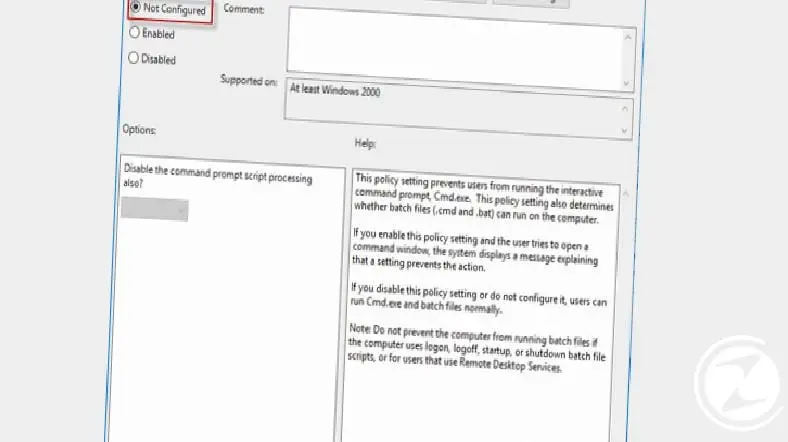
Command Prompt has been disabled by your administrator To solve the error One of the methods you can use is to solve it via GPEDIT. Since the GPEDIT screen is not active on every computer, you can choose alternative methods.
Solution to the Command Prompt has been disabled by your administrator error with the Run command:
- Step #1: Make sure you are running the computer as administrator.
- Step #2: With Windows + R combination run open the screen.
- Step #3: REG add HKCUSoftwarePoliciesMicrosoftWindowsSystem /v DisableCMD /t REG_DWORD /d 0 /f Type it and click the OK button.
- Step #4: After the window flashes, close it.
- Step #5: The Command Prompt has been disabled by your administrator error will be resolved.

Solving the error that Command Prompt has been disabled by your administrator via the Run command is also an option you can apply, but here point you should pay attention to You must be running the computer as an administrator. If you are not running it as administrator, the command will give an error.
We answered the question of what is the Command Prompt has been disabled by your administrator error for you and to solve the error. Alternative methods you can apply we told. According to your user habit, you can choose the method that suits you best and solve the Command Prompt has been disabled by your administrator error.
Every business is unique. Let’s explore how we can tailor these ideas to your own digital project.


