
How to Fix 'DNS Server Not Responding' Problem?
DNS errors are one of the common problems of computers running Windows and Mac operating systems. DNS can appear at unexpected times…

DNS errors are one of the common problems of computers running Windows and Mac operating systems. DNS can appear at unexpected times…
DNS errorsOne of the common problems of computers with Windows and Mac operating systems. DNS errors, which can occur unexpectedly, can disrupt our daily work and cause us to lose time.
This is one of the most common DNS errors. DNS server not responding The error actually has more than one simple solution. On both Windows and Mac systems How to solve DNS server not responding error? We examine it step by step.
Solution methods for DNS server not responding error:
- Method #1: Identify the source of the problem.
- Method #2: Try a different browser.
- Method #3: Disconnect the power to your modem and reconnect it.
- Method #4: Clear DNS cache.
- Method #5: Remove extra links.
- Method #6: Change the DNS address manually.
Method #1: Identify the source of the problem:

First of all, to determine the source of the problem, connect to the internet with your phone, tablet or any other device you have and try to access the site you are having problems with. If you can access the site you are having trouble with on a different device, the problem is most likely on your computer.
If you cannot access the error-prone site from an alternative device, the problem may be in your modem. To test this, try connecting to the site with the problem using mobile data. If you cannot connect to the site with mobile data, the problem is most likely caused by the website.
Method #2: Try a different browser:

Another simple thing you can do to determine the source of the problem is to change your browser. If you use a different browser DNS server is not responding If you do not receive the error, the problem is most likely in the browser you are using.
To solve this, completely uninstalling your preferred browser from your computer and reinstalling the browser will most likely solve the problem. Again with a different browser same mistake If you are receiving it, you may be experiencing a problem caused by the modem.
Method #3: Disconnect and reconnect power to your modem:

Modems have DNS cache, just like our operating systems. Clearing the modem's cache can solve some DNS problems. To clear your modem's DNS cache, directly cut off your power is required.
Unplug your modem's power adapter and wait 30 seconds to 1 minute. Then plug the adapter back in and wait for the internet to arrive. If you have an extra device along with your modem. signal booster If you are using it, you can also try connecting via ethernet. If you receive the same error with an Ethernet connection, the problem may be in your DNS settings. In this case, you can continue with the next method.
Method #4: Clear DNS cache (Windows):

- Step #1: Type “cmd” in the search menu.
- Step #2: Run the Command Prompt application as administrator.
- Step #3: Enter the ipconfig /flushdns command and press Enter.
- Step #4: Enter the ipconfig /renew command and press Enter.
- Step #5: Enter the ipconfig /registerdns command and press Enter.
- Step #6: Restart your computer.
Operating systems cache information that is used more than once, such as IP address and DNS servers, to speed up DNS clients. This process may occasionally cause DNS errors. So look for it clearing DNS cache It helps us prevent possible problems.

For this process, use the Command Prompt application. run as administrator You definitely need to pay attention. What you do afterward is very simple. We paste the commands given above one by one into the Command Prompt and press the Enter key. After the process is completed, we move on to the next command. After all the commands are completed, we restart the computer. This action will most likely fix the problem. But if you still get the same error, you can try changing DNS manually.
Clear DNS cache (Mac):

- Step #1: Open Spotlight by pressing Command + Space.
- Step #2: Search for Terminal and open the Terminal app.
- Step #3: Paste the sudo killall -HUP mDNSResponder command into Terminal and press Enter (Return).
- Step #4: Restart the system.
Method #5: Remove extra links:

- Step #1: Open the Settings app from the Start menu.
- Step #2: Enter the Network and Internet menu.
- Step #3: Click on the Change adapter options button.
- Step #4: Select the unused network connection.
- Step #5: Click the Disable this network device button.
You can remove WiFi, Bluetooth and similar connections that you do not currently use from network settings. This is an unusedremove network connections, can help you solve the DNS server is not responding error, because the majority of DNS errors can be caused by the “Microsoft Virtual WiFi Miniport Adapter”. Therefore, removing unused WiFi and Bluetooth connections may solve your problem.
Method #6: Change DNS address manually (Windows):

- Step #1: Open Control Panel from the Start menu.
- Step #2: Open the “Network and Internet” menu.
- Step #3: Open the “Network and Sharing Center” menu.
- Step #4: Click on the “Change adapter settings” button.
- Step #5: Right-click on the network you are using and click “Properties”.
- Step #6: Select “Internet Protocol Version 4 (TCP/IPv4)” and press the “Properties” button.
- Step #7: Change the DNS server address manually.
Incorrect DNS settings are one of the only reasons that cause DNS problems. Changing the DNS address manually, although it may seem complicated at first, is actually a very simple process. After following the steps above, in the Ipv4 properties menu that opens, simply click “Use the following DNS server addressesWe check the " box.

After this process, all that remains is to write the DNS addresses in the empty fields. The most popular and trouble-free thing you can write DNS addresses is as follows:
- Google: 8.8.8.8 – 8.8.4.4
- OpenDNS: 208.67.222.222 – 208.67.220.220
After typing any of these DNS addresses, simply press the OK button. Optionally, you can restart your computer after this process. Changing the DNS address manually is one of the most effective solutions to DNS errors.
Change DNS address manually (Mac):
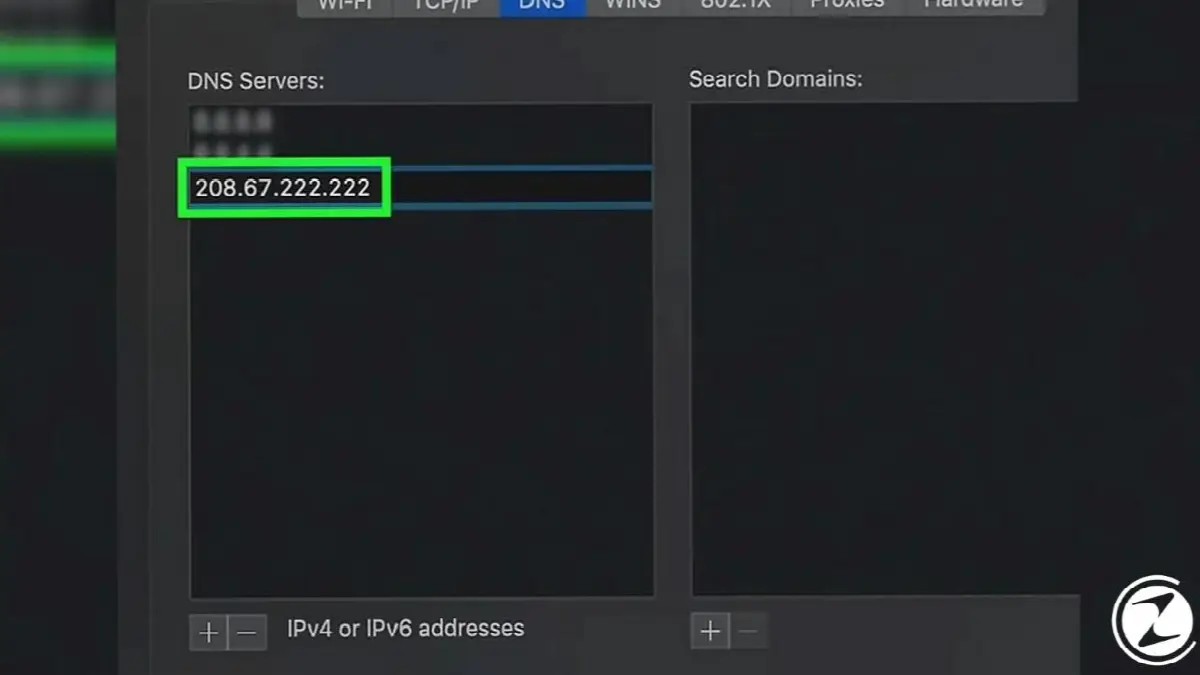
- Step #1: Open the System Preferences menu from the Apple logo.
- Step #2: Click on the network logo.
- Step #3: Select the network you are connected to and click the “Advanced” button.
- Step #4: Click on DNS.
- Step #5: Press the + button at the bottom left.
- Step #6: Enter one of the OpenDNS or Google DNS addresses.
- Step #7: Click on the Hardware tab.
- Step #8: Select the “Manual” option from the Setup section.
- Step #9: Select the “Custom” option from the MTU section.
- Step #10: Enter the value 1453 in the empty box.
- Step #11: Press the OK button, then the Apply button.
- Step #12: Restart the system.
D.NS server not responding How to solve the error? We have come to the end of our content, which we have examined closely step by step. Although DNS errors occur from time to time, the solution methods are quite simple as you can see. In order to prevent DNS errors that may occur at unexpected times, it will be sufficient to reset the modems and change the DNS address from time to time.
Every business is unique. Let’s explore how we can tailor these ideas to your own digital project.


