
How to Fix 'Start Menu Won't Open' Problem in Windows 10
The Start menu has a very important place on our computers, especially with Windows 10. Many features are directly…

The Start menu has a very important place on our computers, especially with Windows 10. Many features are directly…
Start menu especially Windows 10 It has a very important place in our computers. This menu, where many features can be accessed directly, helps users save time and find what they are looking for in a simple way. Of course, as you know, not a day goes by without another problem appearing in Windows 10.
The problem of the Start menu not opening or disappearing is one of the frequently encountered Windows 10 problems. Although this problem really bothers us due to the functionality of the start menu. a few easy solutions is available. Come all together How to solve the Windows 10 start menu not opening problem? Let's examine it step by step.
Solution methods for Windows 10 start menu not opening problem:
- Method #1: Try restarting your computer.
- Method #2: Run the necessary commands to find and fix corrupted files.
- Method #3: Restart Windows Explorer.
- Method #4: Try starting the Application ID service manually.
- Method #5: Create a new administrator account.
- Method #6: Try uninstalling recently installed apps.
- Method #7: Reinstall Windows applications with the PowerShell command.
Method #1: Try restarting your computer:
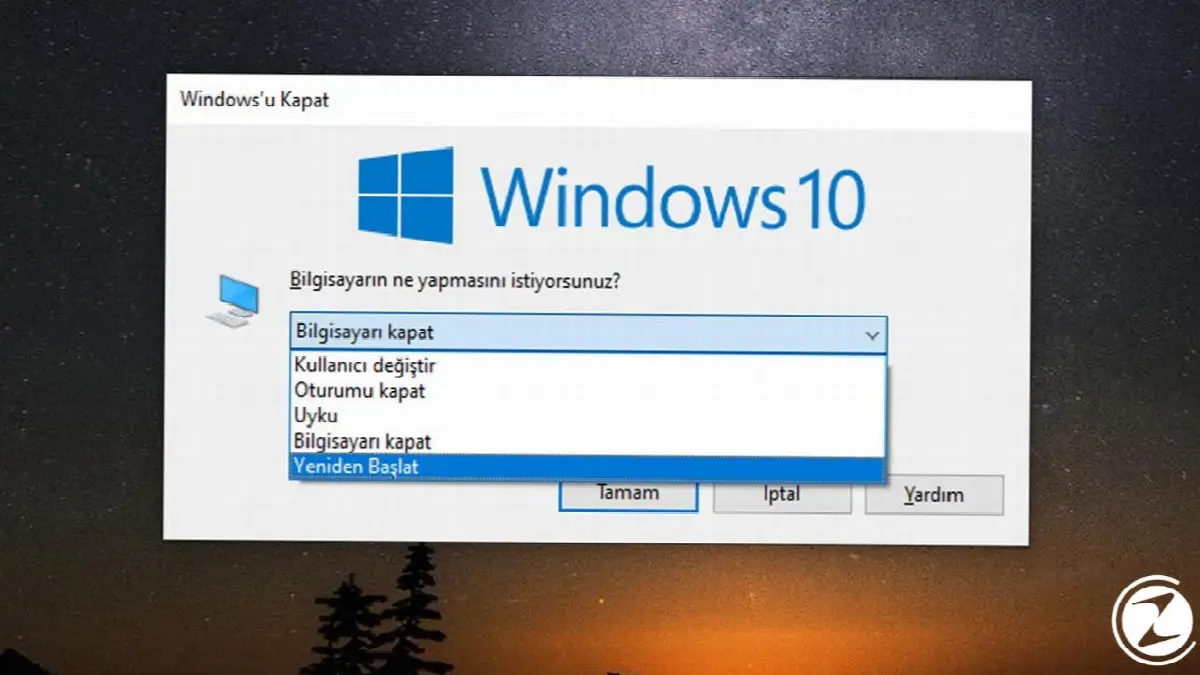
Although it seems like a simple process, restarting the computer can solve many problems. In this case, because the start menu does not work By pressing Alt + F4 You can restart your computer. If you still cannot use the start menu, move on to the next method to run some commands from the Command Prompt app.
Method #2: Run the necessary commands to find and fix corrupted files:

- Step #1: Open Task Manager with Ctrl + Alt + Delete keys.
- Step #2: Click the Run new task button from the File menu.
- Step #3: Type CMD and check “Create this task with administrative privileges”.
- Step #4: Enter the SFC /SCANNOW command in the Command Prompt application and press Enter.
- Step #5: Enter the DISM /ONLINE /CLEANUP-IMAGE /RESTOREHEALTH command and press Enter.
- Step #6: Restart your computer.
Since the Start menu does not work, you can easily run the Command Prompt application as an administrator using the Task Manager. The steps you will take after running the Command Prompt application are very simple. Before #Enter the command in step 4 We press the Enter key. Then, after the process is completed, we enter the command in step 5 and press Enter again and wait for the process to be completed. Then we restart our computer.
Method #3: Restart Windows Explorer:
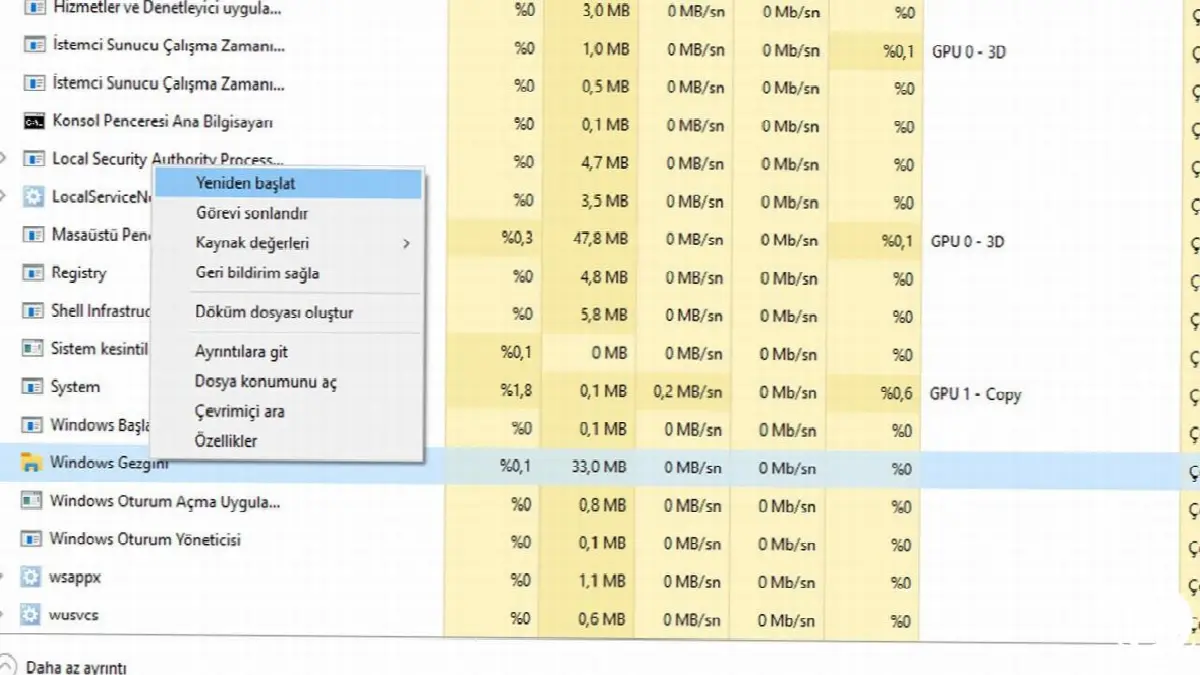
- Step #1: Open Task Manager with Ctrl + Alt + Delete keys.
- Step #2: Find Windows Explorer in the Processes tab.
- Step #3: Point to Windows Explorer and click the Restart button.
Windows Explorer is one of the important services that controls the start menu and the applications in the start menu. Because Windows ExplorerRestarting mostly solves the Windows 10 start menu not opening problem. What you do for this is very simple.
After running the Task Manager, you will automatically see the Processes tab open. To find Windows Explorer, you need to scroll down to the bottom of the Processes menu. Windows Processes After finding Windows Explorer at the bottom of the subheading, click on it and then press the Restart button and you are done.
Method #4: Try starting the Application ID service manually:

- Step #1: Open the Run application by pressing Win + R.
- Step #2: SERVICES.MSC. Type and press Enter.
- Step #3: Right-click on the Application ID service.
- Step #4: Press the Start button and restart your computer.
Application ID service for everyday users an area to avoid Even though forcibly starting this service can solve start menu problems. After opening the Services menu with Run, we scroll down to the bottom as this menu is alphabetical and Application ID We find the service.
After finding the Application ID service, we right-click on the service and click Start. Then, without touching any other point in the Services section We are closing Services and we restart the computer.
Method #5: Create a new administrator account:

- Step #1: Open Task Manager with Ctrl + Alt + Delete keys.
- Step #2: Click the Run new task button from the File menu.
- Step #3: Type NET USERNAME PASSWORD /ADD and press OK.
- Step #4: Log in to the new administrator account.
In some cases, the Windows 10 start menu not opening problem may be related to your current administrator account. To overcome this, you can create a new administrator account with a few simple steps. In the command given in step 3 You need to write an account name of your choice instead of the username, and the password of the new account you will create in the password section.
After logging in to the new account, if in this account if the start menu is working, your settings in your old account to move to new account you can follow these steps:

- Step #1: Open the Run application by pressing Win + R.
- Step #2: Type control panel and press OK.
- Step #3: Enter the System and Security menu in Control Panel.
- Step #4: Enter the system menu and click on the Advanced system settings tab.
- Step #5: Click Settings in the User Profiles section.
- Step #6: Select the account you just created and press copy.
Method #6: Try uninstalling your recently installed apps:

If you start getting the start menu error after installing new programs, you can uninstall the newly installed programs and check whether the start menu is working. You can uninstall applications by pressing the Windows key + I and opening the Settings application or by entering the Control Panel from the Run application. After uninstalling apps Restart your computer and check if the problem persists.
Method #7: Reinstall Windows applications with the PowerShell command:

- Step #1: Open Task Manager with Ctrl + Alt + Delete keys.
- Step #2: Click the Run new task button from the File menu.
- Step #3: Type Powershell and check the “Create this task with administrative privileges” option.
- Step #4: Get-AppXPackage -AllUsers | Enter the command Foreach {Add-AppxPackage -DisableDevelopmentMode -Register “$($_.InstallLocation)AppXManifest.xml”} and press Enter.
- Step #5: Restart your computer.
The problematic installation or removal of some Windows applications may cause the start menu not to open. As an administrator thanks to Task Manager PowerShell After opening the application, copy and run the command in step 4.
This command will automatically reinstall Windows applications. After the process is finished, restart your computer. This command will most likely solve the problem, but unfortunately the solution is it won't be permanent. You may need to repeat this process when you experience the same problem later.
Windows 10 start menu does not open We have come to the end of our content where we list the solution methods of the problem and take a closer look at these methods. If none of these methods solved your problem, performing a system repair by preserving your files through Windows or a direct clean installation will definitely solve the problem. If you have your own methods, you can share them with us in the comments section.
Every business is unique. Let’s explore how we can tailor these ideas to your own digital project.


