
How to Format a USB Memory?
Your USB memory may be giving errors, you may suspect a virus, or you may want to start everything from scratch. These situations…

Your USB memory may be giving errors, you may suspect a virus, or you may want to start everything from scratch. These situations…
Your USB memory may be giving errors, you may suspect a virus, or you may want to start everything from scratch. The most logical step to take in these situations is to format your USB memory and make it suitable for your use. If the problem you encounter ismemory write protected' warning, you can click here to take a look at our content where we discuss the solution to this problem.
Formatting USB memoryprocess, It is actually a very simple process that you can easily do in a short time. But of course Some details to pay attention to there is. In this content, we will talk about these small details that need to be taken into consideration and also give you Formatting USB memory We will explain step by step ways to format without needing any software.
What is USB memory formatting?

Formatting a USB memory is a way of saving your memory. restoring to factory settings. With this process, all data on the drive is deleted and the drive is scanned for bad sectors. Thus, your memory becomes 'healthy' and works smoothly.
However, before formatting, we recommend that you back up any important files on your USB memory. Because after performing the process, the file in your USB memory All data will be deleted.
What should be taken into consideration when formatting a USB memory?

During the USB memory formatting process, you will encounter four different file system option will come out. Let's talk about these options first so that you can understand how to make this choice for your needs.
If you want your memory to be able to read and write files larger than 4GB NTFS You can format by selecting the file system. At the same time, you can create partitions larger than 32 GB in your memory with NTFS. Providing the same features, exFAT ensures that your memory works harmoniously in both macOS and Windows operating systems. So if you plan to use your memory in both systems, this is the best option for you. exFAT It will happen. fat And FAT32 File systems are suitable for drives that are smaller than 32 GB and where you will not use files larger than 2 GB (FAT) and 4 GB (FAT32).
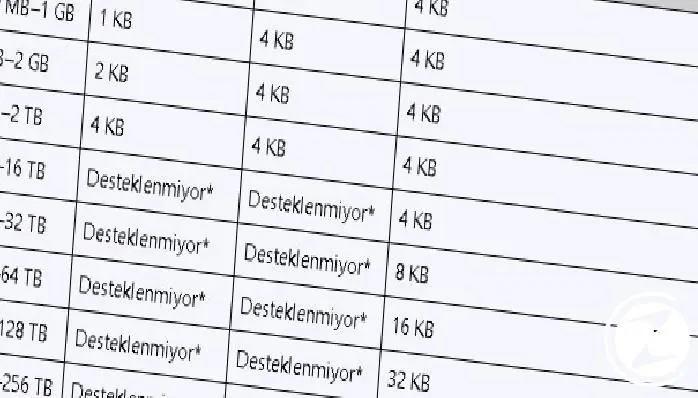
Formatting USB memory allocation unit size It will also give you the option. Here, the recommended allocation unit size from 2 GB to 16 TB is 4 KB. Click here to learn about other separation unit size options you may need and what exactly goes into making this choice. Microsoft's recommendations You can take a look.
Another thing you will encounter during the formatting process is the formatting option. At this point, if you are going to format a new USB memory or do not have much time to spare for the process, 'Quick FormatYou can select '. However, if there is a problem with your USB memory or if you want a more in-depth formatting process, we recommend that you disable this option.
How to format a USB memory?
- Step #1: Open File Explorer.
- Step #2: Click on 'This PC' from the left panel.
- Step #3: In the Devices and drives tab, right-click on the USB memory you want to format and click 'Format'.
- Step #4: In the tab that opens, select the file system option that suits your needs. (NTFS, FAT32, exFAT)
- Step #5: Select the allocation unit size to 4096 bytes.
- Step #6: Enter a name for your USB memory in the Volume label section.
- Step #7: Select 'Quick Format' from the formatting options section.
- Step #8: Click Start and click 'OK' on the tab that appears.
Step #1: Open File Explorer.

Click on your computer's search cursor and type file explorer. By clicking on the result File Explorer Open the menu.
Step #2: Click on 'This PC' from the left panel.

In the menu that opens, on the left panel 'This computer' Click and go to the menu where your memory is located.
Step #3: In the Devices and drives tab, right-click on the USB memory you want to format and click 'Format'.

In the 'This PC' menu,Devices and driversIn the ' section you will see the USB memory you want to format. By right-clicking on the USB memory, find and click the 'Format' option in the menu that appears.
Step #4: In the tab that opens, select the file system option that suits your needs. (NTFS, FAT32, exFAT)
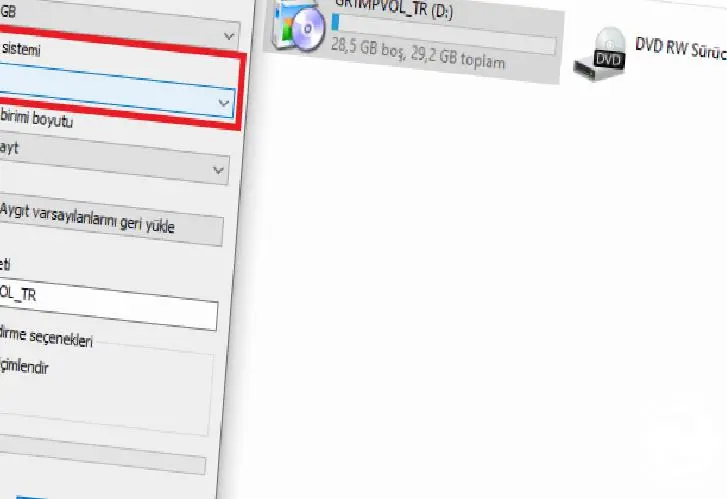
After selecting Format, you will see the 'File system' option in the menu that appears. In this section, our article What should be taken into consideration when formatting a USB memory? Choose the file system that best suits your needs, taking into account the features we mentioned in the section.
Step #5: Select the allocation unit size to 4096 bytes.

In the menu that opens, click 'File system'.Allocation unit size' is also known as the cluster size and basically refers to the smallest possible chunk of data on the drive. Here, select 4096 bytes as Microsoft's recommended allocation unit size.
Step #6: Enter a name for your USB memory in the Volume label section.

From the volume label section, select the device you deem appropriate for your USB memory. a name you can create. If you have selected the NTFS file system, this name can be a maximum of 32 characters. Even if you have selected a FAT file system, this number is maximum 11.
Step #7: Select 'Quick Format' from the formatting options section.

If you select 'Quick Format', there will be no scanning for bad sectors on your drive and only the data is deleted. However, if what you want is a formatting process that also includes scanning, you can continue the process without selecting this option.
Step #8: Click Start and click 'OK' on the tab that appears.

If you have made all the selections properly, now you can start the formatting process. Don't forget to pay attention to the warning that all files on your USB memory will be deleted, and if there are files on your USB memory that you want to back up before formatting, be careful not to skip this.
After following all the steps, your formatting process will start and if you have not selected the quick format option, it may take a little while. it will take time. Afterwards, you can start using your USB memory smoothly and renewed.
Every business is unique. Let’s explore how we can tailor these ideas to your own digital project.


