
How to Install Windows 10? Download Installation Procedures – 2020
Windows 10 continues to become more popular day by day since its release in 2015. Especially when Microsoft officially releases old versions…

Windows 10 continues to become more popular day by day since its release in 2015. Especially when Microsoft officially releases old versions…
Windows 10 continues to become more popular day by day since its release in 2015. Users are getting closer to Windows 10, especially as Microsoft ends official support for older versions. So much so that, according to the data announced in 2020, all devices with Windows operating system installed in the world more than seventy percent It has switched to Windows 10.
If you want to be one of those who switch to Windows 10, or if you have already switched but need to reformat, you are in the right place. Formatting Windows 10 Everything you need to know for the process A to Z We collected them in this article. Let's warn you before we start: Don't be fooled by the seeming amount of steps, once you start working, it's a breeze. If you wish, let's get started.

Windows 10 system requirements:
- Processor: Has a frequency speed of at least 1 GHz,
- Memory: 1 GB for 32 bit, 2 GB for 64 bit
- Storage space: 16 GB for 32 bit, 20 GB for 64 bit
- Graphics card: At least DirectX 9.0 supported
- Screen resolution: At least 800 x 600
As you can see, the system requirements needed to run Windows 10 are quite low. Any computer that can run today's programs or games can also run Windows 10 without any problems. If you wish, we have also given the system requirements. How to install Windows 10 Let's move on to explain the process.
How to install Windows 10?
- Step #1: Go to the Windows 10 download page,
- Step #2: Click on the button that says “Download the tool now”,
- Step #3: Open the downloaded “MediaCreationTool” file,
- Step #4: Accept the user agreement,
- Step #5: Select the “Installation media for another computer” option and proceed,
- Step #6: Make language and architecture choices according to your preference,
- Step #7: Mark “USB flash drive” as the media to use,
- Step #8: Select the memory you will use as the Format USB memory.
- Step #9: Enter the BIOS interface,
- Step #10: Enter the “Boot” menu,
- Step #11: Select the USB memory by clicking “Boot Option #1”,
- Step #12: Go to the “Save & Exit” menu,
- Step #13: Click on “Save Changes and Reset”.
- Step #14: Adjust your language settings for Windows 10,
- Step #15: Enter your product key,
- Step #16: If the disk on which you will install Windows 10 is divided into more than one partition, delete all listed partitions of that disk,
- Step #17: Click on the disk on which you want to install Windows 10,
- Step #18: “ForwardClick the ” button.
- Step #19: Things to do after formatting:
- Adjust personalization settings through the wizard,
- Check for Windows 10 updates,
- Install your hardware drivers.
Step #1: Go to the Windows 10 download page:

You can only install Windows 10 on the computer you use with the media creation tool you download. However, with the same tool, you can also create a USB flash memory that you can use to format countless times. We USB flash memory We will explain by preparing a USB memory stick as it is both more practical and useful.
Step #2: Click on the button that says “Download the tool now”:

To download the Windows 10 media creation tool, all you have to do is click the download button on the Windows 10 download page. Afterwards, we will install the vehicle.
Step #3: Open the downloaded “MediaCreationTool” file:

Once the media creation tool is downloaded, you can open it by clicking on the file from the downloads section of your internet browser.
Step #4: Accept the user agreement:

As soon as you open the tool, you will see a user agreement. To continue using the tool, you must read and accept this user agreement.
Step #5: Check the “Installation media for another computer” option and proceed:
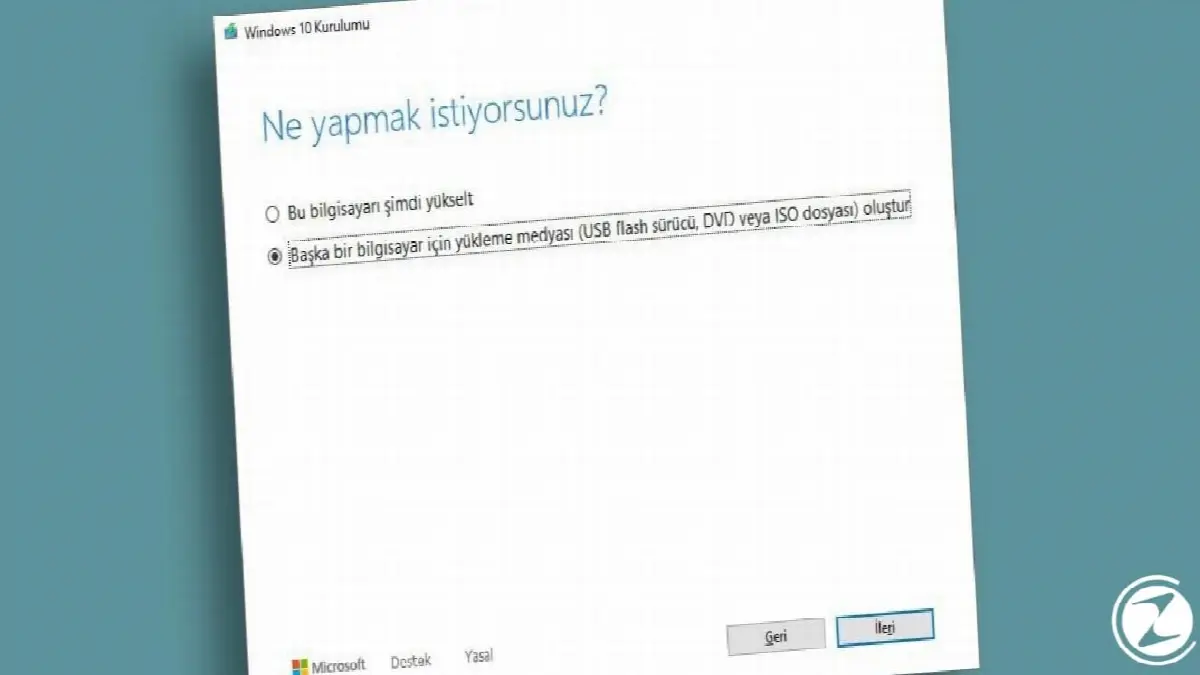
Even if you are going to format the computer you are currently using, you need to select the "installation media for another computer" option. Thanks to this option, the tool understands that you want to download a Windows 10 installation file that you can format on any computer.
Step #6: Make language and architecture selections based on your preference:
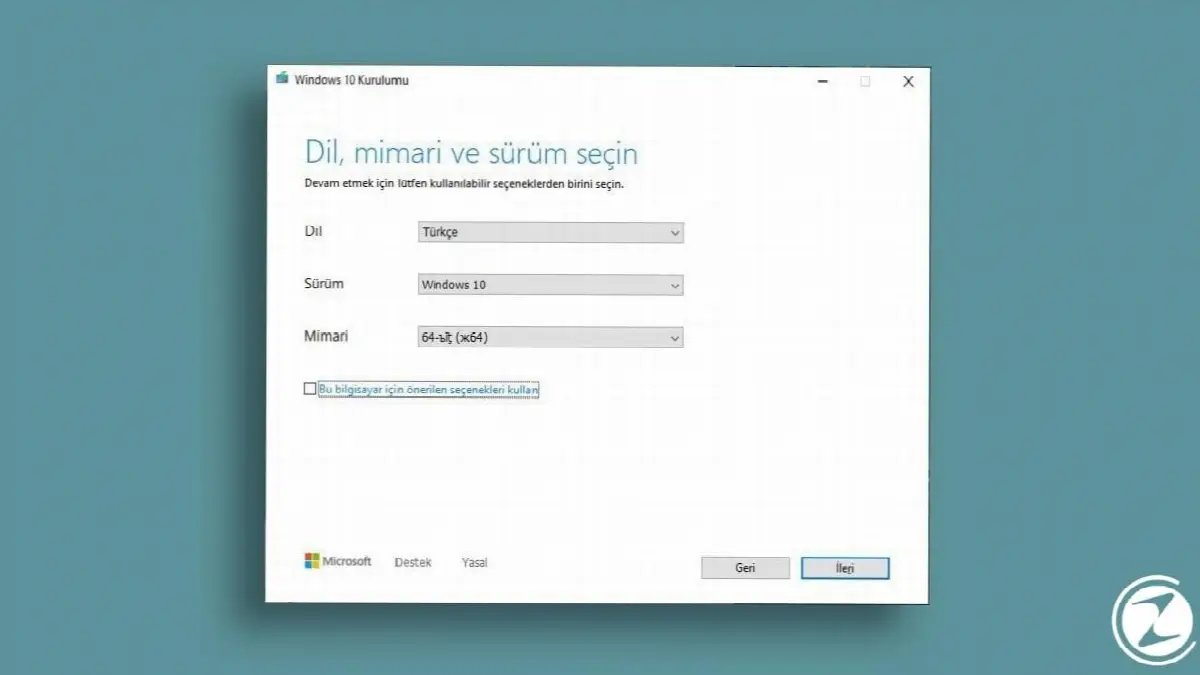
The language and architecture choice you make in this step is very important. Because Windows 10, which you will download to a USB memory stick, will have these language and architecture settings on every computer you install it on. So make sure you make the right choice, especially between 32-bit and 64-bit architectures.
Step #7: Check “USB flash drive” as the media to use:

At this stage, we tell the media creation tool that we will upload it via a USB memory. It processes the downloaded Windows 10 file accordingly and prepares it so that it can be installed directly from the USB memory to the computer.
Step #8: Select the memory you will use as the Format USB memory:

Now we need to choose the USB memory on which we will process the Windows 10 installation file, that is, we will use it to format it. If there is more than one USB memory plugged into the computer and you are not sure which USB memory is the one you want to install Windows 10 on, you can remove the other USB memories plugged into your computer.
Step #9: Enter the BIOS interface:

To enter the BIOS interface, you need to press the BIOS enter key while the computer is turning on. Since the key used to enter the BIOS varies from motherboard to motherboard, you must find the correct key according to the motherboard you are using. However, regardless of the motherboard, you can usually enter the BIOS with the F1, F2, F10, Delete or ESC keys.
In the BIOS settings, we will specify which component should read the first information from our computer when it starts up. First of all, if it reads a storage unit that already has an operating system installed, we cannot start the formatting process. Instead, we will start the Windows 10 formatting process by having it read the initial information from the USB memory we created for formatting.
Step #10: Enter the “Boot” menu:
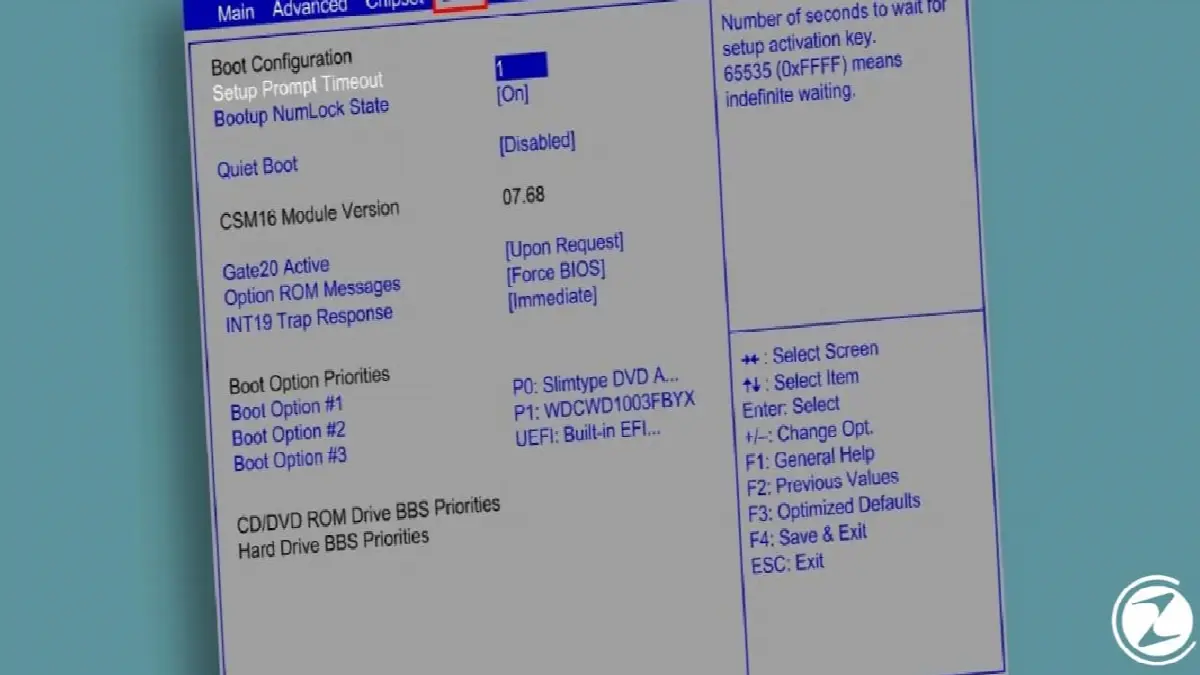
After the BIOS is opened, you need to navigate through the menus at the top and come to the "Boot" menu. The boot menu is an area where the operations to be performed when the computer is turned on are arranged. We will also indicate in this area that the computer should read the USB memory when booting.
Step #11: Select the USB memory by clicking “Boot Option #1”:
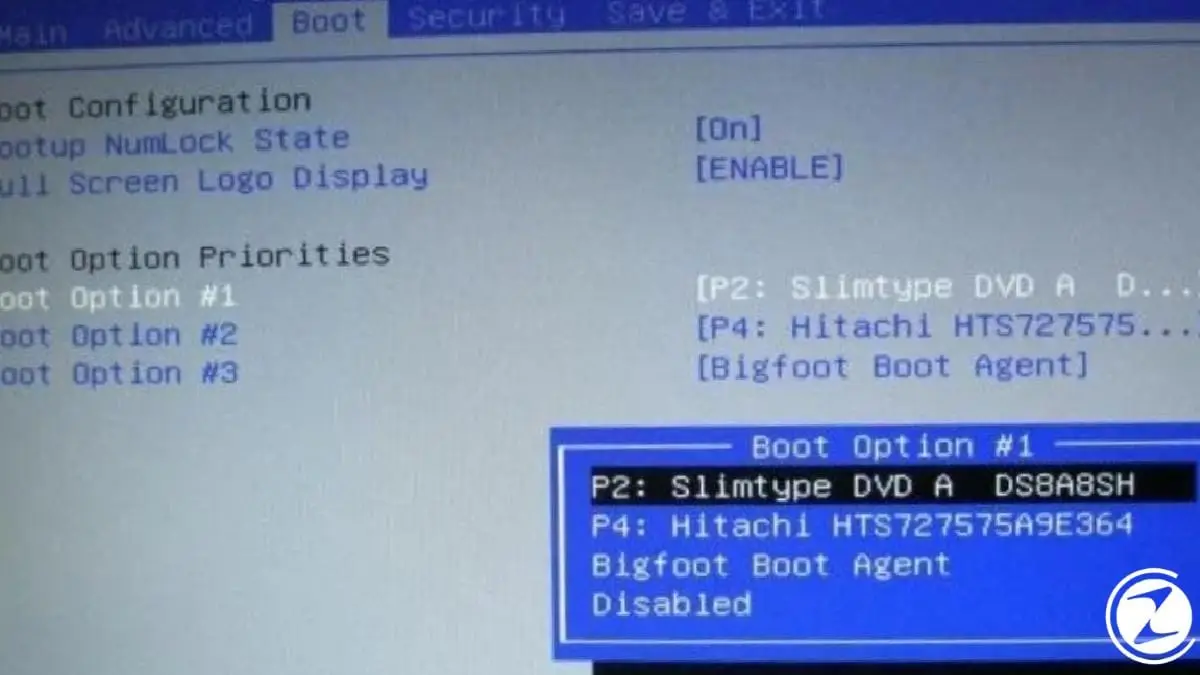
The “Boot Option #1” option determines the component from which the computer will perform the first reading. This option most likely contains the HDD on which your operating system is installed. Instead, you should choose the formatting memory installed in the computer.
Step #12: Go to the “Save & Exit” menu:
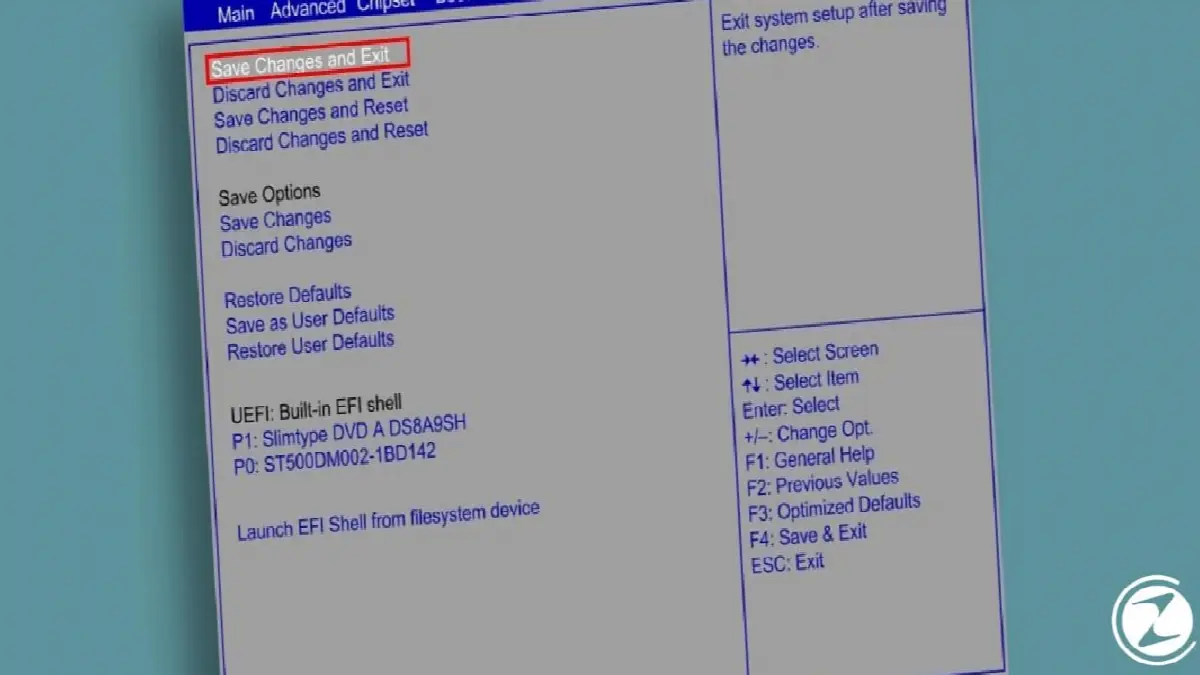
That's all we need to do in BIOS. Finally, to exit the BIOS interface, navigate through the menus at the top and select the "Save & Exit" tab.
Step #13: Click “Save Changes and Reset”:
You will see two options in the “Save & Exit” menu. The option you need to choose is “Save Changes and Reset”. In this way, the settings you make will be saved and the next time the computer starts, it will act according to the settings you made here. As soon as you exit the BIOS, the computer will restart and you will see the Windows 10 formatting interface.
Step #14: Adjust your language settings for Windows 10:

When you first see the formatting interface, you will be greeted by a page where you need to set your language, time zone and keyboard settings. Don't skip your keyboard layout when setting your language and time zone.
Step #15: Enter your product key:

Although you do not have to use a product key to install the Windows 10 operating system, it is necessary to have an original product key to activate the product. With an unactivated Windows 10, you are deprived of some privileges. Additionally, after a certain period of time, the system indicates that your product is not activated. can be disturbing You receive warnings.

If you do not already have a Windows 10 product key, you can make your purchase from the Windows 10 purchase page on Microsoft's official site. You can find sites on the internet that sell at much lower prices than Microsoft's official site. What kind of product keys can be purchased so cheaply? to risks And disadvantages that you had before With Microsoft officials we talked.
Step #16: If the disk on which you will install Windows 10 is divided into more than one partition, delete all listed partitions for that disk:

The storage on which you install Windows is usually divided into multiple partitions. The reason for this is that the operating system needs differently created partitions within the same storage unit in order to work in harmony. To make a clean installation for Windows 10, select and delete all of these partitions one by one.
Step #17: Click on the disk on which you want to install Windows 10:

After deleting all partitions reserved for previous Windows, click once on the storage volume where you want to install the new Windows 10.
Step #18: Click on the “Next” button:
After selecting the storage device you want to format, click the "Next" button at the bottom right.
Step #19: What to do after formatting:

- Adjust personalization settings through the wizard,
- Check for Windows 10 updates,
- Install your hardware drivers.
When Windows 10 is run for the first time after formatting, an installation wizard will open. Through this wizard, you will be presented with settings to personalize your Windows experience. You will be able to choose the keyboard layout, the email address you will associate with Windows 10, the internet network you want to connect to and more through this wizard. The wizard guides the user because it's good We do not write all the stages.
If you want a safe Windows experience, the first thing you need to do after the format is finished is to check for Windows updates. These updates include those that install important features on your computer, but also critical security updates is available. So be the first to complete the updates before installing anything on the computer.

The first updates may take some time depending on your internet speed. When these updates are finished, in order to use your computer at full performance, screen your card or if there is your wireless adapter Install drivers for hardware such as. Once the driver installation is completed, you can use your computer as you wish. You now have a computer with Windows 10 at your disposal.
We have come to the end of our article where we explain the Windows 10 formatting process step by step. If you want, you can also take a look at our articles where we explain how to download and install Windows 7 and Windows 8 operating systems on your computer. See you in another article, stay safe.
Every business is unique. Let’s explore how we can tailor these ideas to your own digital project.


