How to Open Files with BIN Extension?
Although it has not been in our lives for a while, files with .bin extension were one of the most frequently used file types for a while. These types of files can be stored on a CD or DVD…

Although it has not been in our lives for a while, files with .bin extension were one of the most frequently used file types for a while. These types of files can be stored on a CD or DVD…
Even though he hasn't been in our lives for a while, there was a time when with .bin extension files were one of the most commonly used file types. These types of files are created when we extract an image from a CD or DVD. CD or DVD content that is imaged or copied It is saved with .bin extension. You cannot open such files directly, so you have to do some operations.
if before with .bin extension If you have not opened a file, the steps may seem a bit complicated, but they actually consist of a few very simple steps. for you When opening files with .bin extension We have explained a few of the easiest methods you can use and explained the steps you will follow while applying these methods, one by one. You can easily open files with .bin extension by following these methods.

How to open files with BIN extension?
- Step #1: Open Notepad to create a CUE file.
- Step #2: Type the file name and save it as the CUE file in the same folder as the .bin file.
- Step #3: Download the Nero program from here and complete the installation.
- Step #4: Open the CUE file in Nero program.
- Step #5: Insert a blank CD and burn the file.
- Step #6: The process is complete.
Step #1: Open Notepad to create CUE file
In this method, you will need a file with the CUE extension because you will burn the file with the .bin extension to a CD or DVD. If such a file exists You can skip these steps. If you do not have a file with a CUE extension, open the Notepad program on your computer to create it.
Step #2: Type file name and save as CUE file in the same folder as .bin file

After opening the Notepad program on your computer, type the following text:
FILE “filename.bin” BINARY
TRACK 01 MODE1/2352
INDEX 01 00:00:00
“filename.bin” Write the same name as the file with .bin extension in the line. Then this file Save As with button With .bin extension file Save it in the same folder with the CUE extension.
Step #3: Download Nero and complete the installation
Many users have not used CD burning software for a long time, but to open a relatively old file such as .bin resort to old ways It is necessary. Since Nero is one of the most well-known CD burning software and users are generally familiar with this interface, it will be easier to use.
Step #4: Open the CUE file in Nero

After downloading the Nero program to your computer and completing the installation, open the program and Nero Burning ROM with button you want to print Open the CUE extension file through the program. Some CD burning software may also request the file with the .bin extension.
Step #5: Insert a blank CD and burn the file

After opening the CUE extension file via Nero, download it to your computer as a blank and empty file. have sufficient capacity Insert a CD or DVD that you are sure is safe and burn Click the button. Your file will be burned on a CD in a period of time that varies depending on the file size. Check the CD after the process. If the process is unsuccessful, you can repeat the process with a different CD or look at other methods.
Of course, the first thing users need for this method we have explained is a CD-Rom. If you prefer this method, new computers no longer have system that is not used much you will need it. If you do not have a CD-Rom on your computer, you can connect the system to your device with an external connection or try alternative methods.
Opening files with .bin extension with a virtual drive:
- Step #1: Download DeamonTools from here and complete the installation.
- Step #2: Open the CUE file through the program.
- Step #3: After installation, a virtual drive will be created.
- Step #4: The process is complete.
Step #1: Download DeamonTools and complete the installation

DeamonTools is one of the most well-known virtual drive creation programs. During installation programs and add-ons you do not want Make sure it is not installed. Some operating systems may have their own virtual drive feature, but downloading this software will be a safer way.
Step #2: Open the CUE file through the program
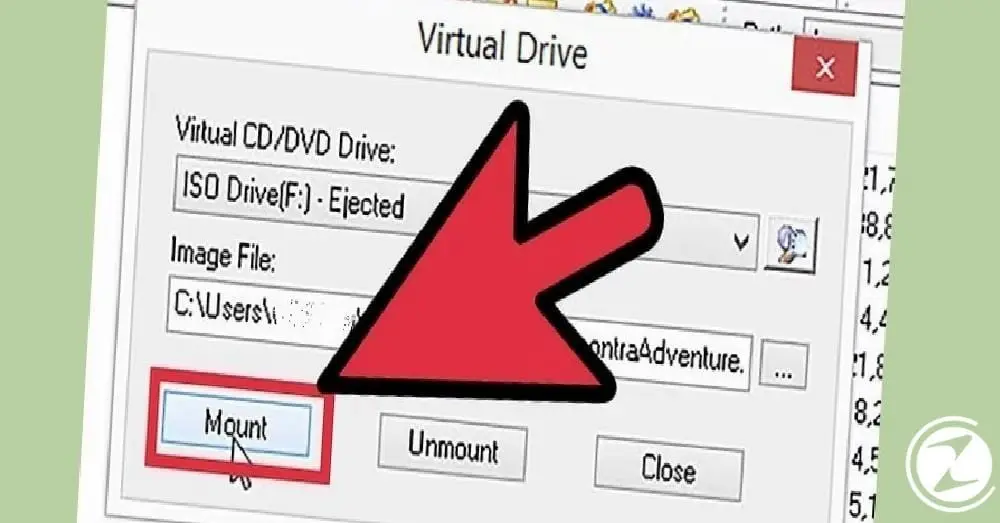
In the previous method the way we explained the CUE file you created via the DeamonTools program. mount Open it using the button. When you open the file, it will be loaded into the program in a time that varies depending on the file size.
Step #3: A virtual drive will be created after installation

When you look at the Computer folder after the installation, it looks like you have connected a USB memory or as if you inserted a CD you will see a virtual drive icon. Using this icon, you can open your file with the .bin extension just like you would run a CD.
Opening the .bin file by converting it to an ISO file:
- Step #1: Download the MagicISO program from here and complete the installation.
- Step #2: Open the program and convert Click the button.
- Step #3: Select the conversion type and the file you want to convert.
- Step #4: Select the target folder and specify a file name.
- Step #5: convert Click the button.
- Step #6: Your .bin file will be converted to an ISO file in a time that varies depending on file size.

The biggest benefit of converting a file with a .bin extension into a file with an ISO extension is You have the chance to open it through more programs is that it is. You can burn the converted ISO file on a CD or open it with the help of a virtual drive, just like in other methods.
We have answered the question of how to open files with .bin extension for you and provided you with information you can use to open them. simplest methods we told. Even if some software is relatively old, it may sometimes be required for such operations. Make sure you use reliable sources and grant correct access permissions when downloading.
Every business is unique. Let’s explore how we can tailor these ideas to your own digital project.