
How to Remove Chrome Ad Virus? (Mobile and PC)
Google Chrome, one of the most popular internet browsers, can be used on both mobile and computer. Antivirus during use…

Google Chrome, one of the most popular internet browsers, can be used on both mobile and computer. Antivirus during use…
Google Chrome, one of the most popular internet browsers, can be used on both mobile and computer. You may have contracted a virus that your antivirus program did not detect or overlooked while using it. Chrome ad virus A virus called may constantly be showing you annoying ads.
Chrome ad virus It may have been infected from an unsafe website or an add-on you downloaded. Chrome ad virus is the most common and most annoying virus is one of the types. Chrome ad virus For those who want to get rid of the problem, we have explained the cleaning methods that you can easily apply on both mobile and computer.
What is Chrome ad virus?

Although it does not have an official name as the Chrome ad virus, it is called this name because it is a type of virus that basically targets and attacks the Google Chrome internet browser. The virus can be detected no matter which website you visit. irrelevant ads takes it out. Chrome ad virus can infect both the Google Chrome internet browser and the Google Chrome mobile internet browser.
Many of the ads displayed to the user by the Chrome ad virus on computers and mobile devices regarding pornographic or illegal betting sites There are contents. Chrome ad virus, a malware product, creates other problems for Google Chrome users than irrelevant ads.
Chrome ad virus and the problems it creates:
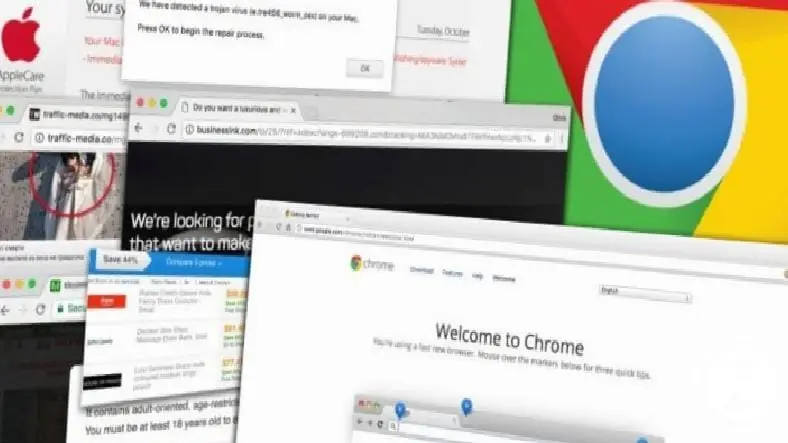
- Irrelevant ads in your browser
- Different tabs opening suddenly
- Browser startup homepage changing without notice
- Search engine option that changes without notice
- Unwanted Google Chrome extensions
- Toolbars that cannot be removed
- Redirecting to unknown pages and ads
- Continuous virus infection warning
- Irrelevant and constant pop-up ads
The above problems occur in internet browsers announced by Google and infected with the Chrome ad virus. Some of the most common problems. If you constantly encounter one or more of these problems, your browser is infected with the Chrome ad virus. There are different methods you can apply on mobile and computer to clean the virus.
How to remove Chrome ad virus on Windows?
- Step #1: Open the Google Chrome internet browser on your computer.
- Step #2: By pressing the three-dot button in the upper right corner “Privatization and Control” Open the menu.
- Step #3: From here "Settings" Open the menu.
- Step #4: You will see at the bottom of the page "Developed" Click .
- Step #5: What you will see at the bottom “Reset and clear” from the section “Cleaning the computer” Click .
- Step #6: “find” Click the button.
- Step #7: The system will check for malware for a few minutes.
- Step #8: If malware is detected “Remove” Uninstall the software by clicking the button.
- Step #9: Restart your computer.
- Step #10: The process is complete.

After removing malware causing Chrome ad virus by following the steps above You can also reset your browser settings There is benefit. For this “Reset and clear” located in the section “Reset settings” You can use the option. After the reset, close and reopen the Google Chrome internet browser.
During the malware check on your computer with Windows operating system, Google Chrome accidentally downloaded a secure file If you think you have quarantined your computer, Chrome Cleanup Tool in the folder Quarantine You can access and recover this file through the folder.
How to remove Chrome ad virus on macOS? (Match)
- Step #1: Open the Finder window.
- Step #2: From here “Applications” Open the menu.
- Step #3: Identify programs you don't recognize.
- Step #4: Right click on the program you selected.
- Step #5: “Move to trash” Click .
- Step #6: Apply the same process to all programs you do not recognize.
- Step #7: After deleting all programs, empty the trash.
- Step #8: Restart the computer.
- Step #9: The process is complete.

There is no automatic action to detect Chrome ad virus on computers with Mac operating system. Virus removal process above. by following the steps we explained you must do it manually. Restarting the computer is something you need to do to see the changes you have made.
How to remove Chrome ad virus on Android?
- Step #1: Make a list of all the programs you have installed on the device.
- Step #2: Turn off the device.
- Step #3: While the device is turning on, press and hold the power button to boot it into safe mode.
- Step #4: At the bottom of the screen “Safe mode” You will see the text.
- Step #5: Uninstall the applications you recently installed on the device one by one.
- Step #6: After each uninstallation, turn on the device in normal mode and check the problem.
- Step #7: Repeat the process of uninstalling the app and opening it in normal mode until the problem disappears.
- Step #8: Once you find the app causing the problem, you can reinstall other apps.

You can manually detect and eliminate the Chrome ad virus that has infected your Android device by applying the method we explained above. If Chrome ad virus always notifications of the same website If it shows, you should edit the notification settings. For this:
- Step #1: Open the Google Chrome mobile internet browser on your device.
- Step #2: Open the web page whose notifications you want to block.
- Step #3: Tap the three-dot button on the right side of the address bar.
- Step #4: “i in a circle” So tap the information button.
- Step #5: “Site settings” Open the menu.
- Step #6: “Permissions” Open the section.
- Step #7: From here “Notifications” Open notification settings by tapping.
- Step #8: “Permissions” or “Notifications” You will see the option.
- Step #9: Disable this option.
- Step #10: The process is complete.
In order not to infect your Android device with the Chrome ad virus and to avoid having to deal with the long processes above, you can download the Google Play Store application. Play Protect protection Activate it and download a reliable antivirus mobile application to your device.
How to remove Chrome ad virus on iPhone (iOS) ?
- Step #1: Open the Google Chrome mobile internet browser on your device.
- Step #2: Press the three dots side by side button.
- Step #3: "Settings" Open the menu.
- Step #4: “Content Settings” Open the section.
- Step #5: From here “Block Pop-Ups” Turn on the option.
- Step #6: “Block Pop-ups” Activate the option.
- Step #7: Close the application and reopen it.
- Step #8: The process is complete.
This is how you can block pop-up ads displayed due to Chrome ad virus on your device with iOS operating system. If all pop-up ads appearing in the Google Chrome mobile application If you don't want to block follow the steps below.
- Step #1: Open the Google Chrome mobile internet browser on your device.
- Step #2: Open the web page where you want to see pop-up ads.
- Step #3: At the bottom of the screen “Blocked pop-up” You will see the text.
- Step #4: You will see below the article “Always show” Click the button.
- Step #5: The website's pop-up ads will now appear.
For you on your computers with Windows and Mac operating systems and on your devices with Android and iOS operating systems. How to remove Chrome ad virus We answered the question. To prevent a virus from entering your system again, visit reliable websites, download programs and mobile applications from reliable sources and install an antivirus program on your device.
Every business is unique. Let’s explore how we can tailor these ideas to your own digital project.


