
How to Set Up a Virtual Machine in Windows 10?
Today, the existence of more than one operating system such as Windows, MacOS, Linux and Ubuntu pushes users to different solutions. Windows 10…

Today, the existence of more than one operating system such as Windows, MacOS, Linux and Ubuntu pushes users to different solutions. Windows 10…
Today Windows, macOS, Linux And ubuntu The existence of more than one operating system such as this pushes users to different solutions. You can install it on Windows 10 If virtual machines This allows you to run different operating systems virtually.
If Windows 10 If you have a computer running an operating system, you can create a virtual machine on your computer and run it in this virtual machine. Ubuntu (Linux) or macOS You can use operating systems. Thanks to these virtual machines with different operating systems; You can check for Windows updates before installing them on your computer, and you can try macOS without having a Mac computer.
In order to install a virtual machine in Windows 10, you need to have one of the 64-bit Enterprise, Pro or Education editions. Let's look at the Hyper-V program that will allow us to set up a virtual machine in Windows 10 and How to install a virtual machine Let's take a closer look at the answers to the question.

How to set up a virtual machine in Windows 10?
- Step #1: Right click on the start menu and click "Windows PowerShell (Admin)” Click .
- Step #2: In the PowerShell window that opens systeminfo type and press enter.
- Step #3: Scroll down to see the results under the Hyper-V heading.
- “Hyper-VIf the ” option gives NO result, your system does not have virtual machine support.
- “Virtulization Enabled in Firmware” If the option gives NO result, you need to authorize Hyper-V. (Step#4continue from ).
- “A supervisor has been detected…” If you see a warning, Hyper-V authorization has already been granted. (Step#8continue from ).
- Step #4: In the start menu, type Hyper-V in the search section and press enter.
- Step #5: “Turn Windows features on or off” Click to open it,
- Step #6: In the window that appears, check the box next to Hyper-V.
- Step #7: Restart your computer.
- Step #8: in the search section in the start menu. “Windows Administrative Tools” type and open the program,
- Step #9: “Hyper-V Quick Create” Click on ,
- Step #10: “Create Virtual Machine” Select one of the 4 operating systems listed in the window,
- Hyper-V will create a virtual machine for you.
- Step #11: “Create From the 'Virtual Machine' window ‘”Local installation source” Click on the option,
- Step #12: “Change installation source” Click on .
- Step #13: The operating system you downloaded ISO Find the file and open it.
- Step #14: Click on the ‘Create Virtual Machine’ box and now your virtual machine is ready to use.
Step#1: Right click on the Start menu and click “Windows PowerShell (Admin)” Click .

First, we run Windows PowerShell as an administrator to test the computer's Hyper-V compatibility.
Step#2: In the PowerShell window that opens systeminfo type and press enter.

To find out the computer's Hyper-V compatibility systeminfo We enter the command.
Step#3: Scroll down the page and reach the results under the Hyper-V heading.

If there is Yes next to all results as shown in the image, your computer is compatible with the Hyper-V tool.
- “Hyper-VIf the ” option gives NO result, your system does not have virtual machine support.
- “Virtulization Enabled in Firmware” If the option gives NO result, you need to authorize Hyper-V. (Step#4continue from ).
- “A supervisor has been detected…” If you see a warning, Hyper-V authorization has already been granted. (Step#8continue from ).
Step#4: Type Hyper-V in the search section in the Start menu and press enter.

To authorize Hyper-V, we first type Hyper-V in the search field and press enter.
Step#5: “Turn Windows features on or off” Click to open it.

.Here we need to check the box to the left of the Hyper-V text.
Step#6: In the window that appears, check the box next to Hyper-V.

When we check this box, we give the necessary permission to the Hyper-V tool.
Step#7: Restart your computer.
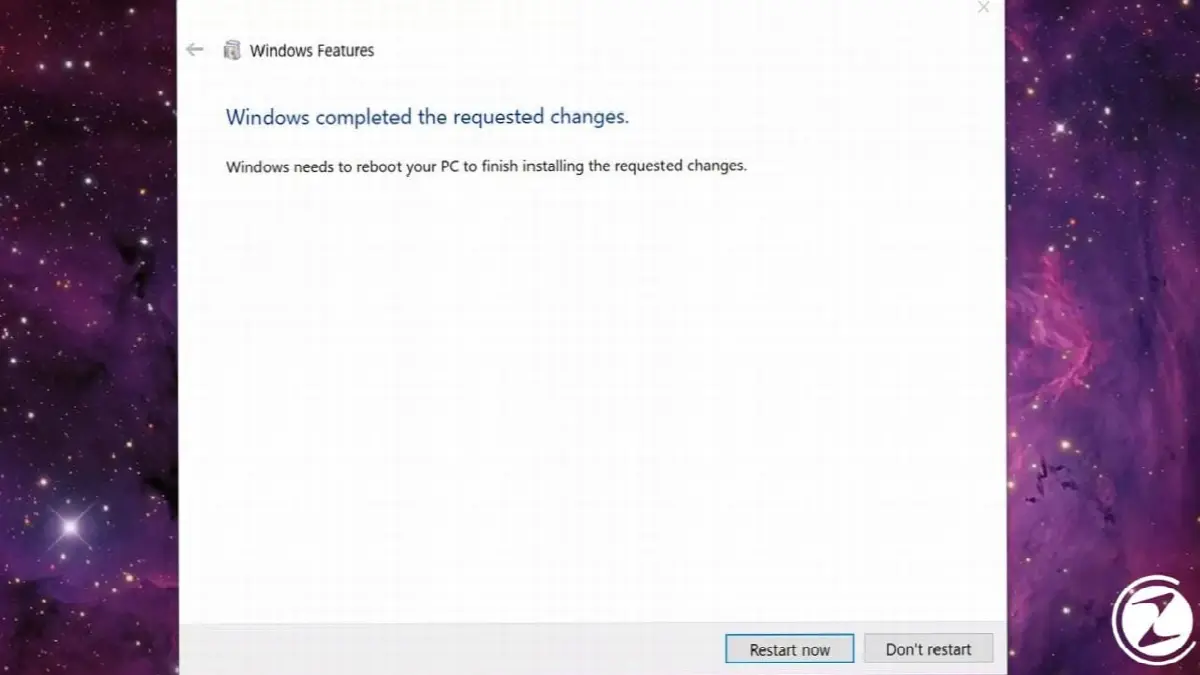
After authorizing Hyper-V, restart your computer for your changes to take effect.
Step#8: Go to the search section in the Start menu. “Windows Administrative Tools” type and open the program.

To install a virtual machine with the Hyper-V tool, first start in the menu “Windows Administrative Tools” We find the tab.
Step#9: “Hyper-V Quick Create” Click .
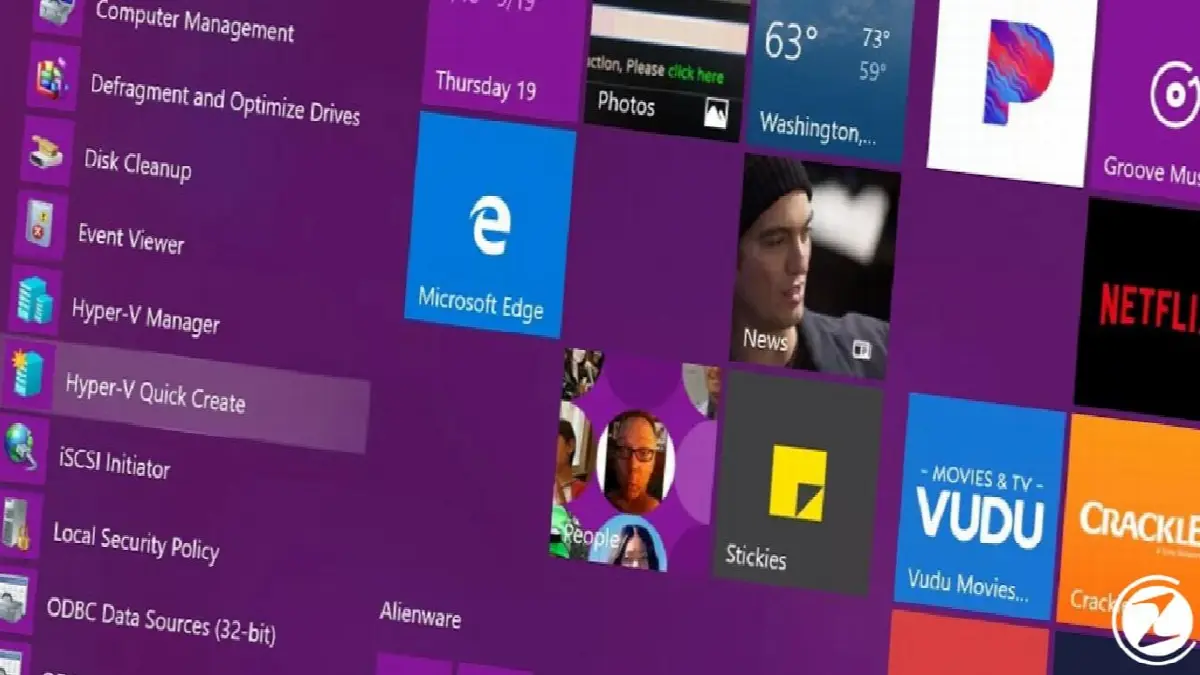
Hyper-V Quick Create The tab will direct us to the Hyper-V virtual machine creation screen.
Step#10: “Create Virtual Machine” Select one of the 4 operating systems listed in the window.

opened “Create Virtual Machine” In the window, select one of the ready-made operating systems included in Hyper-V and click on the button at the bottom right. “Create Virtual Machine” When you click the button, the Hyper-V tool will create a virtual machine for you. (If you want to use an operating system not listed Step#11continue from ).
Step#11: “Create From the “Virtual Machine” window ‘”Local installation source” Click on the option.

To use a different operating system and select an operating system you have previously downloaded, click on the button on the left. “Local installation source” Click on option. If you want to download a new operating system, you can find macOS downloads here, Windows 10 downloads here and Linux downloads here.
Step#12: “Change installation source” Click on .

To install the ISO file you downloaded “Change installation source” Log in to the section.
Step#13: Find the ISO file of the operating system you downloaded and open it.

The operating system you downloaded ISO Find and open the file and it will be added to the operating system Hyper-V interface.
Step#14: Click on the “Create Virtual Machine” box, now your virtual machine is ready to use.
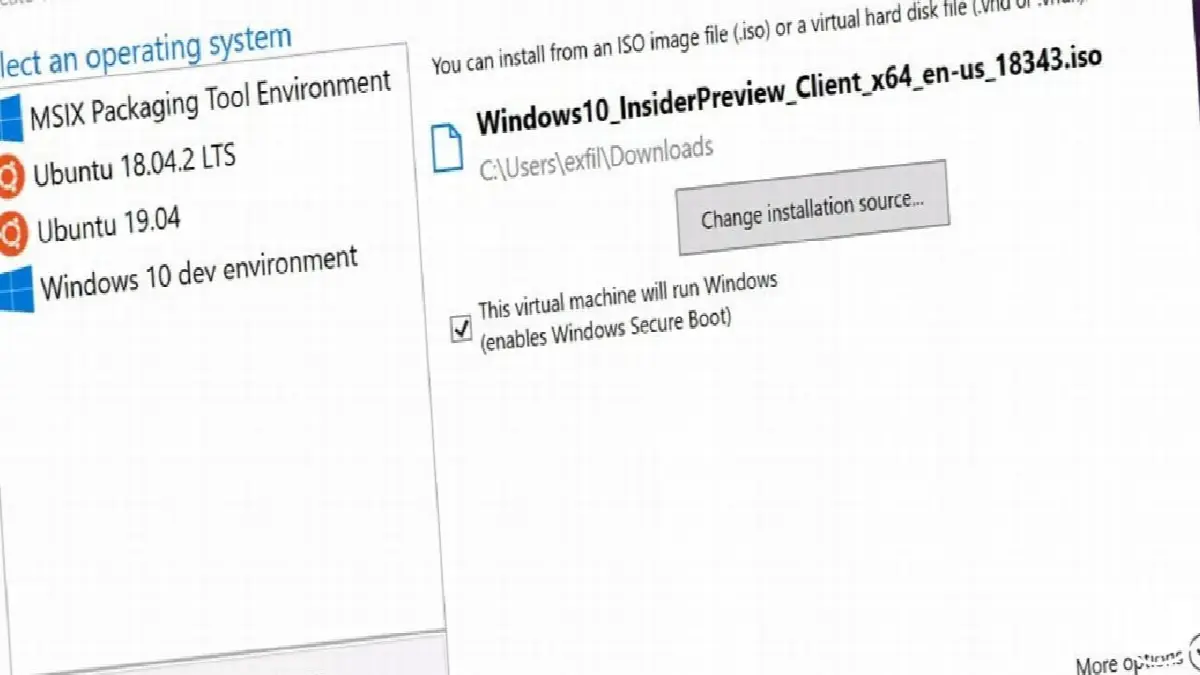
After the ISO file you downloaded is uploaded to the Hyper-V interface, click on the button at the bottom right. “Create Virtual Machine” Click the box and your virtual machine is now ready for use.
How to open and close a virtual machine installed in Windows 10?
- Step#1: Click on the start menu “Windows Administrative Tools” Go to the tab.
- Step#2: Hyper-V Manager Select the tab.
- Step#3: Select the virtual machine you want to start and Connect Click the button.
- Step#4: “The Virtual Machine Connection” on the screen Start Press the key.
- Step#5: Orange power button You can press and save your machine.
- Step#5: Red power button You can turn off your machine by pressing .
Step#1: Click on the Start menu and “Windows Administrative Tools” Go to the tab.

Just like we did when creating a virtual machine, from the Start menu again “Windows Administrative Tools” Go to the tab.
Step#2: Hyper-V Manager Select the tab.

This time Hyper-V Quick Create In order to open the virtual machine we installed instead Hyper-V Manager We click on the tab.
Step#3: Select the virtual machine you want to start and Connect Click the button.

After selecting the virtual machine we want to start, click on the button at the bottom right. Connet We click on the button.
Step#4: “The Virtual Machine Connection” on the screen Start Press the key.

what we encounter “The Virtual Machine Connection” on the screen Start We press the button.
Step#5: Orange power button You can press and save your machine.
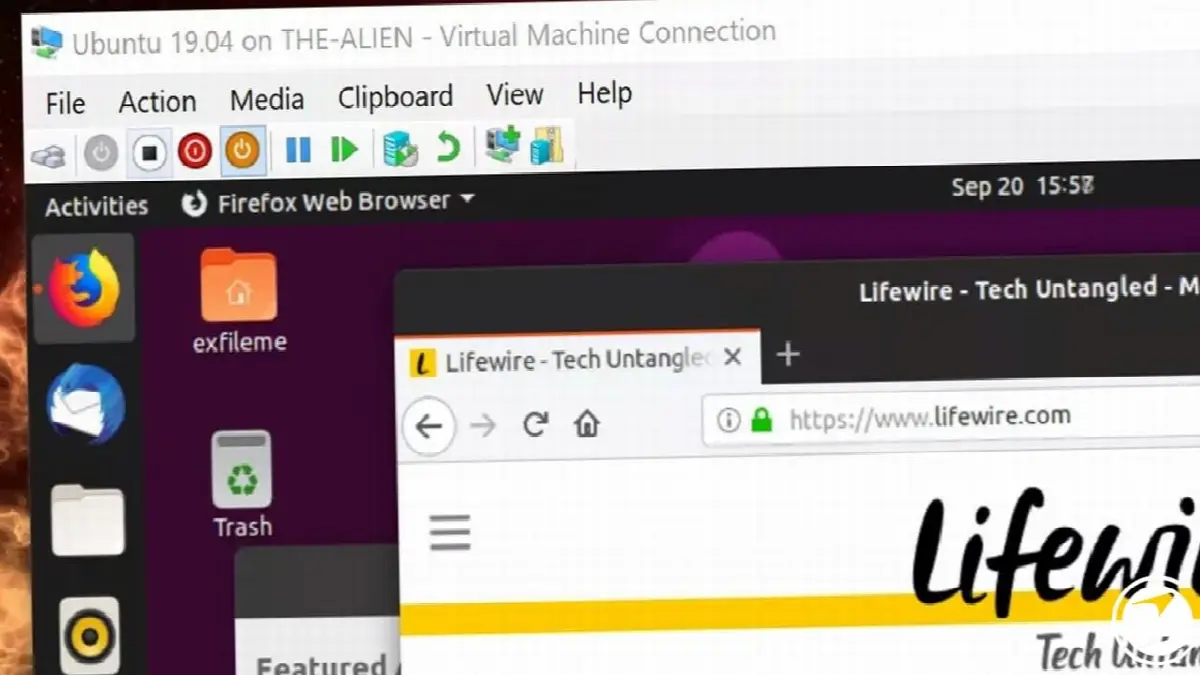
After you turn on your virtual machine, click on the button in the upper left corner of your virtual machine.orange power button You can click to save the current version of your virtual machine.
Step#6: Red power button You can turn off your machine by pressing .

After completing all your operations in your virtual machine, click the k button next to the orange power button at the top left.red press the power button click and You can safely shut down your virtual machine.
Although Hyper-V is a service provided by Microsoft with which you can create a virtual machine without the need for third-party software, it has a few disadvantages. Microsoft also stated in its statements that the Hyper-V tool It is not a good option especially for application developers. and states that not every application and service native to other major operating systems may run properly in the virtual machine you create.
Every business is unique. Let’s explore how we can tailor these ideas to your own digital project.


