How to Solve DNS Address Not Found Error?
Another error that can be encountered quite frequently on Windows systems is “The DNS address of the host machine … could not be found.” It appears as…

Another error that can be encountered quite frequently on Windows systems is “The DNS address of the host machine … could not be found.” It appears as…
Another error that can occur quite frequently in Windows systems “The DNS address of host… could not be found.” appears as. This DNS address not found error, which can be caused by various reasons, is caused by the internet.
There are multiple solutions to this error that may occur when trying to visit various websites. Especially when we try to access sites such as YouTube and Google. DNS address not found details of the error and to solutions We look closely.

What is the DNS address not found error?
The DNS address not found error may appear in various scenarios. One of the most common reasons for this error can be called some problems with the internet connection. The internet connection you use decisive If it is not and it is interrupted from time to time, you may encounter this error.
DNS address not found error specifically Google Chrome Apart from being very common among users, there are solution methods that can be applied very easily. Bride “How to solve the DNS address not found error?” Let's take a closer look, step by step.
How to solve DNS address not found error?
- Step #1: Go to the C:/Windows/System32/drivers/etc folder.
- Step #2: “etc” Delete the files in the folder. (If the problem is not resolved, continue with Step #3.)
- Step #3: Search chrome://net-internals/#dns in Chrome.
- Step #4: On the resulting page “Clear host cache” Click the button. (If the problem is not resolved, continue with Step #5.)
- Step #5: Update the driver for your Ethernet card. (If the problem is not resolved, continue with Step #6.)
- Step #6: From the start menu “Control Panel” Open the menu.
- Step #7: “Network and Internet” Open the menu.
- Step #8: “Network and Sharing Center” Open the menu.
- Step #9: “Change adapter settings” Click the button.
- Step #10: Right click on the network you are using "Features" Click .
- Step #11:“Internet Protocol Version 4 (TCP/IPv4)” Select it and press the “Properties” button.
- Step #12: Change the DNS server address manually. (If the problem is not resolved, continue with Step #13.)
- Step #13: To the search menu “cmd” in summer.
- Step #14: Run the Command Prompt application as administrator.
- Step #15: Enter the ipconfig /flushdns command and press Enter.
- Step #16: Enter the ipconfig /renew command and press Enter.
- Step #17: Enter the ipconfig /registerdns command and press Enter.
- Step #18: Restart your computer and you're done.
Step #1: Go to C:/Windows/System32/drivers/etc folder.

As one of the simplest solutions to the DNS address not found error, you can delete the network files in System32.
Step #2: Delete the files in the “etc” folder. (If the problem is not resolved, continue with Step #3.)

from C drive System32Delete all files in the etc folder and optionally restart your computer. If the problem persists, go to the next step.
Step #3: Search chrome://net-internals/#dns in Chrome.
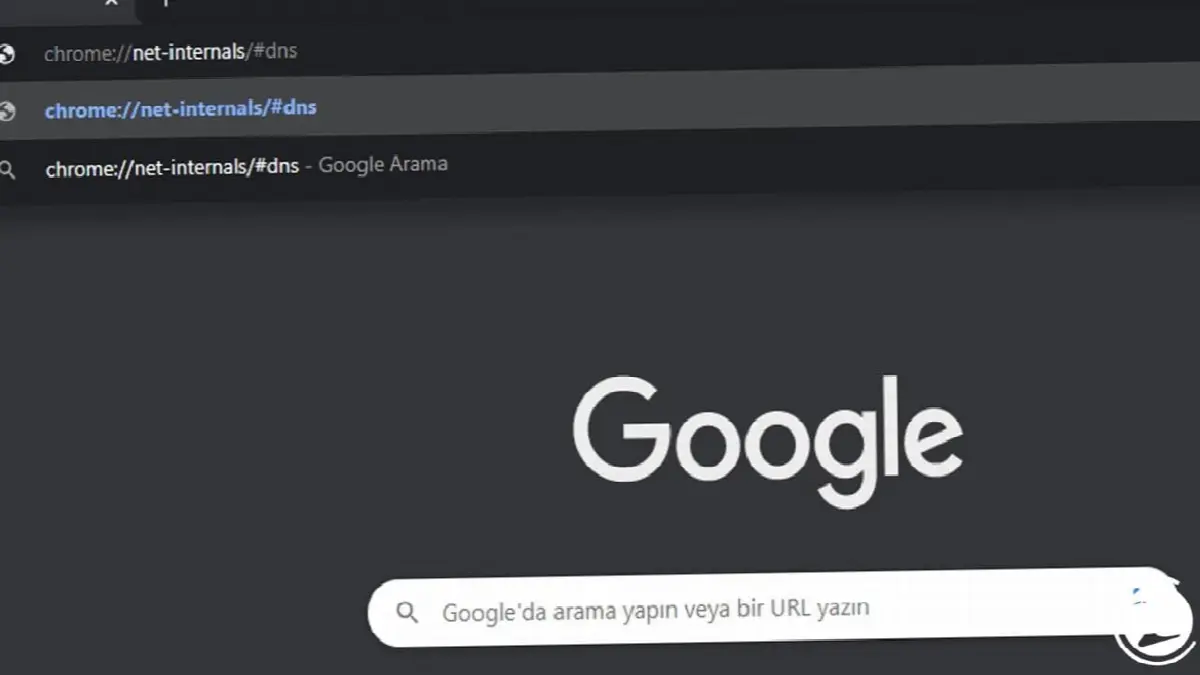
If Chrome's host cache DNS cache It may be too full or corrupted, causing you to receive a DNS address not found error. Copy chrome://net-internals/#dns, paste it into the address bar in Chrome and press Enter.
Step #4: Click the “Clear host cache” button on the page that appears. (If the problem is not resolved, continue with Step #5.)
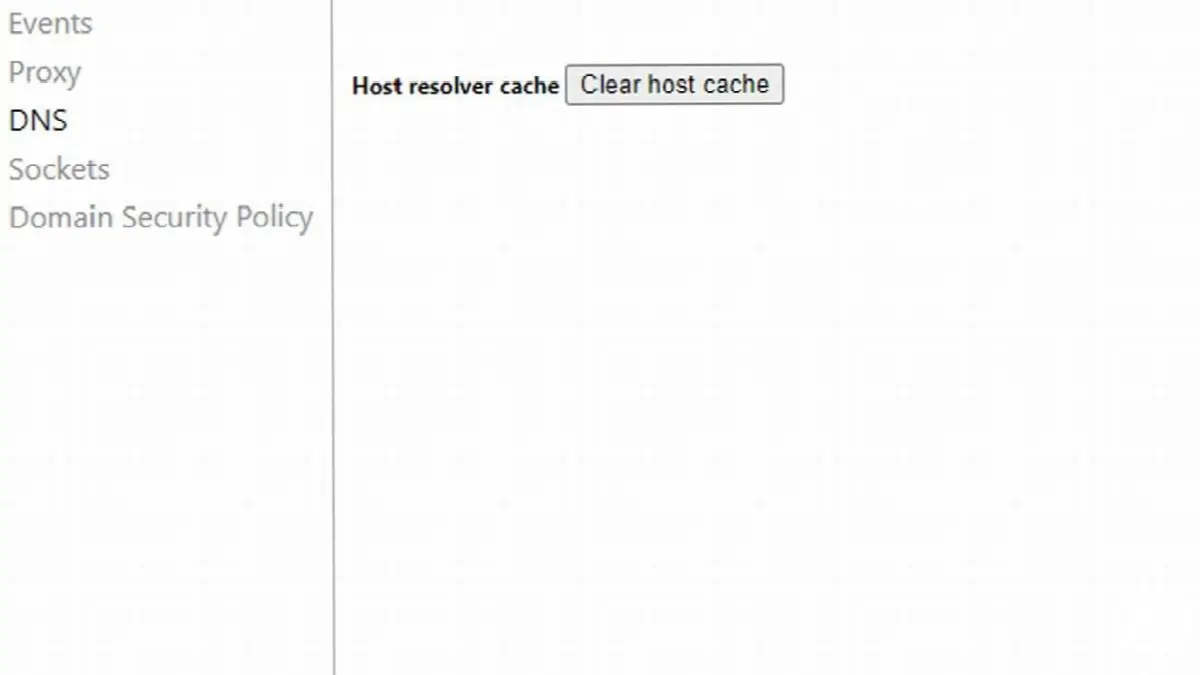
Click the Clear host cache button and restart your system after the process is completed. If the problem persists, continue with the next step.
Step #5: Update the driver for your Ethernet card. (If the problem is not resolved, continue with Step #6.)

To update the driver for your Ethernet card, download and install Driver Easy from here. Then run the Driver Easy program and click the "Scan Now" button. The program will find the drivers that need updating for you. If your ethernet card driver requires an update, you can see it here.
Step #6: Open the “Control Panel” menu from the Start menu.

As another method, we can change the DNS server manually. We log in to the Control Panel to access network settings.
Step #7: Open the “Network and Internet” menu.

Step #8: Open the “Network and Sharing Center” menu.

Step #9: Click on the “Change adapter settings” button.

Step #10: Right-click on the network you are using and click “Properties”.
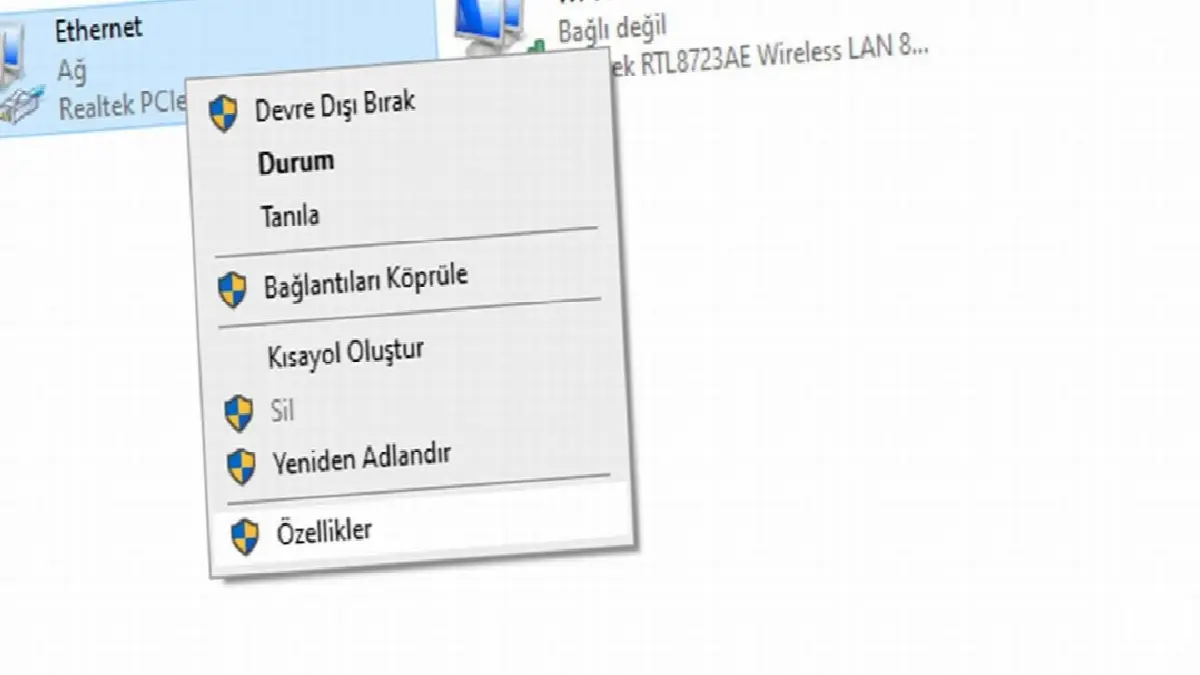
If you are connected to the internet via ethernet cable, you will see it directly in the menu. If you are connected via Wi-Fi, you can simply right-click and click "Properties".
Step #11: Select “Internet Protocol Version 4 (TCP/IPv4)” and press the “Properties” button.

This process will take us to the menu where we will manually change our DNS address.
Step #12: Change the DNS server address manually. (If the problem is not resolved, continue with Step #13.)

It's probably in the menu you opened. “Get DNS server address automatically” option will be selected. “Use the following DNS server addresses” Check the option and enter the numbers 8.8.8.8 in the first part and 8.8.4.4 in the second part and click OK. In this way, instead of obtaining the DNS address automatically, it is constantly GoogleYou will use 's official and fast DNS address.
Step #13: Type “cmd” in the search menu.

Windows constantly stores the IP addresses of the sites you visit so that you can quickly open them again later. Some of these stored IP addresses may be corrupt and cause you to receive the DNS address not found error. There are some commands we need to enter to fix this problem. Type “cmd” in the Search bar to run the Command Prompt application.
Step #14: Run the Command Prompt application as an administrator.

Since we will make changes to Windows with the commands we enter, we run the Command Prompt application as an administrator.
Step #15: Enter the ipconfig /flushdns command and press Enter.

Enter the ipconfig /flushdns command, press Enter and wait for the process to finish. Then move on to the next step.
Step #16: Enter the ipconfig /renew command and press Enter.
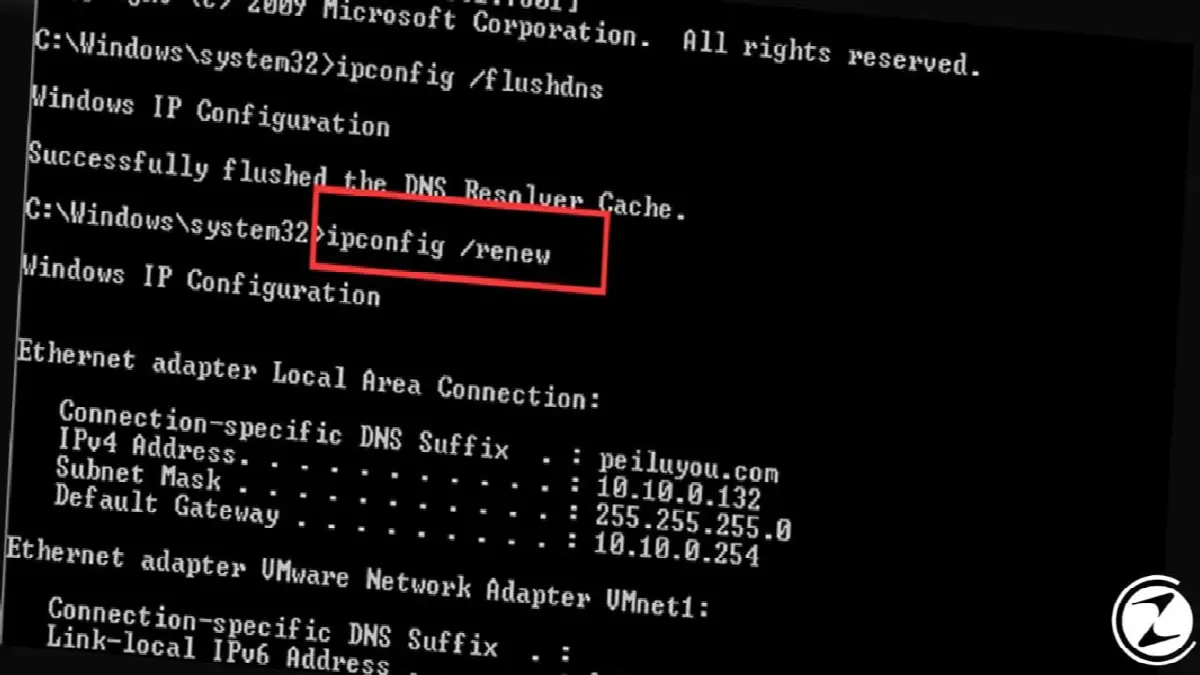
Enter the ipconfig /renew command, press Enter and wait for the process to finish. Then move on to the next step.
Step #17: Enter the ipconfig /registerdns command and press Enter.

Finally, enter the ipconfig /registerdns command, press Enter and wait for the process to finish. Then close the Command Prompt application.
Step #18: Restart your computer and you're done.
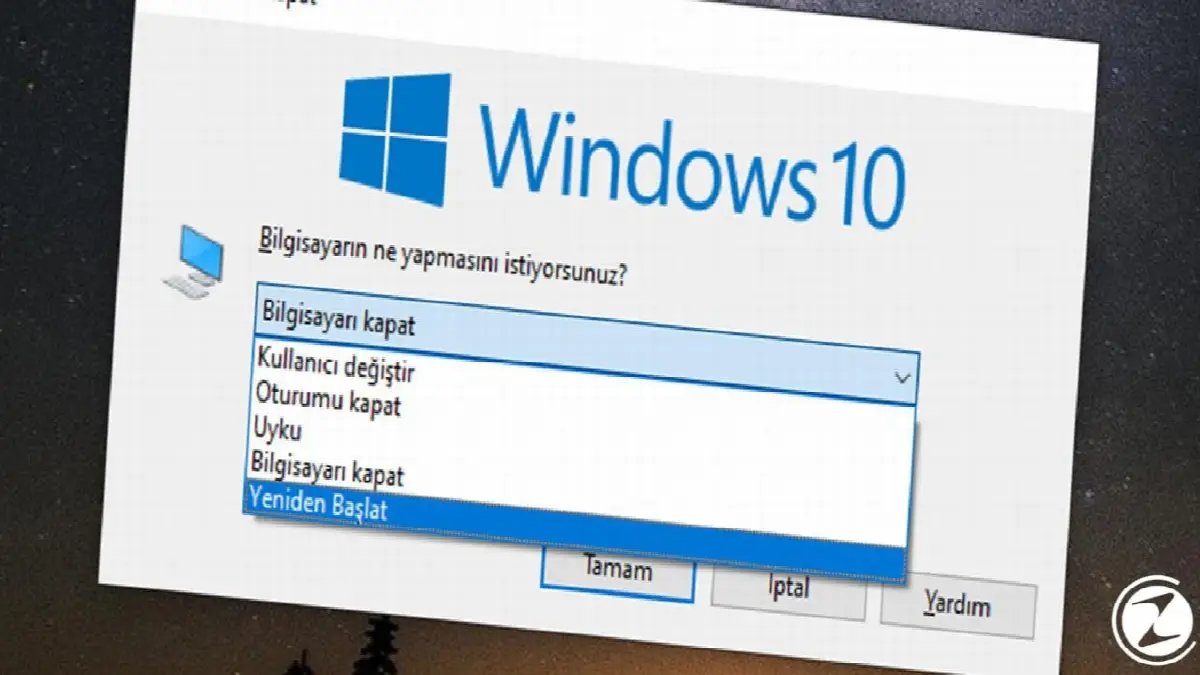
After closing the Command Prompt application properly, restart your computer. Your problem will be solved after all these steps.
Alternative Method: VPN

If you still receive the DNS address not found error on some websites after following all the steps above, VPN Because you can try using ISP DNS addresses of these websites may be blocked by (Internet Service Provider). You can access our content where we list and review the best free VPN applications here.
DNS address not found We have come to the end of our content where we touched upon the causes of the error and explained the solutions to the error in detail. Were these solutions useful for you? What other solutions that are not included in the content can be tried? You can share your experiences and opinions with us in the comments section.
Every business is unique. Let’s explore how we can tailor these ideas to your own digital project.