
How to Solve the 'No Sound from Laptop' Problem?
From time to time, the hardware in our computers can stop working and let us down. For example, listening to a song you love very much…

From time to time, the hardware in our computers can stop working and let us down. For example, listening to a song you love very much…
From time to time, the hardware in our computers can stop working and let us down. Many examples can be given, such as laptop speakers letting you down when you want to listen to a song you love very much. To solve these problems, you need to disassemble your laptop or without taking it for repair There are some solutions you can apply.
First of all, if there is no sound from the laptop, are you facing a hardware problem? Or is there a software problem? You need to figure this out. But do not be intimidated by this situation, because there are very simple methods to answer these two questions. If you are ready, all together No sound from laptop Let's take a look at the solution methods to the problem. solution methods Windows 10 Although we give it above, the same methods can be applied in the same way in Windows 7 and Windows 8.

Solution methods for the problem of no sound coming from the laptop:
- Method #1: Check the sound bar.
- Method #2: Check the volume with a headset.
- Method #3: Try changing the audio device.
- Method #4: Block sound effects.
- Method #5: Try updating or reinstalling the audio drivers.
- Method #6: Check the volume on the BIOS screen.
Method #1: Check the sound bar:

Although it sounds like a simple method, you may have accidentally muted the computer's sound due to the "Fn" hotkeys or touch touch bars on laptops. Although it seems like a very simple thing, this error occurs to many users. If your sound is not muted, there should be a chime sound that you drag and drop on the sound bar. If this chime does not sound, the problem may lie elsewhere.

If there is no sound from the laptop, the first thing you should check is whether the applications are muted. To do this, right-click on the volume icon at the far right of the taskbar and select “Turn on volume mixerClick the " button. Here you can hear the sound of all the components you see. that it is clear Be sure.
Method #2: Check volume with a headset:

Another simple method you can apply at the first stage is to control the volume with headphones. If you are using a headset or external speaker sound test If you hear sound when you do this, the problem is most likely in the laptop's internal speakers and is hardware.
To solve a hardware problem, the best thing you can do is to consult your computer service. If there is no sound through headphones or external speakers, you can continue to look at other methods.
Method #3: Try changing the audio device:

- Step #1: Right click on the sound icon in the taskbar.
- Step #2: Click on Sound Effect.
- Step #3: Go to the Playback tab.
- Step #4: Change the default audio playback device from the list.
Even though your computer's speakers are working perfectly fine, sometimes you may not be able to hear the sounds. This problem is especially related to the computer; It appears when a display without audio output or when an extra USB audio device is connected. In these cases Windows sound, to wrong exits can direct.
In this case, when you come to the Playback tab to solve the problem, you will see the playback devices defined by Windows in a list. If the wrong audio playback device is marked in this list, simply select the device you want to use and click “Make DefaultJust click on the ” button.
Method #4: Disable sound effects:

- Step #1: Right click on the sound icon in the taskbar.
- Step #2: Click on Sound Effect.
- Step #3: Go to the Playback tab.
- Step #4: Right-click on the device you are using and open Properties.
- Step #5: Go to the Enhancements tab.
- Step #6: Check the Block all sound effects box.
- Step #7: Go to the Advanced tab.
- Step #8: Uncheck the Prioritize apps with exclusive mode box.
Although this method seems a bit complicated, it is based on the trial/error method. Sound effects used on the playback device may, in some cases, sound problems It can cause Therefore, first check if sound is heard by disabling sound effects.

If there is still no sound, go to the Advanced tab. Try unchecking the “Prioritize apps with exclusive mode” box in the exclusive mode list. Also change the sample rate and bit under the Default Format heading.24 bit, 48000 Hz (Studio Quality)Make sure it is selected as ”.
Method #5: Try updating or reinstalling audio drivers:
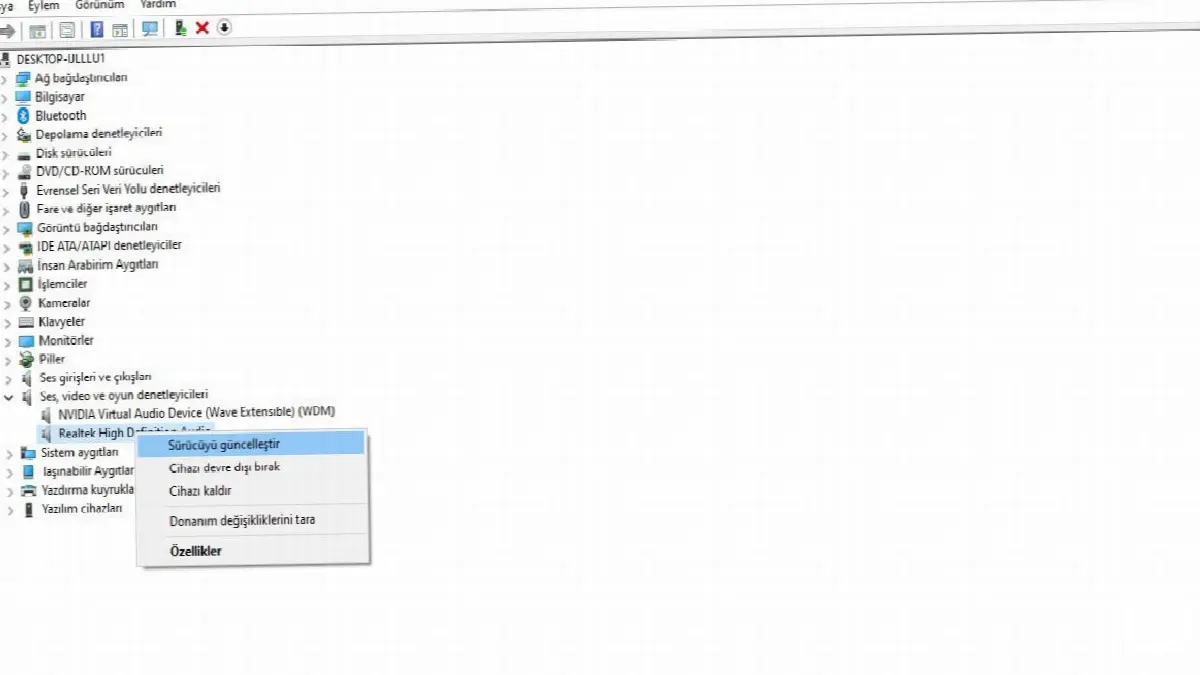
- Step #1: Type Device Manager in the search bar and open the application.
- Step #2: Expand the Sound, video and game controllers tab.
- Step #3: Right-click the audio driver and click Update driver.
- Step #4: Click on the Search for drivers automatically button.
- If you get the message “The best drivers for your device are already installed,” continue with the next step.
- Step #5: Right-click the audio driver and click Uninstall device.
- Step #6: Restart your computer. When your computer turns on, Windows will automatically reinstall the audio driver.
If changing the sound driver settings does not solve the sound problem, automatically updating the sound driver may fix the problem. If your driver is currently at its latest version manually You can download the latest version from the official website of your audio device and install it yourself. But there is a safer and simpler way to do this.
When you uninstall the existing audio driver from the Device Manager and restart your computer, Windows will automatically detect the missing driver and install the most current version directly. Especially on Windows computers clean installs It overcomes many problems.
Method #6: Check sound in BIOS screen:

In rare cases, sound problems may be caused by incompatible hardware or some problems in the BIOS. To check this, go to your BIOS/UEFI screen and check the “Onboard HDMI HD Audio” section.Enabled” so you need to make sure it is clear.
Finally, you can try updating the BIOS. You can find out your current BIOS version and model by running the "dxdiag" command in the Run application opened with the Win + R combination. After this, if there is an updated BIOS version on the official website of your computer's manufacturer, you can update your BIOS by following the steps given. But BIOS update is very sensitive and requiring attention It is a process. One wrong step on your computer permanent damage It may lead to Therefore, it would be beneficial for you to get information from an expert before updating the BIOS.
No sound from laptop We have come to the end of our content where we list the methods you can apply to solve the problem. If the methods listed do not solve the problem, you may be facing a problem caused by a Windows update. In this case, you can revert to the old Windows update or get help from Microsoft on this issue.
Every business is unique. Let’s explore how we can tailor these ideas to your own digital project.


