
How to Solve the USB Memory Write Protected Problem?
You bought a new external disk or USB memory from an online sales site or technology store. You come home to your Windows computer…

You bought a new external disk or USB memory from an online sales site or technology store. You come home to your Windows computer…
You bought a new external disk or USB memory from an online sales site or technology store. You come home, connect it to your Windows computer, it starts but you cannot transfer files. what you encounter memory write protected The warning will be annoying. Before considering returning the USB memory write protected Try what you can do to solve the problem.
Memory is write protected There are many different methods to solve the problem, but they all basically consist of reformatting the memory. To solve the memory write protected issue You can download a program or solve this problem on your computer, although it is a bit complicated. We explained the different methods you can apply.
What is the memory write protected warning?

The memory is write protected warning is the warning you see when you connect write protected devices to your computer. Write protection on external disks, memory cards, USB sticks and other on storage devices you may encounter.
on a write-protected device. data cannot be deleted or new data cannot be added to it. However, you can copy the data here to your computer or different devices. There are many alternative methods you can use to solve the memory write protected problem.
How to solve memory write protected issue?
- Step #1: Connect your memory to your computer.
- Step #2: Windows + R with the combination run open the screen.
- Step #3: cmd write it and run it.
- Step #4: Confirm the screen that appears.
- Step #5: diskpart Type it and press Enter.
- Step #6: Select your external memory from the list that appears.

- Step #7: Current Read-only State line Yes Select as.
- Step #8: attributes disk clear readonly Type it and press Enter.
- Step #9: Disk attributes cleared successfully The text indicates that the process is completed.
- Step #10: To format the memory, go to the same screen. clean Type it and press Enter.
- Step #11: Behind create partition primary And fs=ntfs Type it and press Enter.
- Step 12: Problem solved.

Although the process seems a bit complicated, it can solve the memory write protected problem on computers with Windows operating system. most commonly used is one of the methods. If you think these steps are confusing, you can take a look at alternative methods.
How to solve memory write protected issue? – Programmed
- Step #1: Download the SDFormatter program from here and install it on your computer.
- Step #2: Connect your memory to your computer.
- Step #3: Open the program.
- Step #4: Select one of the format options and start the process.
- Step #5: When the process is complete, remove and reconnect the memory.
- Step #6: Problem solved.

SDFormatter is a program developed for SD cards, but external memories are also used after all. Because they are a kind of SD card Using this program you can eliminate the memory write protected problem. Please note that all data in the memory will be deleted as a result of the process.
How to solve Kingston memory write protected problem?
- Step #1: Download Kingston Format Utility from here.
- Step #2: EXE Run the file and select the new location folder.
- Step #3: Behind Unzip Run the file.
- Step #4: From the new location folder Kingston Format Utility.exe Complete the installation by running the file.
- Step #5: Connect your memory to the computer.
- Step #6: From the program Device and File Open the section.
- Step #7: Select your memory and Format Click the button.
- Step #8: When the process is complete, remove and reconnect the memory.
- Step #9: Problem solved.

Although its installation is a bit complicated, Kingston Format Utility program can be used to solve the write protected problem in your Kingston brand memories. It is an ideal program. You can easily solve the memory write protected problem, especially if you are using relatively old Windows versions such as Windows XP and Windows 7.
How to solve memory write protected issue? – Alternative
- Step #1: Connect your memory to your computer.
- Step #2: Computer Open the folder.
- Step #3: Right click on your memory.
- Step #4: Format Click .
- Step #5: Select the formatting method and start the process.
- Step #6: Problem solved.
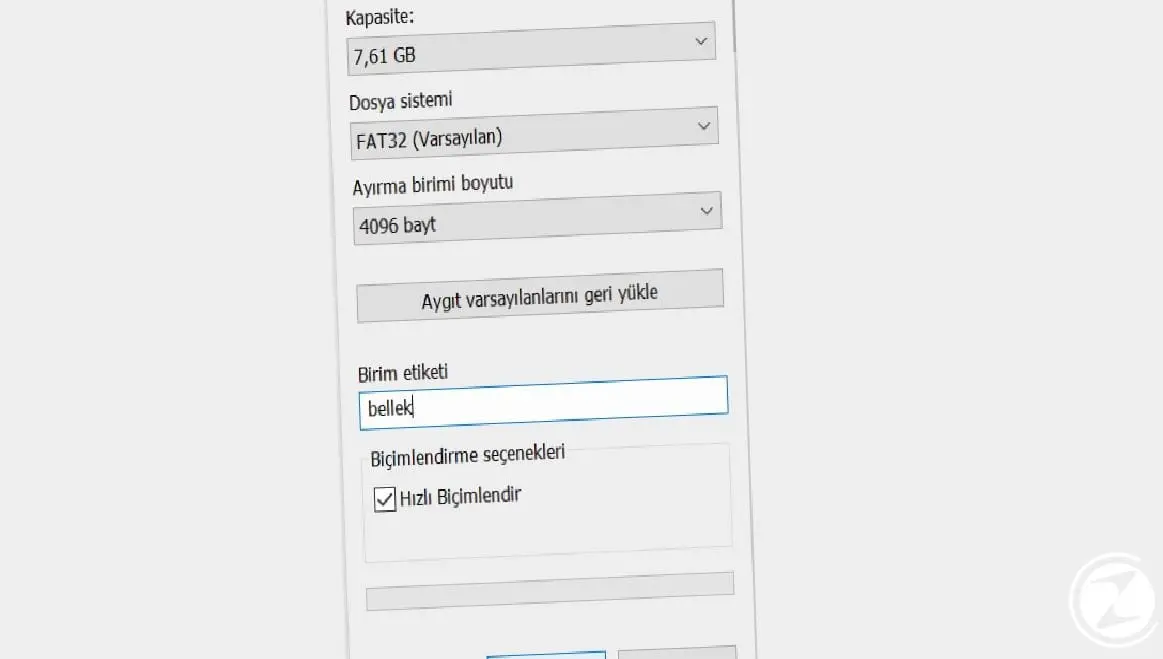
After the methods we explained above, this alternative method is the simplest and ideal for solving basic problems. in memory If there is no big problem This method alone can do the trick, but it is generally only used to obtain a clean storage space by formatting the memory.
If the methods do not work:
We have explained many different programmatic and non-programmed methods that you can use to solve the memory write protected problem. You can use it against the problem all methods in this way. However, if you cannot find a solution to the memory write protected problem despite everything, your memory may be faulty.
Before you are sure that your memory is faulty, try connecting it to your computer with different connection cables. If you still cannot find the solution, connecting to different computer and try applying the above methods. If the problem is still not resolved, contact the authorized service of the brand.
We have answered the question of how to solve the memory write protected problem that you may encounter on different storage devices such as external disk, USB memory, etc. alternative methods we told. If the problem is still not resolved despite trying all the methods, you can contact the authorized service of the device.
Every business is unique. Let’s explore how we can tailor these ideas to your own digital project.


