
How to Solve Touchpad Not Working Problem?
One of the most enjoyable aspects of using a laptop is using the touchpad. Without the need for an external mouse or even new…

One of the most enjoyable aspects of using a laptop is using the touchpad. Without the need for an external mouse or even new…
One of the most enjoyable aspects of using a laptop is using the touchpad. You can control your computer without needing an external mouse or even a keyboard with the different shortcut options available in new models. Touchpad not working problem This can be extremely annoying for a user who is used to this system.
Alright, How to solve the touchpad not working problem? If touchpad not working If the problem is caused by external factors, it would be beneficial to consult a technical service. However, if this problem suddenly appeared, there may be drivers that need to be updated or settings that need to be corrected. for you touchpad not working We answered the question of how to solve the problem and explained the points you should pay attention to.
Touchpad not working problem solution methods:
- Method #1: Disconnect external mouse
- Method #2: Check touchpad disable zone
- Method #3: Check the touchpad disable key on the keyboard
- Method #4: Check if the touchpad is enabled
- Method #5: Update your IO driver
- Method #6: Check via BIOS
- Method #7: Uninstall external mouse drivers
- Method #8: Update touchpad driver
- Method #9: Disable Tablet PC Input Service

Disconnect external mouse:
- Step #1: Unplug the connection cable between the external mouse and the computer,
- Step #2: If it is a Bluetooth mouse, remove the connection port,
- Step #3: Turn off the mouse,
- Step #4: Disable the computer's bluetooth feature,
- Step #5: Check if the problem is solved.
Although this is not a common situation, an external mouse or laptop connected to the computer via cable or Bluetooth connection Negative impact on touchpad It is known that he created When you encounter the problem of the touchpad not working, first try to remove external mouse connections to solve it.
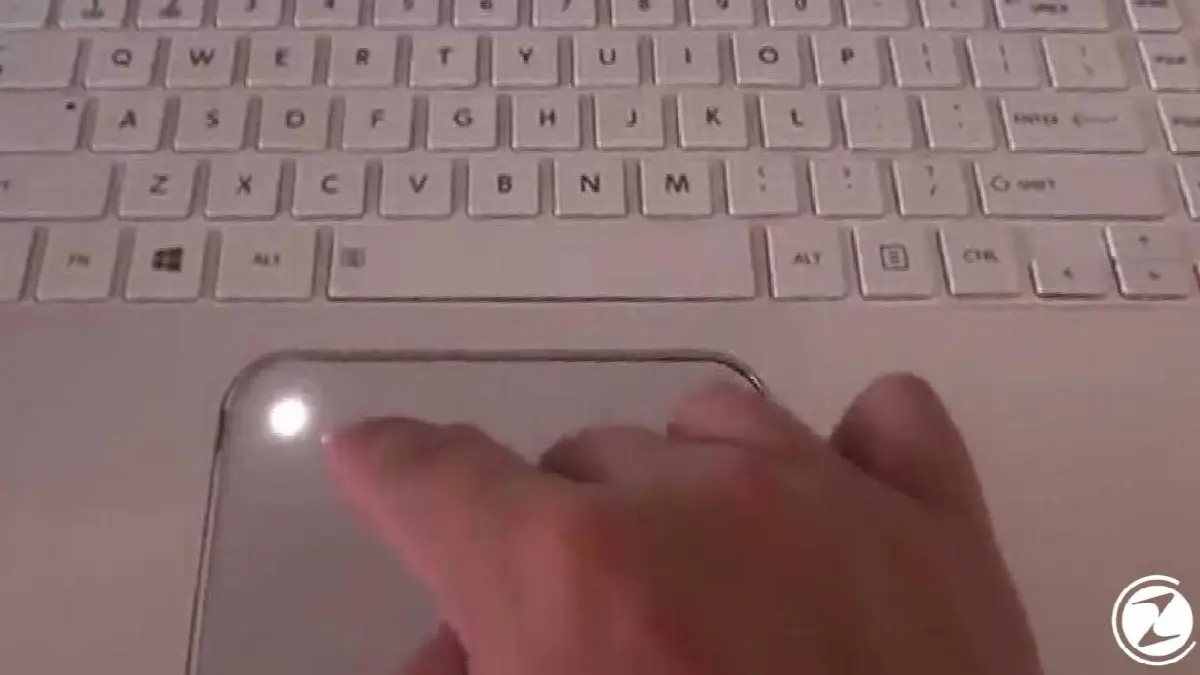
Check the touchpad disable zone:
- Step #1: Check the touchpad surface,
- Step #2: Examine the upper left corner of the surface,
- Step #3: See if there is a small square region,
- Step #4: If there is, double click on it,
- Step #5: Check if the problem is solved.
Especially if you have a relatively old model laptop, touch pad to deactivation zone There's a very high chance you have it. Check if there is such an area on the touchpad, and if there is, double-click on it to activate the touchpad again.

Check the touchpad disable key on the keyboard:
- Step #1: Check the keys of your keyboard,
- Step #2: Examine the F keys,
- Step #3: Find the touchpad activation key,
- Step #4: Fn Press that key together with the key,
- Step #5: Check if the problem is solved.
In new model laptops, it is no longer on the touchpad, with a key on the keyboard A shortcut for touchpad activation is presented to the user. Like the other F keys, the touchpad disable key is also Fn It performs its second function together with the key. It is one of the most common causes of the touchpad not working problem.

Check if the touchpad is enabled:
- Step #1: of your computer Settings open the page,
- Step #2: From here devices open the section,
- Step #3: From the menu on the left Touch Pad open settings,
- Step #4: at the top Touch Pad you will see the option,
- Step #5: Make sure it is active,
- Step #6: Check if the problem is solved.
You can solve the touchpad not working problem via Settings. deactivated It may be caused by touchpad setting. Likewise, when a new mouse is connected, the disabled touch pad may not be activated even if the external mouse connection is removed. You can solve this problem by following the steps above.
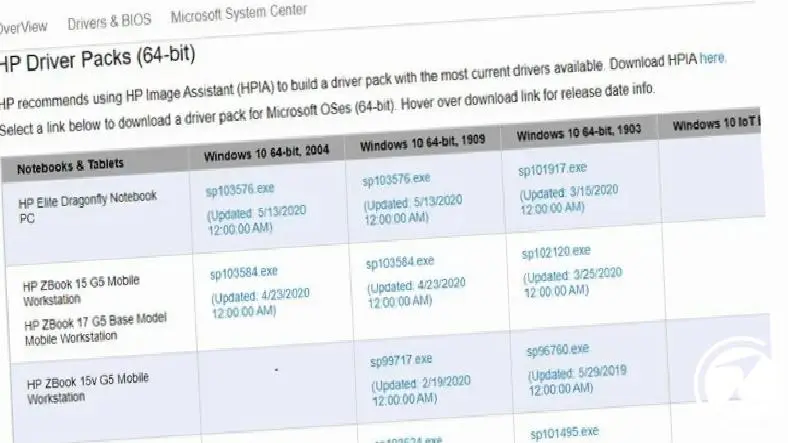
Update your IO driver:
- Step #1: Open the manufacturer's official website,
- Step #2: Download the latest IO driver suitable for your computer,
- Step #3: Complete the installation process,
- Step #4: Restart the computer,
- Step #5: Check if the problem is solved.
Especially on some HP model laptops After Windows 10 update It is known that some problems occur such as the IO driver not working properly and the touchpad not working. You can get rid of most of the problems by first updating your computer and then your IO driver.

Check via BIOS:
- Step #1: During boot F2 Enter BIOS by pressing the key,
- The BIOS key is usually F12, but this key may vary from manufacturer to manufacturer.
- Step #2: Internal Pointing Device Find the option.
- Option name may vary depending on the device.
- Step #3: Make sure the option is active.
- Step #4: Open the Advanced option.
- Step #5: Make sure that the necessary approvals are given here too.
- Step #6: Restart the computer.
- Step #7: Check if the problem is solved.
The exact reason is unknown, but it usually occurs via BIOS due to a problem with the drivers. Some basic functions may become passive. To find out whether you are faced with such a situation, you must enter the BIOS and make sure that the touchpad is active. If available, confirm other options regarding the issue.
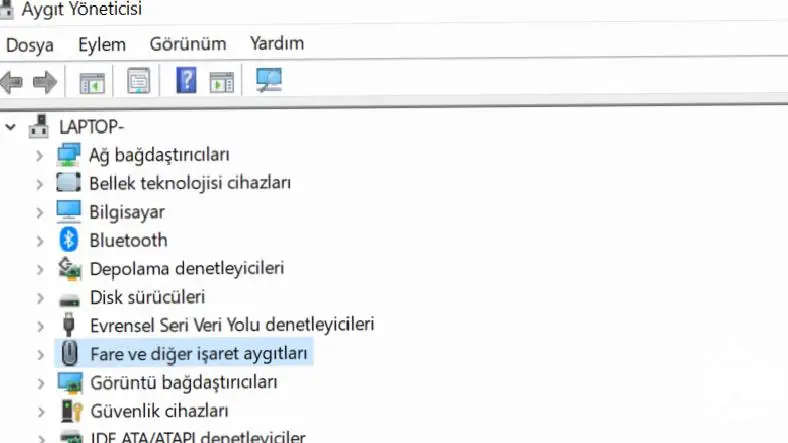
Uninstall external mouse drivers:
- Step #1: of your computer Device Manager open,
- Step #2: Mouse and other pointing devices find the option,
- Step #3: Expand the option,
- Step #4: Find external mouse drivers,
- Step #5: Right click on it,
- Step #6: From the menu that opens Remove Device click the button,
- Step #7: Give the necessary approvals,
- Step #8: Apply the same process to all drivers you want to delete,
- Step #9: Restart the computer,
- Step #10: Check if the problem is solved.
The mice you have previously connected to your laptop are bundled drivers They may have a negative impact on touchpad functions. Therefore, you can solve the touchpad not working problem by removing all mouse drivers installed on the computer except the touchpad.

Update the touchpad driver:
- Step #1: of your computer Device Manager open,
- Step #2: Mouse and other pointing devices find the option
- Step #3: Expand the option,
- Step #4: HID compatible mouse find the option,
- Step #5: Right click on it,
- Step #6: From the menu that opens Update Driver Click on ,
- Step #7: Give the necessary approvals,
- Step #8: Restart the computer,
- Step #9: Check if the problem is solved.
It is known that the touchpad not working problem may be caused by the touchpad driver being out of date. Because updating touchpad driver It is a preferable method. If the problem is not solved in this way, uninstall the driver and restart the computer and the driver will be reinstalled. This is also a method you can choose to solve the problem.

Disable Tablet PC Input Service:
- Step #1: Windows key + R with key combination run open the screen,
- Step #2: services.msc write and search,
- Step #3: The services screen will open, Tablet PC Login Service find the line,
- Step #4: Right click on the row,
- Step #5: Disable the option via the menu that opens,
- Step #6: Restart the computer,
- Step #7: Check if the problem is solved or not,
- Step #8: The process is complete.
The Disable Tablet PC Input Service method is only used on devices that function as both a tablet and a computer. for hybrid laptop It is a feasible method. The service in question may have a negative impact on the device's touchpad. Therefore, you can solve the existing problem by disabling the service.
for you How to solve the touchpad not working problem We answered the question and explained step by step the methods you can apply. You can find a solution by trying the above methods from the easiest to the hardest for you. If the problem is not resolved despite trying all the methods, you should contact the technical service of your laptop.
Every business is unique. Let’s explore how we can tailor these ideas to your own digital project.


