
How to Update Bios?
Even those of you who don't know anything about computers have heard of BIOS, also known as Basic Input Output System...

Even those of you who don't know anything about computers have heard of BIOS, also known as Basic Input Output System...
Even those of you who don't know anything about computers have heard of it at least once. BIOS or otherwise known as Basic Input Output SystemIt is an important connection bridge between the hardware parts and software of our computers. It is one of the most important tools in the operation of the computer. It has an updatable structure. However, there are some points to consider when updating.
If you do not pay attention to the points that need attention; You can damage the structure that runs your computer and cause serious problems on your computer. In order to avoid these problems, we have explained the BIOS update to you in full detail. on your computer by following the steps in the following part of our article. BIOS updates You can do it perfectly.

How to update BIOS?
- Step #1: Get information about your system's BIOS structure.
- Step #2: Find and download BIOS software.
- Step #3: Perform the BIOS update by following the steps below.
When updating BIOS, you should first know your own system. If you follow the next steps carefully and apply them on your computer, we are sure that the rest will be easy. When updating the BIOS, these three steps will take you to the correct update. Let's follow these three steps in the rest of our article. gradually Let us tell you.
Get information about your system's BIOS structure:
- Step #1: Enter “System Information” from the Windows search bar.

- Step #2: Find out the model name of your computer from the System Model section.

- Step #3: Find out your BIOS version number from the BIOS Version / Date section.

By following the steps above, you learned the information about your system. However, if you have a custom-built computer, skip steps 2 and 3 because a custom made computer If there are, you need to find your motherboard model instead.
Up to this point, you have gotten to know your system and provided yourself with a background, although not random, regarding the BIOS and your system while moving on to the other stages. This information contains the BIOS correct update They are the cornerstones of what we do. The mistake of most people who updated incorrectly occurred in the first step.
Find and download BIOS software:
- Step #1: Go to your bios manufacturer's website.
- Step #2: Find the update file suitable for your Bios.
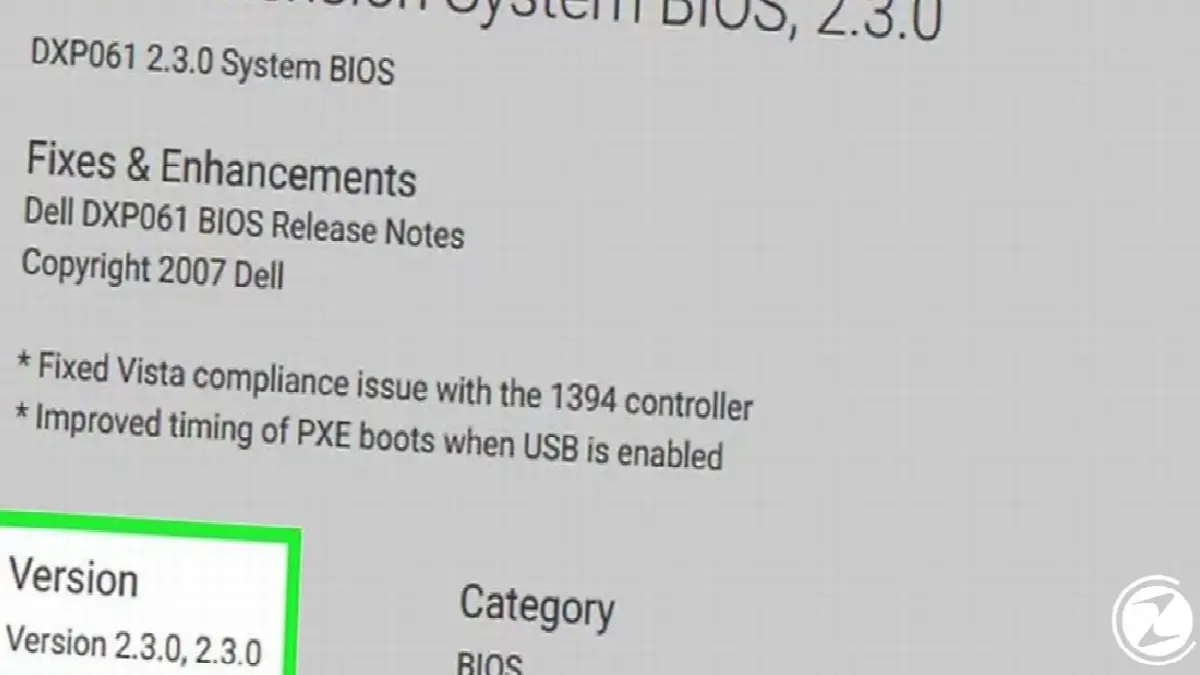
- Step #3: Make sure that the version you find is more up-to-date than the version you have.
- Step #4: Download your BIOS update file.

The most important point you should pay attention to in these steps is to find the BIOS update file that is suitable for you. without making mistakes, making sure the version is up to date in your BIOS. We do not recommend downloading the BIOS update file without making sure of this. If you are sure; Download it and move on to the next step.
Update the BIOS by following the steps below:
- Step #1: Make sure your computer is connected to a reliable power source.
- Step #2: Extract your downloaded Bios file from Winrar.

- Step #3: If available, read the README document in your Bios file. If there are steps that guide you here and they conflict with the next part of our article; Follow the steps there.

- Step #4: Insert a USB flash drive into your computer.

- Step #5: Copy the BIOS file to the flash drive.
- Step #6: Restart your computer.
- Step #7: While your computer is restarting, access your BIOS page (usually F12, Del, Esc).
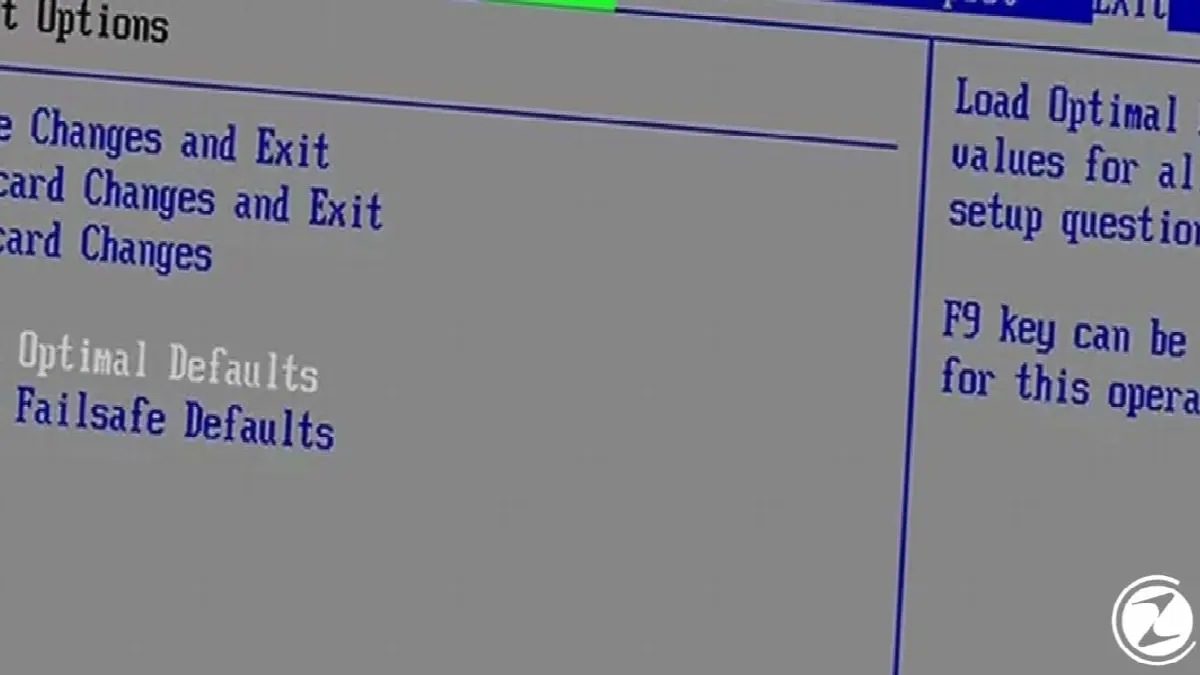
- Step #8: Back up your Bios if possible and if there is an option for backup on your BIOS screen.
- It is usually available in the Backup or Save Option options.
- Step #9: Activate and use your bios update tool.
- Although each system is different, enable all Flash-related statements in the Boot tab and select the Start Flash option.
- Step #10: Do not turn off your computer while its bios is being updated.
After following the steps we have given exactly, wait for the process to be completed before turning off your computer. Otherwise, your computer may not work when you start again. However, if you encounter a problem, you should back up your BIOS system to avoid headaches. We see great benefit.
Frequently asked questions and answers about BIOS:
I installed new hardware in my computer, should I update the BIOS?
If you have installed additional memory, a new hard drive, or other new hardware in your computer; update the BIOS there is no need. Most hardware installs on your computer without requiring a BIOS update.
However, if your computer is not working properly after installing new hardware, first make sure that the new hardware is compatible with your computer. If the new hardware is compatible; a BIOS update for the new hardware to work properly It may be necessary.
Can I roll back to an older BIOS version?
Some computer and motherboard manufacturers may revert to an older BIOS version. However, this depends on the manufacturer who updated the BIOS. In general, most update programs can only be updated and cannot be rolled back to an older version. However, you should still research your manufacturer and provide information on the subject. There is benefit.
How to make BIOS settings?
We mentioned that different BIOS manufacturers may have different settings when explaining the update section. Generally, we observe that most of them have the same settings, while some have different names. However, some manufacturers can add their own features. To enter BIOS settings usually F2, Del, F10 keys is used.
If you cannot log into the BIOS despite all this, you can access the BIOS by following the steps in the video. These keys, which may vary depending on the brand and model of your computer, prepare you for Windows 10. to BIOS settings will take it away.
What are the methods for resetting BIOS settings?

There are also some methods to reset your BIOS settings. These methods; Booting from Windows environment, Creating RAID volumes, enabling ISRT, adjusting UEFI Configuration etc. When you apply these methods to your computer, your BIOS settings will be reset.
What is the difference between BIOS and Cmos?
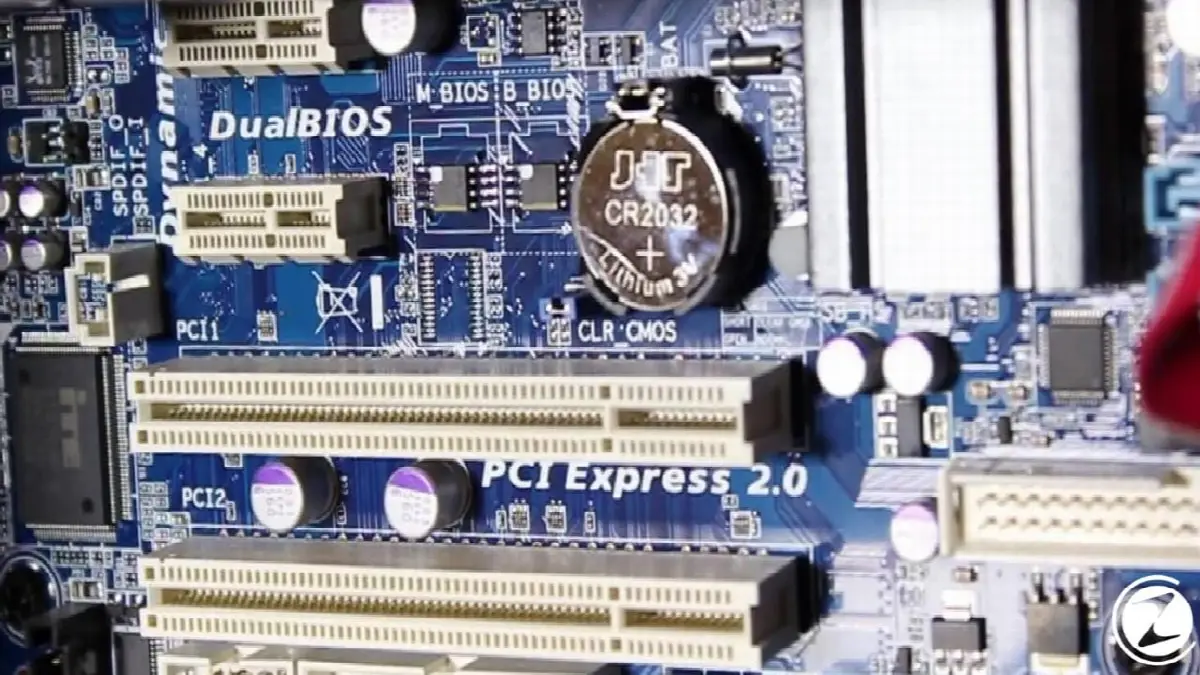
BIOS And CMOS Both terms refer to important parts of your computer's motherboard. Although they work together, they are two different things. The BIOS handles the process of initializing and testing your computer's hardware, finding and running your boot loader or loading it directly into your operating system.

When you make changes to your BIOS configuration, the settings are not stored in the BIOS chip itself. Instead, they are stored in a special memory chip called CMOS. CMOS stands for “Complementary Metal Oxide-Semiconductor.” Used to create RAM and digital logic circuits is the name of a manufacturing process and is also the name of chips created using that process.
Every business is unique. Let’s explore how we can tailor these ideas to your own digital project.


