
Windows 10 Run Commands – 2020
The run feature of Windows allows us to quickly access the operations to be performed on the computer. We know the run commands and…

The run feature of Windows allows us to quickly access the operations to be performed on the computer. We know the run commands and…
Windows' run feature allows operations to be performed on the computer. shortcut It allows us to reach If we know and use the run commands, the duration of the operations we will perform on our computer will be visibly reduced. getting shorter.
Thanks to the commands that can be typed on the keyboard, computer users can adjust the operating system settings. easily can be done, and this saves people both time and practicality. Our list of Windows 10 run commands that will be useful to everyone. you We prepared for you.

What is Run?
As we mentioned at the beginning of our article, the run feature offered by Windows allows us to access the settings to be made through the operating system with shortcuts. Opening the run window in Windows is extremely difficult. simple. For this, if you want, press simultaneously on the keyboard. Windows And R. You can press the keys, or enter the search section next to the start option. “run” You can open the window by typing . After the window opens, enter the commands we will give below to perform the action you want to perform. easily you can reach.
Run commands for Windows 10:
- Computer management: compmgmt.msc
- Disk cleaner: cleanmgr
- Disk management: diskmgmt
- Event viewer: eventvwr
- Character map: charmap
- Creating and editing fonts: eudcedit
- Add or remove programs: appwiz.cpl
- Monitor features: desk.cpl
- Device Manager: devmgmt.msc
- Setup program: iexpress
- Power options: powercfg.cpl
- Calculator: calc
- Internet features: inetcpl.cpl
- Regional and language settings: intl.cpl
- Game controls: joy.cpl
- Magnifying glass: magnify
- Mouse features: main.cpl
- Sound settings: mmsys.cpl
- Shared folders menu: fsmgmt.msc
- System information tool: msinfo32
- Remote desktop connection: mstsc
- Resource monitor: official
- Narrator: narrator
- On-screen keyboard: osk
- Performance monitor: perfmon
- Registry: regedit
- Task manager: taskmgr
- Control panel: control
- WordPad: write
Computer management: compmgmt.msc
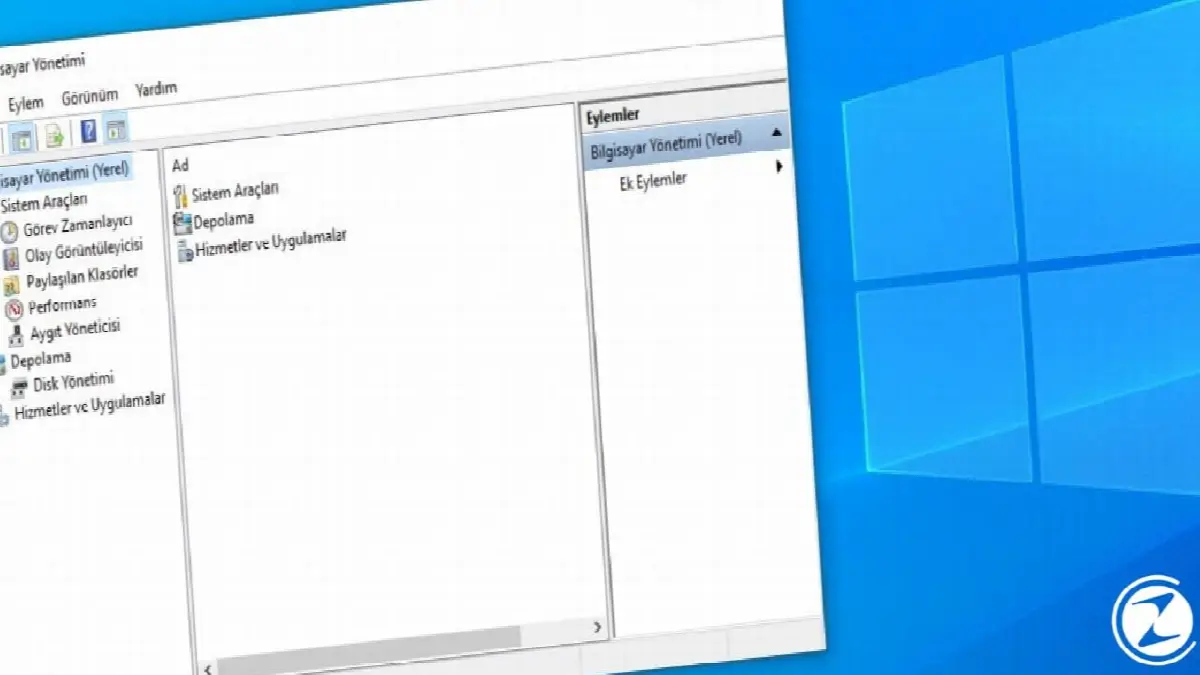
Computer management, your computer daily By following the events in which systems problem It allows you to see what is happening. Thanks to this command formatting you can, your drivers can format, new driver can define and file format you can change.
Disk cleaner: cleanmgr

Thanks to the disk cleaner, you can clean the contents of your hard disk. unnecessary You can clean garbage files. After deleting unnecessary files on your disk, your computer's performance will noticeably improve. surplus you will see.
Disk management: diskmgmt.msc

Windows disk management manages storage space on your computer to manage It is used for. You can use disk management to identify, format, reduce the capacity or delete drives such as hard disk, flash memory, SSD, external disk to the computer. easily you can use
Event viewer: eventvwr

event viewer run commands It is one of the features that contains the most important information. Windows supports all of your operating system's software and security keeps records of its applications and reports problems to Windows when necessary. transfers. It is also recorded thanks to the event viewer. all transactions you can view.
Character map: charmap

The character map displays characters that are not available on your keyboard. write and copy provides. In this menu, it is possible to find all the characters you can find on the internet.
Font creation and editing: eudcedit
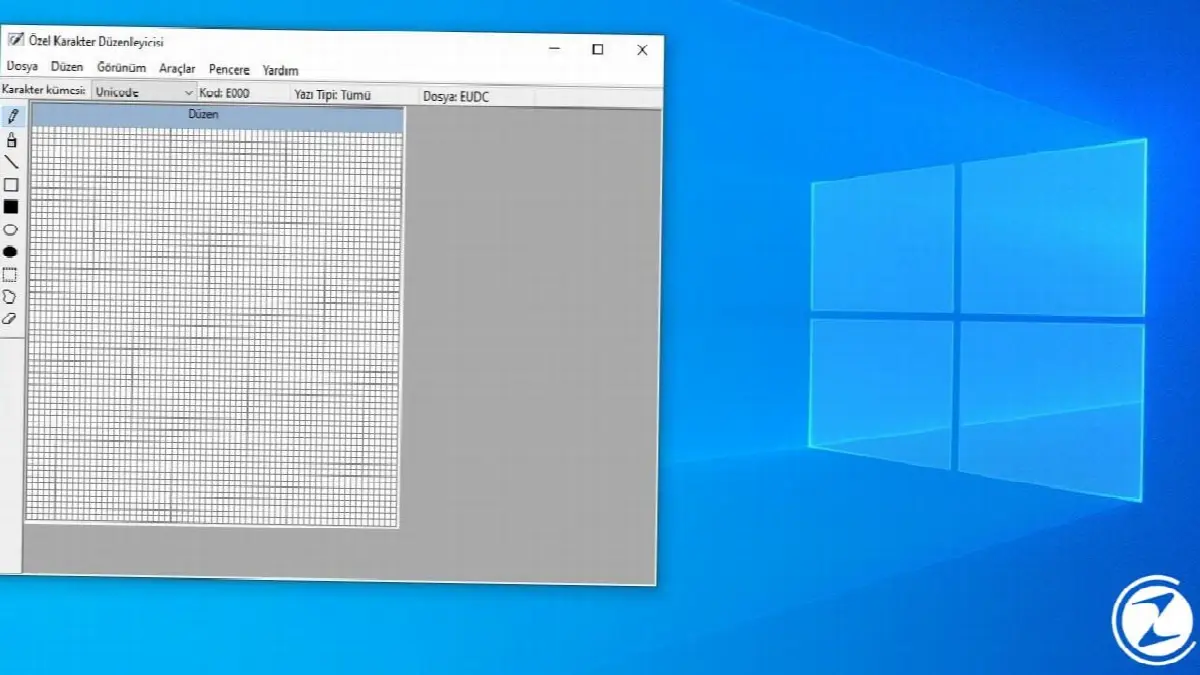
New font on computer thanks to Eudcedit can create or characters you can edit. When you want to write in different fonts or create your own special character, this run command you can use
Add or remove programs: appwiz.cpl
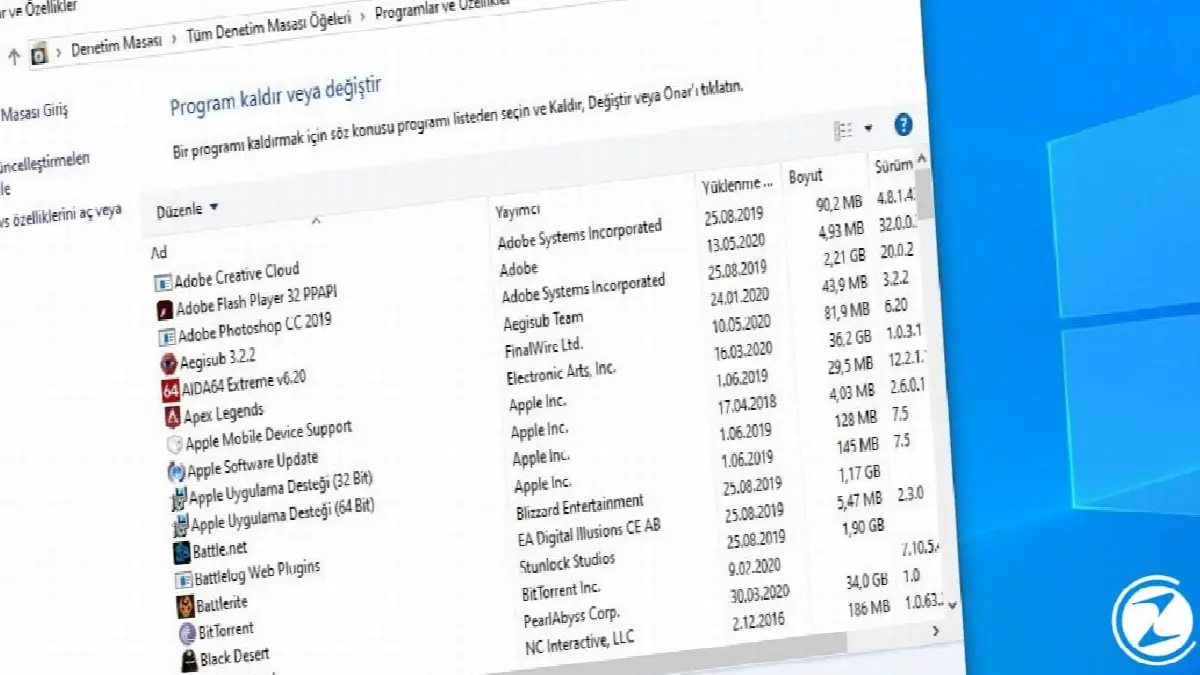
Appwiz.cpl installs a new program on your computer. to add or an existing program to remove It allows. When you open the add or remove programs menu, you can also see which program is running on your computer and how much time it has. taking up space You can also see it.
Monitor features: desk.cpl
Desk.cpl allows you to view the properties of the monitor connected to your computer and to make adjustments It allows. You can choose the resolution of your screen from this menu, advanced display settings you can reach.
Device manager: devmgmt.msc
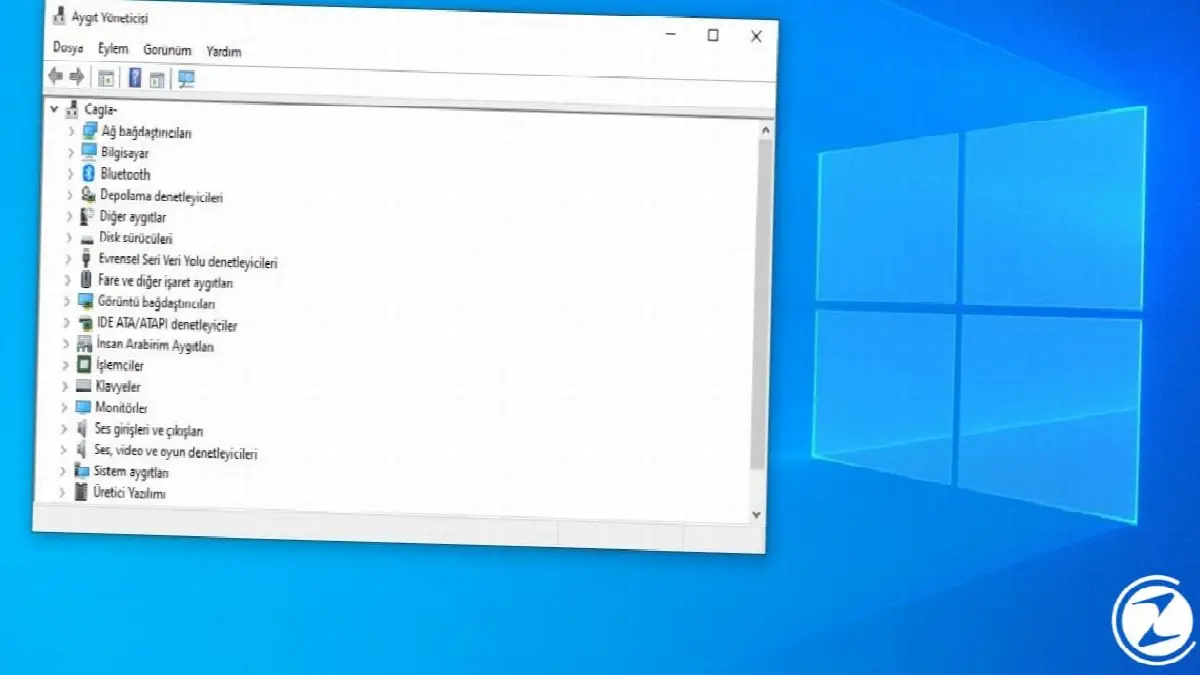
The device manager looks at the hardware installed on your computer. to access provides. All devices you use on your computer are defined to Windows with the device driver. Thanks to the device manager, you can perform operations such as installing, updating and uninstalling on these devices.
Setup program: iexpress

Setup program is a part of Windows and archive useful to do, but also installation wizard It is an extremely practical and useful program that has tasks such as: With this program, you can compress your files and to exe format You can bring it.
Power options: powercfg.cpl
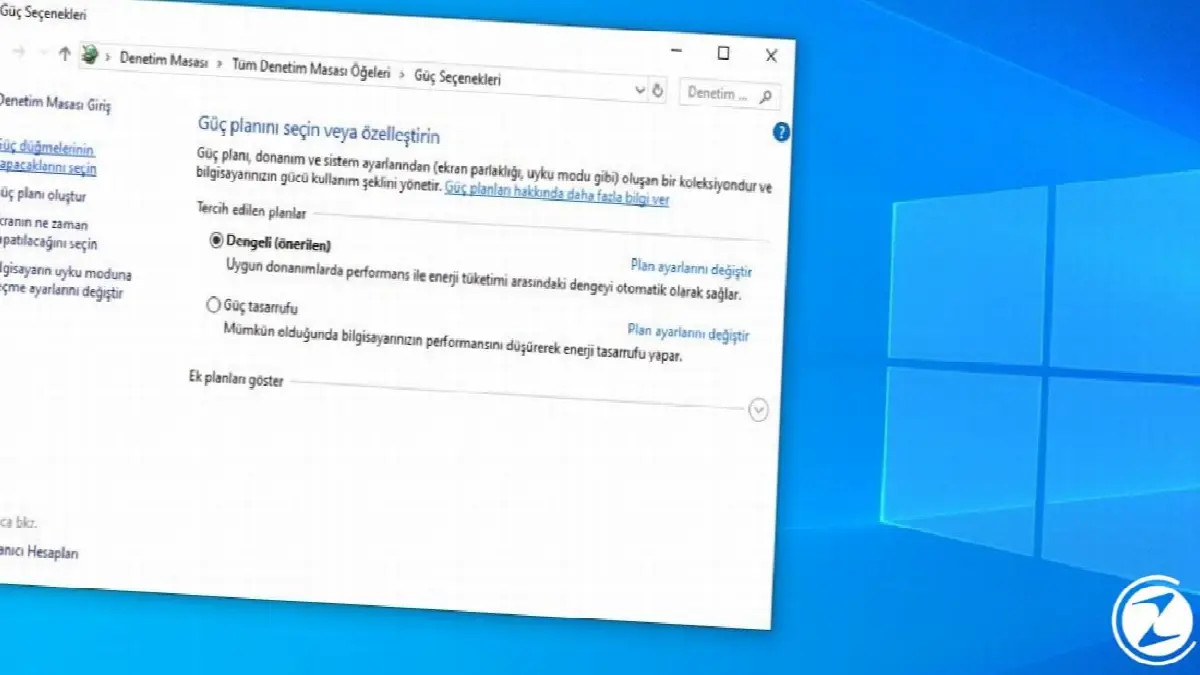
The power options menu allows the user to change and customize power plans. You can use available power plans or customize your own. a new plan you can create.
Calculator: calc

As the name suggests, type calc in the run command to open the calculator. sufficient It will happen. Considering that the calculator option is sometimes difficult to select in the start menu, it is fine to open the calculator with the command we mentioned above. simple It will happen.
Internet properties: inetcpl.cpl

Login page in the Internet features menu, internet security You can access options such as: When you encounter any problems with your network settings, the first place to turn to is the internet properties menu.
Regional and language settings: intl.cpl
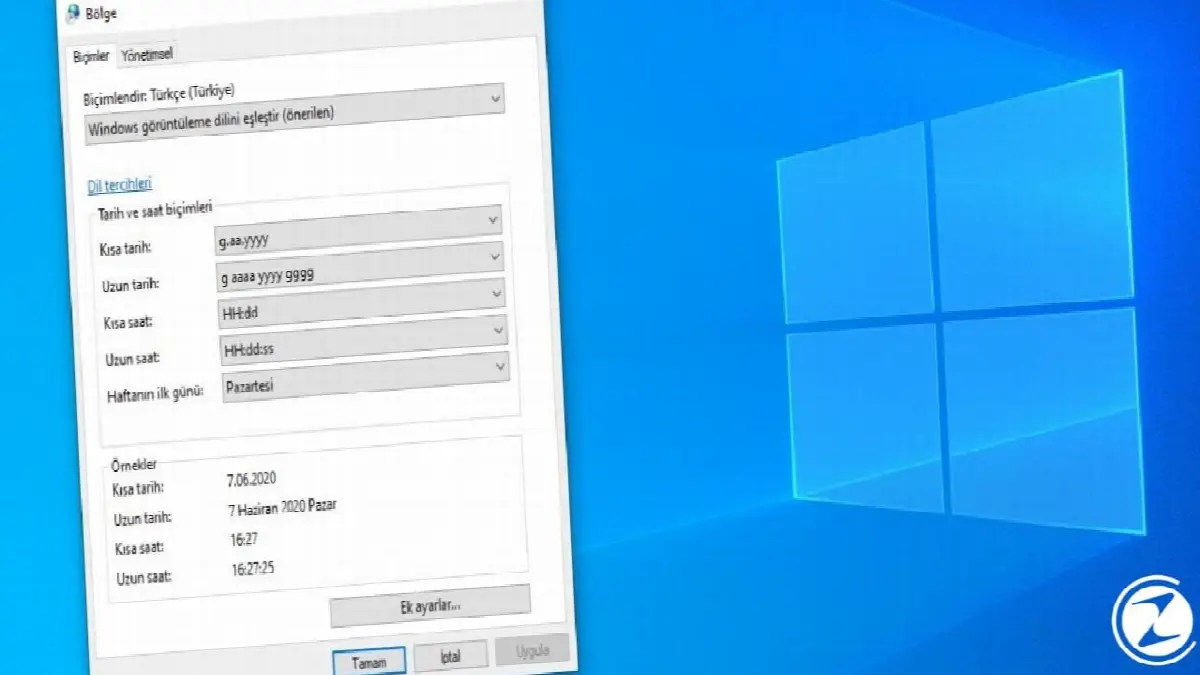
Although your computer usually automatically determines the time and date, sometimes it yourself You may need to. To set your computer according to your location and time, type intl.cpl in the run command. sufficient It will happen.
Game controls: joy.cpl
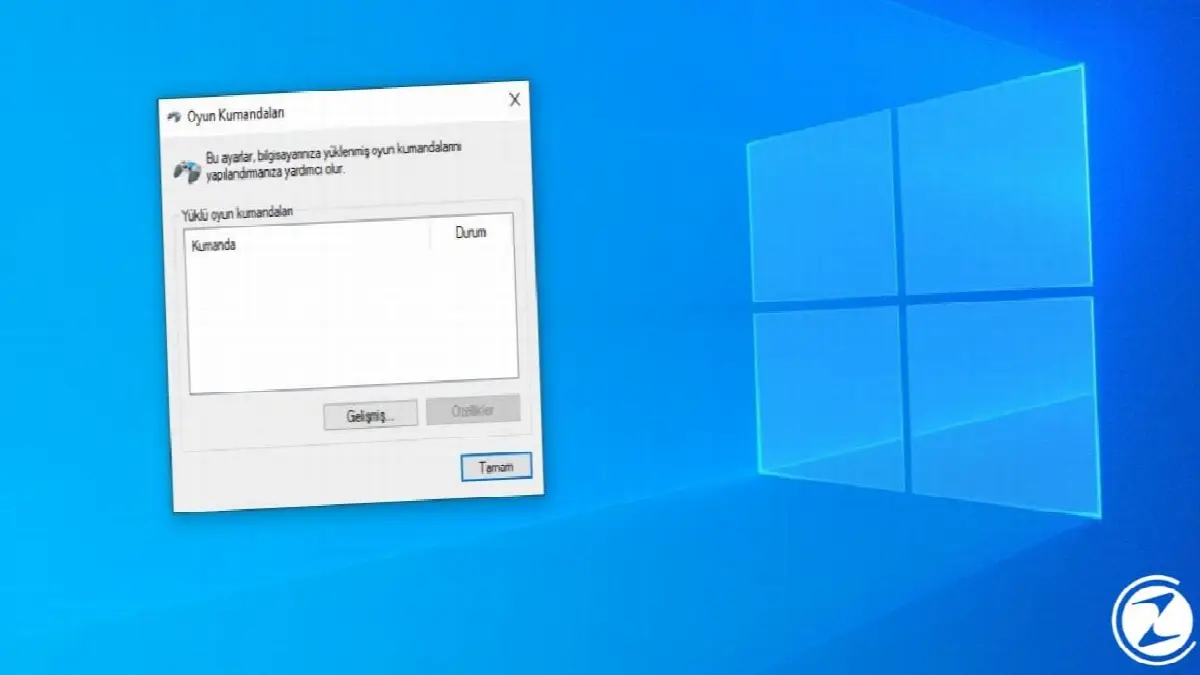
If you have connected any game controller to your computer, you can access the controller and adjust its settings through this menu. you can change.
Magnifier: magnify

Just like we use in real life, our computers also have a magnifying glass. You can make your job easier by using a magnifying glass for difficult-to-read text or detailed work.
Mouse properties: main.cpl

Main.cpl is one of the features offered by Windows, where you can personalize your mouse features and change its settings, and it is extremely easy to use. Thanks to this menu, you can improve your computer experience. pleasant you can make it.
Sound settings: mmsys.cpl

To set up your audio input and output devices, enter the run command we gave above. sound settings You can open the menu. From this menu, you can determine which audio devices to use and adjust your personal audio settings. you can set.
Shared folders menu: fsmgmt.msc

Thanks to local networks, you can access folders on your computer. with other users you can share. If you forget the path to the folder you shared, you can find the folders you have shared with other users with the fsmgmt.msc command. easily you can see.
System information tool: msinfo32

The system information tool allows you to access system information and features on your computer, for detailed information It opens a window that you can access. Thanks to this menu, you can easily control the features of your computer.
Remote desktop connection: mstsc

RDP, i.e. Windows Remote Desktop Connection, connected to the same network and internet It allows you to access our computer remotely from another computer.
Resource monitor: resmon

Resource monitor can be seen as an advanced version of performance monitor and thanks to this menu, you can see which process is doing how much to your computer. put a burden on you you can see. You can access all information about hardware and software thanks to the resource monitor. real time you can learn.
Narrator: narrator

Narrator lets your computer show you wherever you move your mouse cursor. out loud allows reading. This feature can be really useful when you don't have time to read an article.
On-screen keyboard: osk

On-screen keyboard when you don't have a physical keyboard your mouse It is an application that allows you to use the keyboard. Especially in your banking transactions Using the on-screen keyboard is very important.
Performance monitor: perfmon

Keep track of your computer's performance statistics thanks to the performance monitor. easily You can observe. You can also view the results in the performance monitor. analyze and you can create Data Collector Sets to view reports.
Registry: regedit

The registry contains all the data belonging to a program installed on your computer. to gather together provides. Thanks to this menu, you can find even the smallest data file about the program and enter the data you deem necessary. you can delete it completely.
Task manager: taskmgr
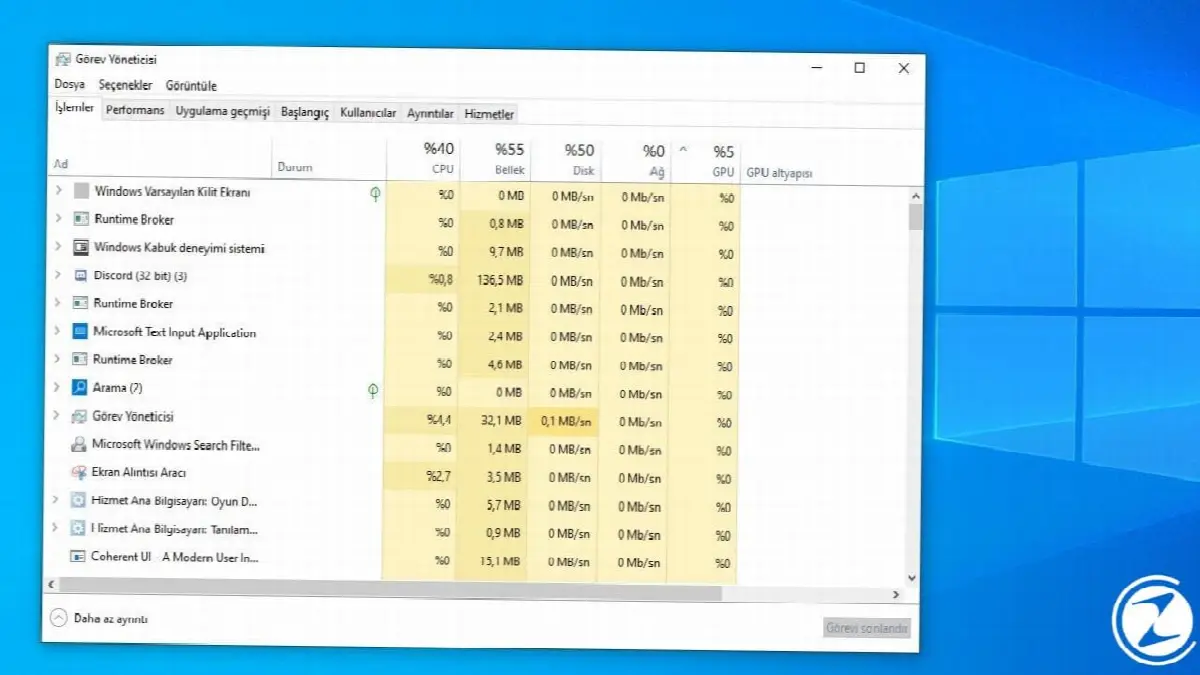
Run commands One of the most well-known commands is taskmgr, which allows you to open the task manager. on your computer via task manager. open programs can view transactions you can terminate.
Control panel: control

Run commands Control, another most used command, opens your control panel. Anything you can think of on your computer via the control panel to all settings you can reach.
WordPad: write

Run commands Last on our list is the write command, which opens WordPad. By opening WordPad, you can easily add the things you want to take notes here. can write and you can save it to read again later.
Every business is unique. Let’s explore how we can tailor these ideas to your own digital project.


