Windows 10 Screen Resolution Doesn't Change Problem and Solution
Computer users with Windows 10 operating system started to experience some problems after different updates. This…

Computer users with Windows 10 operating system started to experience some problems after different updates. This…
Computer users with Windows 10 operating system started to experience some problems after different updates. One of these problems is screen resolution does not change was the problem. So much so that the screen of users experiencing this problem turns into a gray tone or the screen resolution is not 1920×1080. Briefly, screen resolution does not change The problem prevents you from using the computer screen at full capacity.
Alright, How to solve the problem that the screen resolution does not change? First of all, it is necessary to focus on the cause of such a problem. Generally, this problem is caused by an error in the display driver or the driver being outdated. But there is no need to worry. for you screen resolution does not change We answered the question of how to solve the problem and explained step by step the methods you can apply for the solution.
Solution methods for the screen resolution not changing problem:
- Method #1: Check for updates.
- Method #2: Uninstall and reinstall the display adapters.
- Method #3: Install the display driver in compatibility mode.
Method #1: Check for updates:
- Step #1: Click the Windows button on your computer.
- Step #2: From the menu that opens Settings Open the page.
- Step #3: From the settings page Update and Security Click the button.
- Step #4: Update and Security from the screen Check for Updates Click the button.
- Step #5: Wait for the check to complete.
- Step #6: If there is an update, install it.
- Step #7: Restart the computer.
- Step #8: Check if the screen resolution not changing issue still occurs.
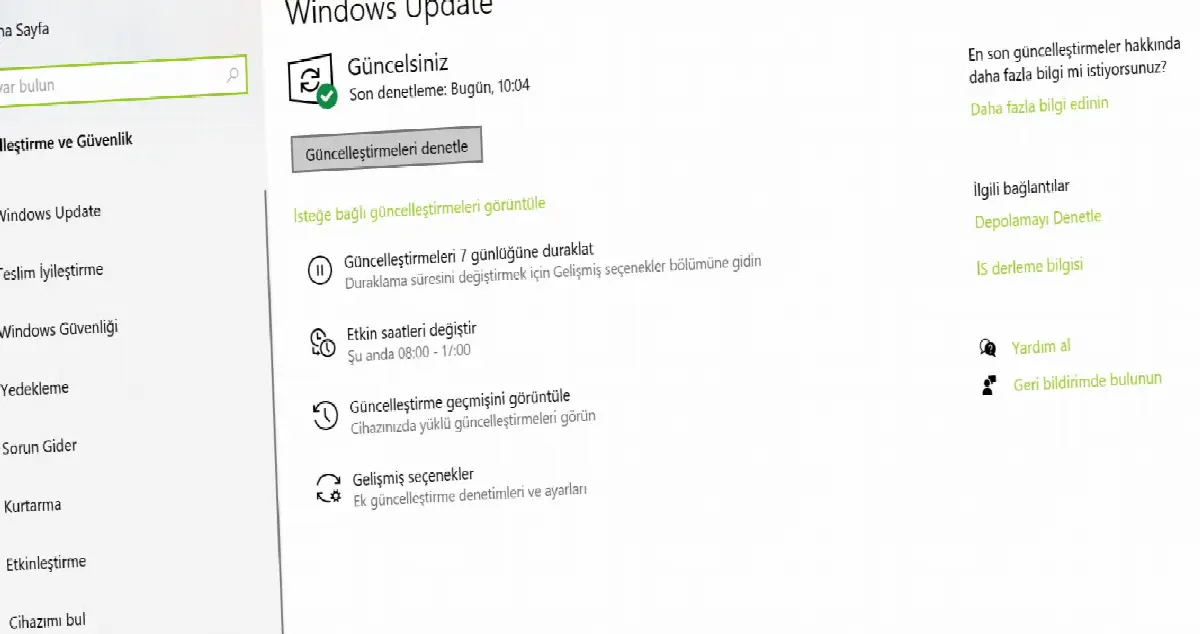
Windows 10, like all operating systems, receives new updates frequently. Thus, your computer with Windows 10 installed with the most up-to-date features and you can use it in the most efficient way. A possible new update may also update your display drivers. For this reason, you should always use the most up-to-date version of your computer.
Using your computer in its most up-to-date version will not only affect your display drivers but also your computer's Also for other hardware and software It is a preferred usage. You can solve different problems, such as the screen resolution not changing, by installing updates. If the problem is not solved, you can apply other methods.
Method #2: Uninstall and reinstall display adapters:
- Step #1: Windows+X Use the key combination.
- Step #2: From the menu that opens Device Manager select.
- Step #3: From here Display Adapters Find the option.
- Step #4: Expand the option.
- Step #5: Find your display driver.
- Step #6: Right click on your display driver.
- Step #7: In the menu that opens Remove Device Click .
- Step #8: Confirm the removal.
- Step #9: Restart the computer.
- Step #10: The driver will be reinstalled.
- Step #11: Check if the screen resolution not changing issue still occurs.

Do you have a display adapter on your computer with Windows 10 operating system? uninstalling and reinstalling your display driver, It is one of the methods that you can apply to solve the problem that the screen resolution does not change and that gives successful results.
Uninstalling and reinstalling the display driver, the screen resolution does not change and Solve other screen related problems It is an expected method. The driver is loaded with the latest version during reinstallation, eliminating possible minor errors and aiming to offer you the best screen experience. If the problem is not solved, you can apply other methods.
Method #3: Install the display driver in compatibility mode:
- Step #1: Find out the make and model of your display driver.
- Step #2: Download the latest driver version from the manufacturer's official website.
- Step #3: Right click on the installation file.
- Step #4: Features Turn on the option.
- Step #5: Compatibility Open the tab.
- Step #6: Run This Program in Compatibility Mode Confirm the option.
- Step #7: Click on Windows 8 as the operating system.
- Step #8: Complete the installation process.
- Step #9: Restart the computer.
- Step #10: Check if the screen resolution not changing issue still occurs.
Install the display driver on your computer with Windows 10 operating system. install in compatibility mode, It is one of the methods that you can apply to solve the problem that the screen resolution does not change and that gives successful results.
between your computer and operating system There were some problems with issues such as compatibility and stability. it could be. Installing the display driver for a different version is one of the best methods you can use to prevent possible problems.
If you have applied all the methods above but still have the problem that the screen resolution does not change, If it is not resolved yet You can contact the manufacturer of your computer or display driver. They can eliminate display problems on your computer by following a different path than standard problems and solutions.
Problems encountered by computer users with Windows 10 operating system for you How to solve the problem that the screen resolution does not change? We answered the question and explained step by step the methods you can apply. If you do not have experience in applying the above methods, you can choose to get help from an expert without risking your computer.
Every business is unique. Let’s explore how we can tailor these ideas to your own digital project.