
Windows Couldn't Access the Specified Device Path or File Solution
Computer users with Windows operating system want to launch a program installed on their computers, a file or a…

Computer users with Windows operating system want to launch a program installed on their computers, a file or a…
Computer users with Windows operating system encounter this problem when they want to start a program installed on their computers or open a file or folder. Windows could not access the specified device path or file error can come out. Completely prevents you from opening the file or folder in question Windows could not access the specified device path or file error It can be quite annoying.
Alright, How to solve Windows could not access the specified device path or file error? You may not have the permissions required to open the file or folder causing the error, and that's why you may be receiving such an error warning. For these and similar reasons Windows could not access the specified device path or file We have explained step by step the different methods you can apply to resolve the error when you receive an error warning.
Windows could not access the specified device, path or file solutions:
- Method #1: Edit the permissions of the file or folder.
- Method #2: Check file location information.
- Method #3: Check the restrictions of your antivirus software.
- Method #4: Unlock the file or folder.
- Method #5: Use data recovery software.
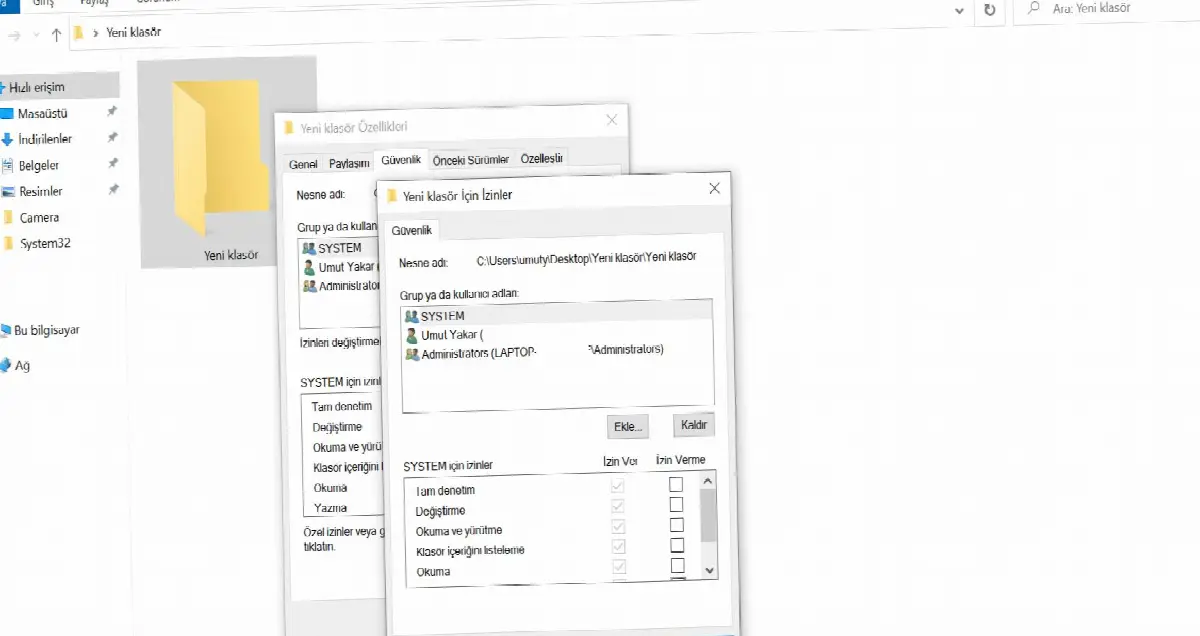
Method #1: Edit the permissions of the file or folder:
- Step #1: Right-click on the file or folder that gives the error.
- Step #2: From the menu that opens Features Click .
- Step #3: From the top menu Security Open the tab.
- Step #4: Edit Click the button.
- Step #5: From here, check all options as Allow.
- Step #6: Apply Click the button.
- Step #7: Ok Click the button.
- Step #8: Open the file or folder and check if the problem persists.
One of the most common causes of the error "Windows could not access the specified device, path or file" is the error required to open files. You don't have the required permissions. You can edit the necessary permissions using the method above. Developed You can also make more detailed arrangements about these permissions via the option.
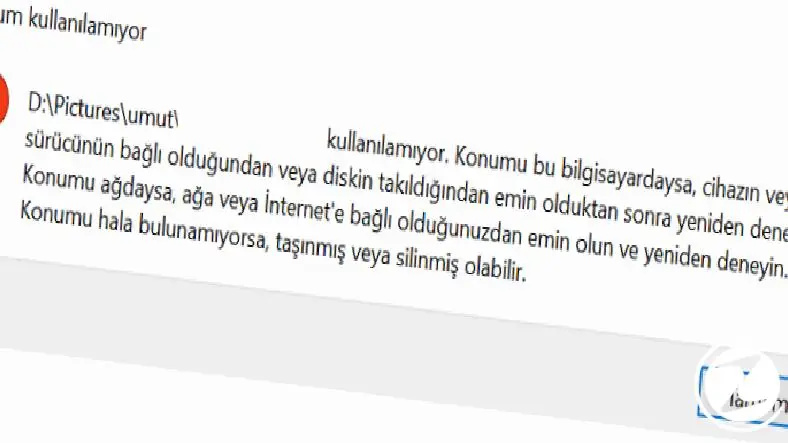
Method #2: Check file location information:
- Step #1: Right-click on the file or folder that gives the error.
- Step #2: From the menu that opens Features Click .
- Step #3: General Open the tab.
- Step #4: Location Find the line.
- Step #5: Make sure the location is error-free and accessible.
- Step #6: If the location indicates a different device, connect the device to the computer.
- Step #7: If the location belongs to a deleted folder Recycle Bin check.
- Step #8: Open the file or folder and check if the problem persists.
The reason why you receive the error "Windows could not access the specified device, path or file" when you want to open a file or folder may be that the location of the folder or file in question belongs to a deleted folder or to a removable device. In such a case, to access the location folder reconnect the device to the computer or if it is a location folder that has not been completely deleted Recycle Bin check.

Method #3: Check your antivirus software's restrictions:
- Step #1: Turn on the antivirus software installed on your computer.
- Step #2: blocked files Open the page.
- The page may be presented under a different name.
- Step #3: Find the file or folder causing the error.
- Step #4: Trustworthy Mark as.
- Step #5: Open the file or folder and check if the problem persists.
Some antivirus software may cause damage to some files and folders depending on their working principles. restriction or obstruction They can cause Windows could not access the specified device path or file error. You can prevent such errors from occurring again by making adjustments to the settings of your antivirus software.
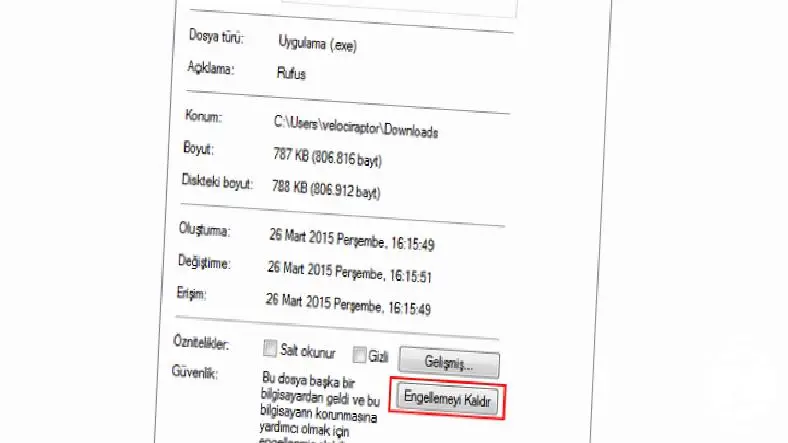
Method #4: Unlock the file or folder:
- Step #1: Right-click on the file or folder that gives the error.
- Step #2: From the menu that opens Features Click .
- Step #3: General Open the tab.
- Step #4: blocking Find the option.
- Step #5: Unblock Click .
- Step #6: Open the file or folder and check if the problem persists.
The file or folder that gives the error "Windows could not access the specified device, path or file" is not detected by Windows for any reason. restricted or blocked it could be. If that's why you're getting the error Features via menu Unblock You can see the option.
Method #5: Use data recovery software:

As we explained in the Check file location information method, Windows could not access the specified device path or file error. The location folder of the file has been deleted may cause. If you cannot find the deleted location folder in the Recycle Bin, you can use third-party data recovery software.
This type of software is developed under different names such as file recovery, data recovery, hard drive recovery. thanks to third-party software You can regain access to files or folders you have deleted on your computer and eliminate the error that Windows could not access the specified device path or file.
Instead of using third-party data recovery software, you can recover deleted files using different Windows solution methods such as System Restore. However, even if it is programmed or non-programmed, such operations are not possible. negative effects Keep in mind that it could happen.
For you, Windows could not access the specified device path or file error. Alternative methods you can apply to solve We explained step by step. After identifying the problem causing the error, you can easily eliminate the error by applying the most appropriate method to solve it.
Every business is unique. Let’s explore how we can tailor these ideas to your own digital project.


