
How to Add Page Numbers in Word?
Microsoft Office Word application, which many of us actively use in our daily lives and almost all of us have trouble with from time to time...

Microsoft Office Word application, which many of us actively use in our daily lives and almost all of us have trouble with from time to time...
Many of us use it actively in our daily lives and almost all of us have trouble working from time to time. Microsoft Office Word The application has many editing tools to give your articles a professional look. Adding page numbers in Word may be vital for you, especially if you are writing a thesis, a scientific article, or a multi-page report.
At this point, Microsoft Word offers some conveniences for users who want to number their pages easily. Come all together How to add page numbers in Word Let's take a closer look step by step.
Procedures for adding page numbers in Word:
- Step #1: in the upper left corner of the Word program. "Add" Open the menu.
- Step #2: In the Insert menu “Page Number” Click .
- Step #3: Choose where you want to place the numbers on the page.
- Step#4: After you choose the location you want, Word will sort your pages for you as 1,2,3…
- Step #5: “Close Header and Footer” Click the button. Your transaction is complete.
Step #1: Open the “Insert” menu at the top left in the Word program

As the first step we need to take to add page numbers to our Word documents To the “Add” menu We need to come.
Step #2: Click “Page Number” in the Insert menu.

When we click on the Page Number option, we are presented with a page containing the page number shapes and positions we want. a comprehensive dialogue window will meet. Here you can choose the number type you want.
Step #3: Choose where you want to place the numbers on the page.

In the dialog window that opens in the Page Number section, Word tells us about our page numbers. will offer location options We can choose any position we want at the top or bottom of the page from here.
Step# 4: Once you choose your desired location, Word will sort your pages for you as 1,2,3…

After selecting the location and number type we want, Word will be ready for you without having to enter the numbers one by one manually. In the form of “1,2,3…” will list your numbers. If you want, you can click on the button under the Page Number option. “Format Page Numbers” You can type this order a, b, c… etc. from the window. You can also change the shapes.
Step #5: Click on the “Close Header and Footer” button. Your transaction is complete.
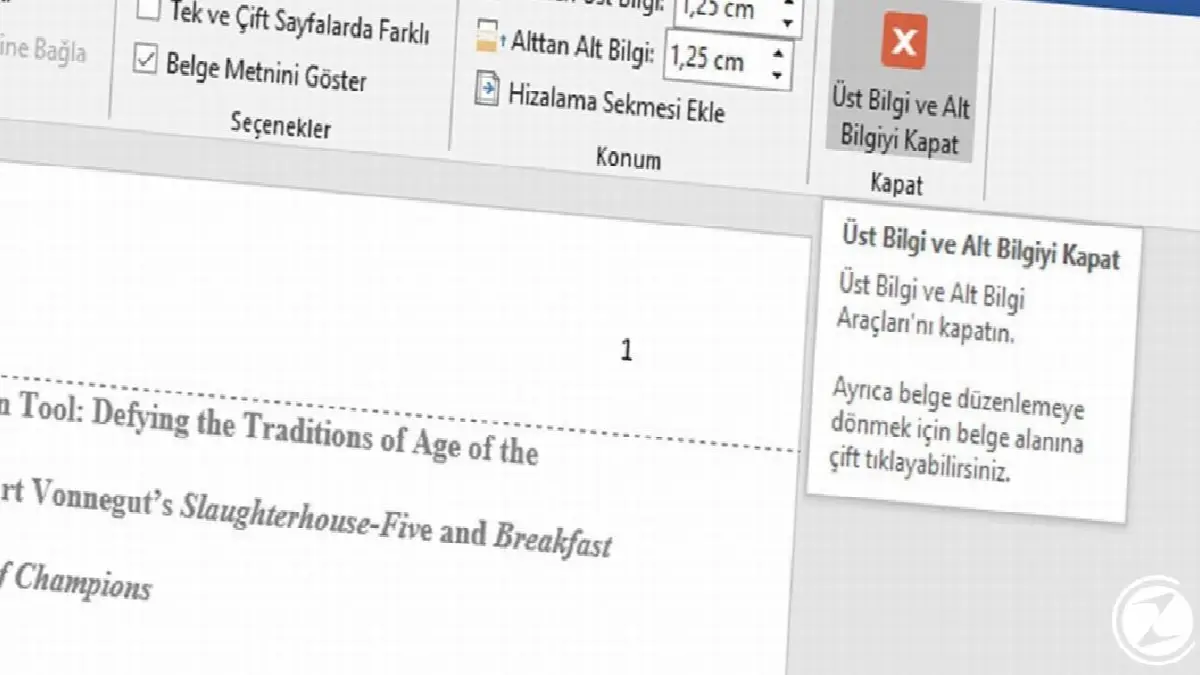
Once you have finished all your operations and set your customizations, click on the “Close Header and Footer” button with a big red cross on it and you are done adding page numbers in Word. After completing these given steps Adding page numbers in Word Your transaction is completed.
In this example, we added the page numbers in a plain number font in the upper right corner. If you want, you can use the options offered by Word. Roman numerals, italic numerals etc. You can add your numbers in the middle or bottom of the page in the positions you want.
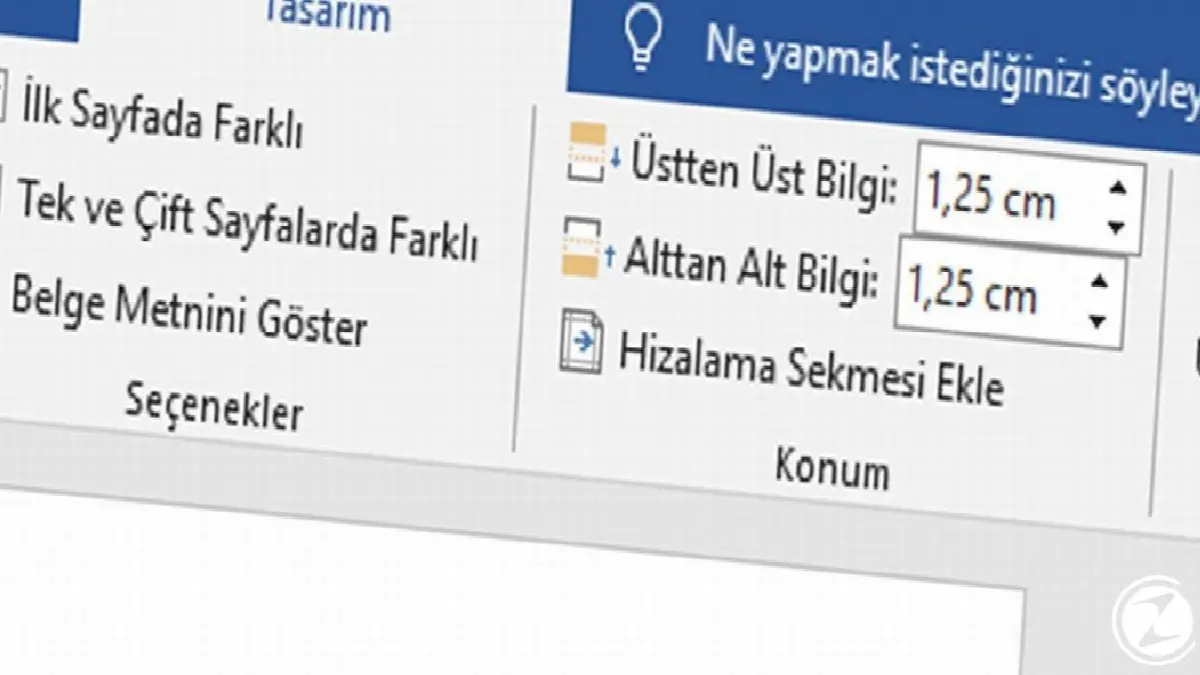
Additionally, if you want to manually set where the page numbers will be located, Word offers a solution for you. Again, in the section where you set the page numbers "Location" in the tab with values in centimeters You can set the exact location where the page numbers should be.
In addition to all these, if you have prepared your first page as a cover in Word and If you don't want to give a number to the first page The steps you need to follow are listed as follows.
Adding numbers to all Word pages except the cover:
- Step #1: From the Insert menu, go to the Page Number section.
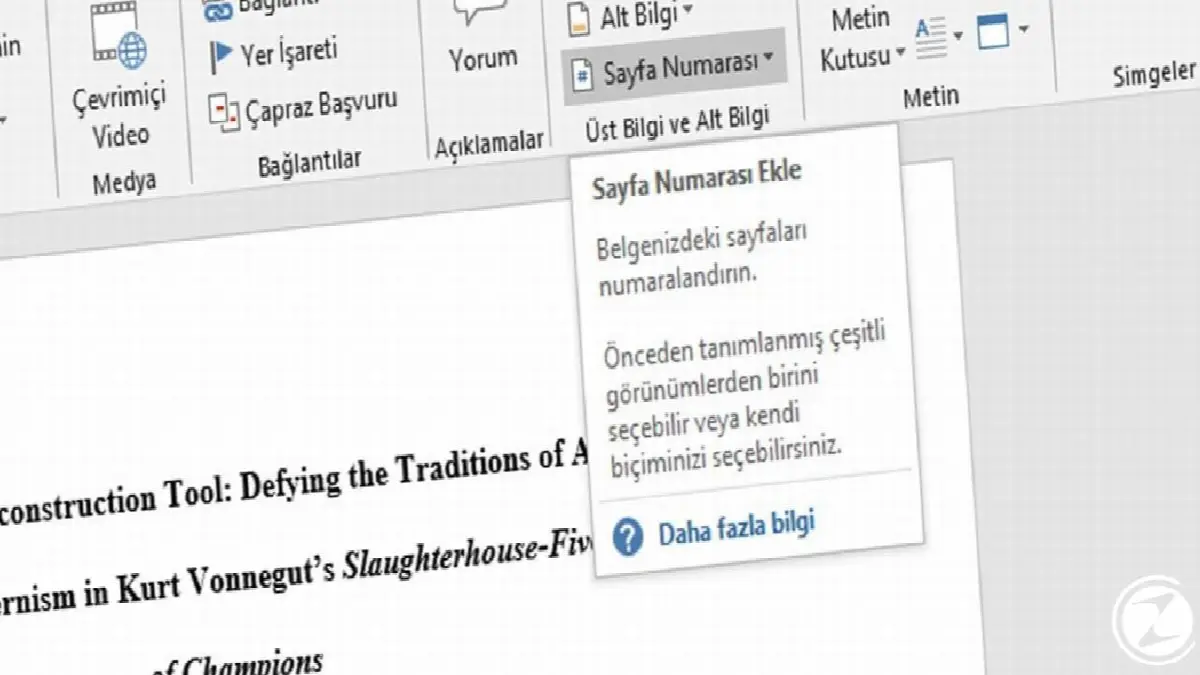
- Step #2: Select the number format and location you want to add.

- Step #3: “Different on the First Page” Check the box:

- Step #4: Delete the page number on the first page.

- Step #5: From the Page Number section “Format Page Numbers” Click .

- Step #6: “Page numbering” In the section, select your starting number as “1” and you are done.
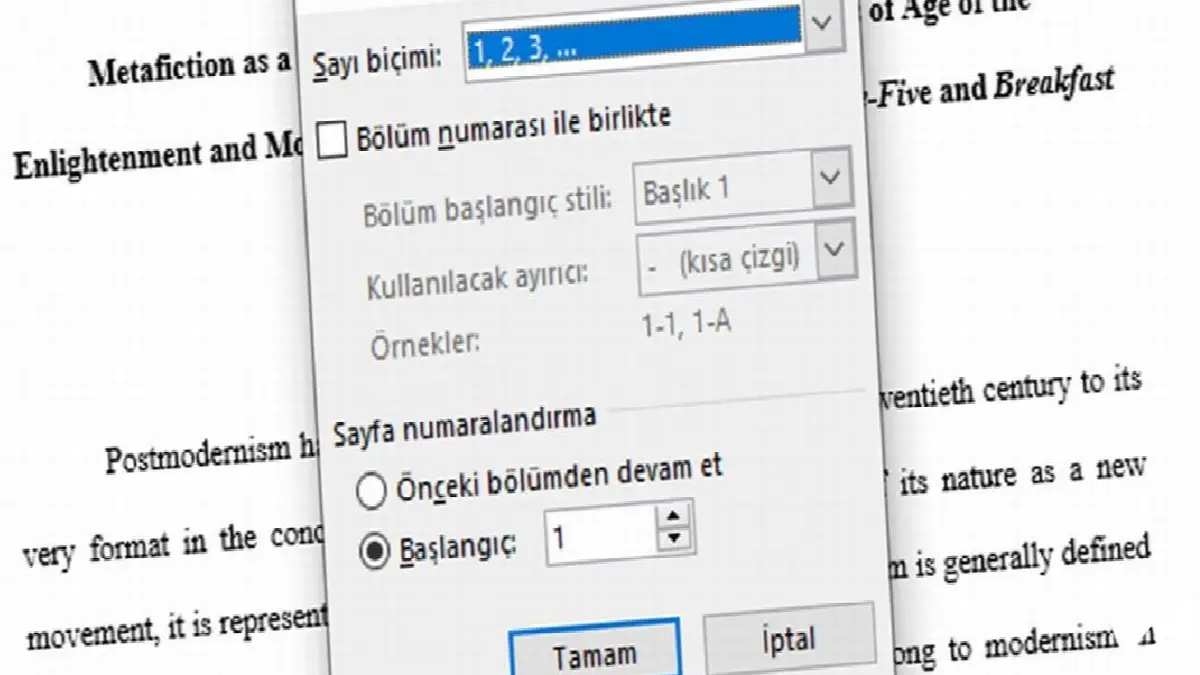
Thanks to these steps, your numbering process will skip the first page and start on your second page and continue as 1,2,3...

Adding page numbers in Microsoft Word We have come to the end of our content where we explain the process step by step. In the Header and Footer section Instead of manually adding numbers one by one, Word will automatically add numbers for you. creates page numbers You can easily use this feature in your assignments, dissertations and reports with a high page count. If you find this feature useful, you can share your opinions and thoughts with us in the comments section.
Every business is unique. Let’s explore how we can tailor these ideas to your own digital project.


