
How to Convert MKV Videos to MP4?
MKV format files, which serve as a kind of envelope and present different video, audio and subtitle files to the user as a single file, are very popular.

MKV format files, which serve as a kind of envelope and present different video, audio and subtitle files to the user as a single file, are very popular.
MKV format files, which serve as envelopes and present different video, audio and subtitle files to the user as a single file, are not very useful. Incompatible with many video players Converting MKV videos to MP4 format You can make it much more useful. MKV videos to MP4 Converting it to format will also make your job much easier when it comes to file sharing.
Usually copied from discs such as DVD, Blu-ray Converting MKV videos to MP4 format There are different methods that users can apply. MKV videos to MP4 You can easily convert the format online or with a program you install on your computer. We have explained step by step methods of converting MKV videos to MP4 format for you.
How to convert MKV videos to MP4 format?
- Step #1: Download VLC Media Player from here.
- Step #2: Media from the menu Convert/Save Open the section.
- Step #3: Add Select the file you want to convert by clicking the button.
- Step #4: From the Profile section H.264+Mp3(MP4) select the format.
- Step #5: Select the destination folder where you want the new file to be saved.
- Step #6: Start Click the button.
- Step #7: The conversion process will be completed in a varying amount of time depending on the length of the video.
Step #1: Download VLC Media Player

Click here to visit VideoLAN official website. for free Download the VLC Media Player program to your computer and complete the installation. Downloading the program from websites other than the official website is not recommended for the security of your computer.
Step #2: Open the Convert / Save section from the Media menu
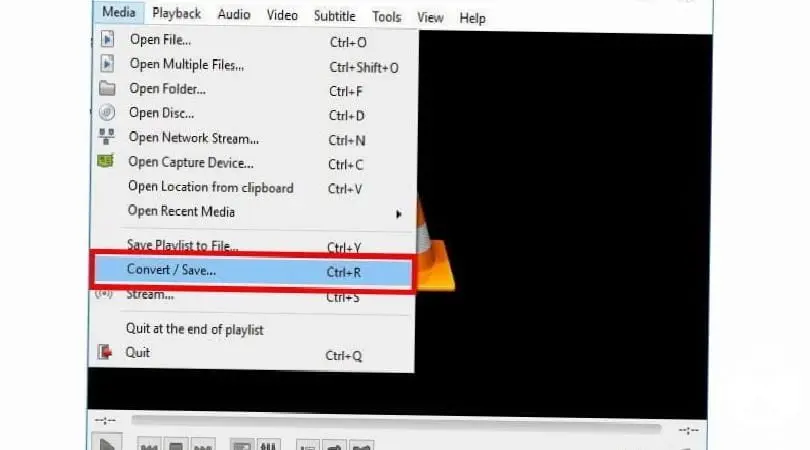
After completing the installation of the program, open it. You will see in the upper left corner Media, Open the media menu. Convert / Save in the menu, Open the Convert/Save section. To this section Ctrl + R You can also access it easily with the key combination.
Step #3: Select the file you want to convert by clicking the Add button

Convert/Save, In the Convert/Save section Add, the file you want to convert using the Add button. Select MKV video and add it to the program. If you added the wrong video remove, You can remove the video using the Remove button.
Step #4: Select H.264 + Mp3 (MP4) format from the Profile section

Profile, Open the menu next to the profile text. In front of you many different video/audio formats will come out. Among these H.264 +Mp3 (MP4) Click on the option that says. If you wish, you can later convert your videos to different formats through this section.
Step #5: Select the destination folder where you want the new file to be saved

destination Net, next to the Target File line. Browse, Click the Select button to select the folder where your file to be converted to MP4 format will be saved. If you are going to save your new file in the same folder as the old file save it under a different name recommended. After the conversion, you can delete your old file to prevent it from narrowing the storage space.
Step #6: Click the Start button

After making all the necessary adjustments, click on the button at the bottom of the screen. Start, Convert MKV videos to MP4 format by clicking the Start button. start the conversion process. Processing time will vary depending on the length of your video and the performance of your computer.
Convert MKV to MP4 with Wondershare UniConverter:
- Step #1: Download Wondershare UniConverter from here.
- Step #2: Convert, Open the Convert section.
- Step #3: Add Files, Select the video or videos you want to convert by clicking the Add File button.
- Step #4: You can edit the video you selected by opening it in the program.
- Step #5: Convert All, Click the Convert All button.
- Step #6: Select MP4 format on the screen that opens.
- Step #7: Select the destination folder where the converted file will be saved.
- Step #8: After completing the edits Convert All, Click the Convert All button.
- Step #9: The conversion process will be completed in a varying amount of time depending on the length of the videos.
- Step #10: the program to the files you converted. Converted, You can access it from the converted section.

Wondershare UniConverter can be used to convert MKV videos to MP4 format. one of the most professional programs one of them. If you frequently convert MKV videos to MP4 format or do video editing, you can purchase the program. If you are going to use it several times, you can benefit from the trial version of the program.
Convert MKV to MP4 with Cloud Convert (Online):
- Step #1: Open the Cloud Convert website from here.
- Step #2: Select File Select the video you want to convert using the button.
- Step #3: Convert to Select MP4 format from the drop-down menu next to the button.
- Step #4: Red button located at the bottom of the screen convert Click the button.
- Step #5: When the process is completed, it will turn green. Download The screen with the button will open.
- Step #6: Download your file in MP4 format to your computer by clicking the Download button.

If you do not want to install any program on your computer, websites that provide online conversion of MKV videos to MP4 format will be useful to you. Online video conversion process you will do it often You can add the Cloud Convert service to your Google Chrome internet browser as a Chrome extension.
Convert MKV to MP4 with Online UniConverter (Online):
- Step #1: Open the Online UniConverter website from here.
- Step #2: Select the file you want to convert by clicking the big plus sign button on the main screen.
- Step #3: You can also add the file you want to convert to the system by drag / drop method.
- Step #4: Ready to Select MP4 format from the drop-down menu next to the button.
- Step #5: convert Click the button.
- Step #6: When the process is completed Download The screen with the button will open.
- Step #7: Download your file in MP4 format to your computer by clicking the Download button.

If you wish, you can use the Online UniConverter service, which you can access via the media.io website. as a program on your computer You can also download it. You can also use Online UniConverter online video conversion service to convert multiple video formats.
Which method should I choose?

We explained the online and desktop methods you can use to convert MKV videos to MP4 format. Websites that provide online conversion services to similar systems they have. If the above programs are not installed on your computer, you have to make a choice between them.
You can use VLC Media Player not only for conversion but also for watching videos in many different formats. Wondershare UniConverter program provides services for a fee But after downloading the program, you can also edit. You can take these into consideration when making your choice.

The answer to the question of online conversion or program conversion will vary depending on user habits. Frequently between video formats Downloading a program to your computer to do the conversion will make your job easier. This program will take up space on your computer storage, but you will be able to convert videos without spending your internet quota.
Websites that provide online conversion services are for users who do not frequently convert videos. They are ideal platforms. However, when converting online, remember that you must be connected to the internet throughout the process. Likewise, it is worth remembering that you will spend your internet quota depending on the length of the video.
for you How to convert MKV videos to MP4 format We answered the question and explained the methods you can use. If you are going to download a program to convert or convert online, make sure that the websites you will use are secure.
Every business is unique. Let’s explore how we can tailor these ideas to your own digital project.


