
How to Download Windows 10 October 2020 Update?
Various updates are released every month for the Windows 10 operating system. Various changes in the operating system with the published updates…

Various updates are released every month for the Windows 10 operating system. Various changes in the operating system with the published updates…
Various updates are released for the Windows 10 operating system every month. With the published updates, various changes and changes are made in the operating system. optimization fixes is being done. It is important to apply the updates released by Windows, because with the published updates, elements that may cause problems on your computer are tried to be eliminated.
If you want your computer to always work more protected and stable, you need to install these updates. In this article, we also tell you Windows 10 October 2020 We will show you how to download and install the update on your computer.
How to Download Windows 10 October 2020 Update?
- Step #1: We open the 'Settings' menu.
- Step #2: We click on 'Update and Security' from the menu.
- Step #3: We click on the 'Windows Update' button.
- Step #4: We click on the 'Check for updates' button.
- Step #5: We click on the 'Download and install' button.
- Step #6: We click on the 'Restart the computer' button.
Step #1: We open the 'Settings' menu.

In the search box at the bottom left of our Windows 10 operating system, click 'SettingsWhen we type ' and click on it, a page like this will appear.
Step #2: We click on 'Update and Security' from the menu.
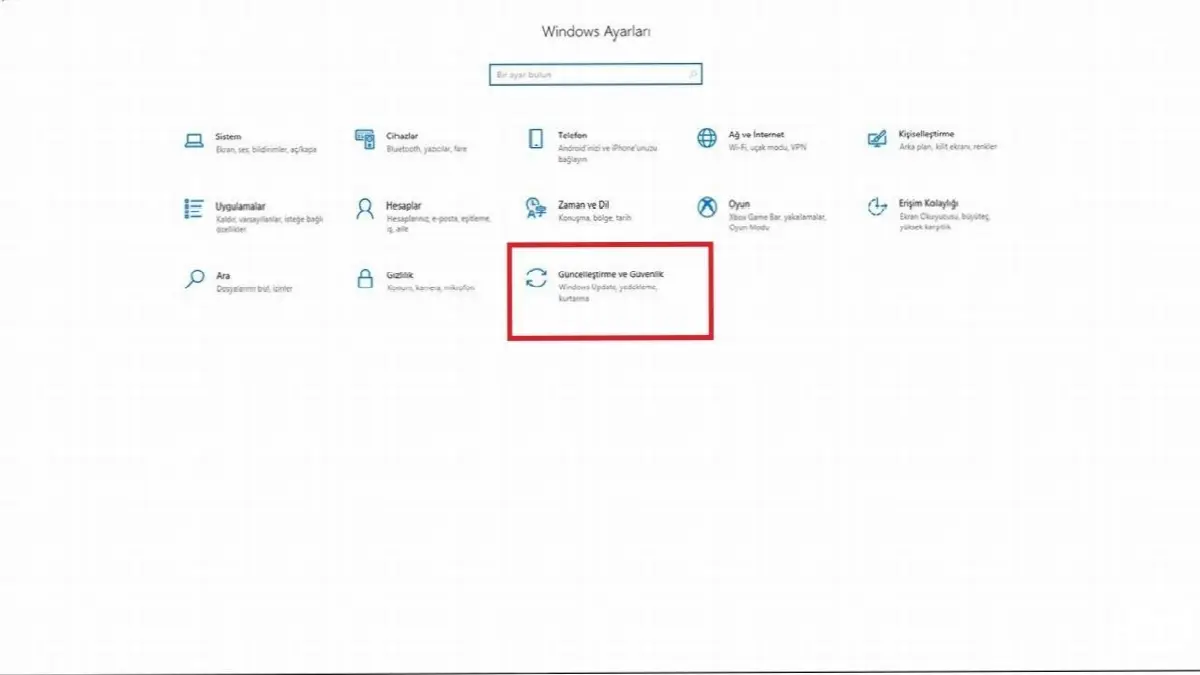
' in the settings menu.Update and SecurityBy clicking ', we move to another page where we will download the update.
Step #3: We click on the 'Windows Update' button.

There are ten menus in the 'Update and Security' menu. Among these, the top option is 'Windows UpdateBy clicking the ' button, we come to the screen where we will perform our update.
Step #4: We click on the 'Check for Updates' button.

After opening the 'Windows Update' menu, we will see a screen like this. If Microsoft has made an update for Windows 10, you can find it here:Check for UpdatesWe can control it from the ' button.
Step #5: We click on the 'Download and install' button.

On the 'Windows Update' screen, below the upcoming update, click 'Download and installThere is a ' button. By clicking this button, you can download the October update to your computer and then install it. After completing the installation, the computer will automatically restart itself and start applying the update to your computer.
Method 2 Download the October 2020 update by joining the Windows Insider Program:
- Step #1: We open the 'Settings' menu,
- Step #2: Click on 'Update and Security' from the menu,
- Step #3: We click on the 'Windows Insider Program' button,
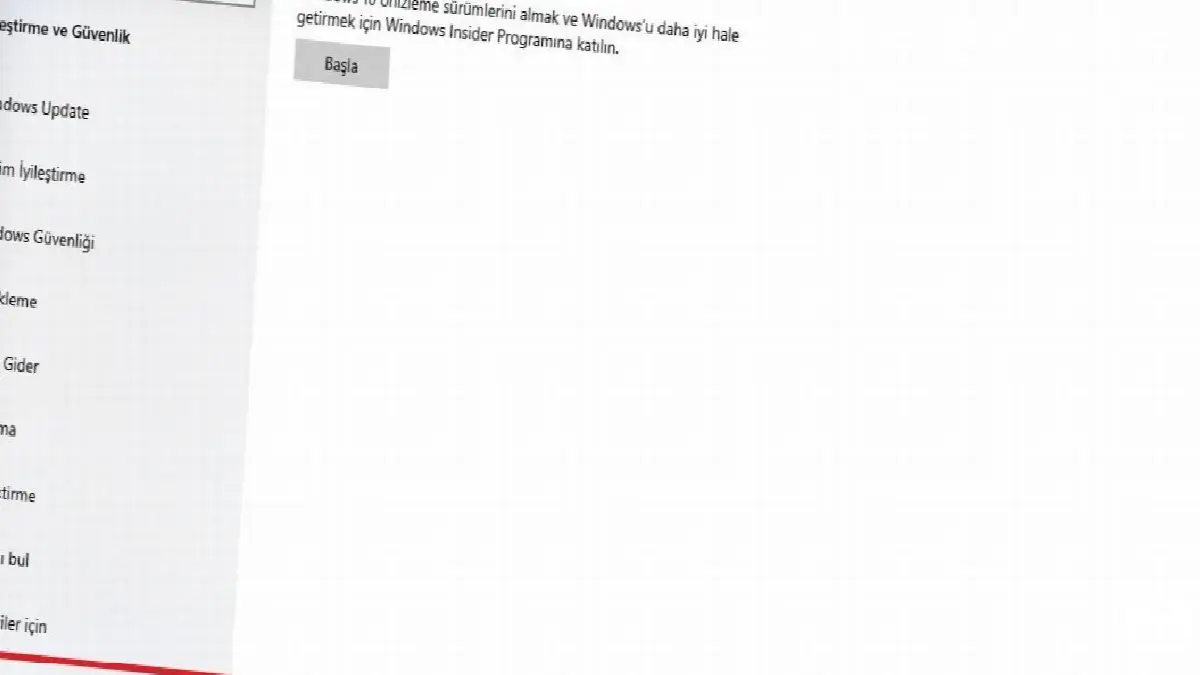
- Step #4: We connect an E-Mail account,

- Step #5: We participate in the Windows Insider Program,

- Step #6: We accept the contract terms,
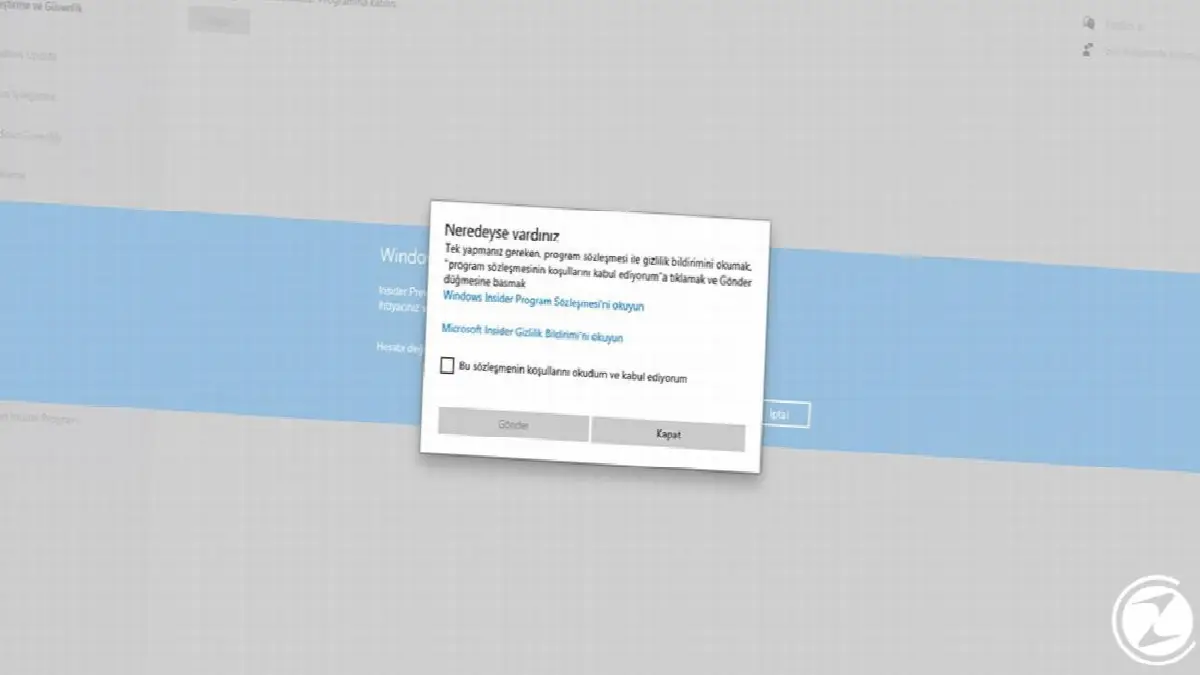
- Step #7: We choose our Insider settings,

- Step #8: We restart our computer,

- Step #9: We open the 'Settings' menu.
- Step #10: We click on 'Update and Security' from the menu.
- Step #11: We click on the 'Windows Update' button.
- Step #12: We click on the 'Check for Updates' button.
- Step #13: We click on the 'Download and install' button.
What's new with the Windows 10 October update
- Innovation #1: Use Microsoft accounts without a password
- Innovation #2: Have Magnifier read text out loud
- Innovation #3: Make your pointer easily visible
- Innovation #4: Make the text cursor easier to find
- Innovation #5: Keep the editor handy
- Innovation #6: Editing in multiple languages
- Innovation #7: Analyze your voice with PowerPoint Proof
- Innovation #8: Create 3D templates with Microsoft Office
- Innovation #9: Create family safety templates
- Innovation #10: Fun activities for kids
- Innovation #11: Create a family chart
- Innovation #12: Create templates for home learning
- Innovation #13: Adding emoji from the keyboard
- Innovation #14: Pause updates
- Innovation #15: Take a screenshot
Every business is unique. Let’s explore how we can tailor these ideas to your own digital project.


