
Your Personal Computer has Encountered a Problem Error - Solution
The Windows operating system error: Your personal computer has encountered a problem, also known as BSOD or blue screen error.

The Windows operating system error: Your personal computer has encountered a problem, also known as BSOD or blue screen error.
Also known as BSOD or blue screen error your personal computer has encountered a problem error is one of the errors that Windows operating system users most avoid seeing. Because After the error "Your personal computer has encountered a problem" The computer must be restarted and if there is unsaved data, all of it will be lost.
Alright, How to solve the error "Your personal computer has encountered a problem"? After determining what problems may cause such an error warning, there are different methods you can apply to solve the error. for you your personal computer has encountered a problem We answered the question of what causes the error and explained the different solution methods you can apply.
What causes the problem that your PC has encountered a problem and needs to be restarted?
- A corrupt system file.
- A registry file deleted from the System32 folder.
- Your computer is overheating.
- RAM working much harder than normal.
- A virus or malware has infected your computer.
- Another error that will cause a forced shutdown.

When the BSOD or blue screen error occurs, the computer screen turns off, on a blue screen "Your computer has encountered a problem and needs to restart. We are just collecting some error information and then we will restart it for you." or a similar warning message appears.
Your personal computer has encountered a problem error may occur in the above situations. It could have been caused by any of them. If you have never received such an error before, you can take precautions by paying attention to the reasons above. If you have received this error, try the solutions you can apply.
Your personal computer has encountered a problem, solutions to the problem:
- If your computer can be started in safe mode;
- Method #1: Update your drivers.
- Method #2: Uninstall recently installed programs.
- Method #3: Change memory dump settings.
- Method #4: Run the system file checker.
- Method #5: Update your Windows.
- If your computer cannot be started in safe mode;
- Method #1: Run startup repair.
- Method #2: Do a system restore.
- Method #3: Reset and reinstall Windows.
If your computer can be started in safe mode;
Method #1: Update your drivers:
- Step #1: Turn on your computer in safe mode.
- Step #2: Device Manager open it.
- Step #3: Right click on the driver you want to update.
- Step #4: Update Driver Click .
- Step #5: If there is an update, confirm the action.
- Step #6: Do the same for all drivers you want to update.
- Step #7: Restart the computer.
- Step #8: Check if the error persists.
- Step #9: The process is complete.

Your computer has encountered a problem error is known to be caused by outdated drivers. Therefore, after starting your computer in safe mode important devices on your computer Try updating your drivers. If there is an update available, it will be installed automatically.
Method #2: Uninstall recently installed programs:
- Step #1: Turn on your computer in safe mode.
- Step #2: Add or Remove Programs Open the page.
- Step #3: Find your recently installed programs.
- Step #4: Delete the programs you selected.
- Step #5: Restart the computer.
- Step #6: Check if the error persists.
- Step #7: The process is complete.
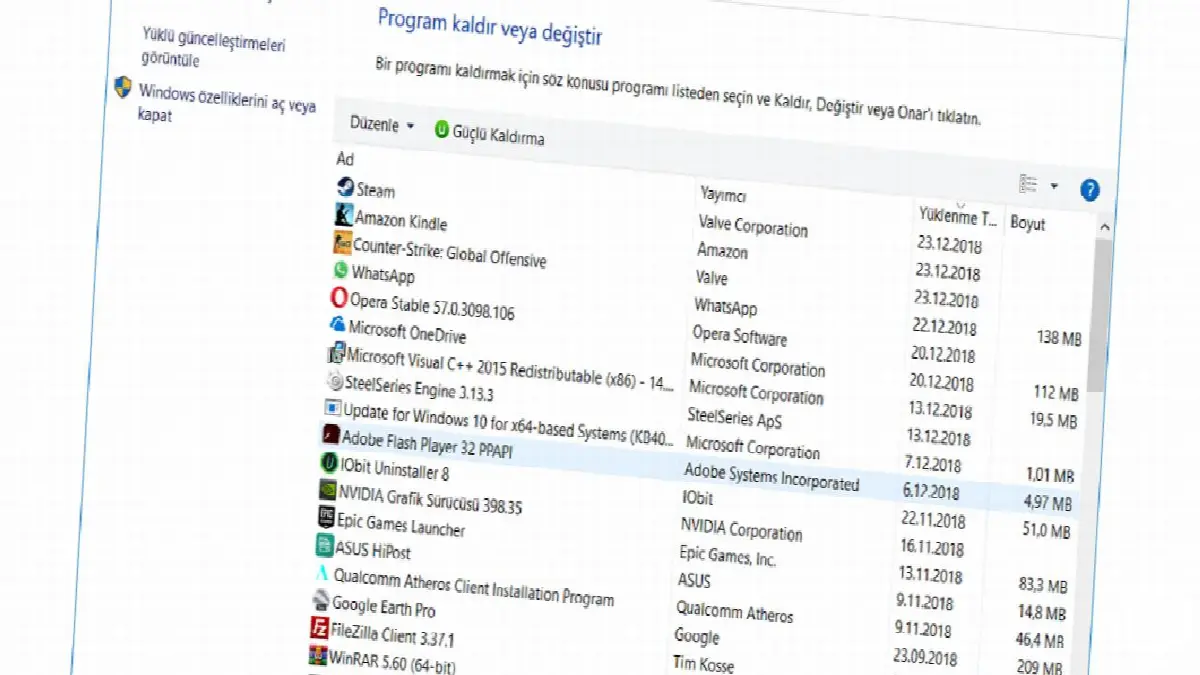
Deleting the last programs installed on your computer is a solution you can use to solve the error "Your personal computer has encountered a problem". the simplest but most effective is one of the methods. There may be a virus or malware in a program you have installed, or the program may be running with a heavier load than your computer is used to. The method of uninstalling the program will relieve the device.
Method #3: Change memory dump settings:
- Step #1: Turn on your computer in safe mode.
- Step #2: File Explorer or on desktop This Computer Right click on the icon.
- Step #3: Features Open the menu.
- Step #4: System Open the tab.
- Step #5: Advanced System Settings open it.
- Step #6: Developed Open the tab.
- Step #7: Startup and Recovery under the line Settings Click the button.
- Step #8: System Error on the line Auto Restart Disable the option.
- Step #9: Write Debug Information under the line Full Memory Dump Confirm the option.
- Step #10: Ok Click the button.
- Step #11: Restart the computer.
- Step #12: Check if the error persists.
- Step #13: The process is complete.
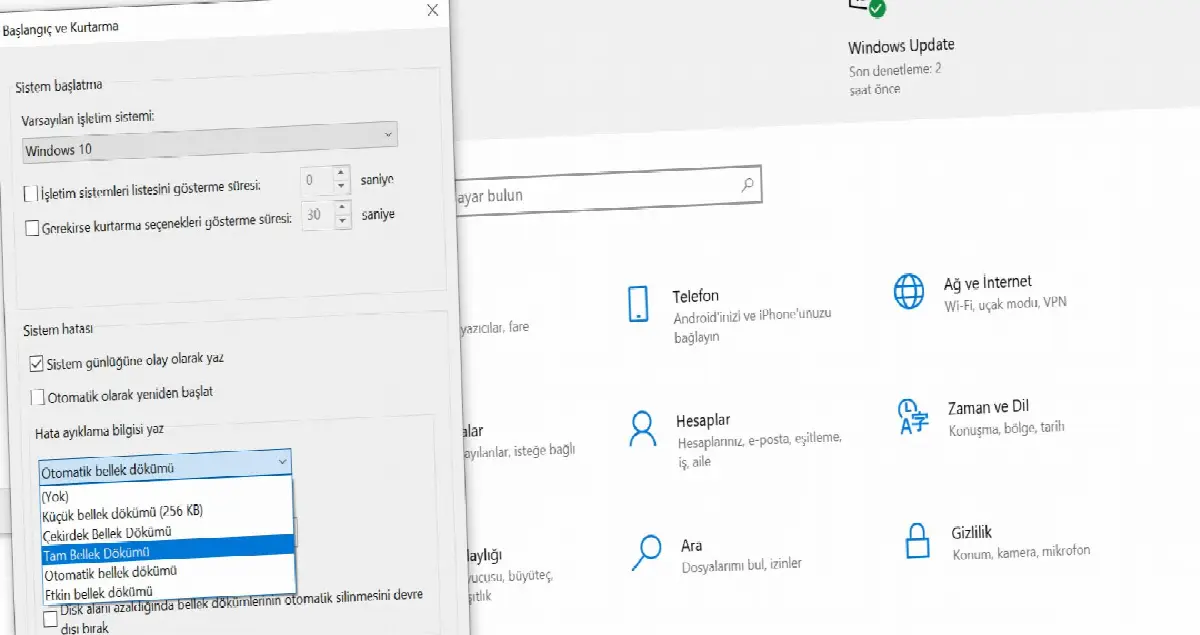
The method for changing memory dump settings is “Your PC has encountered a problem and memory management needs to be restarted.” and similar error warning You can apply it whenever you encounter. It may seem a little complicated, but you can easily achieve results by following the steps correctly.
Method #4: Run system file checker:
- Step #1: Turn on your computer in safe mode.
- Step #2: Command Prompt Run the screen as administrator.
- Step #3: sfc /scannow write and Enter press.
- Step #4: Wait for the controller to complete the operation.
- Step #5: Restart the computer.
- Step #6: Check if the error persists.
- Step #7: The process is complete.
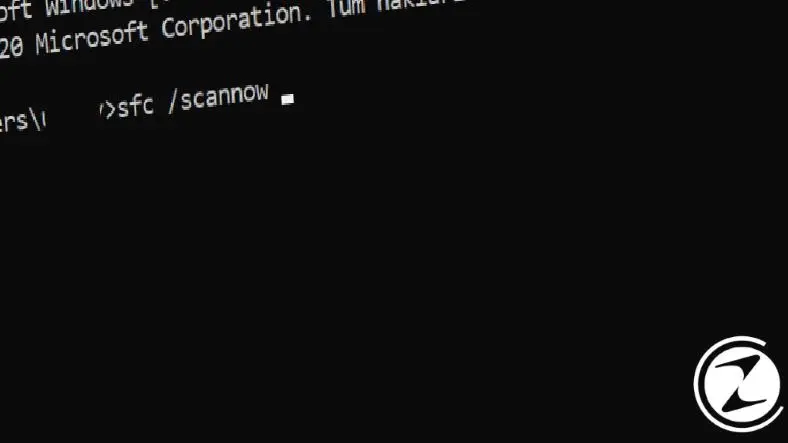
To solve the error "Your personal computer has encountered a problem", like many other errors you encounter in the Windows operating system. Command Prompt You can use the screen. The system file checker will run with the command you saw above, detect and repair existing problems or will offer you suggestions.
Method #5: Update your Windows:
- Step #1: Turn on your computer in safe mode.
- Step #2: Settings Open the page.
- Step #3: Update and Security Open the page.
- Step #4: Windows Update Open the page.
- Step #5: From here Check for Updates Click the button.
- Step #6: Wait for updates to be checked.
- Step #7: If there is an update, install it.
- Step #8: Restart the computer.
- Step #9: Check if the error persists.
- Step #10: The process is complete.

Your Windows operating system is not up to date It can cause many problems as well It may also cause the "Your PC has encountered a problem" error. If you do not want to experience any problems due to updates, you should enable automatic updates or check regularly for updates yourself.
If your computer cannot be started in safe mode;
Method #1: Run startup repair:
- Step #1: Connect the Windows recovery drive or disk to your computer.
- Step #2: Repair Your Computer Click .
- Step #3: Troubleshooting Click .
- Step #4: Advanced Options Open the menu.
- Step #5: From here Startup Repair Click .
- Step #6: Select the correction target.
- Step #7: Start the repair process.
- Step #8: Your computer will restart.
- Step #9: Check if the error persists.
- Step #10: The process is complete.
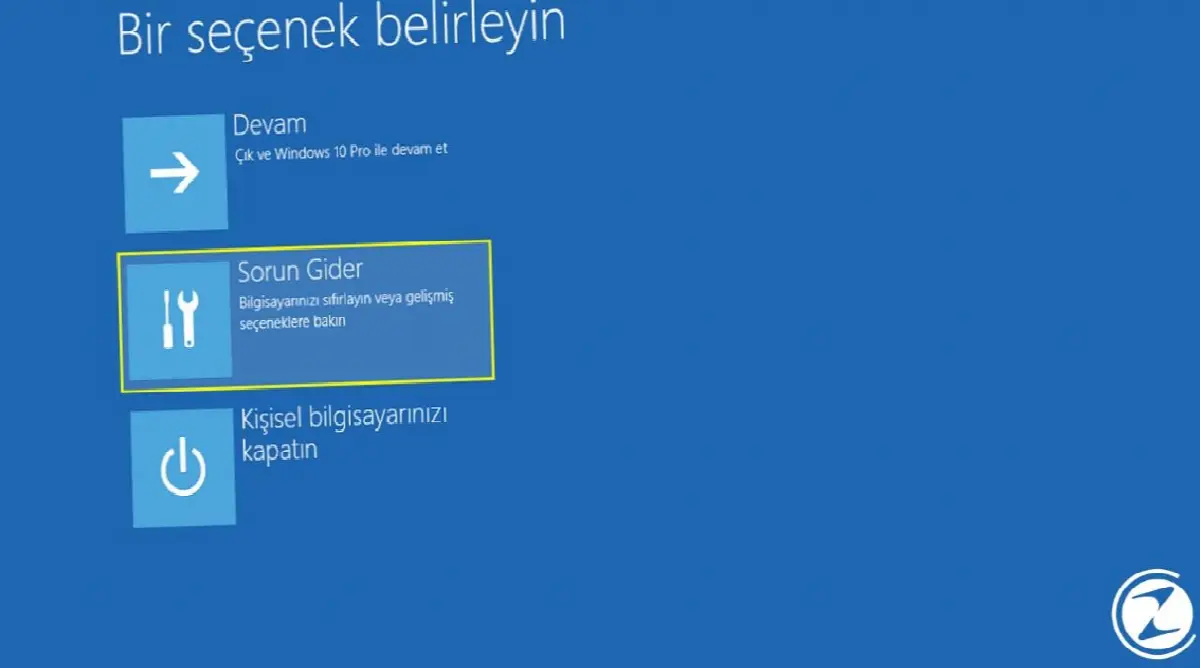
If you encounter the error "Your personal computer has encountered a problem" and your computer does not start in safe mode, you can solve this error with the Windows recovery drive. To create a Windows recovery drive against future errors into the Windows search bar Type Recovery Drive and follow the steps.
Method #2: Perform a system restore:
- Step #1: Connect the Windows recovery drive or disk to your computer.
- Step #2: Troubleshooting Click .
- Step #3: Advanced Options Open the menu.
- Step #4: From here System Restore Click .
- Step #5: Select the account to continue with.
- You may be asked for your account password.
- Step #6: Forward Click the button.
- Step #7: Choose a date when you do not get errors.
- Step #8: In order; Next, Finish And Yes Click on the buttons.
- Step #9: Wait for the restore to complete.
- Step #10: Restart the computer.
- Step #11: Check if the error persists.
- Step #12: The process is complete.

By applying the system restore method with a Windows recovery drive, you can return your computer to a date when you did not receive the error "Your PC has encountered a problem" and solve the problems. It's like it never existed on your computer. You can continue to use it. However, it is extremely important to identify the cause of the problem to prevent such an error from occurring again.
Method #3: Reset and reinstall Windows:
Resetting and reinstalling your Windows operating system, that is, formatting it, is something you can do to solve the error that your personal computer has encountered a problem. It is one of the effective methods. However, keep in mind that all your data will be deleted after this method.
You need the Windows installation file for the reset and reinstallation process. To access this file By visiting Microsoft official website You can access the file you need and the steps you need to follow. If you have not done this before, you may consider getting help from an expert.
for you Your PC has encountered a problem and needs to be restarted. What causes the problem? We answered the question and explained the different methods you can apply to solve it. If you do not have experience in applying the methods, you can contact Microsoft or the manufacturer of the computer.
Every business is unique. Let’s explore how we can tailor these ideas to your own digital project.


