
How to Upgrade to Windows 10? (Free)
Although Windows 10 still has problems, with Microsoft withdrawing all support for Windows 7, Windows 10 has become a problem for many users.

Although Windows 10 still has problems, with Microsoft withdrawing all support for Windows 7, Windows 10 has become a problem for many users.
Although Windows 10 still has problems, with Microsoft withdrawing all support on Windows 7, Windows 10 It has started to become a choice for many users. Although Microsoft has set a price of 1,300 TL for the Windows 10 Home operating system, if you upgrade to the official Windows 7 or Windows 8 version. if you have still free Windows 10 upgrade There is a method you can do.
As you know, Microsoft ended its free Windows 10 upgrade offer to all users in June 2016. But there is still a backdoor for official Windows 7 and 8 owners to upgrade for free. Bride How to upgrade to Windows 10 for free? Let's take a closer look together.
How to upgrade to Windows 10 for free?
- Step #1: Access the Windows 10 download page from here.
- Step #2: Click the “Download tool now” button.
- Step #3: Run the Windows 10 installation file you downloaded.
- Step #4: Check “Upgrade this PC now” and press Next.
- Step #5: Check the Keep personal files and apps option and press Next.
- Step #6: Click the Install button and Windows 10 installation will begin.
- Step #7: Open the Settings app from the Start menu.
- Step #8: Enter the Update and Security menu.
- Step #9: Enter the Activation tab and activate the Windows 10 version.
Step #1: Access the Windows 10 download page from here.

As we mentioned before, although Microsoft automatically Windows 10 upgrade Even though it has discontinued its offer, the Windows 10 installation device that we use quite often when doing a clean installation on our computers has a backdoor. That's why we download this tool by accessing Microsoft's download page from here.
Step #2: Click the “Download tool now” button.
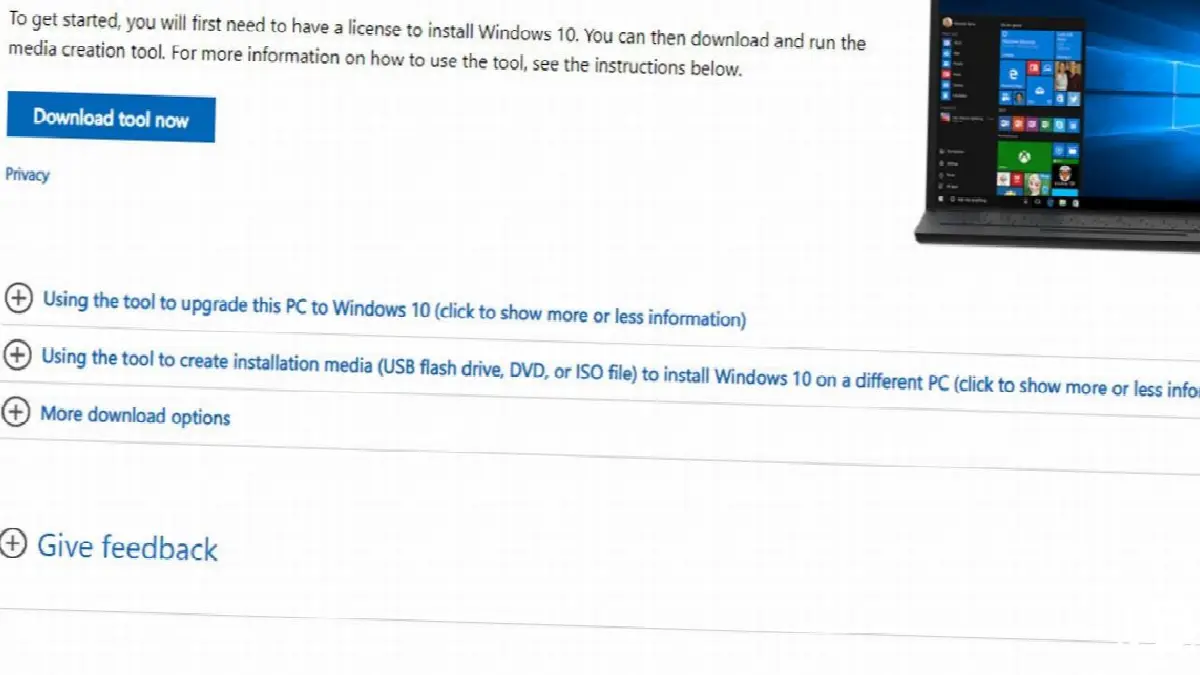
After reaching Microsoft's official download page, you will see the "Download tool now" button in the middle of the page. We click on this button and the download will start automatically.
Step #3: Run the Windows 10 installation file you downloaded.

After downloading this Windows 10 installation file, which is quite small in size, we run this file by simply double-clicking it. Terms of use and information we encounter after accepting We move on to the next step.
Step #4: Check “Upgrade this PC now” and press Next.

Since our main goal is to upgrade our computer with Windows 7 or Windows 8 operating system to Windows 10, we select the "Upgrade this computer now" option and continue the process by pressing the next button. Here Windows 10 installerIt will start downloading Windows 10. Therefore, this step may take a little longer and you can continue using your computer in the meantime.
Step #5: Check the Keep personal files and apps option and press Next.
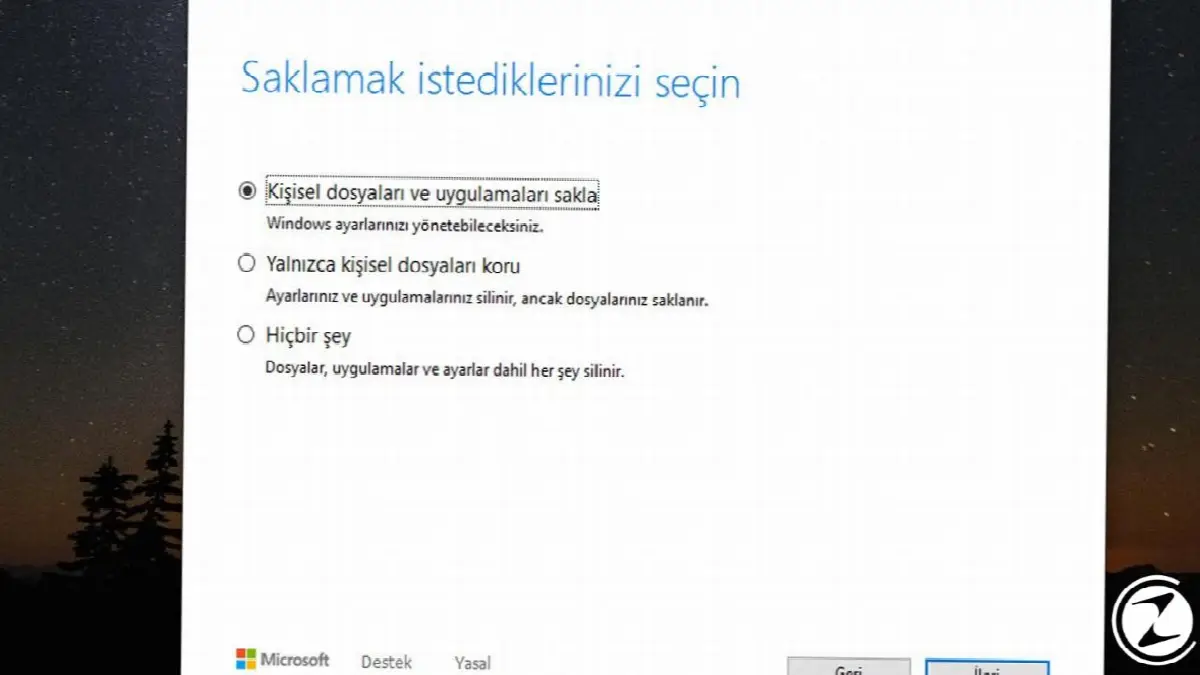
In this step, if you do not want to lose all your personal files and applications on your computer when installing Windows 10, you can choose to keep them. If you just want to keep the files, you can choose the “Keep only personal files” option or you can do a completely clean installation by selecting the last “Nothing” option.
Step #6: Press the Install button and Windows 10 installation will begin.
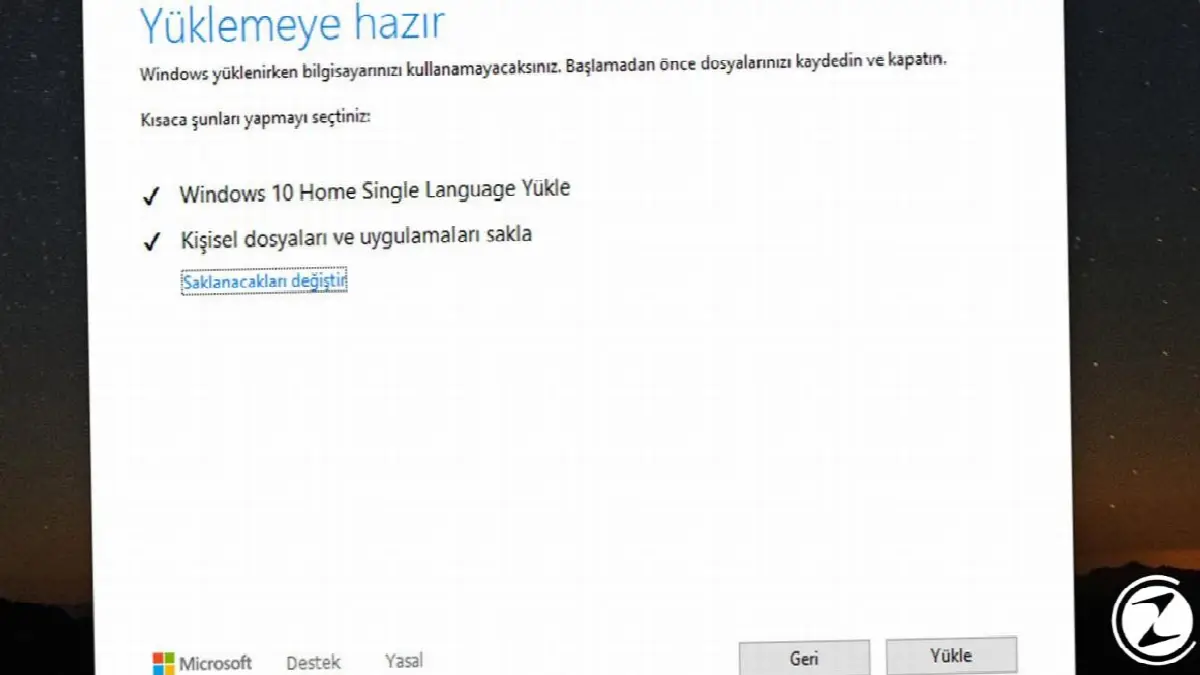
Once you organize all your file storage options, you will be ready to install Windows 10. In the last step, simply click on the install button and start the Windows 10 installation. This process it will take a while and your computer will automatically restart several times.
Step #7: Open the Settings app from the Start menu.

Windows 10 upgrade and installation after completion If you are using a laptop, your Windows 10 version will automatically be activated because your original Windows operating version is embedded in the motherboard. But it's still worth checking. Therefore, we open the Settings application from the Start menu.
Step #8: Enter the Update and Security menu.

As the next step, we enter the Update and Security menu. After checking the activation in this menu, you can also make any pending Windows 10 updates. If you are not sure how to update Windows 10, you can access our relevant guide here.
Step #9: Enter the Activation tab and activate the Windows 10 version.

Once you enter the Update and Security menu, you will see a long tab bar on the left. In this bar, click on the Activation tab and enter. If you are using a laptop as we mentioned before, you will most likely see an image like the one in the image. If If Windows 10 is not activated What you do is very simple. It will be sufficient to enter the original Windows 7 or Windows 8 product key you have in the product key section.
Especially with the discontinuation of support for Windows 7 and the fact that Windows 8 is an operating system that is not stable at all, this free Windows 10 upgrade It appears as a very logical option. However, if you are still undecided about switching to Windows 10, you can find our previous comparison between Windows 7 and Windows 10 operating systems here.
Windows 10 upgrade Although it ended in theory in 2016, in practice there is still a very easy way to make this upgrade. The only requirement here is that you have an original Windows 7 or Windows 8 operating system. If you do not have these operating systems, you can still purchase these operating systems from third-party vendors at a lower price than Windows 10 and upgrade directly to Windows 10.
Every business is unique. Let’s explore how we can tailor these ideas to your own digital project.


