
How to Fix Windows 10 'Disk Usage 100%' Problem?
The "disk usage 100%" error, which causes the computer to slow down and hang, is a problem encountered by most Windows 10 users.

The "disk usage 100%" error, which causes the computer to slow down and hang, is a problem encountered by most Windows 10 users.
Causes the computer to slow down and hangdisk usage 100% most of the errors Windows 10 It stands out as a problem encountered by the user. It seriously reduces the quality of the time you spend in front of the computer. disk usage 100% The error can actually be solved with very simple methods. If the disk usage 100% error is not resolved, it will seriously tire your computer.
If you spend long periods of time in front of the computer even to perform very simple operations and experience freezes and hangs even when switching between tabs, the main source of the problem is disk usage 100% It may be an error.
How to solve 100% disk usage problem in task manager?
- Method #1: Restart your system.
- Method #2: Make sure your Windows version is up to date.
- Method #3: Check for malware.
- Method #4: Disable Windows search.
- Method #5: Turn off Superfetch (fast fetching).
- Method #6: Set energy options to high performance.
- Method #7: Temporarily turn off your antivirus software.
- Method #8: Reset virtual memory.
- Method #9: Run disk check.
Method #1: Restart your system.

It is one of the simplest and classic methods. Many problems may not reoccur if you restart your system. Disk usage 100% To solve the problem, you should restart your system and check whether the problem persists before moving on to other methods.
Method #2: Make sure your Windows version is up to date
- Step #1: Open the Start menu.
- Step #2: Enter the Settings tab.
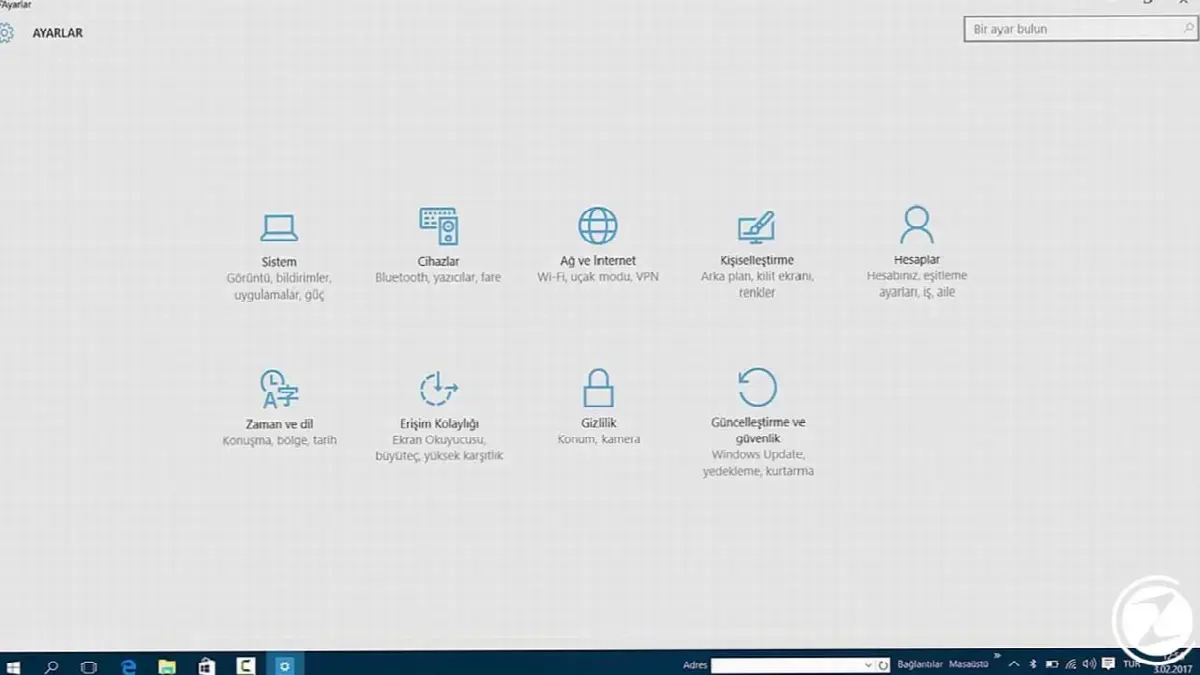
- Step #3: Go to Windows Update from the Update and security section.

It is always very important for computers to have drivers up to date. With the improvements brought by the updates disk usage 100% The error can be resolved by itself.
Method #3: Check for malware.
Something is causing your computer to increase disk usage. infected with virus it could be. If you have an anti-virus program, it may have already caught this problem, but it may not have sent you a notification or you may have missed the notification. Assuming that antivirus programs do not always work stably, we recommend that you scan for viruses at regular intervals.
Method #4: Disable Windows search:
- Step #1: Right-click the Start menu and click Command Prompt (Admin).
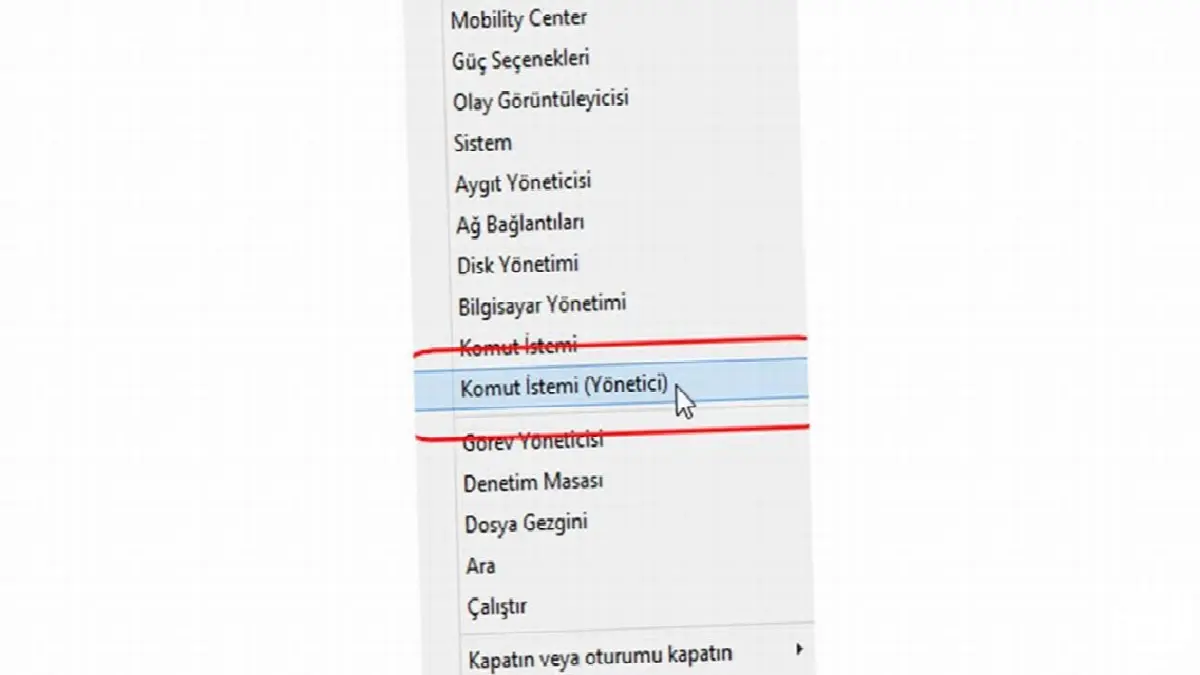
- Step #2: After giving confirmation from the window that will appear, click on the Command Prompt window that opens. net.exe stop “windows search” Type the command and press enter.

- This will allow you to temporarily turn off Windows search. (The following steps are to turn off Windows search completely.)
- Step #3: Open the Run window with the Windows key + R combination.
- Step #4: Type "services.msc" in the Run window and click the OK button.

- Step #5: In the window that opens, find the Windows Search title and right-click on this feature, select Properties and disable it.

In windows 8, due to windows search disk usage 100% If you were experiencing the problem, the source of your problem in Windows 10 may be windows search. You can first temporarily close Windows search, which gets stuck in a search loop and fills up disk space, and check whether the problem goes away. If the problem is gone, the reason is due to Windows search.
Method #5: Turn off Superfetch (fast fetching):
- Step #1: Open the Run window with the Windows key + R combination.
- Step #2: Type "services.msc" in the Run window and click the OK button.

- Step #3: In the window that opens, find the Fast Fetch title and right-click on this feature and select Properties.

- Step #4: Select the disable option from the window that appears.
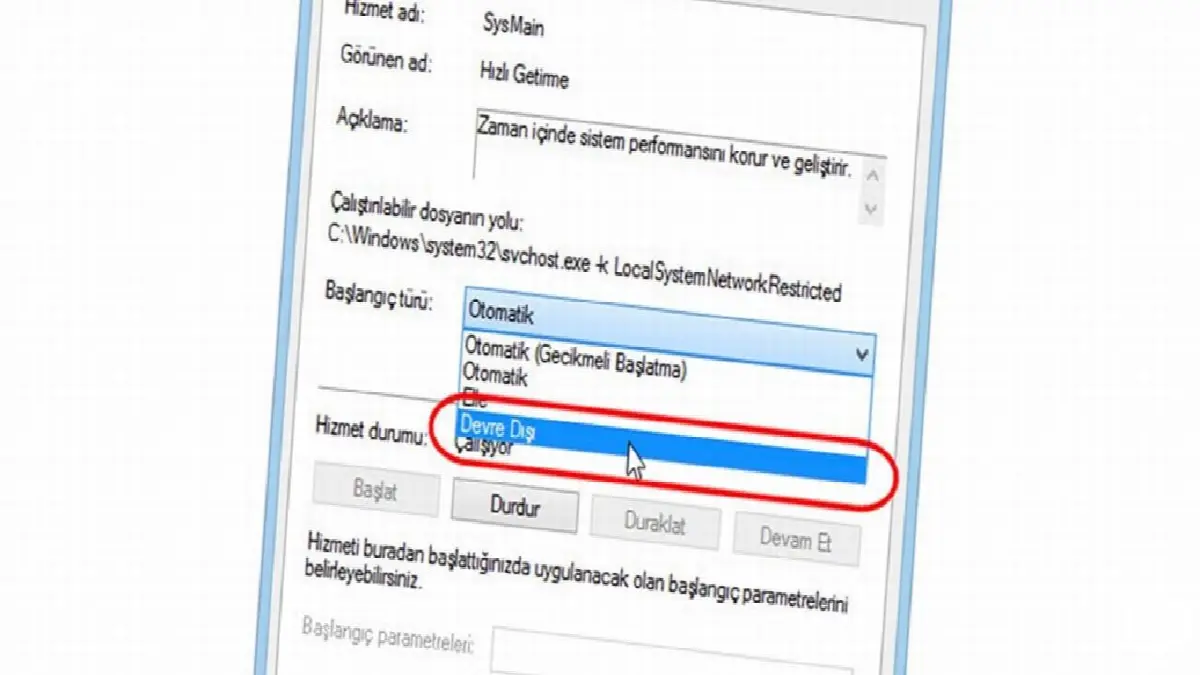
Superfetch, or fast fetching feature, is a system that accelerates the opening time of a program on your computer as much as possible. superfetch It keeps the programs you use frequently in mind and makes them ready for use in the system in advance. While doing this, it consumes power from your computer's system resources. It can turn into more harm than good, especially on your computers with low RAM. disk usage 100% It may be the root cause of your problem.
Method #6: Set energy options to high performance.
- Step #1: Go to the start menu.
- Step #2: Enter the system section from the Settings tab.

- Step #3: Click on the power and sleep section.

- Step #4: Select high performance from the additional power settings tab.
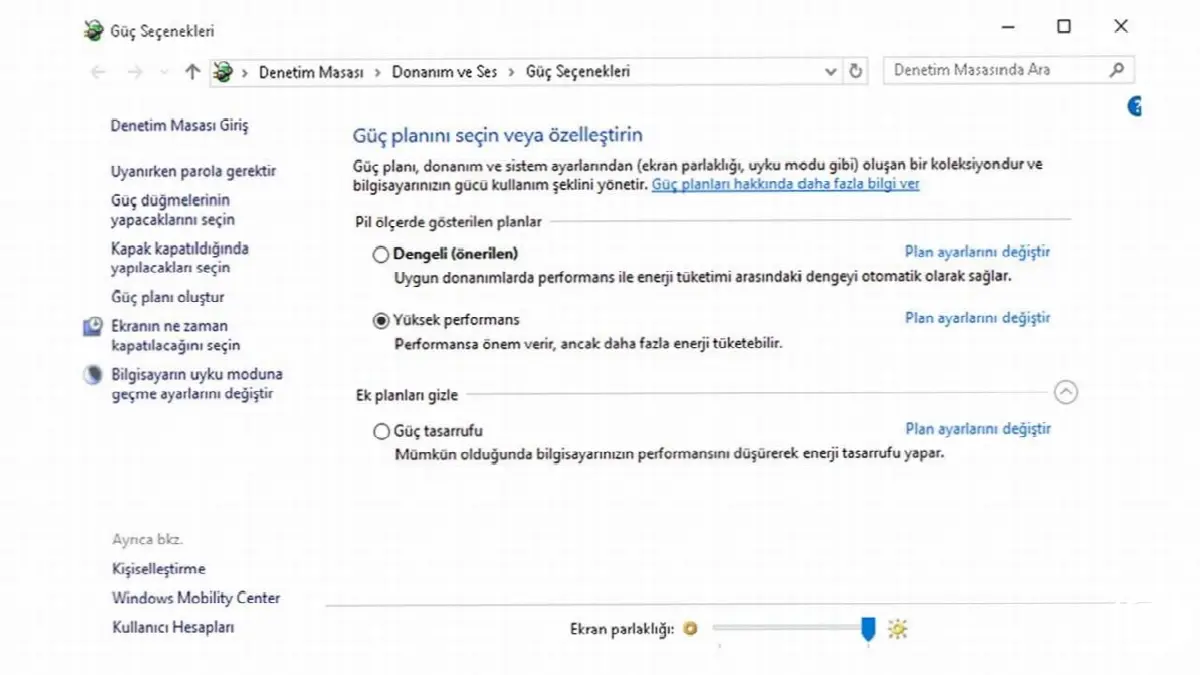
Most Windows 10 users disk usage 100% He stated that he solved the problem by simply changing the power settings to high performance. You can also set your computers to high performance by following the steps below.
Method #7: Temporarily turn off your antivirus software

Sometimes antivirus programs source of the problem it could be. In case of disk usage 100% error, you can check whether the problem is solved by turning off the antivirus program. If the problem is caused by the antivirus program, we recommend that you use another program.
Disable the antivirus software you are using and check the status of the disk. Even Windows Defender can cause high disk usage. (If disk usage does not show 100%, the problem may be caused by your antivirus program.)
Method #8: Reset virtual memory
- Step #1: Open system properties and click on the Advanced System Settings tab.

- Step #2: Click the settings button on the advanced tab in the window that opens.

- Step #3: Click the change button in the Performance Options window you are currently logging in to.
- Step #4: In the Virtual Memory window that opens, make sure the box titled "Automatically manage paging file size on all drives" is checked.
- Step #5: You can also increase your disk performance if you check the "No paging file" option in the same Virtual Memory window.

Virtual memory acts like RAM in your system. Especially in cases where RAM is insufficient pagefile.sys errors may be the cause of the disk usage 100% error on your computer.
Method #9: Run disk check.
- Step #1: From My Computer, right-click on the disk you want to check and select properties.
- Step #2: In the window that opens, enter the tools section and click the inspect button.

There may be a hardware problem with the disk and the only way to check for it is to run disk check. If you can solve your disk usage problem 100% with the other items in our article. If you can't figure it out, This may be due to a hardware malfunction of one of the disks.
If the problem is not resolved even after trying all these methods, we recommend that you contact technical service. We hope that, in light of the information we have provided, Windows 10'reputation disk usage 100% error will no longer be a problem for you. If you have encountered different solution techniques, you can contribute by sharing them with us in the comments section.
Every business is unique. Let’s explore how we can tailor these ideas to your own digital project.


