
How to Remove Malware?
There are many types of malware on the internet. These software are sometimes used to capture user's personal information.

There are many types of malware on the internet. These software are sometimes used to capture user's personal information.
Many types of online malware is available. These software can sometimes be used to capture user's personal information and sometimes to disrupt the functions of computers and mobile devices. Although it is sometimes very clear on the internet where the virus can come from, computers and smartphones can be filled with malware and similar software as a result of occasional carelessness.
What about malware, or also known as viruses or malware removal how to do it? We will show you how to clean malware on both mobile platforms and computers.
How is malware removal done?
- For computer:
- Step #1: Restart your computer and enter safe mode,
- Step #2: Delete temporary files before scanning for viruses,
- Step #3: Download malware scanning and removal tool,
- Step #4: Search with the program you downloaded and delete the threats found,
- Step #5: Check your browser settings,
- Step #6: If the malware is not deleted, format it as the last and clearest solution.
- For Android:
- Step #1: Turn off the phone
- Step #2: Restart the phone in safe/emergency mode,
- Step #3: Go to Settings and find the malware-laden application,
- Step #4: Find all harmful and suspicious applications and delete them all.
Malware removal processes – PC:
Restart your computer and enter safe mode:

If your computer is infected with malicious software such as malware, the first thing you need to do is to reboot in safe mode. Safe mode is basically one of the troubleshooting steps. When you restart the computer in this mode, only basic files and drivers are initialized, meaning you run Windows in its most basic and raw form. In Windows 10 operating system how to turn on safe mode You can find out by going here.
Delete temporary files before scanning for viruses:
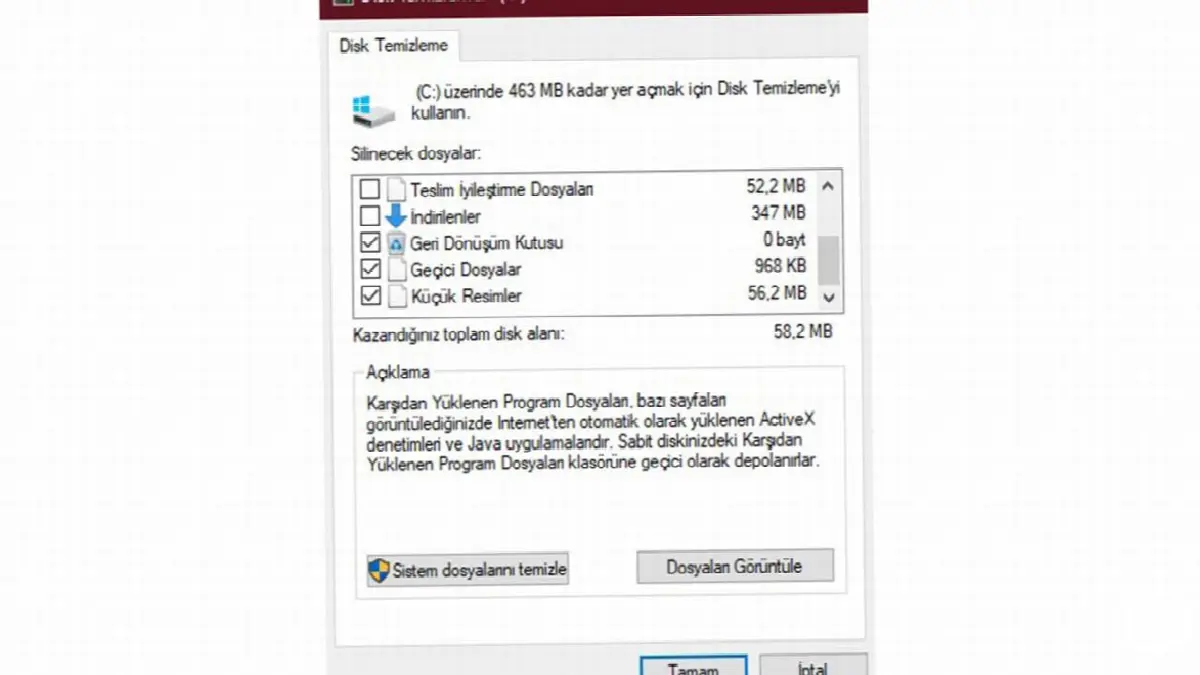
After going into safe mode, the first thing you may think of is to scan for viruses, but before doing this, temporary, i.e. deleting temporary files It would be more logical. In this way, your subsequent virus scan will be faster and malware will be found more easily. Sometimes you may even have manually deleted the malware, perhaps because the malware infected one of these temporary files.
To delete temporary files in Windows 10 disk cleanup You can use the program. After typing Disk Cleanup in the search field and pressing Enter, you can select the drive you want in the window that opens and delete temporary and unused files.
Download malware scanning and removal tools:

After completing the previous steps you can now malware removal You can start taking a look at their tools. Most of the time, searching with malware removal tools can be enough to delete malware-like bad software, but for this you need to use different applications than the antivirus programs on your computer.
If you already have an antivirus program and you observe symptoms such as loss of performance, your antivirus program is detecting malware entering your computer. means failed. Windows Defender, on the other hand, is inadequate in detecting and removing malware. Therefore, it is always important to download a different malware scanning tool and scan with this tool. will give much better results.
MalwareBytesis a removal tool that is highly appreciated by many people suffering from malware. Malwarebytes, the most popular malware search and removal tool, can be downloaded for free and allows you to quickly remove malware from your computer. If you have not downloaded any malware removal tool before, MalwareBytes will do the trick.
Search with the program you downloaded and delete the threats found:
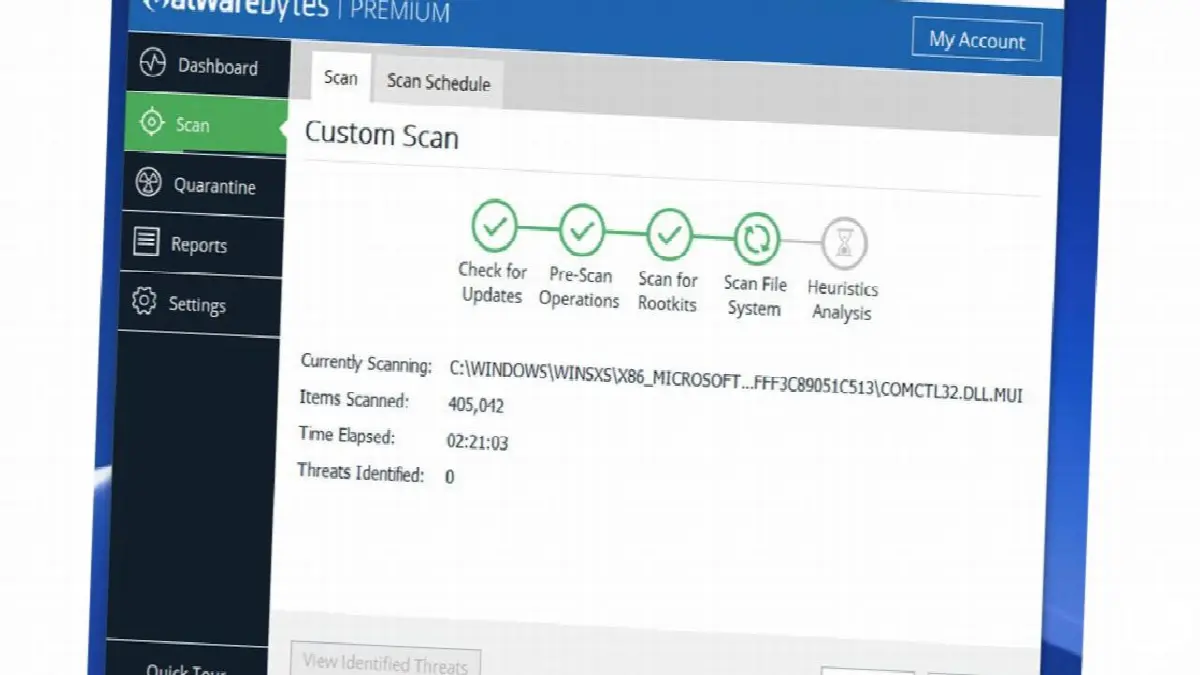
After downloading the malware scanning and removal tool you like, you can run the program as an administrator and start searching. As a search estimate 5 to 10 minutes It may last. For more detailed searches, this time may increase slightly. After the search is completed, you will see a screen containing suspicious and malicious software. After selectively deleting all the files on this screen, you can move on to the next step.
Check your browser settings:

Malware infection can damage many files on your computer. These can range from Windows system files to different settings files. One of the most common malware applications is changing browser settings. Malware applications that change the browser's home page pose a major threat by being able to reinstall software into files on the computer.
As a result of the search with malware removal programs, all threats are usually removed, but it is useful to check the settings. To do this, go to the browser's settings and check the home page and connection settings. By resetting them all to default you will see from pointless ads, search problems and malware threat you can get rid of it.
If the malware is not deleted, format it as the last and clearest solution:

If you still observe performance decreases or other malware symptoms after following the steps above, the last and clearest solution is to format your computer and is to reinstall Windows. Since all your files will be deleted while doing this, you can back up the files that are important to you and keep them on an external disk. Once you do this, you will be free from the Malware threat.
Malware removal processes – Android:
Turn off the phone completely until you find the problem:

Your smartphone has been attacked by malware when you are sure turn off the phone completely. Of course, turning off the phone will not compensate for the damage caused by the malware, but it will prevent the problem from getting worse. Hanging up the phone will also give you time to think about the source of the problem and investigate.
After turning off the phone, you can think about which applications you last installed on your device and when the malware symptoms started to appear. If you think of a suspicious application at this stage, you can proceed to the next step by turning on the phone.
Restart the phone in safe/emergency mode:

Restarting the phone in safe mode prevents malware from running and causing further damage to the phone. To run safe mode on most smartphones, you must press and hold the power button for a few seconds and then press and hold the shutdown option in the shutdown menu that opens for a few seconds. You can then turn on safe mode by pressing the safe mode button from the power options menu that will appear. If this is not the case with your phone model, you can learn how to go into safe mode via the internet.
Go to Settings and find the malware-ridden app:

Go to Settings on your Android smartphone. Scroll down in the list in the Settings section and enter the Applications section. In this list, the items usually found on the device all apps visible. Take a look at all the applications and write down any that you find suspicious.
Find malicious and suspicious software and delete them all:

Click on the applications you find suspicious in the list. In the window that opens usually Uninstall, Force Stop and Shut Down There are options such as. As you can guess, what you will choose here is the Uninstall option. Once you delete suspicious apps, you will most likely eliminate the malware threat on your smartphone. If problems still persist you can reset your phone.
For computer and Android smartphones how to remove malware We have come to the end of our guide in which we answered the question. After completing these steps, you can install antivirus programs to prevent your devices from being infected with malware again. There will be more guides like this, so you don't miss it. stay tuned.
Every business is unique. Let’s explore how we can tailor these ideas to your own digital project.


