
What is UEFI, What Does It Do, How to Use It?
The BIOS interfaces that we have been using on our computers for many years have recently undergone radical changes. A new device, abbreviated as UEFI…

The BIOS interfaces that we have been using on our computers for many years have recently undergone radical changes. A new device, abbreviated as UEFI…
We have been using it on our computers for many years. BIOS Their interface has undergone radical changes recently. UEFI A new control interface, abbreviated as , has begun to be used on modern motherboards.
Although BIOS and UEFI are different technologies, UEFI was developed to replace this older system by performing the tasks of BIOS and more. What is UEFI, what does it do and how to use it, come all together Windows 10 Let's find out on it.
What is UEFI?

BIOS, which we have been using on our computers for many years, is perhaps the feature that has changed the least in the computer world to date. located on the motherboard 16 bit In BIOS, which is a low-end operating system, very simple operations such as startup options and control of some hardware devices could be performed. But in recent years, emerging Unified Extensible Firmware Interface (UEFI), began to replace older generation BIOS screens.
located on the motherboard OnBoard Flash In UEFI, which has a more eye-catching and easier interface than the classic 16-bit BIOS screen we are familiar with, you can perform the operations you can do in BIOS more easily, and you can even control the UEFI interface, which is supported by graphics and visuals, with a mouse, unlike the classic BIOS screen consisting only of a blue screen and text.
What does UEFI do?

Users can use UEFI, which we can think of as an operating system on its own; It can control and regulate processor temperatures, fan speeds, storage space in the system, internal graphics card settings and processor settings. Also from the UEFI screens of modern motherboards “overclock” transactions can even be made.
In UEFI, where all storage areas in the system can be accessed, the computer's startup priorities can be adjusted and all listed disks can be accessed as before in BIOS. 2TB limitation It can also be accessed in one piece without.
So what is the 2TB limitation? used in Windows NTFS Thanks to the file system, in old BIOS screens, only the disks in the system up to 2 TB could be listed. Therefore, if you had a disk larger than 2 TB, you could not configure it properly. But the one that comes with UEFI GUID Partition Table (GPT) Along with UEFI, it allows users to create disk partitions larger than 2 TB.

In addition, users can increase the frequency speeds of their RAM using the 64-bit architecture on their motherboards via UEFI. To give an example; If you have installed a 3200 Mhz RAM to your motherboard, this RAM will be 3200 MHz instead of 3200 MHz unless you edit the UEFI screen. a lower fundamental frequency at speed It will work. You can simply access the UEFI interface and increase your RAM speed to the specified 3200 MHz band with a few clicks.
How to enter the UEFI screen in Windows 10?
- Step #1: From the start menu "Settings" Open the application.
- Step #2: From the settings menu “Update and Security” enter the menu.
- Step #3: Located in the left bar "Recovery" enter the menu.
- Step #4: “Restart Now” Click the button.
- Step #5:“Troubleshooting” Enter the option.
- Step #6: “Advanced Options” Log in to the section.
- Step #7: “UEFI Firmware” Click .
- Step #8: “Restart” Click and you're done.
Step#1: From the Start menu "Settings" Open the application.
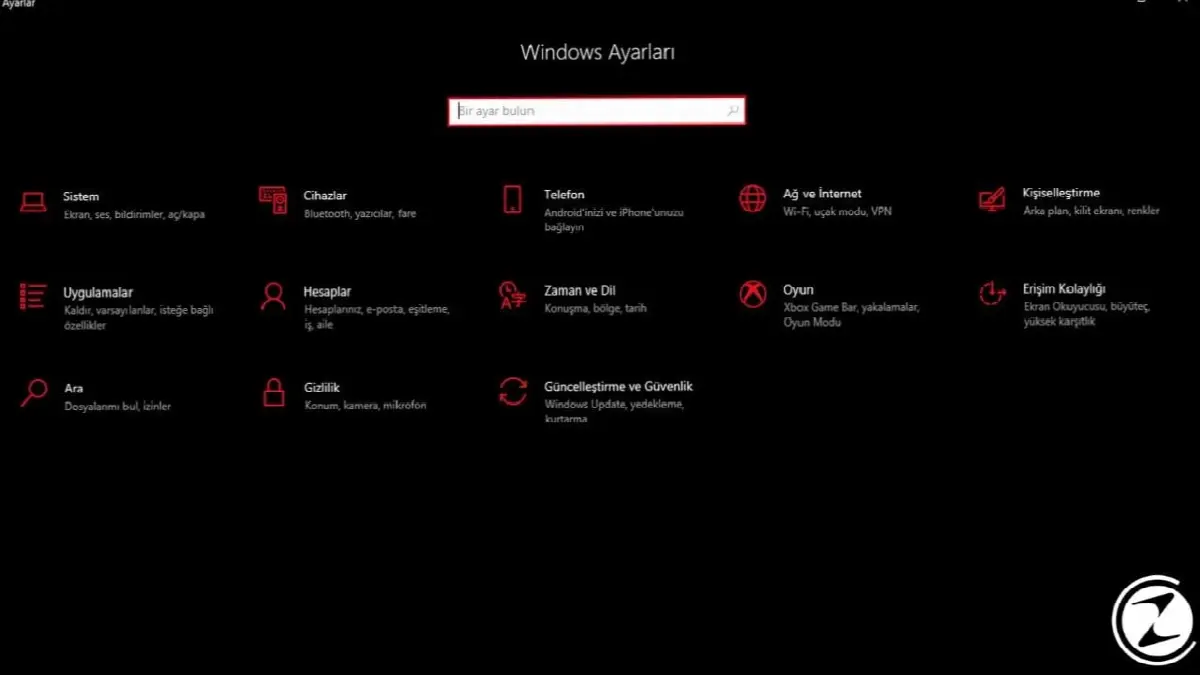
When we click on the start menu, we click on the settings icon located just above the on/off button. Settings to the menu you can access.
Step#2: From the Settings menu “Update and Security” enter the menu.
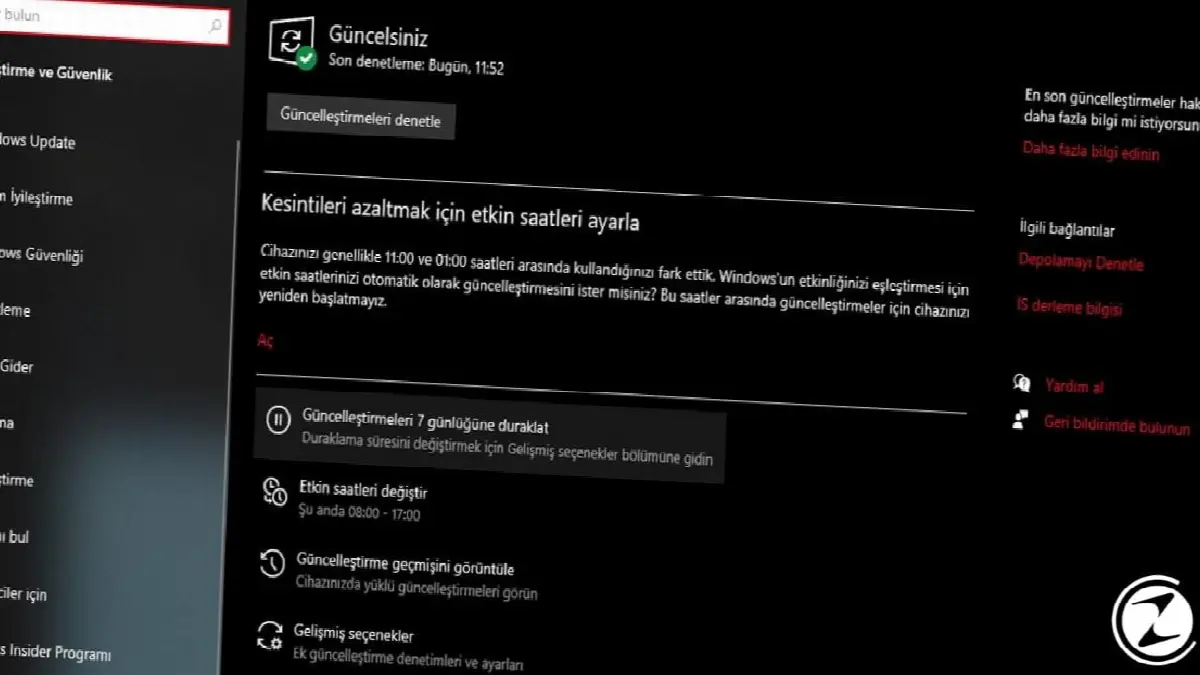
From the list that appears after entering the Settings application: “Update and Security” Log in to the menu.
Step#3: Click on the button in the left bar. "Recovery" enter the menu.
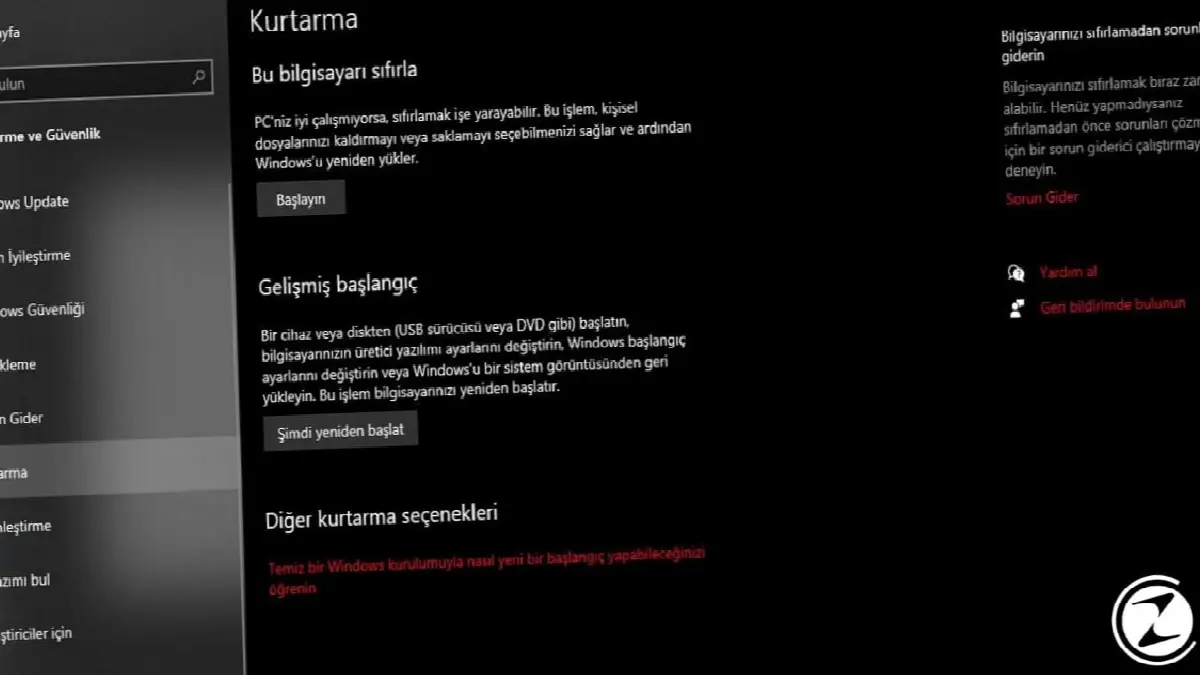
From the feature options listed on the left of the "Update and Security" menu to the “Recovery” section. We are logging in.
Step#4: “Restart Now” Click the button.

It is located under the "Advanced Startup" phrase in the recovery menu. Click the “Restart Now” button We click. At this stage, the computer will restart itself and offer us some options.
Step#5: “Troubleshooting” Enter the option.
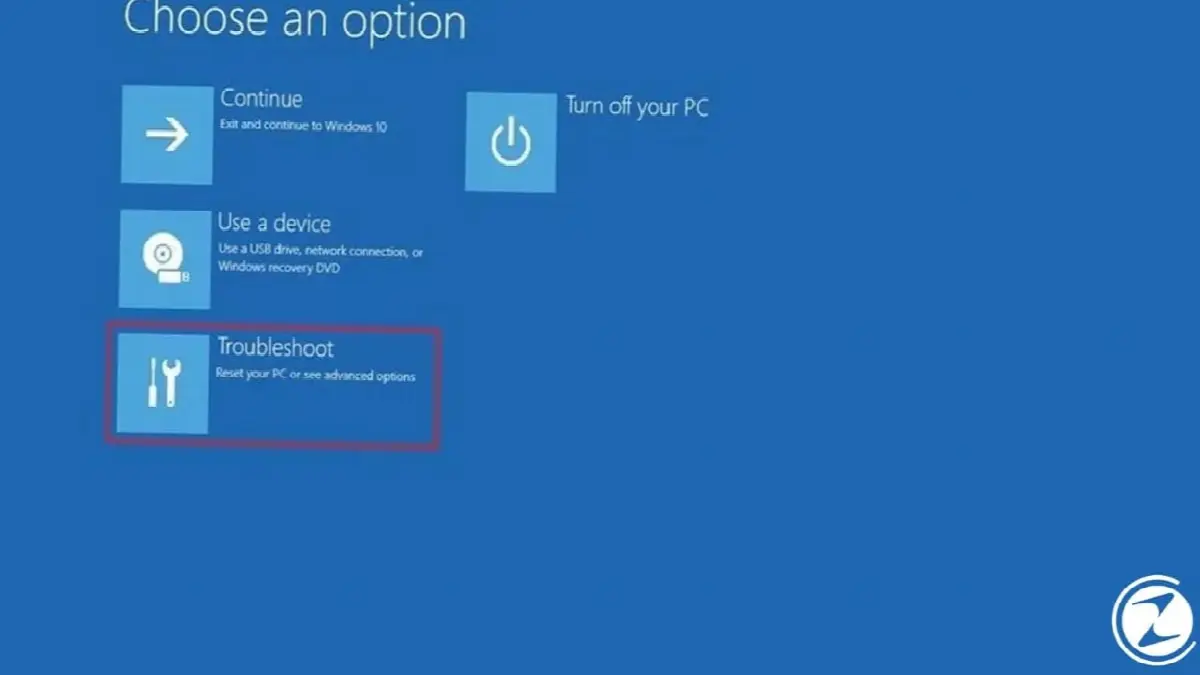
After our computer restarts itself, it will offer us some options instead of opening directly. On this screen “Troubleshoot” We click on the option.
Step#6: “Advanced Options” Log in to the section.
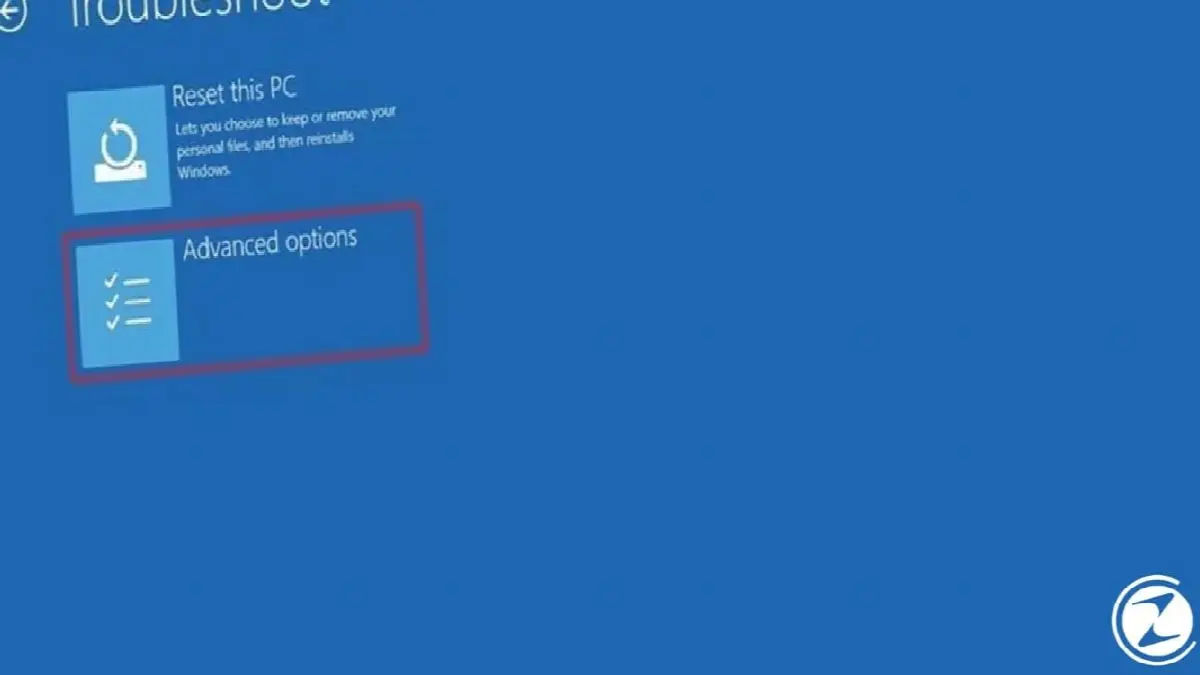
After clicking on the Troubleshoot section, we will be presented with two options. Here “Advanced Options” We enter the section.
Step#7: “UEFI Firmware” Click .
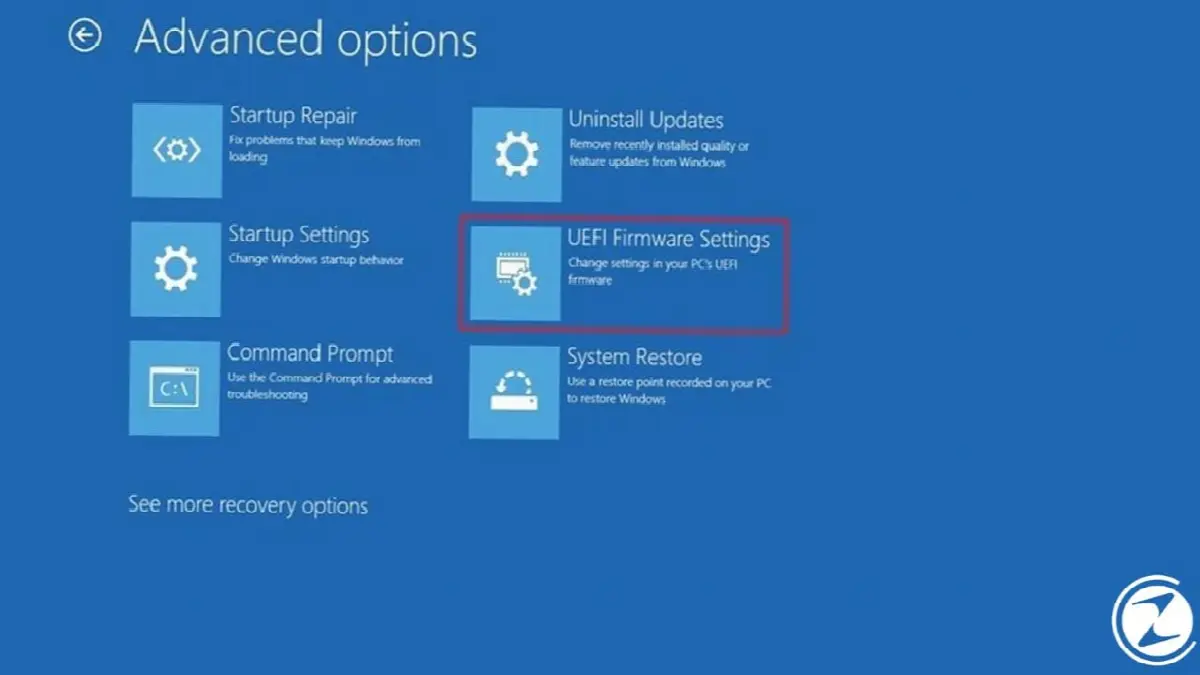
In the “Advanced Options” section, Windows will offer us many different options. In this menu “UEFI Firmware Settings” We click on the .
Step#8: “Restart” Click and you're done.

Finally UEFI Firmware After entering the section, Windows will ask to restart again. After clicking the Restart option, Windows will now start itself directly on the UEFI screen.
How to use UEFI?
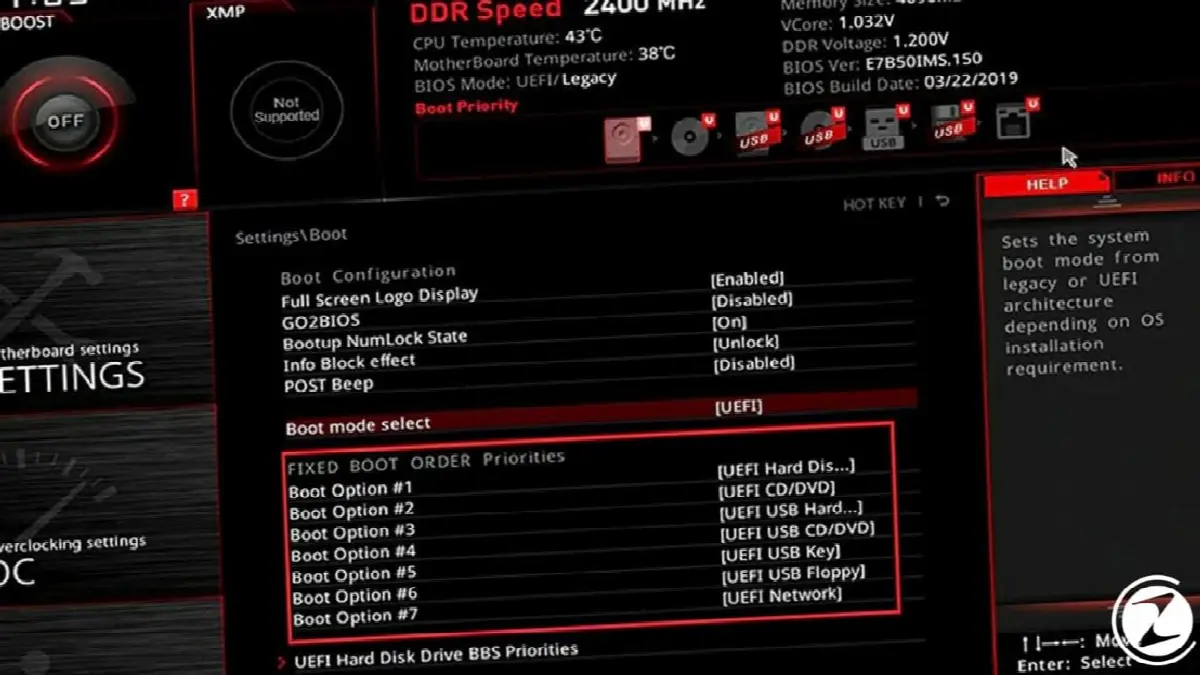
After following the steps we gave in the previous title and coming to the UEFI screen, using UEFI may vary depending on what settings you want to make. It is also worth noting that each brand's motherboard uses a different UEFI interface. Therefore, after you have determined exactly what operations you want to perform, specific motherboard model on your motherboard's official websiteThe best option would be to follow the instructions specifically prepared for the i and UEFI interface.
Motherboard manufacturers such as MSI, ASUS and ASRock have UEFI BIOS updates, usage details and language packs for their motherboard models on their official sites. To give an example from MSI's A320M-A PRO motherboard model, if you have this motherboard or another MSI motherboard, you can simply find your motherboard model on MSI's official website, download the language packs and easily use the UEFI interface in Turkish.
Every business is unique. Let’s explore how we can tailor these ideas to your own digital project.


