
Windows 10 Update Problems and Solutions
As Microsoft announces that it is ending support for older versions of Windows, many users are switching to the newest version, Windows 10.

As Microsoft announces that it is ending support for older versions of Windows, many users are switching to the newest version, Windows 10.
As Microsoft announces that it is ending support for older versions of Windows, many users are switching to the newest version, Windows 10 operating system. However, frequently Some problems may occur during Windows 10 updates.
Windows 10 update problem While some users simply cannot install the update, some users may encounter situations that make it difficult for them to use their computers. But you don't need to worry at all because the problems have extremely simple solutions. for you How to solve Windows 10 update problem We answered the question and explained the different methods you can apply for the solution.
Common Windows 10 update problems:
- KB4566782: BSOD blue screen error
- May 2020 “No internet” warning error
- May 2020 Update blocked error
- KB4556799: BSOD, screen, sound and font errors
The problems that appear in the list are specifically problems that were detected after or during an update. Numbers starting with KB, represents the update version. Dates refer to updates coming on that date. You can detect your problem by the version number of your last update or the date you received the last update.
KB4566782: BSOD blue screen error:

One of the most common Windows 10 update problems is the blue screen error. Not only with the update problem, You may encounter a blue screen error as a result of different problems. When you encounter this screen, restart the device without worrying.
This problem occurred especially after the August 2020 update. Lenovo brand computer users They had to meet frequently. Currently, there is no clear method that you can apply as a solution. The problem is expected to be resolved with a new update. However, you can disable virtualization features such as Hyper-V-Intel and Windows Sandbox to reduce the effects of the problem.
May 2020 “No internet” warning error:

Many Windows 10 users after the May 2020 update with no internet warning error faced. The reason this is an error is because the computer is connecting to the internet but still receiving warnings. It has also been observed that even if the device connects to the internet, some programs downloaded to the computer from the Microsoft Store cannot connect.
For the solution; on your computer Registry Editor open and HKEY_LOCAL_MACHINE SYSTEM CurrentControlSet Services NlaSvc Parameters Internet access the folder. EnableActiveProbing of the file change the value data to 1 and save. Then, by restarting the computer, you will see that the problem has disappeared.
May 2020 update blocked error:

Users who want to manually install the May 2020 update This PC Cannot Upgrade to Windows 10 like a warning notification they take it. The reason for this error is that there are some unsupported settings in this update version.
When you encounter such an error, the best thing to do is to wait. new updates Make sure to have it on your computer too. will come. If you do not encounter a clear reason for not being updated, this problem will definitely disappear with the new update version.
KB4556799: BSOD, display, sound and font errors:

KB4556799, one of the latest Windows updates, aiming to bring stability Even though it is an update version, it has caused many different problems for many users, such as blue screen problems, sound problems, font problems.
If you are experiencing problems with your computer after this update version, what you need to do is: is to roll back the update. Previously, update removal processes were extremely complicated, but Microsoft has now made the update removal process very easy.
Solution methods you can apply for Windows 10 update problem:
- Uninstall Windows 10 updates,
- Go back to previous version of Windows 10,
- Check Windows 10 build,
- Block or delay Windows 10 updates,
There are different solutions you can apply when you encounter any Windows 10 update problem. Thanks to these methods, the moment Problems caused by the update You can get rid of it or make your computer run more stable by keeping it away from updates for a while.

Uninstall Windows 10 updates:
- Step #1: of your computer Settings Open the page.
- Step #2: From here Update and Security Open the page.
- Step #3: View Update History Click the button.
- Step #4: You will see in the upper right corner Uninstall Updates Click the button.
- Step #5: You will see your updates.
- Step #6: Right click on the update you want to uninstall.
- Step #7: Remove Click the button.
- Step #8: Give the necessary approvals.
- Step #9: Restart the computer.
The best method you can apply as a solution to a Windows 10 update problem you encounter is to remove the update from your computer. Using the method above, you can find the update that is causing the problem on your computer and easily remove it.
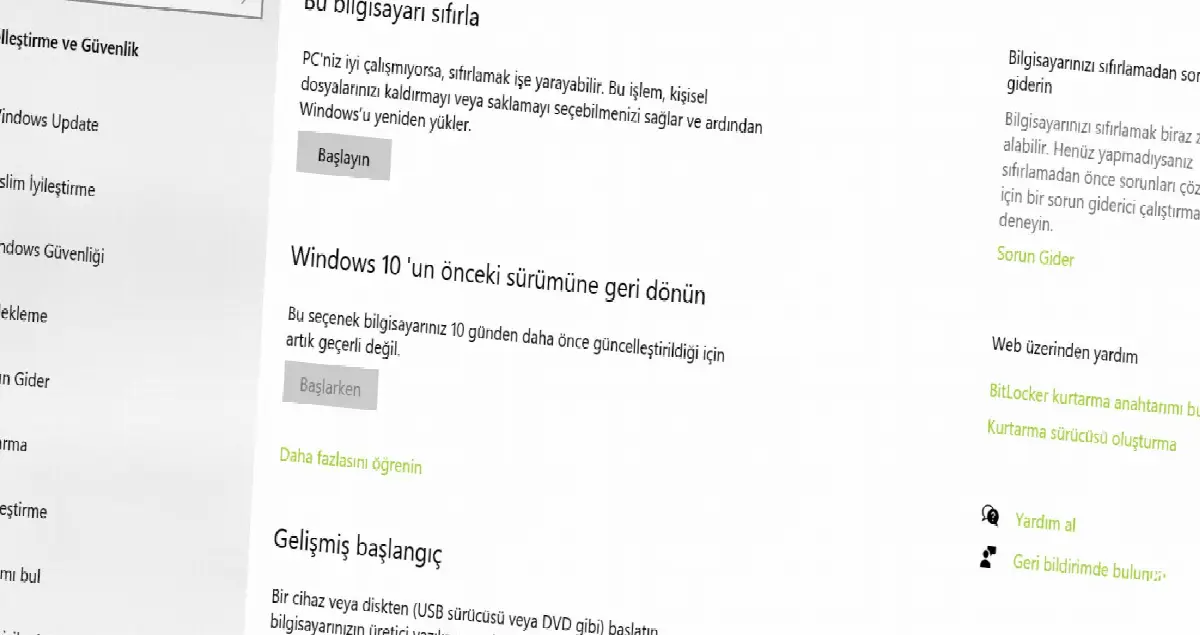
Go back to previous version of Windows 10:
- Step #1: of your computer Settings Open the page.
- Step #2: From here Update and Security Open the page.
- Step #3: from the menu Recovery Turn on the option.
- Step #4: Go Back to Previous Version of Windows 10 Find the tab.
- Step #5: From here start Click the button.
- Step #6: Wait for the process to complete.
- Step #7: Restart your computer.
Your Windows 10 operating system was in the previous version before the update. start using again This is another method you can use for Windows 10 update problem. However, the most important point you should pay attention to here is the duration.
After updating to use the Windows 10 operating system in the previous version You have 10 days. You can only use this feature within 10 days after updating. If 10 days have passed and you cannot apply this method, you can choose to apply alternative methods.

Check Windows 10 build:
- Step #1: of your computer Settings Open the page.
- Step #2: From here Update and Security Open the page.
- Step #3: View Update History Click the button.
- Step #4: Here you can see all the updates your computer has received.
- Step #5: Just click on the update to see its details.
In your update history you will see; feature updates, quality updates, driver updates and other updates will be released. To see details By clicking on the update you want, you can be directed to the relevant page. Accordingly, you can also decide which update you want to remove on your computer.

Block or delay Windows 10 updates:
- Step #1: of your computer Settings Open the page.
- Step #2: From here Update and Security Open the page.
- Step #3: Pause Updates for 7 Days Click .
- Step #4: pause duration Advanced Settings You can change it on the page.
Another method you can apply when you encounter any Windows 10 update problems is not receiving updates. You can block Windows 10 updates by following the method above. To get updates again, simply stop the pause process by following the same steps.
for you How to solve Windows 10 update problem We answered the question and explained the different methods you can apply. By determining which update you are having problems with on your computer, you can find the most accurate problem solving method and apply it easily.
Every business is unique. Let’s explore how we can tailor these ideas to your own digital project.


