‘Ethernet Does Not Have a Valid IP Configuration’ Solution
Each device and network has its own unique IP address. In this way, devices interact with other networks, that is, your internet connection…

Each device and network has its own unique IP address. In this way, devices interact with other networks, that is, your internet connection…
Each device and network has its own unique IP address. In this way, devices interact with other networks, that is, this is how your internet connection is created. Ethernet does not have a valid IP configuration The problem shows that this interaction does not exist. Well ethernet does not have a valid IP configuration When there is a problem, you cannot access the internet.
Alright, How to solve ethernet does not have a valid IP configuration problem? There are a few simple solutions you can apply when you encounter this extremely annoying problem. for you ethernet does not have a valid IP configuration We answered the question of how to solve the problem and explained the different methods you can apply.
How to fix Ethernet does not have a valid IP configuration?
- Step #1: Restart your computer and modem.
- Step #2: Disable your antivirus program.
- Step #3: Reset your TCP/IP settings.
- Step #4: Configure your TCP/IP settings.
- Step #5: Clear network cache.
- Step #6: Update the network adapters driver.
Step #1: Restart your computer and modem:
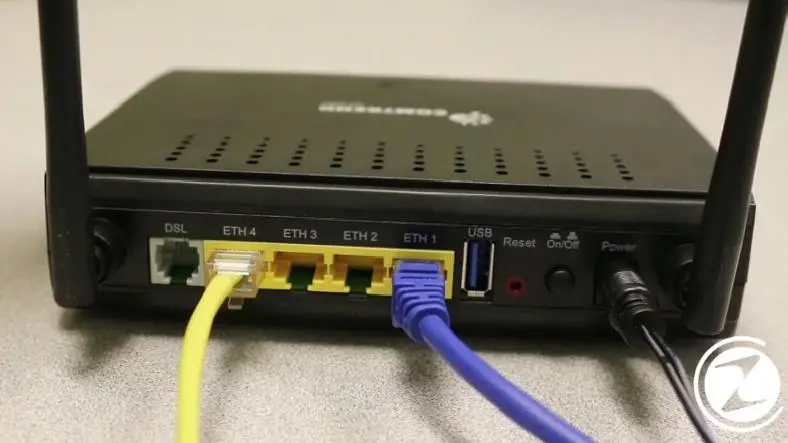
What you can do to solve the Ethernet does not have a valid IP configuration problem: one of the simplest methods One is to restart both your computer and your modem. Restarting will help solve many problems.
Turn off your Windows operating system computer completely. Then connect your modem and router, if any. turn it off and wait a few minutes. First turn on the modem, then turn on the computer and check if the Ethernet does not have a valid IP configuration problem persists.
Step #2: Disable your antivirus program:

Many antivirus software used on computers with Windows operating system have the problem that Ethernet does not have a valid IP configuration. It causes different network interaction problems. is known. Therefore, disabling the antivirus software for a while is a good option.
To disable antivirus software, you can disable the usage status through the software settings. If there is no such setting uninstall the software from your computer, Restart the device and check if the ethernet does not have a valid IP configuration issue persists.
Step #3: Reset your TCP/IP settings:

You can reset TCP/IP settings via your computer's Command Prompt screen. If you can, open the Command Prompt screen by running as administrator You can get more successful results. To open the Command Prompt screen Windows + R key with the combination run open the screen and cmd typing Ok Click the button.
First, enter the Command Prompt screen that opens. netsh winsock reset write and write Enter press then netsh int ip reset write and repeat Enter press. TCP/IP reset process It may take some time. After the process, restart your computer and check whether the Ethernet does not have a valid IP configuration problem persists.
Step #4: Configure your TCP/IP settings:
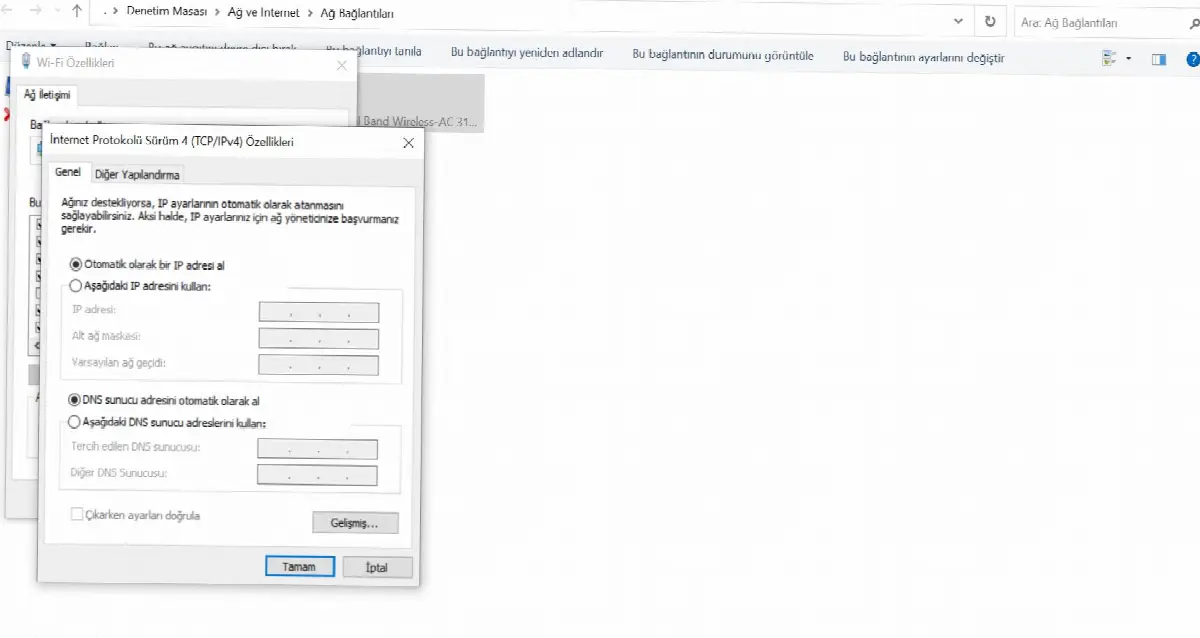
your TCP/IP settings To configure manually Control Panel, from there Network and Internet page and from there Network Connections Open the page. Find the Wi-Fi network you are connected to and right-click on it from the menu that opens. Features open the screen.
Internet Protocol Version 4 (TCP/IPv4) or Internet Protocol Version 6 (TCP/IPv6) by selecting the line Features Click the button. On the properties screen, a new IP address define. Restart your computer and check if the ethernet does not have a valid IP configuration issue persists.
Step #5: Clear network cache:
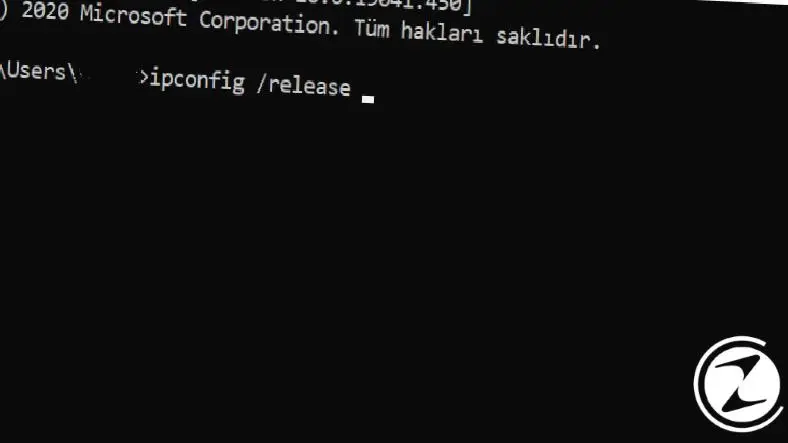
Clearing the network cache also solves the ethernet does not have a valid IP configuration problem. methods you can apply to solve one of them. To clear the network cache, first Windows + R with key combination run open the screen, cmd typing Ok Click the button and open the Command Prompt screen.
then before ipconfig /release write and Enter press then ipconfig /flushdns write and Enter press finally ipconfig /renew write and Enter press. post procedure Restart your computer and check if the Ethernet does not have a valid IP configuration problem persists.
Step #6: Update the network adapters driver:
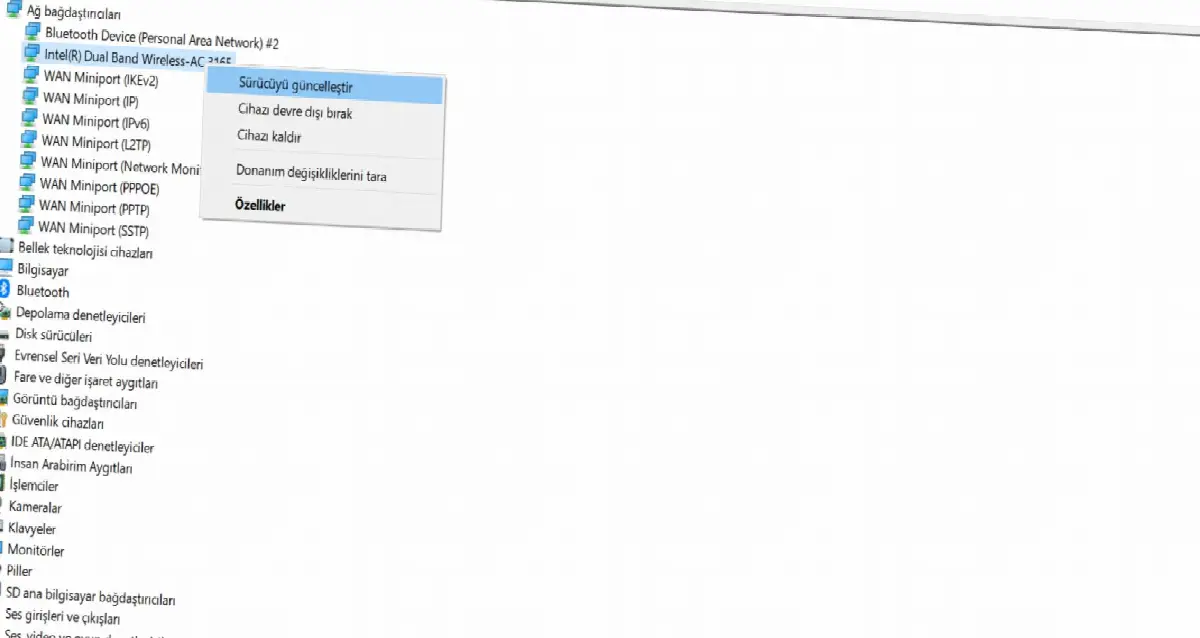
Network adapters driver update or delete and reinstall Firstly for Device Manager Open the page. From here Network Adapters Locate the drive and right click on it. From the menu that opens Update Driver Click , if an update is available it will be installed.
If there is no update, from the same menu Remove Device Click the button. Delete This Device's Driver Software check the box and uninstall the driver. Check if the ethernet does not have a valid IP configuration issue persists by restarting your computer.
The restarted computer will automatically install the missing drivers. If it didn't install Device Manager right click on your computer name at the top and Scan for Hardware Changes Click . Missing drivers will be found and installed.
What is the Ethernet does not have a valid IP configuration issue?
We explained that each device and network has its own unique IP address. This IP address is a system called Dynamic Host Configuration Protocol (DHCP). It is assigned by the network protocol system. The Ethernet does not have a valid IP configuration problem means that your computer is not assigned an IP address by the DHCP protocol.
There are many different factors that can cause the Ethernet does not have a valid IP configuration issue. incorrectly installed or an outdated network adapters driver, Incorrect network configuration or a full network cache can cause this issue.
We have answered the questions of what is the Ethernet does not have a valid IP configuration problem, how to solve it, and for the solution. methods you can apply we told. By following the methods described above, from the easiest to the most difficult, you will definitely find a solution to your problem.
Every business is unique. Let’s explore how we can tailor these ideas to your own digital project.