
How to Update Realtek HD Audio Driver?
Realtek is a hardware and software company that produces computer hardware. The company, which generally produces sound and ethernet cards, offers these cards to manufacturers.

Realtek is a hardware and software company that produces computer hardware. The company, which generally produces sound and ethernet cards, offers these cards to manufacturers.
realtek A hardware and software company that produces computer hardware. Generally voice and ethernet The company that produces the cards offers these cards to manufacturers as on board. Although each computer's sound chip is different, manufacturers generally use Realtek's sound chips.
We also use Realtek on our computers. sound chips We explained for you how to install Realtek HD Audio Driver, which was developed for . currently installed your audio driver We explained in our news how you can easily update it. If you want, let us leave you with our news without further ado.
How to find out the sound card brand and model?

- Step #1: Open the run window with Win+R or from the start menu.
- Step #2: Let's run the dxdiag command.
- Step #3: In the DirectX Diagnostic Tool, click the audio tab.
- Step #4: You can find out your sound card from the name section.
Alternatively;
- Step #1: Open the run window with Win+R or from the start menu.
- Step #2: Let's run the devmgmt.msc command.
- Step #3: Find out the brand and model in the sound, video and game controllers section.
After making sure that the provider of your sound card is Realtek, we can proceed with the steps of updating the driver of our sound card.
How to Update Realtek HD Audio Driver?

- Step #1: Open the run window with Win+R or from the start menu.
- Step #2: Run devmgmt.msc.
- Step #3: In the device manager, go to the “audio inputs and outputs” tab.
- Step #4: Point to Realtek High Definition Audio.
- Step #5: Click on the Update driver button.
- Step #6: Choose how to update drivers.
- Step #7: Click the Automatically search for updated driver software button.
- Step #8: Click the Scan computer for driver software button.
- Step #9: Identify the driver you downloaded with the browse button.
- Step #10: Select Let me choose from a list of available drives on my computer.
- Step #11: Click on the floppy disk button.
- Step #12: In the window that opens, click the Browse button and select the file with the .inf extension.
located on your computer updating the sound card driver There are multiple ways to. The first of these is to go to your computer manufacturer's website and download your sound card driver from the support page for your computer. If your computer manufacturer has stopped supporting your computer, then you can update your sound card driver by manually downloading it from the internet.
Step #1: Open the run window from “Win+R” or the start menu.

Win+R Open the run window using the key combination or from the Start menu. If you cannot find results with both options, simply click on the magnifying glass icon and type “run” in the search bar.
Step #2: Run devmgmt.msc.
In the Run menu devmgmt.msc When you run the command, this command will take you to the Device manager from there. Now we can move on to the next step.
Step #3: Go to the “audio inputs and outputs” tab in the device manager.

at the bottom of the device manager “audio inputs and outputs” By opening the tab, you can see the section where your audio device is located.
Step #4: Select Realtek High Definition Audio and click on the update driver button.

By hovering over your previously detected audio device, right-clicking on it or clicking on the audio device above. update driver You can easily proceed to the step of updating your audio driver with the button.
Step #5: Choose how to update drivers.
your audio driver automatic Choose whether to update manually or by scanning your computer and proceed to the next steps.
Step #6: Click on the Automatically search for updated driver software button.
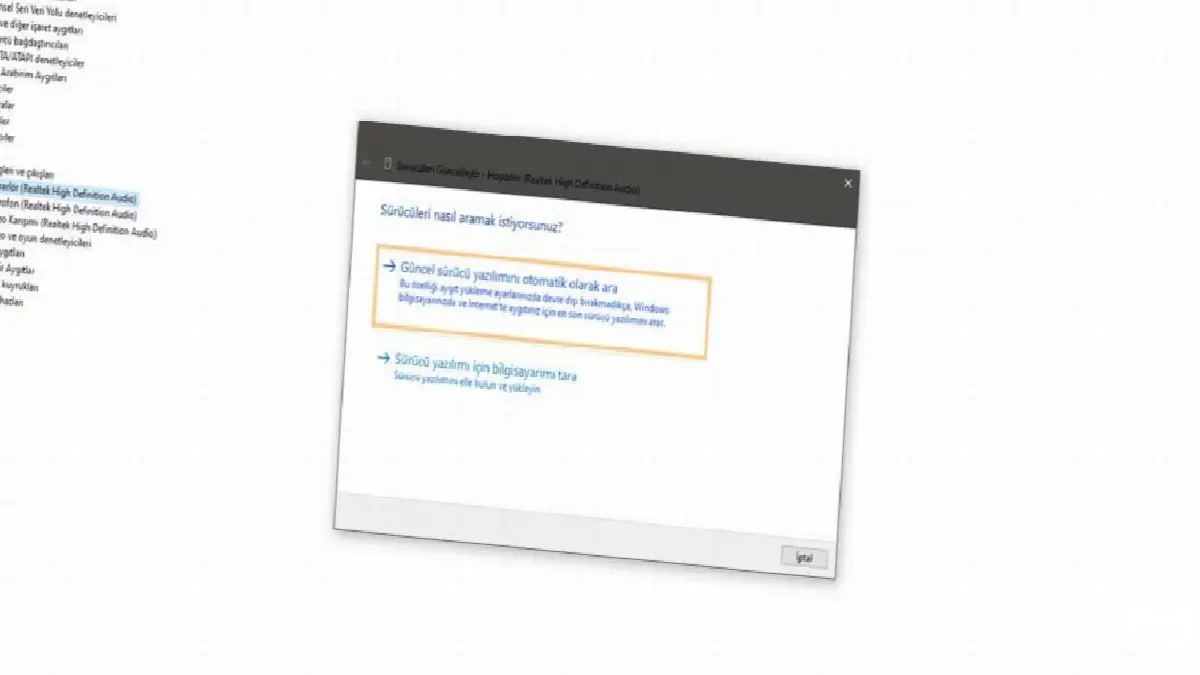
When you click the Automatically search for updated driver software button, your computer your sound card It will automatically find the updated drivers required for your device. automatically downloaded from the internet driver software You will be able to easily update drivers with . If your computer cannot find updated driver software on Windows servers, go to the next step.
Step #7: Click on the Scan computer for driver software button.

Realtek High Definition When you press the scan the computer button to update the audio, you can easily identify the driver you downloaded. Sometimes this step may not work and you may not see your drive. If the driver you downloaded is not recognized by your computer, you can use the method we explained in the next step.
Step #8: Select Let me choose from a list of available drives on my computer.

In this step, first download the .inf extension files you have downloaded to your computer. has a floppy disk You can easily introduce it by clicking the button and then clicking the browse button. When you complete all these steps Realtek High Definition Audio Your driver will be updated.
different if you want brand or model You can easily update your drivers using the steps we explained above. In this guide, we tell you Realtek HD Audio Driver How to update? We explained the answer to the question step by step. If you follow the instructions above, you can easily update your sound driver. Stay healthy until we meet you in another guide.
Every business is unique. Let’s explore how we can tailor these ideas to your own digital project.


