
How to Use BlueStacks? Enjoying Android on PC
BlueStacks, one of the most used Android emulators in the PC world, helps us perform Android operations on our computers and…

BlueStacks, one of the most used Android emulators in the PC world, helps us perform Android operations on our computers and…
The most used in the PC world From Android emulators one who is BlueStackshelps us perform Android operations and play Android games on our computers. This very useful program also has some alternatives worth mentioning.
Converting part of our system to Android operating system How to download BlueStacks, how to install, how to useWhat are the system requirements of BlueStacks 4, the latest version of BlueStacks 3? In this content, we take a closer look at all these questions. Let's learn step by step how to install BlueStacks and how to use it.

What is BlueStacks?
BlueStacks, an Android emulator, allows you to use part of your PC system as the Android operating system. Play StoreBlueStacks, where you can access all applications and other applications available on , has a very large application library.
You play on your phone via BlueStacks. Android games You can enjoy it on your computer. BlueStacks is completely legal and malware-free. BlueStacks also has extensive customization options for gamers. You can customize your games in many areas, from graphics settings to keyboard key assignments and macros.
BlueStacks 4 system requirements:
Minimum:
- Operating System: Microsoft Windows 7 and above
- Processor: Intel or AMD
- RAM: At least 2 GB RAM
- HDD: 5 GB free space.
Recommended:
- Operating System: Microsoft Windows 10
- Processor: Intel or AMD Multi-Core Processor
- Graphics: Intel/NVIDIA/ATI, Onboard or Discrete controlled
- RAM: 8 GB and above
- HDD: SSD or Fusion/Hybrid Drive
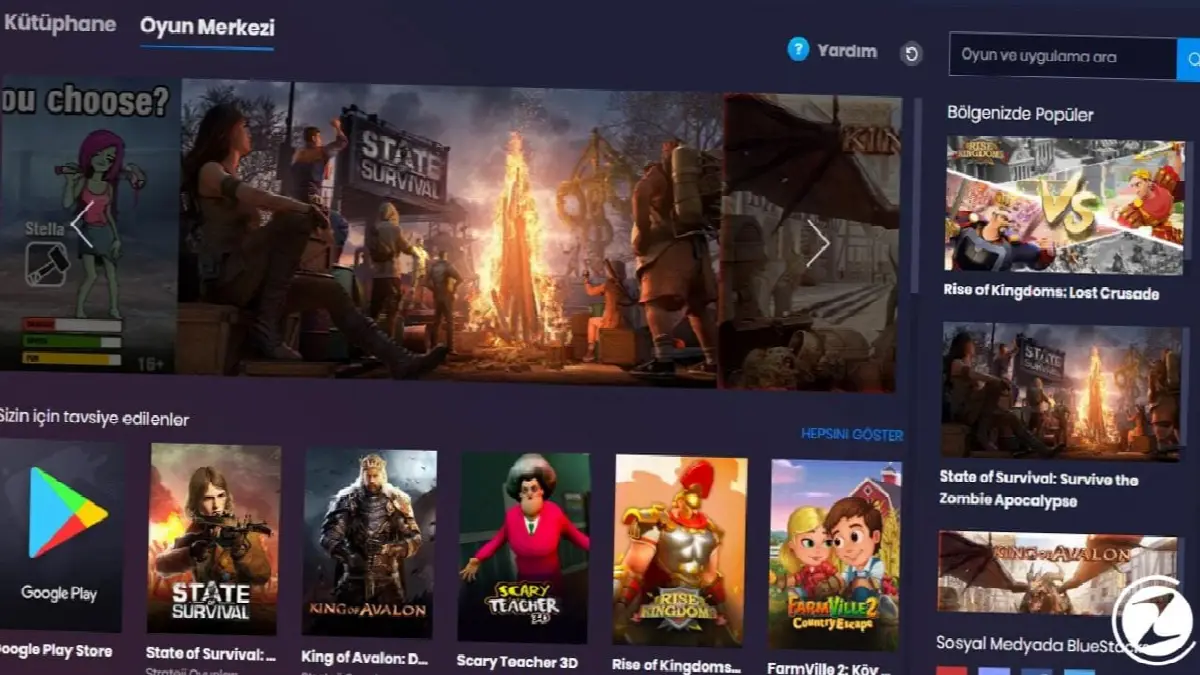
How to install BlueStacks?
- Step #1: Download the installation tool from the official website of BlueStacks.
- Step #2: Open the installation tool you downloaded.
- Step #3: In the window that appears “Install Now” Click the button.
- Step #4: out Google Play in the tab “Sign In” Click the button.
- Step #5: Sign in with your Google account.
- Step #6: Terms of ServiceAccept and BlueStacks is ready to use.
How to use BlueStacks?
- Step #1: Open the BlueStacks app.
- Step #2: Type the applications you want into the search bar and search
- Step #3: Select the application you are looking for from the list.
- Step #4: To install the application “Upload” Press the button.
- Step #5: Library Go to the section.
- Step #6: Click on the application you want to open.
- Step #7: Set the controls and your app is ready to use.
Step #1: Open the BlueStacks app.

After the installation is complete, open the BlueStacks application from the desktop, or from the search section in the Start menu if you cannot find it there.
Step #2: Type the apps you want in the search bar and search

Type the game or application you want to find in the search bar in the upper right corner. It will be the first choice of many of us in this scenario PUBG Mobile We're going through it.
Step #3: Select the app you are looking for from the list.

After the search is completed, select the application or game you want from the list that appears.
Step #4: Click the “Install” button to install the application.
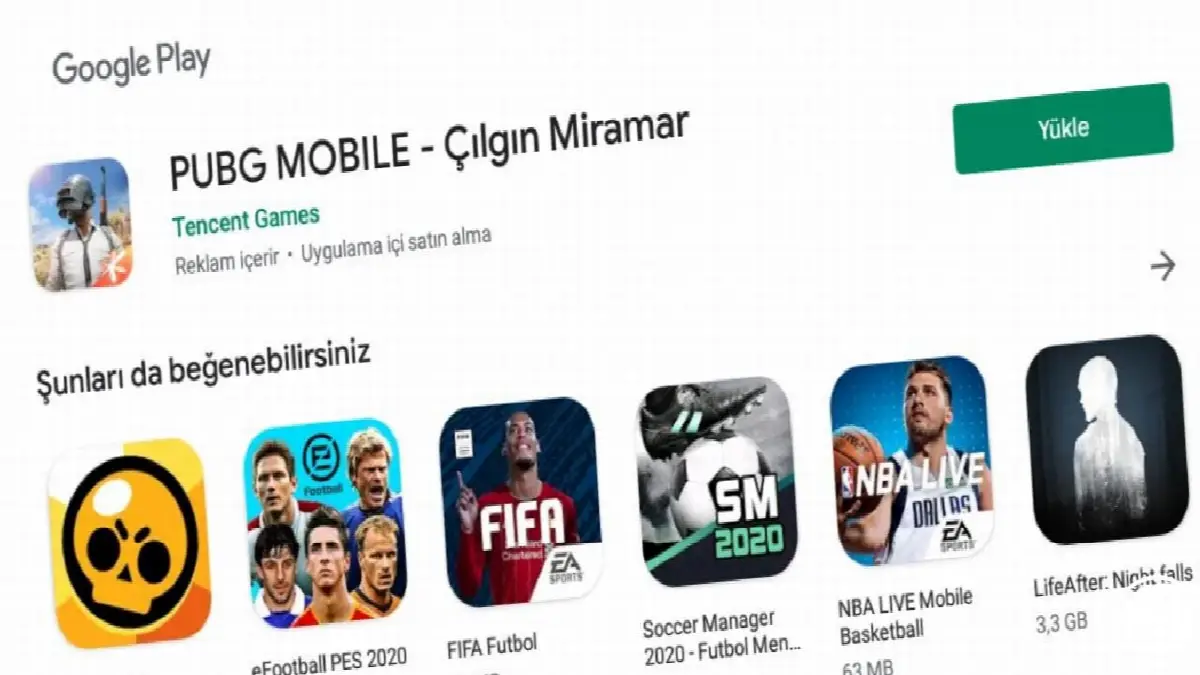
After selecting the application or game you want, BlueStacks will open the Play Store page for you, just like on our smartphones. “Upload” We press the button.
Step #5: Library Go to the section and click on the application you want to open.
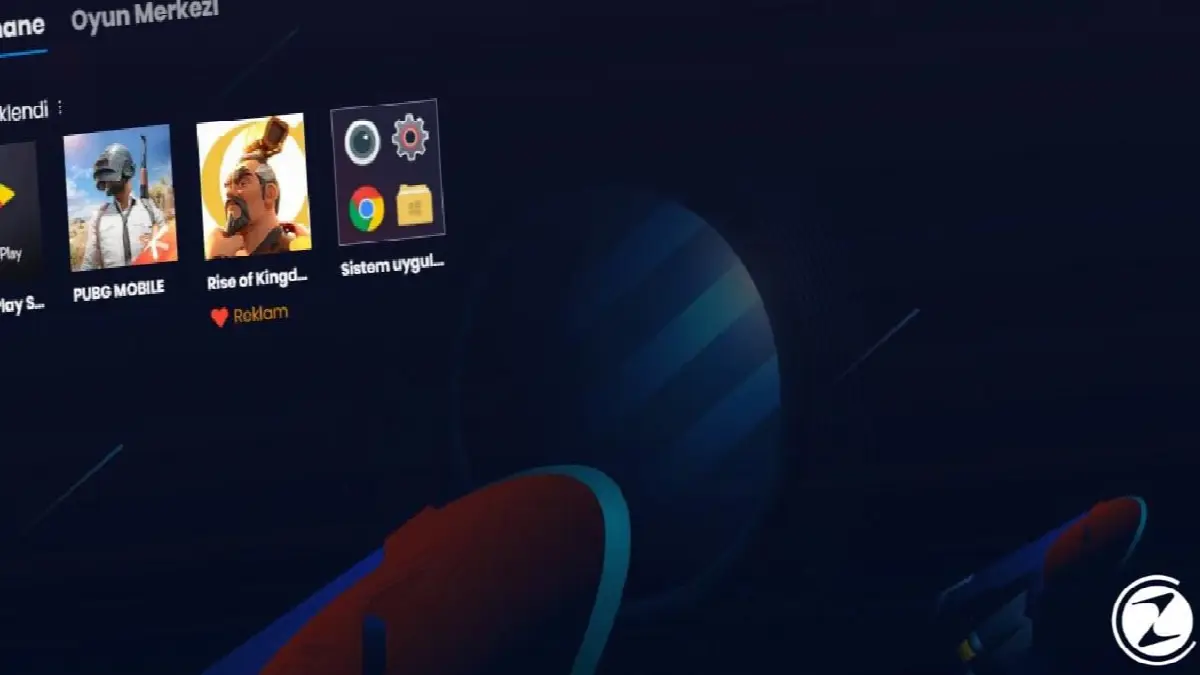
To access the application after the installation is complete Library Click on . Then, just click once on the game or application you want to open among the listed applications.
Step #6: Set the controls and your app is ready to use.
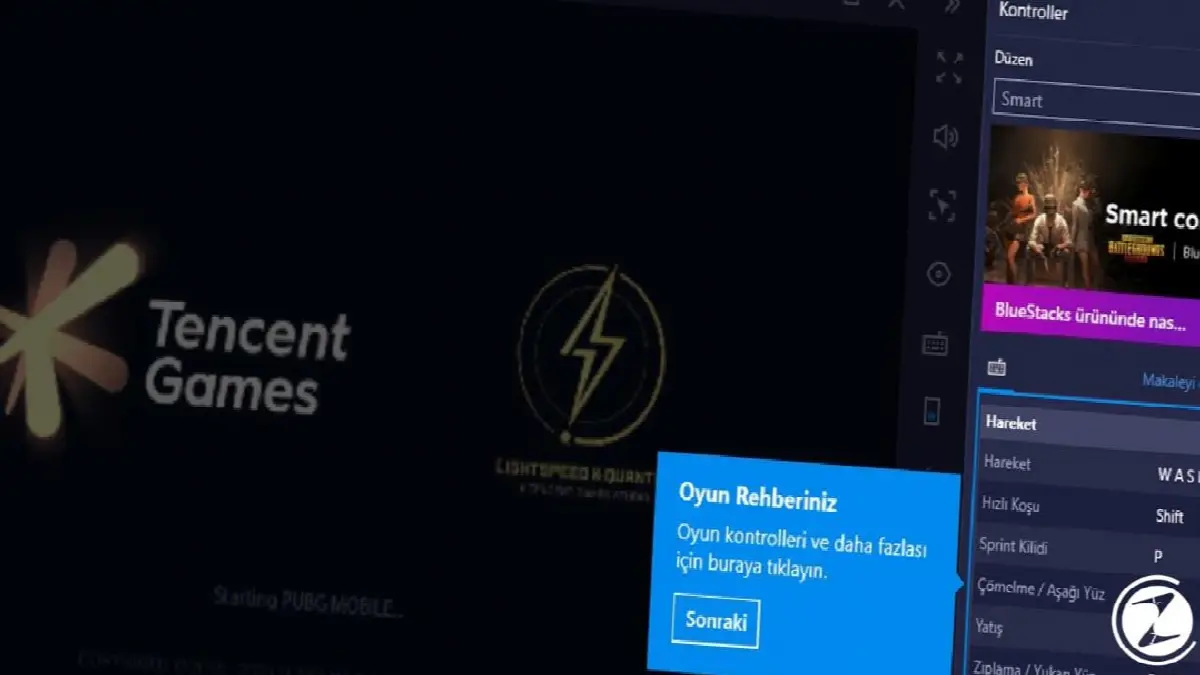
When the application you installed opens, BlueStacks will offer you the keys you want to assign controls and the macros you want to make. Adjust the controls as you wish in the automatically opened panel and enjoy your game.

BlueStacks alternatives:
- NoxPlayer
- AMIDuOS
- Andy Android Emulator
- MEmu
- COPLAYER
NoxPlayer

NoxPlayeris one of the most popular Android emulators available in the market other than BlueStacks. Thanks to this program, which allows us to install an Android application and game directly on Windows, you can access applications and games directly with desktop shortcuts without the need for another interface. To download NoxPlayer, you can access its official page here.
AMIDuOS

In this program, which focuses mostly on business and office-related applications on Android, games can also be played. paid AMIDuOSThere is also a 30-day free trial version.
Andy Android Emulator
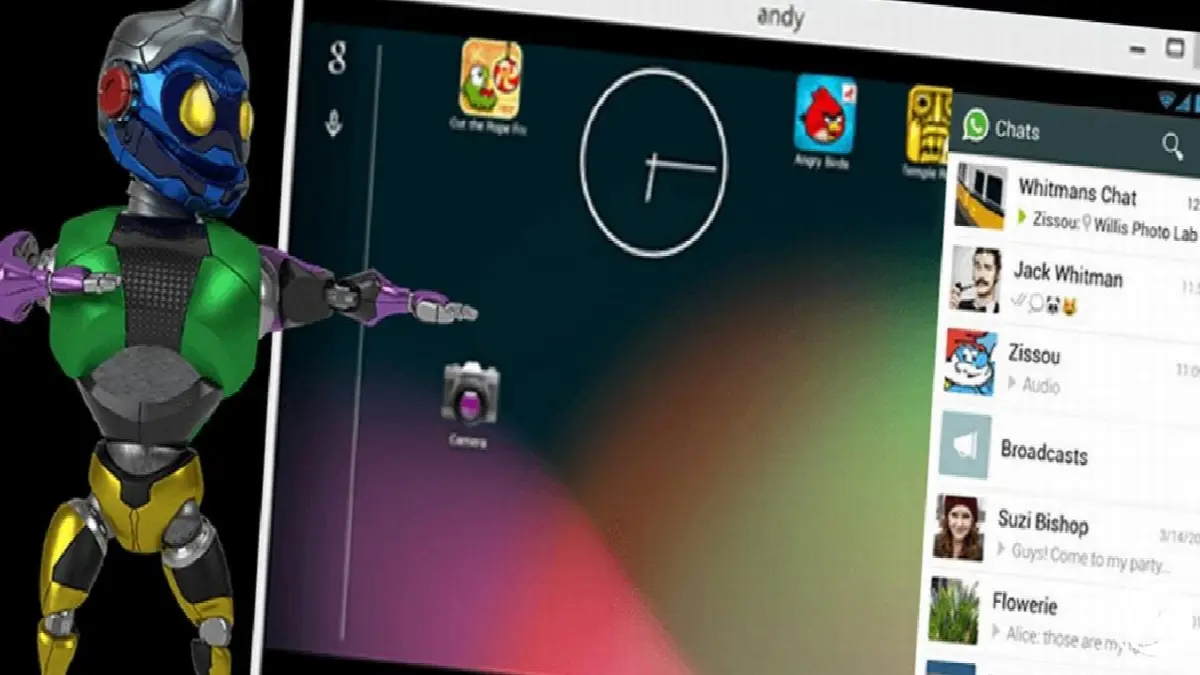
Being a completely free Android emulator, Andy does not have an advertising system that will hinder your game or application experience. You can make keyboard and macro adjustments for your games in Andy, where you can drag the Android applications you use to the window size you want, just like in BlueStacks. Andy Android EmulatorTo download it, you can access its official page here.
MEmu
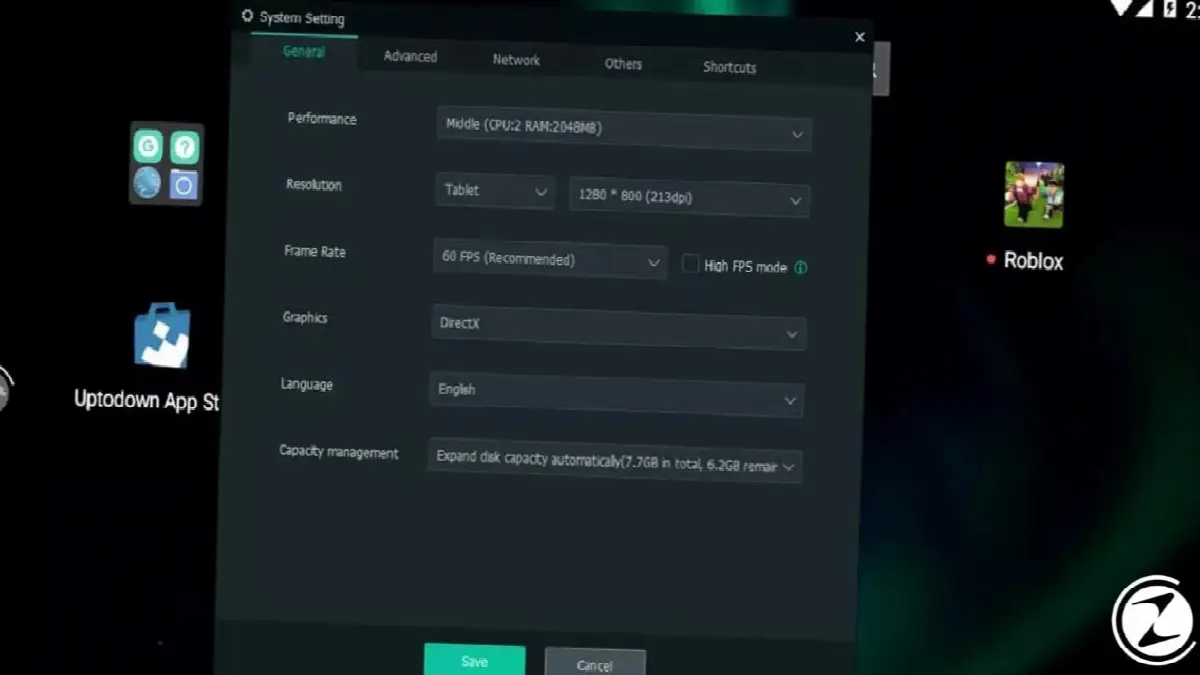
recently released MEmu It is one of the promising emulators. MEmu, which supports both Intel and AMD processors like BlueStacks, also offers the Lollipop version of Andorid for free. You can use MEmu for gaming, but it is more focused on daily applications. Like MEmu, BlueStacks and other emulators keyboard adjustments And macro- Does not contain options. You can download MEmu here.
COPLAYER

COPLAYER, a relatively newly released Android emulator whose main focus is gaming. KOPLAYER, which has almost all the features of BlueStacks, is one of the rare emulators that can play games at 60 FPS consistently, although it has minor bug problems. You can download KOPLAYER from here.
BlueStacks We have come to the end of our lists where we tell you everything you need to know. BlueStacks is a nice and useful solution for those who are not used to playing games directly on smartphones and are looking for the classic keyboard/mouse combination when we do not have the chance to access our phones. effective solution It's happening. If you are using BlueStacks or a different Android emulator that is not on the list your experiences You can share it with us in the comments section.
Every business is unique. Let’s explore how we can tailor these ideas to your own digital project.


